![Gradient_Horizontal_onDark-2.png]](https://support.goconsensus.com/hs-fs/hubfs/Gradient_Horizontal_onDark-2.png?height=40&name=Gradient_Horizontal_onDark-2.png)
Consensus leverages AI to streamline your tagging workflows, offering two distinct features designed to improve efficiency and consistency across your organization.
-
AI Tag Recommendations: Helps Tag Admins create new tags for the organization's library based on existing patterns.
-
AI Tag Suggestions for Demos: Helps users quickly apply existing tags to specific demos by analyzing demo content.
AI Tag Recommendations (Tag Creation)
This feature helps content admins create tags more efficiently. Instead of manually brainstorming names and descriptions, the AI analyzes your existing tag structure to suggest relevant new tags that align with your team's naming conventions.
Getting Started
AI must be enabled on your account to utilize this feature. If you do not have AI enabled on your account, reach out to your Consensus rep.
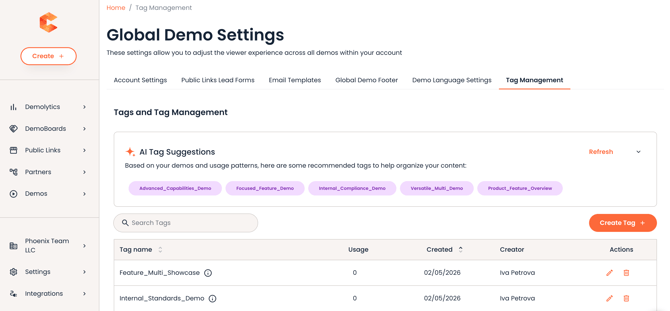
This feature is automatically available to all Tag Admins on accounts with AI enabled. There's no configuration or admin setup needed. Simply navigate to Global Demo Settings and start using AI Tag Recommendations.
How to Use
Viewing AI Tag Suggestions
-
Navigate to Global Demo Settings > Tag Admin
-
You'll see a section displaying "AI Tag Suggestions" with up to 5 recommended tags
-
Each suggestion includes a tag name and AI-generated description (max 100 characters)
-
Review the suggestions that appear on the page

Creating Tags from AI Suggestions
On the Tag Admin Page:
-
In the "AI Tag Suggestions" section, you'll see up to 5 suggested tags displayed as chips
-
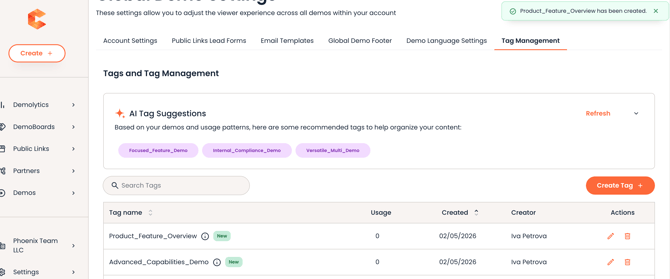
Click on any suggested tag chip
-
The tag is automatically created with:
-
The suggested tag name
-
An AI-generated description
-
-
The tag is immediately added to your tags table and highlighted so you can see it was added
-
You can now edit or delete the tag if needed by clicking the "Edit" or "Delete" buttons
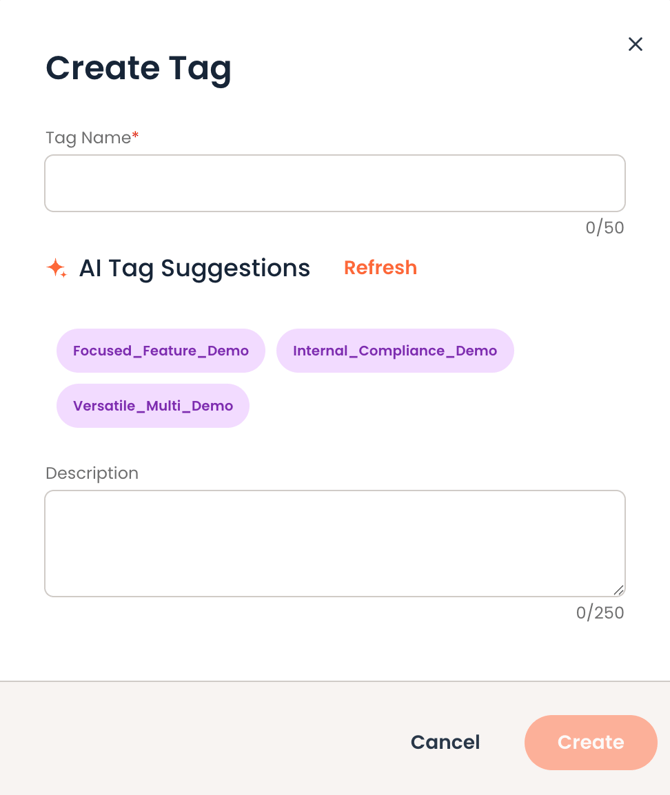
In the Create Tag Popup:
-
Go to Global Demo Settings > Tag Admin
-
Click "Create Tag +" button
-
In the popup, scroll down to see the "AI Tag Suggestions" section
-
Up to 5 AI-generated suggestions appear as chips
-
Click on any suggestion to:
-
Automatically populate the "Tag Name" field
-
Automatically populate the "Description" field
-
Remove the suggestion chip
-
-
You can manually edit these fields if you want to modify the suggestion
-
Click "Create" to save the tag
Refreshing Suggestions
If you're not satisfied with the current suggestions:
-
Click the "Refresh" button next to the AI Tag Suggestions section
-
New AI suggestions replace the previous ones
-
You can refresh as many times as you'd like to find suggestions you prefer
Manual Tag Creation
If you prefer to create tags manually or none of the AI suggestions work for you simply type your desired tag name and description directly in the fields. AI suggestions are optional, you maintain full control.
AI Tag Suggestions for Demos (Tag Assignment)
Once your library is established, Consensus suggests existing tags for your demos automatically during creation or editing. This ensures faster, more consistent tagging without removing manual control.
Who can see and use AI Tag Suggestions
AI Tag Suggestions are visible and usable by users with Tag Admin or Tag Assignment permissions.
If you don't have one of these roles, you won't see the suggestions panel. You'll continue to see the tags already assigned to a demo, but you won't be able to add or change tags.
Where you'll see suggestions
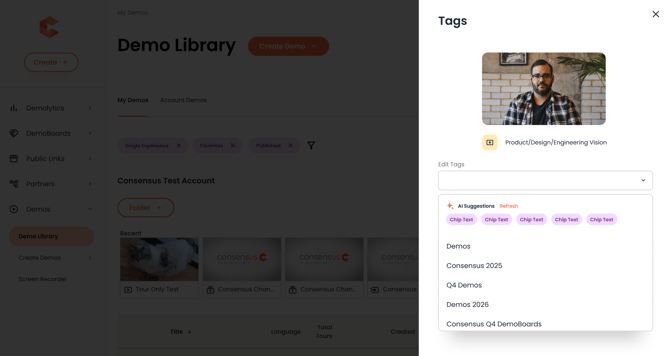
Demo Library - Edit Tags
- Go to your Demo Library.
- Find the demo you want to tag.
- Select Edit Tags from the demo's action menu.
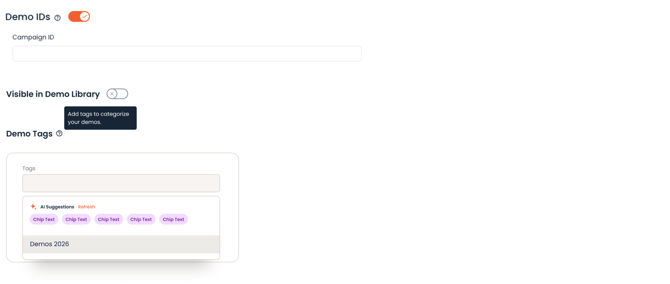
- The tags panel opens. Below the tag input field, you'll see an AI Suggestions section with up to 5 tag chips.
Demo Creation / Demo Edit Workflow
- Open the Create/Edit Demo flow or open an existing demo for editing.
- Navigate to the Tags field.
- AI suggestions appear automatically below the field - no extra steps needed.
How to use suggestions
Applying a suggestion: Click any chip in the AI Suggestions area. The tag is immediately added to the tags field. The chip disappears from the suggestions list.
Refreshing suggestions: Click the refresh icon next to the "AI Suggestions" label to request a new set of recommendations.
Ignoring suggestions: You don't have to use them. You can continue typing and selecting tags from the dropdown as you normally would.
If the field already has tags: Applying an AI suggestion adds to your existing tags, it doesn't replace anything.
If you deselect an applied suggestion: If you remove an AI-suggested tag from the input field after selecting it, it won't return to the suggestions list. You can use the refresh button to get a fresh set if needed.
What the AI looks at
The AI analyzes the following to generate suggestions:
- The demo's internal title
- The demo's description
- The demo's language
- The folder the demo is in
- Tags already in use across your organization
The AI will only suggest tags that aren't already assigned to the demo you're editing. It draws from your organization's existing tag library. It won't invent tags that don't exist in your system.
Frequently Asked Questions
Q: How accurate are the AI suggestions?
A: AI suggestions are based on your existing tag structure and are designed to maintain consistency with your current tagging conventions. We recommend reviewing suggestions before accepting them to ensure they align with your tagging strategy.
Q: Will this affect my existing tags?
A: No, this feature only provides suggestions for new tags you create. Your existing tags remain unchanged and are not affected by AI Tag Recommendations.
Q: How often do the suggestions update?
A: AI suggestions are based on your current tag structure and are periodically refreshed when new tags are added to the system. This ensures suggestions remain relevant as your tagging system evolves.
Q: Can I reject AI suggestions and create my own tags?
A: Absolutely! AI suggestions are entirely optional. You can always edit or remove an AI generated tag or create your own tags. The AI is here to assist, not to enforce.
Q: What if I don't like the AI description?
A: You can edit the description after the tag is created. Simply click "Edit Tag" and modify the description to match your preferred wording and style.
Q: How many suggestions can I see at once?
A: You can view up to 5 AI tag suggestions at a time. If you'd like different suggestions, click the Refresh button to generate new ones.
Q: What happens if there are no suggestions available?
A: If the AI cannot generate suggestions (for example, if you have very few existing tags), you may see fewer than 5 suggestions or none at all. In this case, you can simply create tags manually or click Refresh to try again.
Q: Can I turn off AI suggestions for my organization?
A: AI tag suggestions are enabled or disabled at the organization level by your Consensus admin. If you'd like to disable the feature, contact your admin or reach out to Consensus support.
Q: Will AI suggestions create new tags in my library?
A: No. The AI only suggests tags that already exist in your organization's tag library. It cannot create new tags.
Q: Why don't I see any suggestions?
A: A few possible reasons: your organization may not have any tags set up yet, your permissions may not include Tag Admin or Tag Assignment, or the feature may not yet be enabled for your organization. Contact your admin to confirm.
Best Practices
-
Review Before Accepting: Take a moment to review each suggestion to ensure it aligns with your team's tagging strategy
-
Maintain Consistency: Use AI suggestions to establish consistent naming conventions across your demo library
-
Leverage Refresh: If suggestions don't feel right, use the Refresh button to explore alternatives
-
Edit as Needed: Don't hesitate to edit AI-generated descriptions to match your team's standards
-
Establish a Tagging Strategy: Work with your team to define what tags should represent (by product, industry, use case, etc.) so the AI can provide better suggestions aligned with your intent
Troubleshooting
I'm not seeing any AI suggestions:
-
Make sure you're in the Tag Admin interface (Global Demo Settings > Tag Admin)
-
Ensure you have Tag Admin permissions
The suggestions don't match my tagging strategy:
-
Click "Refresh" to generate new suggestions
-
Consider manually creating tags that better align with your strategy
-
Remember that suggestions are optional - you can always create tags manually
I want to edit a suggestion before creating it:
-
You can modify the tag name and description directly in the Edit Tag popup
-
Make your changes and then click "Save"
-
The tag will be saved with your edits
I accidentally created a tag I didn't want:
-
Go to the tags table and click the "Delete" button for that tag
-
A confirmation will appear before the tag is removed
-
The tag will be deleted from all demos and folders associated with it