![Gradient_Horizontal_onDark-2.png]](https://support.goconsensus.com/hs-fs/hubfs/Gradient_Horizontal_onDark-2.png?height=40&name=Gradient_Horizontal_onDark-2.png)
Dynamic Tours HTML Capture is an enhanced version of Dynamic Tours that lets customers create Dynamic Tours with HTML captures. This gives builders and sellers the flexibility to edit tour content before sharing it with prospects or customers.
With HTML Capture, you can:
- Edit text and data: change names, labels, or any on-screen content; apply bulk AI-powered edits (e.g., translate to Spanish, re-theme for healthcare, or anonymize data)
- Swap images and logos: replace any image with one from your local storage
- Blur sensitive elements: hide PII or any content you don't want viewers to see
- Enable full scrolling: viewers can scroll through each captured page just like a live product, with hover states fully intact
- Add AI narration and callouts: generate voiceover audio and AI-written callout scripts per step
- AI Edit full data sets: customize every data point in your captures using our natural language Ai prompt feature. Example: “make this all spanish” or “ make this demo data healthcare themed”
All existing Dynamic Tours capabilities (mobile-friendliness, analytics, embedding in demos) are included, and you can still create a tour using the existing Dynamic Tour recording capture.
Who Has Access
HTML Capture is available to users with the following roles:
- Admin
- Dynamic Tour Creator
- Custom Roles
Getting Started
Prerequisites:
- Have an active Dynamic Tours license
- [Optional] Have AI active on your account to access the AI features
Setup:
-
Install the Consensus Dynamic Tour + Simulation Builder extension
How to Use
Step 1: Start a New HTML Capture
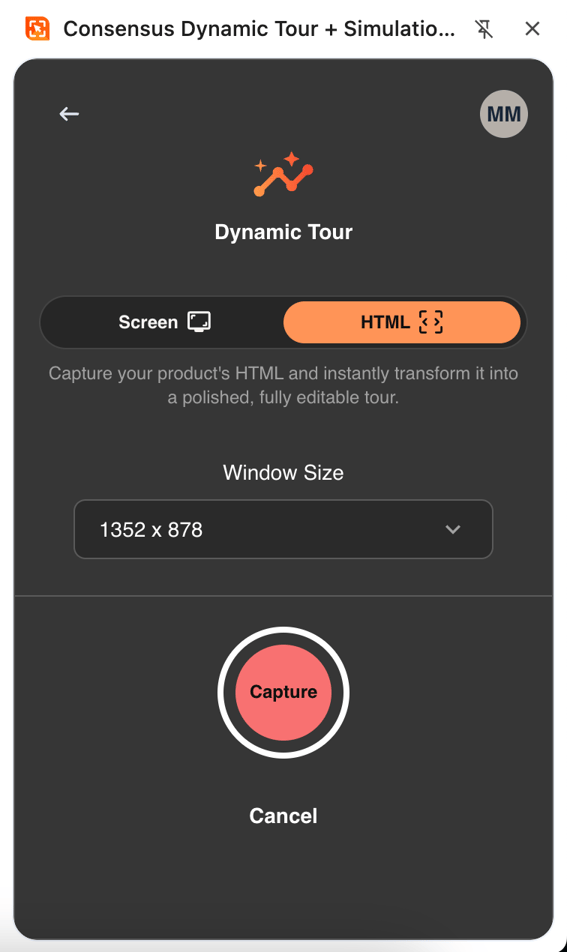
Open the Consensus Chrome extension and select Dynamic Tour. In the capture menu, choose HTML (rather than Screen) as your capture type.
Set a custom window size — 1920x1080 is recommended — or choose from presets (Laptop, Tablet, Touchscreen). Click Capture to begin. A short countdown will play before recording starts.
Step 2: Capture Your Screens
A floating capture bar will appear on your screen. Choose your capture mode:
- Auto: each navigation or state change is captured automatically
- Manual: use the keyboard shortcut shown on the capture bar (Mac: ⌘ + Shift + S / PC: Ctrl + Shift + S) to capture specific states

Navigate through your application and capture each screen you want in the tour. The capture count will increase as you go. Use the capture bar controls to Stop, Restart, or Delete the session at any time.
Step 4: Edit Your Tour
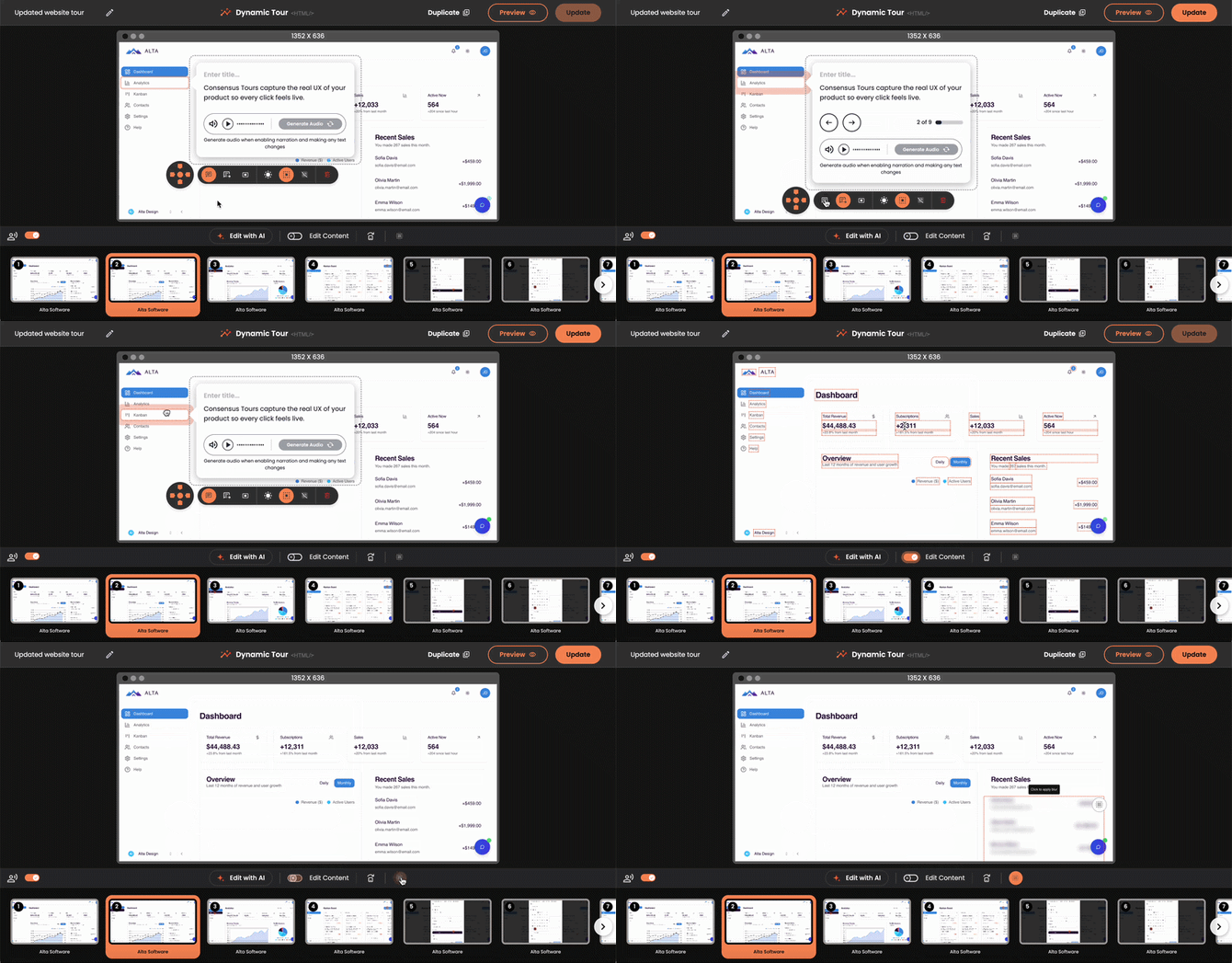
When you finish capturing, the tour opens automatically in a new browser tab. From the editor you can:
- Rename the tour
- Edit text: click Edit on any screen to change on-screen content
- Swap images: click Upload on any image to replace it, or reset it to revert to the original
- Blur elements: toggle blur on, then click any element you want to hide
- Add/edit callouts: set a title, supporting text, position (above, below, left, right, or center), and target shape (circle or rectangle)
- Enable narration: toggle narration on and generate audio for each callout
- Duplicate or delete screens: manage individual steps as needed
Note: Some elements cannot be edited, including charts, graphs, checkboxes, pencil/edit icons, and placeholder text inside form fields.
[AI Enabled] Step 4: Edit Your Tour with AI
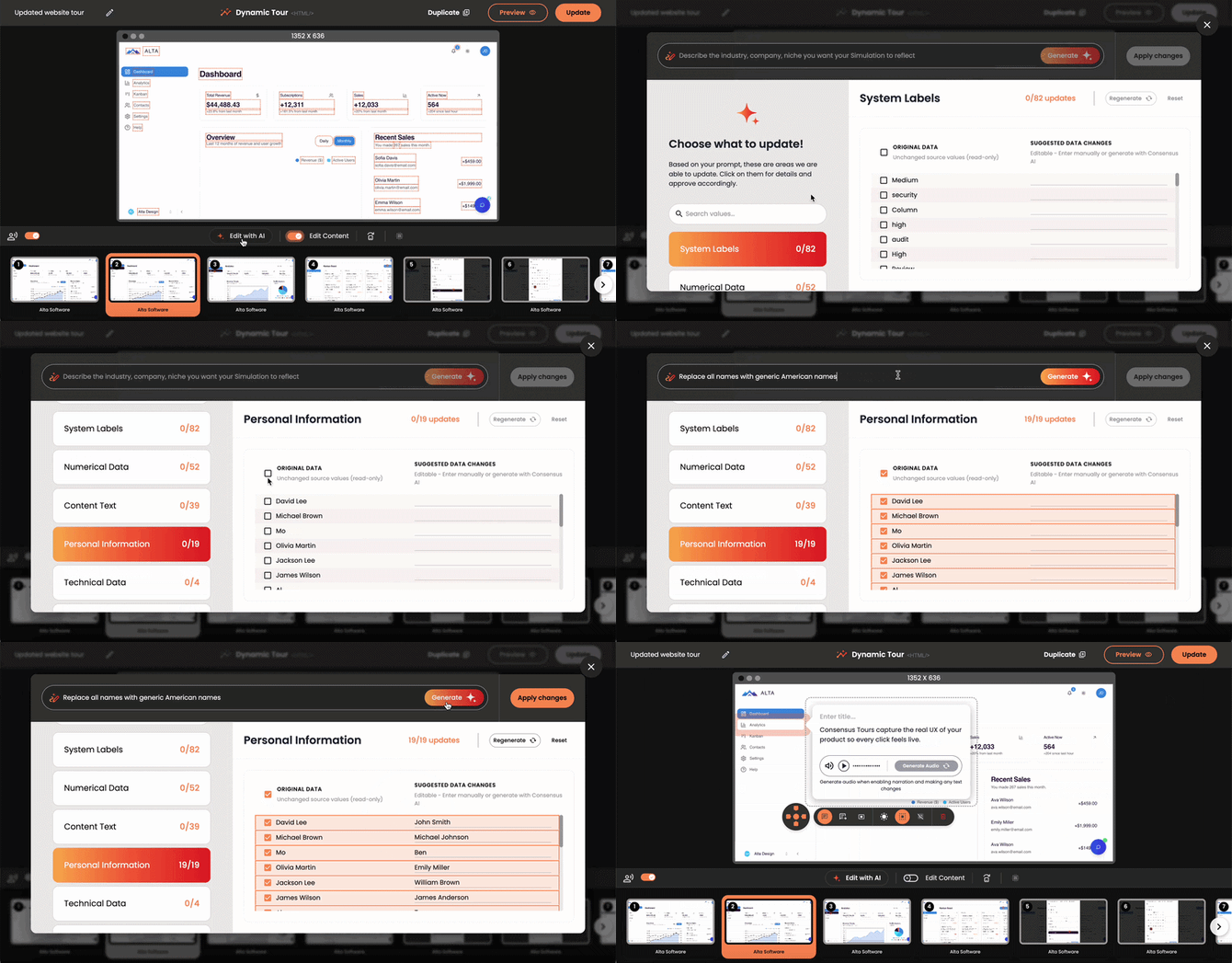
The AI Data Editor lets you transform an entire tour with a single prompt — no manual field-by-field editing required. Use it to:
- Edit at scale: update text, fields, and branding across your entire tour instantly using a natural language prompt (e.g., "Make this tour healthcare-themed" or "Replace all company names with Acme Corp")
- Protect PII: anonymize sensitive data across the tour in one click
- Customize for any prospect: tailor the look, language, and content of a tour for a specific industry, persona, or account in seconds
To use it, open the AI Data Editor from within the tour editor, type your prompt, and apply. Changes are reflected across all relevant screens automatically.
*Note: AI features require AI to be active on your account. Contact your Consensus rep to confirm this is enabled.
Step 5: Preview and Publish
Click Preview to review the tour as your end users will see it. When you're satisfied, click Update to push your changes live. The tour will not reflect edits until Update is clicked.
To reopen a tour for further edits, go to the Consensus main interface, find your tour, click the three-dot menu, and select Edit Tour.
Step 6: Add the Tour to a Demo
HTML tours can be embedded in any Consensus demo type:
- Single Experience — select Dynamic Tour and choose your HTML tour
- Personalized Experience — same process as above
- Discovery Demo — your HTML tour will be available when building a new discovery experience