
To enable your Webcam while using SNAP, click "Record Video" when creating a new demo for your DemoBoard or a new Personal Intro video (PIV).
To record a new single video demo:
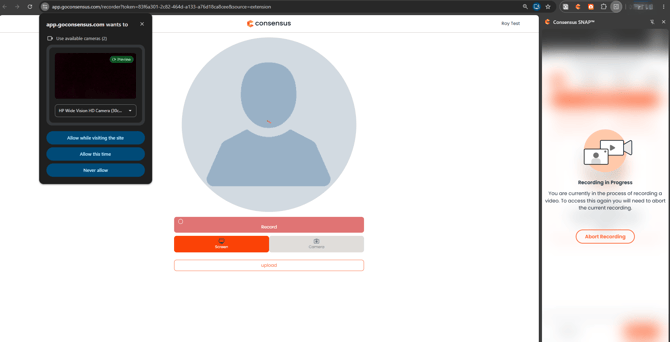
Allow Camera access and select the Screen or Camera button
To record a new PIV:
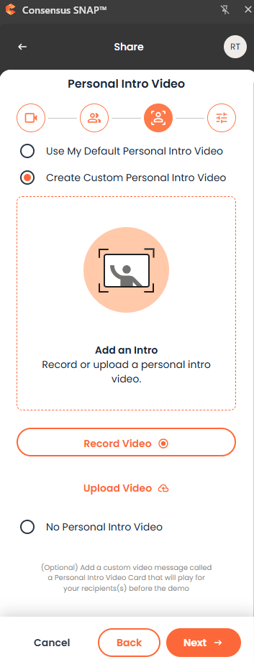
SNAP PIV recording - step 3 in Demo creation
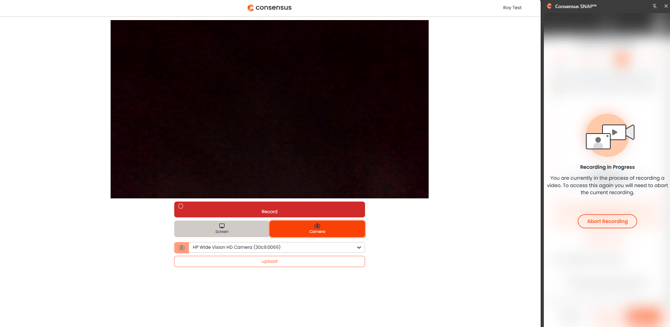
Click the Record Video button
This will open up a separate tab with our web recorder. You will then be able to select the Camera Icon and choose which camera should be used. (The camera may be greyed out depending on your browser settings. If that is the case, you will need to allow that Consensus can use your Camera and Microphone):
After allowing access, your camera will be live, and you'll be able to select from available web cameras and microphones on your computer.
Click Record to start the countdown.
Once you've finished recording, you'll be able to change the position of your webcam in the editing phase:
NOTE: Webcam is not visible on screen while recording, but can be adjusted during editing.
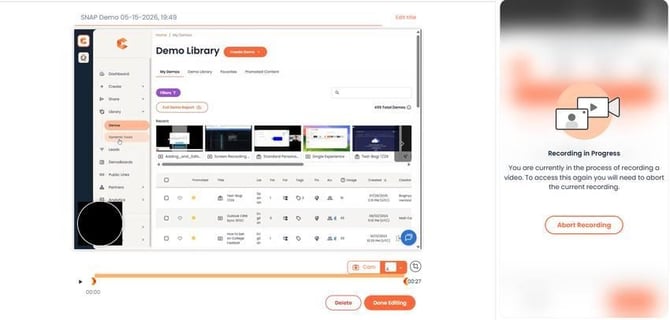 Webcam edit mode — adjust the positioning and size of your camera overlay.
Click "Done Editing" to finish recording your new demo or PIV.