
Connect Consensus's MCP server to Gong's AI Briefer and surface the right demo for an account — grounded in what your buyers are actually saying on calls. This guide walks through the full setup, from capturing product signals in Gong to running the brief from anywhere in the Gong workflow.
What you'll build
By the end of this guide, your sales team will be able to select any account in Gong and generate a "Consensus Recommended Demos" brief. The brief reads call signals captured by Gong AI, matches them against your Consensus demo library through the Consensus MCP connection, and returns three to five recommended demos with a one-click "Create DemoBoard" link for each.
The flow has three moving parts:
- MCP connection links Gong to the Consensus MCP server so Gong can call Consensus tools at runtime.
- Gong AI Data Extractor captures what customers say about your product on calls and writes it to a custom field on the Account in your CRM.
- AI Briefer uses the Consensus MCP connection to read that field, send the signal to Consensus, and return demo recommendations inside the brief.
Before you start
You'll need:
- Gong admin access with permissions for Agent Studio (AI Data Extractor and AI Briefer)
- Admin access to your CRM (HubSpot, Salesforce, or your connected system) to create or map a custom Account field
- An active Consensus account with the MCP connection available to your Gong instance
- A clear sense of which Consensus demos you want to be discoverable to the brief — the recommendation quality depends on a healthy demo library
Note for HubSpot customers: You'll create a custom property on the Company object that the Gong tracker writes to. The example below uses product_insights_from_gong. Salesforce customers will create the equivalent custom field on the Account object.
Step 1: Connect the Consensus MCP server to Gong
The MCP connection gives Gong access to the Consensus tools that power demo recommendations. You only need to do this once per Gong workspace.
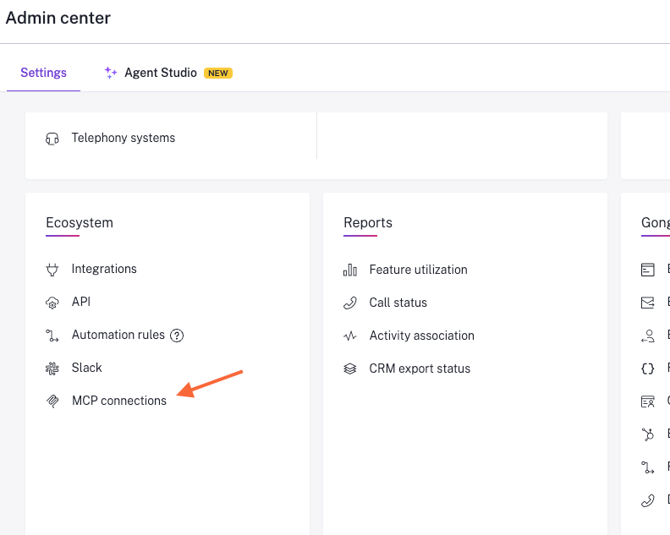
1. Open MCP connections. In Gong, go to Admin center → Settings → Ecosystem → MCP connections.
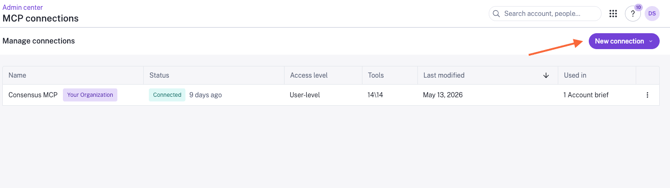
2. Create a new connection. Click New connection in the top right.
3. Enter connection details. On the Connection details step:
- Connection name: Consensus MCP
- MCP server URL: https://mcp.goconsensus.com/mcp/
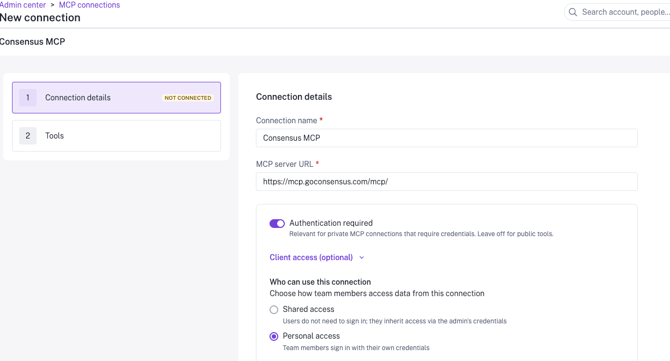
4. Configure authentication. Leave Authentication required toggled on. Consensus uses authenticated MCP connections so each user's data access reflects their Consensus permissions.
5. Choose an access level. Under Who can use this connection, select one of:
- Shared access — Team members inherit access through the admin's Consensus credentials. Faster to set up, but every Gong user sees the same view of Consensus data.
- Personal access — Each team member signs in with their own Consensus credentials. Recommended for most organizations, because demo visibility, team scoping, and analytics stay accurate to the individual user.
We recommend Personal access so each seller's brief reflects the demos and accounts they own in Consensus.
6. Enable tools. Move to the Tools step. Gong will show all 14 Consensus tools available through the MCP connection — including create_demoboard, get_demo, get_demoboard, get_transcript, and others.
Enable all 14 tools unless you have a specific reason to restrict access. The AI Briefer agent decides which tools to call based on the question; restricting tools may produce incomplete recommendations.
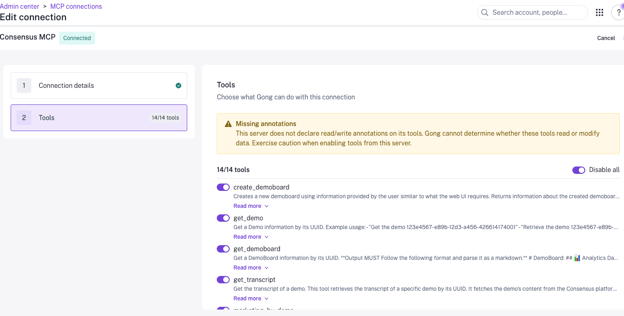
Gong will display a "Missing annotations" warning indicating the server does not declare read/write annotations. This is expected for the Consensus MCP server today. The tools are safe to enable — they read demo and account data and create DemoBoards on behalf of the signed-in user.
7. Save. Once connection details and tools are configured, save the connection. The status should display Connected in the MCP connections list.
Step 2: Set up the Gong AI Data Extractor
The AI Data Extractor scans your Gong conversations for the signals you care about and writes the results to a CRM field. This becomes the context that drives demo recommendations later.
1. Open Agent Studio. In Gong, navigate to Admin center → Agent Studio.
2. Select AI Data Extractor. Open the AI Data Extractor card. This is where you'll define what Gong AI should pull from conversations and where it should write the result.
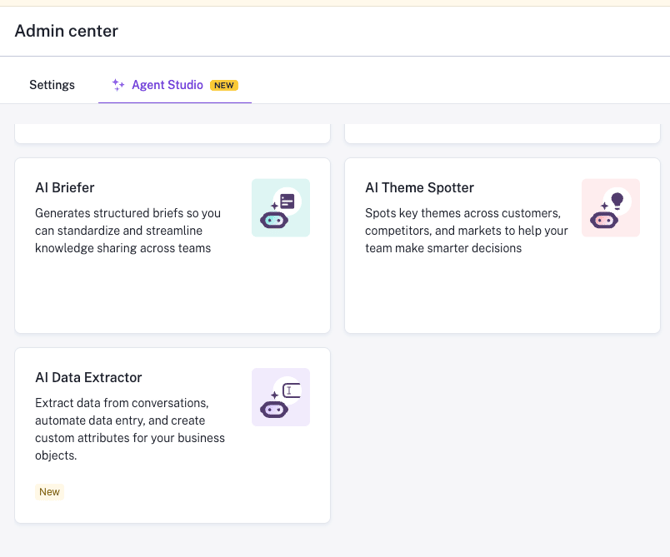
3. Define what you want Gong to find. In the Field concept section, write a clear question that tells Gong AI what to extract. The more specific the question, the higher-quality the data you'll feed to Consensus.
Example question:
What are our customers saying about what they love, like, dislike, or hate about their use of product xyz?
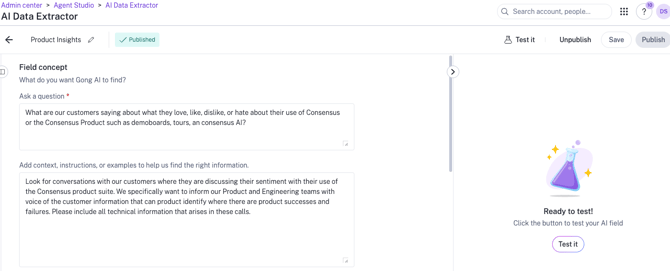
4. Add context and instructions. Use the context field to guide what Gong AI looks for and how it should interpret signal. This prompt should reflect the persona you want the data to inform.
Example context:
Look for conversations with our customers where they are discussing their sentiment with their use of the Consensus product suite. We specifically want to inform our Product and Engineering teams with voice of the customer information that can help identify product successes and failures. Please include all technical information that arises in these calls.
5. Configure the data type and CRM mapping. Under Data type, choose Text, set the Answer format to Bulleted list (this keeps the output easy for AI Briefer to parse later), and toggle on CRM mapping.
Select the CRM field you want Gong to write to. If the field doesn't exist yet, create a custom Account or Company property in your CRM first, then return to this step and map it.
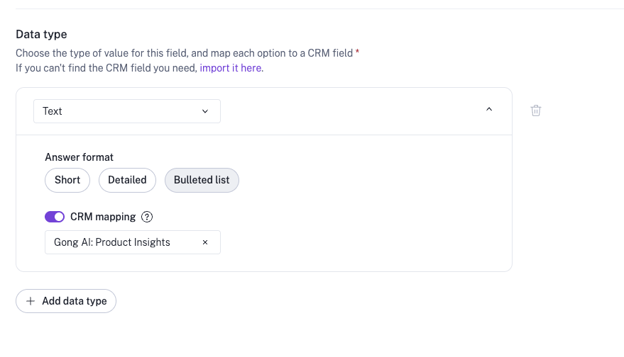 * Note, this will require you to have this custom field available in your CRM.
6. Publish. Once your question, context, and CRM mapping are set, click Publish. Gong AI will start populating the field as new calls are processed.
Allow time for the field to populate. The brief in Step 2 depends on this data being present on the account, so verify the field is filling in for at least a few accounts before moving on.
Step 3: Build the "Consensus Recommended Demos" AI Brief
With signal flowing into your CRM from Gong, you can now build a brief that turns that signal into demo recommendations.
1. Open AI Briefer. In Admin center → Agent Studio, find the AI Briefer card and click Settings.
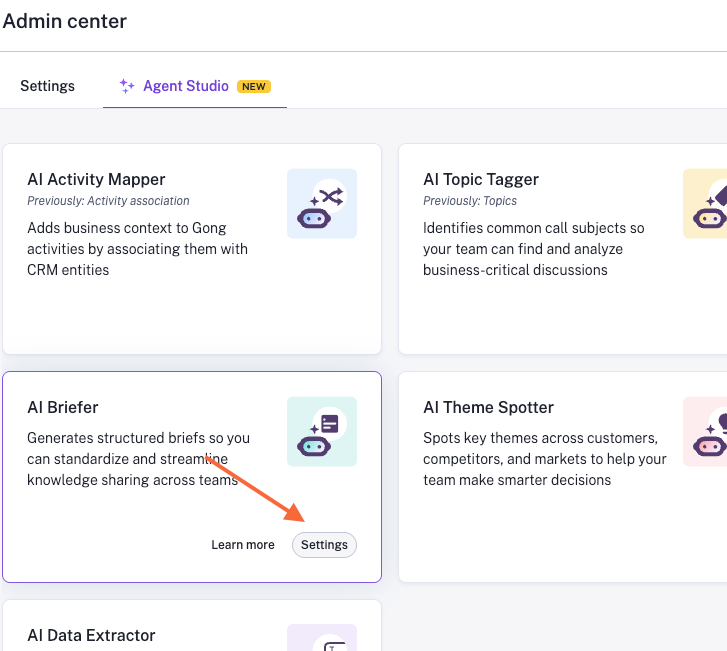
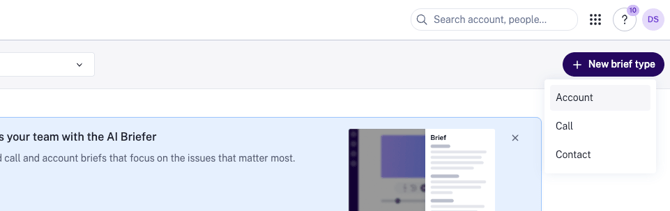
2. Create a new brief type. Click + New brief type and select Account.
Important: The MCP connection is only available for Account brief types. Call and Contact brief types do not support MCP sections.
3. Name your brief. Use something your sellers will recognize in the Briefs picker — "Consensus Recommended Demos" works well.
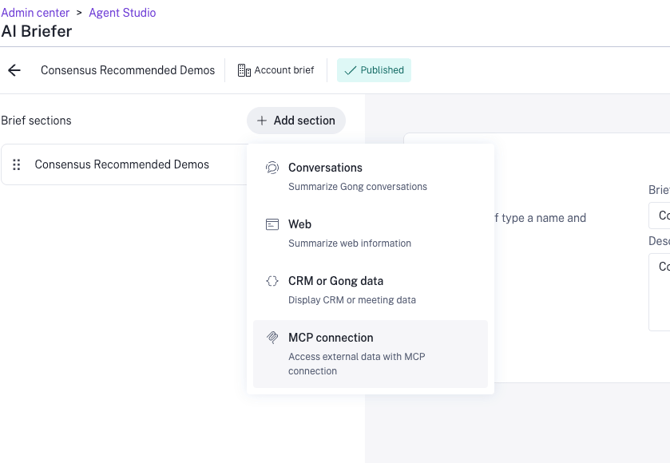
4. Add an MCP connection section. Click + Add section and choose MCP connection from the section types.
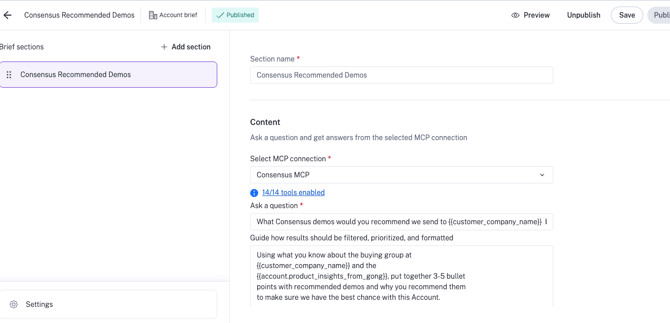
5. Select the Consensus MCP server. In the Select MCP connection dropdown, choose Consensus MCP. Confirm the tools are enabled (you'll see a "tools enabled" indicator below the dropdown).
6. Write the question prompt. This is what the brief asks Consensus on behalf of the seller. Use CRM placeholders so the prompt is personalized to each account at runtime.
Example question:
What Consensus demos would you recommend we send to based on Gong's insights?
7. Add filtering and formatting instructions. This guides how Consensus should prioritize and present results. Reference the CRM field you created in Step 1 so the buyer signal flows into the request.
Example instructions:
Using what you know about the buying group at and the , put together 3-5 bullet points with recommended demos and why you recommend them to make sure we have the best chance with this Account. Include a clickable link labeled "Create DemoBoard" at the end of each recommendation so the sales rep can create a DemoBoard in Consensus directly from the brief.
The placeholder is what bridges Gong's analysis into the Consensus request. Without it, recommendations won't reflect what your buyers are actually saying.
8. Test and publish. Use the Preview option to run the brief against a real account before publishing. Confirm the recommendations make sense, the demos are relevant, and the Create DemoBoard links resolve correctly. When ready, click Publish.
Step 3: Run the brief
The brief is now available across Gong wherever Account briefs are surfaced.
From the Home page
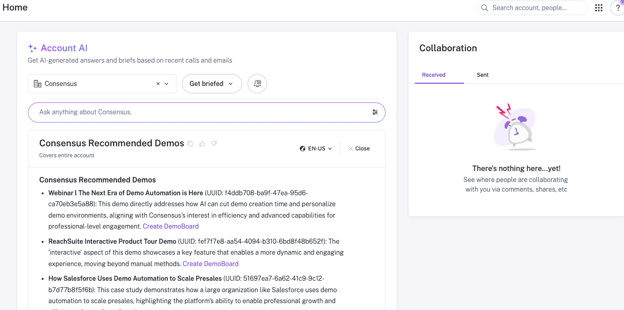
Open Home, select an account in the Account AI card, click Get briefed, and choose Consensus Recommended Demos. The brief covers the entire account.
From the Deals view
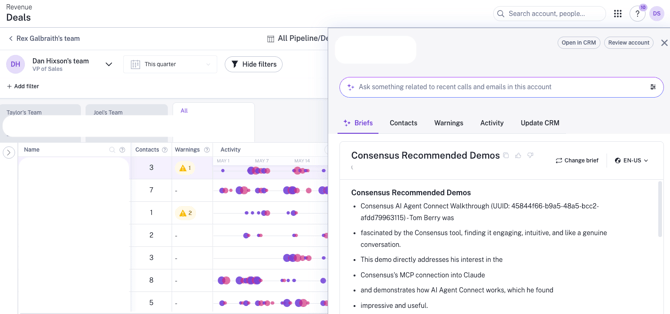
Open Revenue → Deals, click any deal to expand the right-hand panel, select the Briefs tab, and choose Consensus Recommended Demos. You can scope the brief to either the Deal or the Account using the Scope toggle in the brief picker.
From the Accounts view
The same brief is available on the Account record itself. Open any account, select Briefs, and choose Consensus Recommended Demos.
Every result will include the recommended demos and a Create DemoBoard link that takes the seller directly into Consensus to send the demo to the buyer.
What this brief does and doesn't do
What it does:
- Recommends Consensus demos based on real call signal captured by Gong AI
- Pulls personalization from your CRM, including buying group context
- Returns a clickable Create DemoBoard link for each recommendation
- Works from Home, Deals, and Accounts surfaces in Gong
What it doesn't do (yet):
- It does not draft outreach messaging or DemoBoard content — sellers complete the DemoBoard creation in Consensus
- It does not push the recommendation back to your CRM as a logged activity
- Recommendation quality depends on the quality of your Gong tracker output and the breadth of your Consensus demo library — a thin library produces thin recommendations
We’re excited to see what you create in Gong using the new Consensus MCP connection!