
What’s New
| Feature | Previous Method | New Method (OAuth 2.0) |
|---|---|---|
| Authentication | API Key + Secret | Secure OAuth 2.0 |
| CRM Sync Tab | Visible for setup | Hidden once connected |
| Public Salesforce Site | Required | No longer needed |
| Configurations | Managed under CRM Sync | Managed under Salesforce → Configurations |
How to Connect Salesforce (OAuth 2.0)
- In the Consensus webapp, go to Integrations → Salesforce (you need to be a Consensus Admin to see the Salesforce tile)
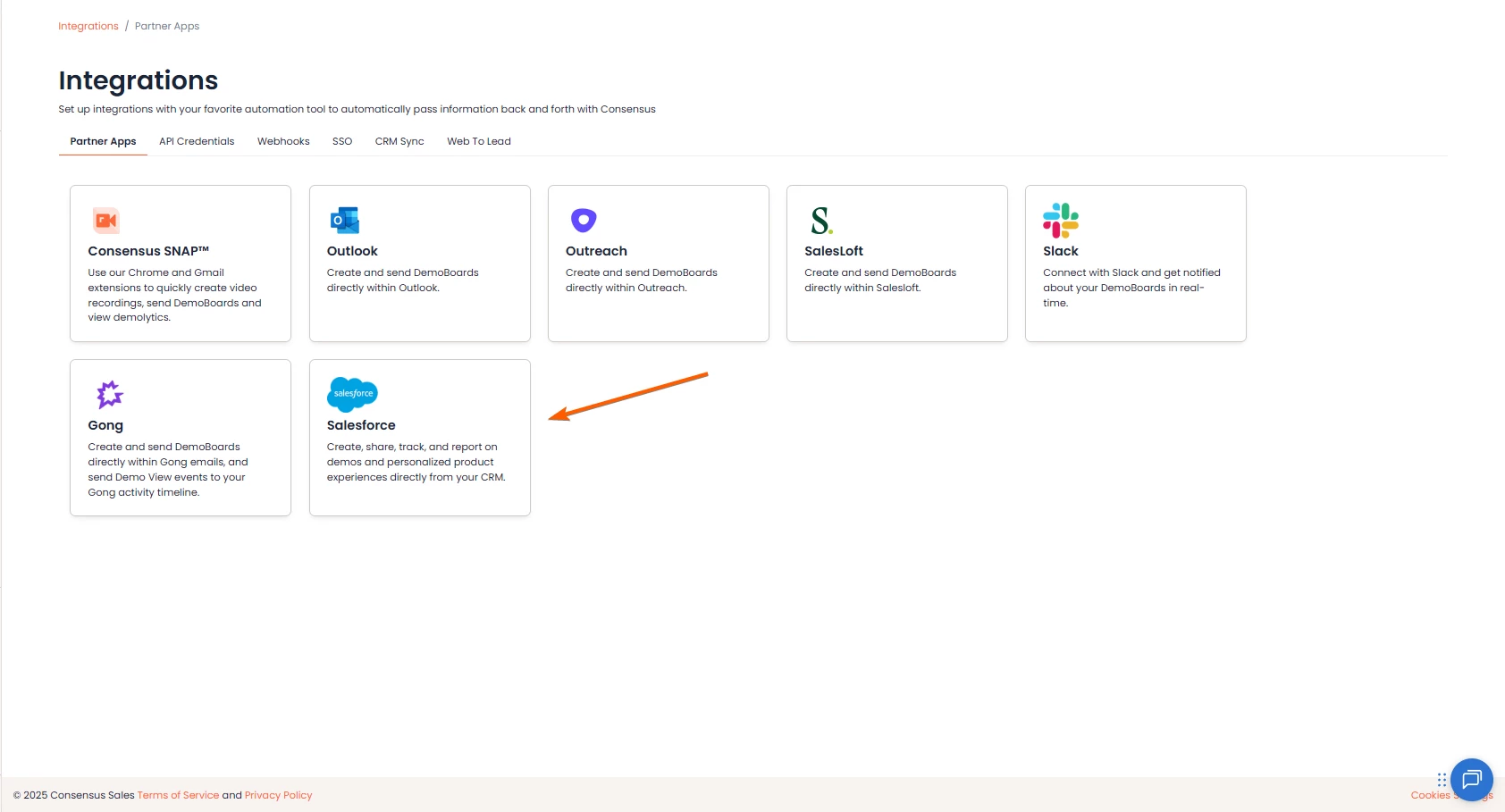 Integrations > Salesforce app
 - Click Connect (The user initiating the Connect must have the "Consensus Admin Group" permission set assigned. Otherwise the connection will fail)
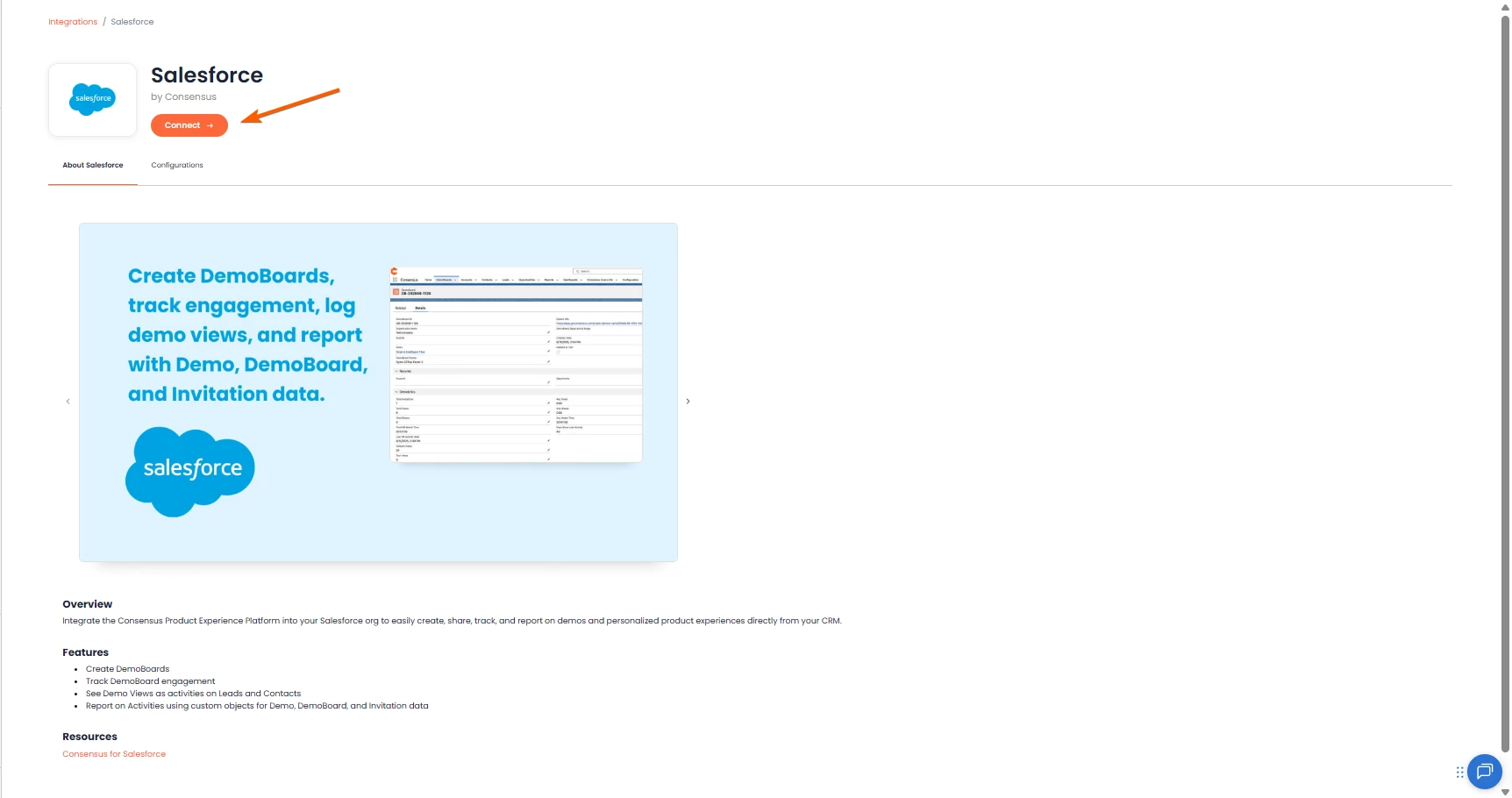 Connect button
 - Enter your Salesforce CRM URL
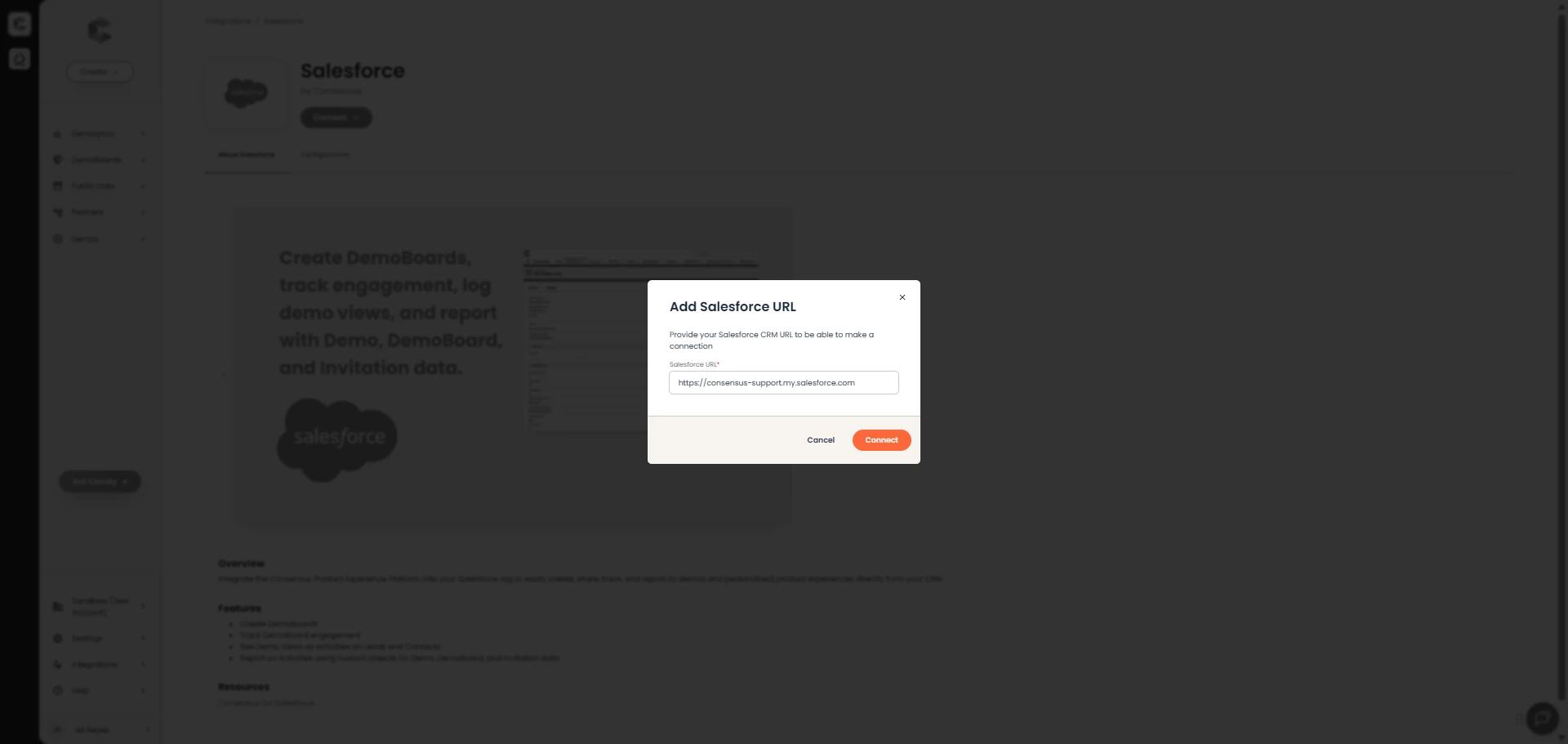 Enter your Salesforce URL. Consensus uses the customer’s Salesforce custom domain to establish the CRM Sync connection rather than the generic Salesforce login page (login.salesforce.com)
During connection, Consensus follows the authentication method configured in the customer’s Salesforce org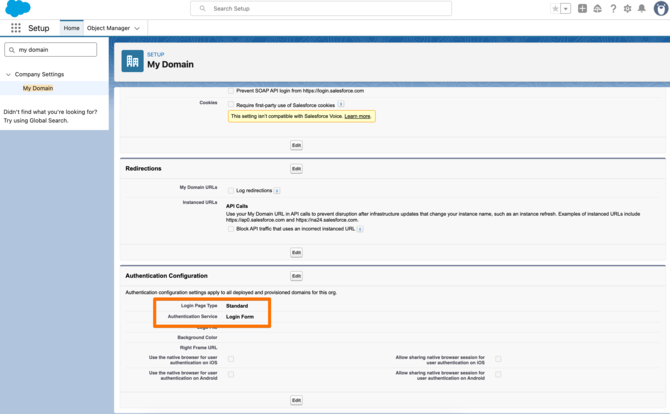
- You’ll be redirected to the Salesforce login page
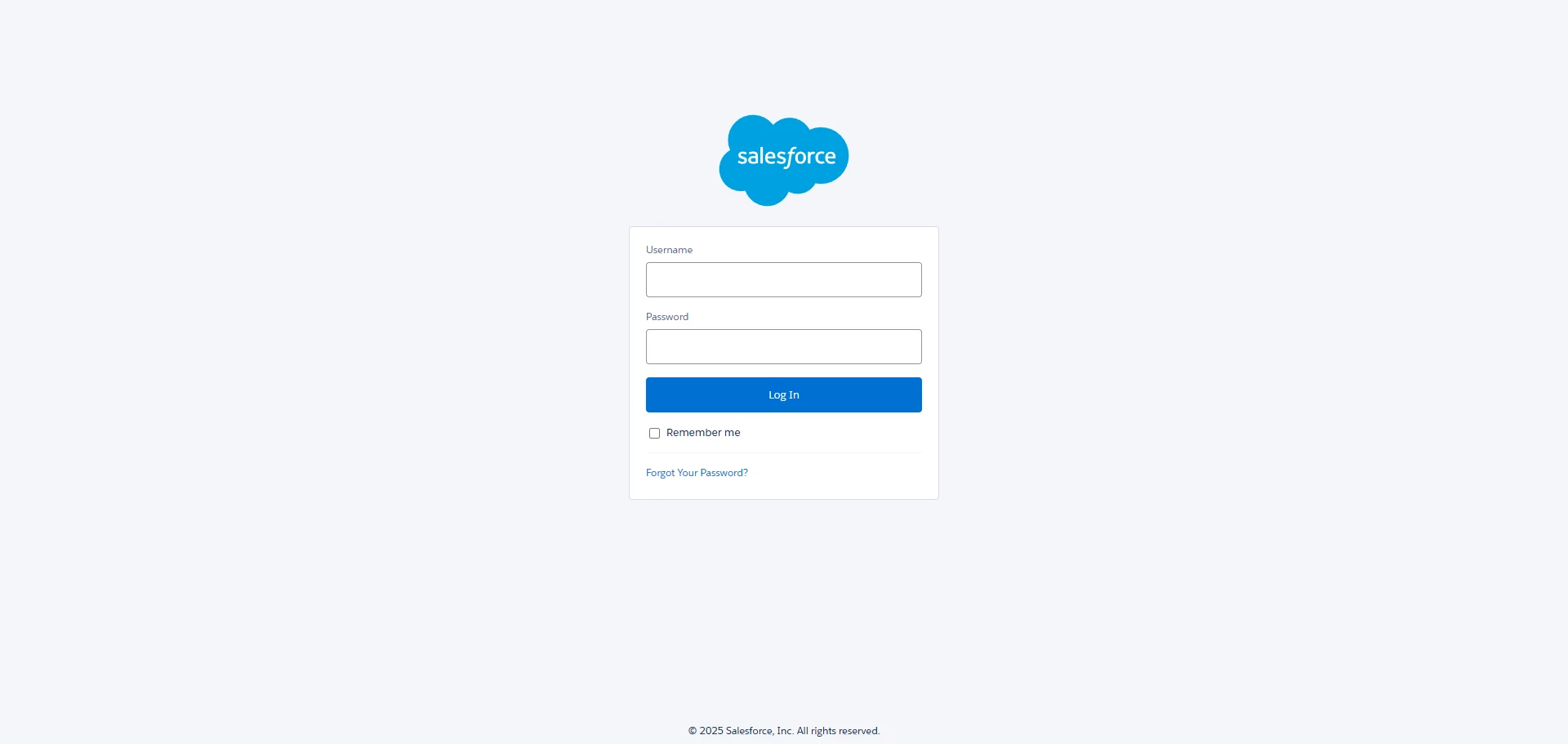 Login using your sandbox or prod credentials.
 - Log in using your sandbox or production credentials
- Review and accept permissions when prompted
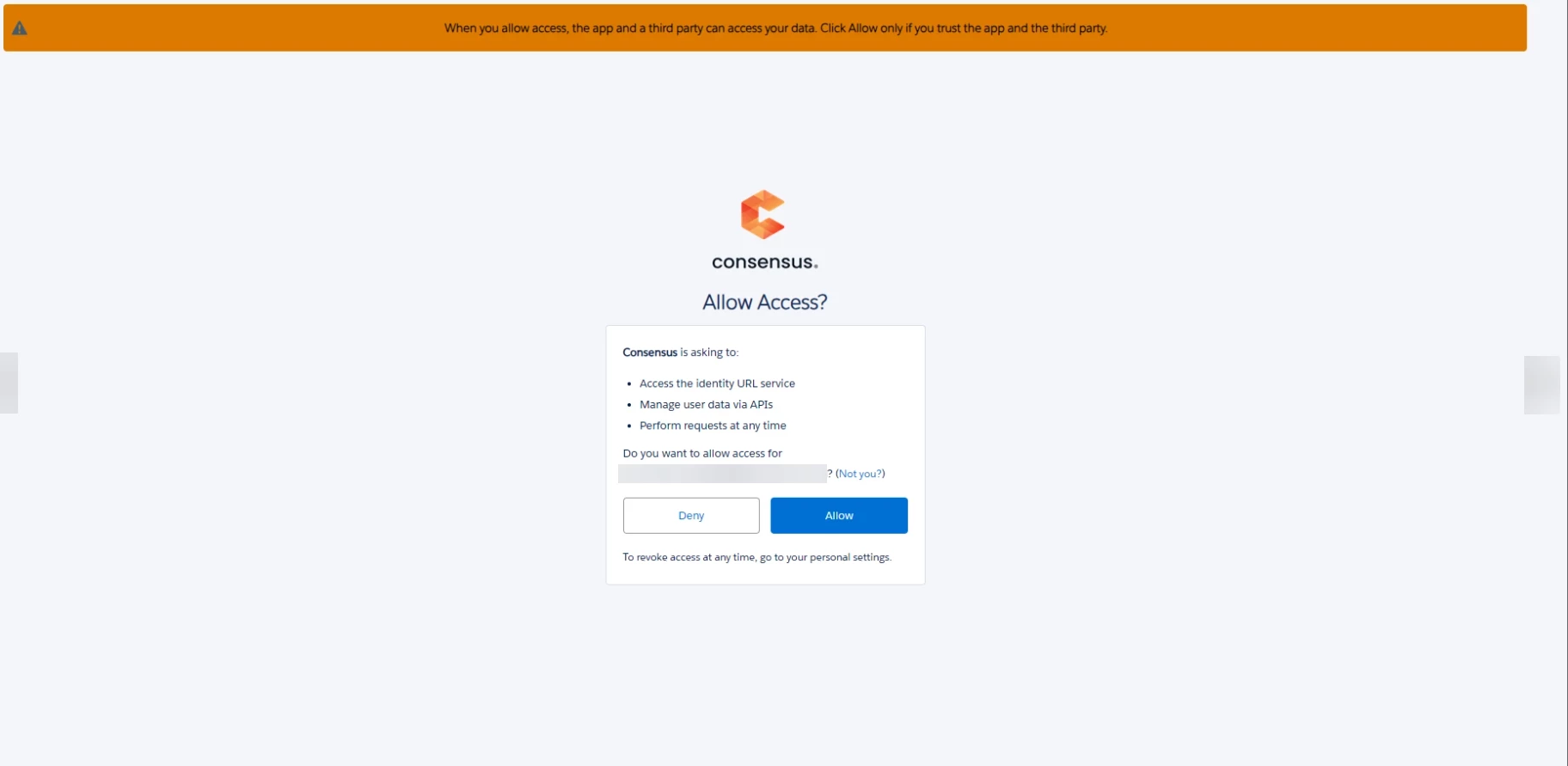 Allow Access
 - After successful authentication, you’ll be redirected back to Consensus
- Your connection status will update to Connected
- The Connect button will change to Disconnect
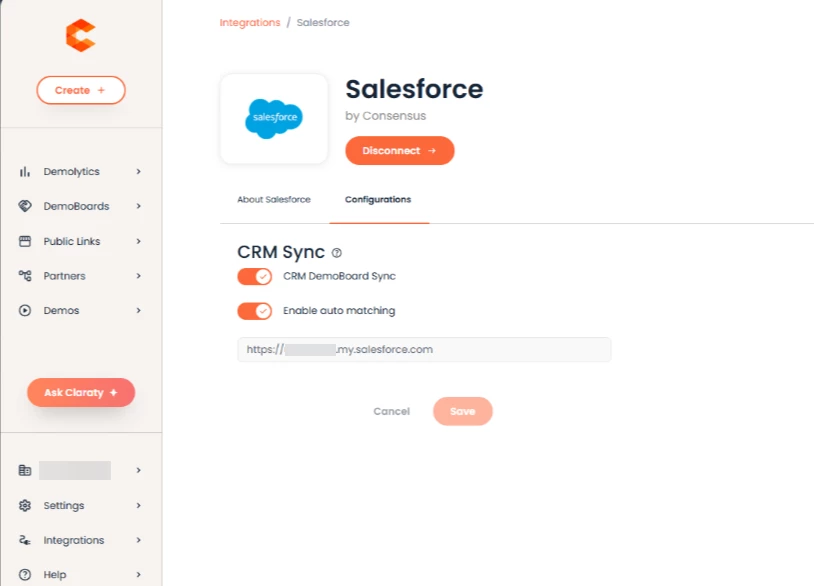 Connect button will turn to Disconnect after the process
 - A new Configurations tab will appear under the Salesforce tile
- The CRM Sync tab will be hidden or show this message:
“You are already connected. For more details, go here.”
Your previous settings (like CRM Sync and Auto-Matching) will remain the same - FInally, you will have to enable the "DemoBoard Account & Opp IDs" in Global Demo Settings so your end users can associate their DemoBoards to Account/Opps in SFDC
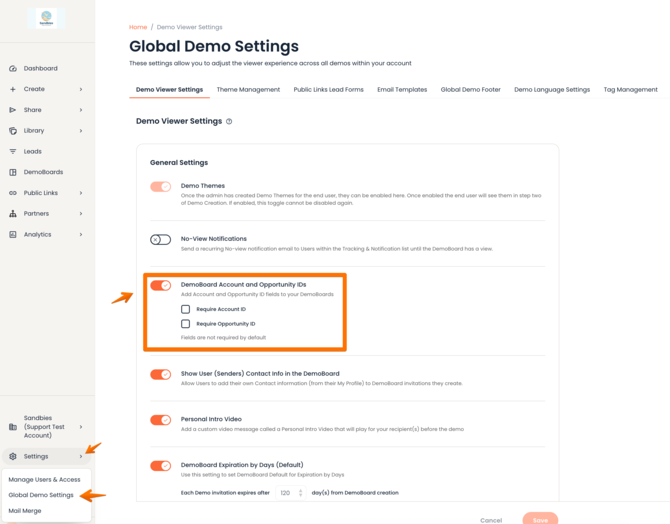
If Something Goes Wrong
If the connection fails during setup:
- You’ll be redirected back to the Salesforce tile
- You’ll see a “Something went wrong” error message
- The Connect button will remain available so you can try again
- The Configurations tab will stay hidden until the connection is successful
Disconnecting Salesforce
- Go to Integrations → Salesforce
- Click Disconnect
- The button changes back to Connect
- The Configurations tab will be hidden
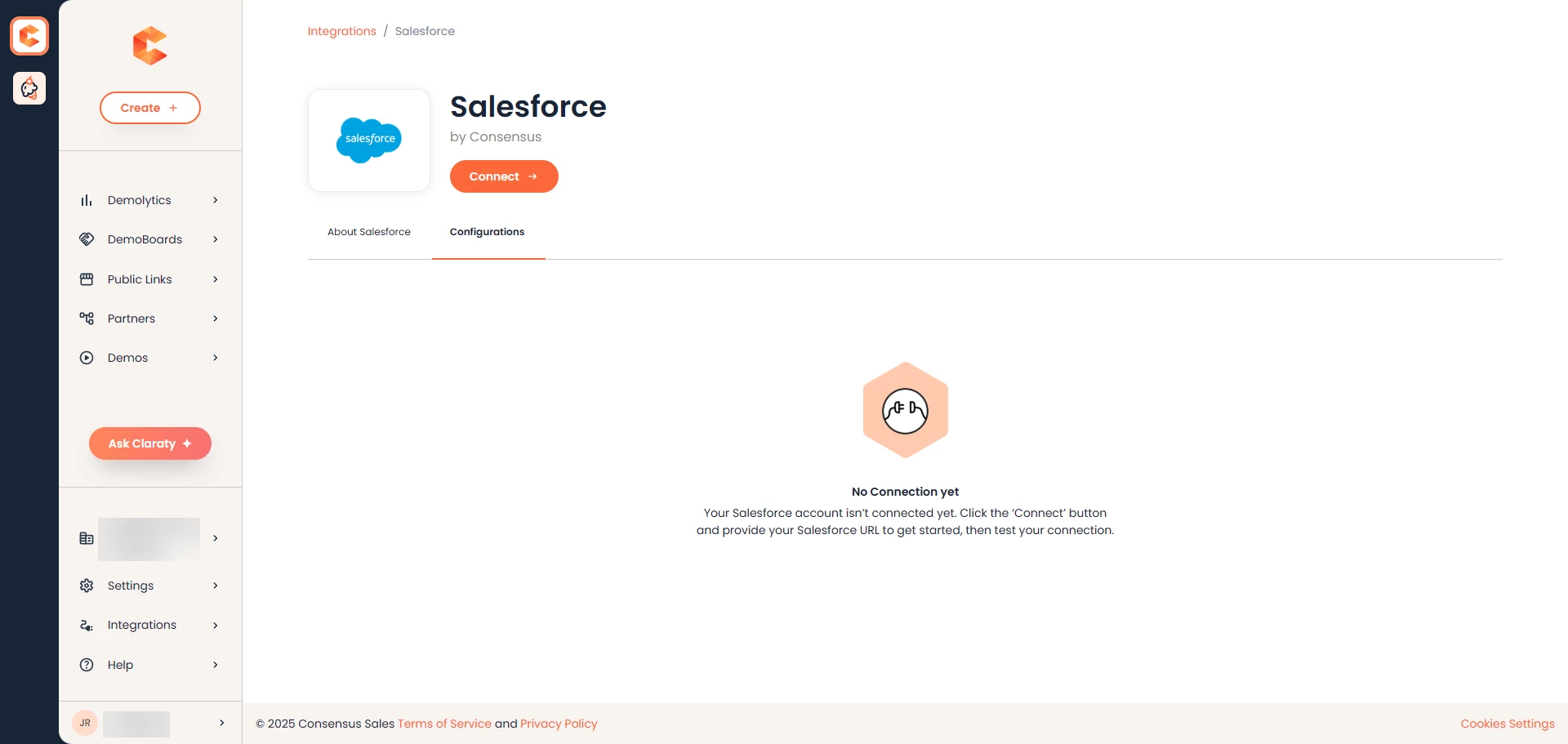 Configurations tab will be hidden after disconnection
 - Consensus will stop syncing data with Salesforce
- Go to the user used for the Integration in Salesforce and Revoke the Consensus application in the OAuth Apps section
CRM Sync Behavior
In Consensus
- If you’re using OAuth 2.0:
- The CRM Sync tab is hidden, or shows a short message directing you to the new setup
- If you’re using the older integration:
- The CRM Sync tab stays visible with existing fields
- If you disconnect Salesforce:
- The CRM Sync tab becomes visible again
In Salesforce
- If you’re connected with OAuth 2.0:
- API Key, Secret, and “Generate Credentials” fields are removed
- If you’re still using API authentication:
- Those fields remain visible
- If you disconnect:
- The fields become visible again
Important Notes
- Only Admins can connect Salesforce to Consensus
- The user initiating the Connect must have the "Consensus Admin Group" permission set assigned. Otherwise the connection will fail
- The connection happens at the organization level, users don’t need to connect individually
- Syncing behavior and frequency stay the same — only the authentication method has changed
- Admins can set the Salesforce URL directly from the Salesforce tile in Consensus
- If an active Salesforce session exists in the same window, Consensus will use that session when establishing the CRM Sync connection
- If there is no active session, the user must authenticate through the organization’s configured login method, such as SSO, username/password, or MFA
- Consensus does not override or bypass the customer’s Salesforce authentication settings. If a dedicated integration user is being used, that user must be able to authenticate through the required Salesforce login flow
- If the integration user cannot authenticate through the organization’s current SSO configuration, the Salesforce admin may need to configure an exception or otherwise allow the integration user to authenticate successfully
- Additional note: Because Consensus uses the customer’s custom Salesforce domain rather than the generic Salesforce login page, authentication issues related to the customer’s SSO configuration generally need to be addressed within the customer’s Salesforce environment
Upgrading from an Older Version
If you’re currently using a previous version of the Salesforce integration:
- You’ll need to reconnect using OAuth 2.0
- The public Salesforce site is no longer required, you can disable or delete it
- Your sync will resume once you reconnect with OAuth
- The Salesforce site setup applies only to versions 9.x through 11.9
- For version 11.10 and later, OAuth replaces the public site setup completely
Summary
Switching to OAuth 2.0 makes the Salesforce integration:
- More secure | no stored credentials
- Simpler to manage | connect in just a few clicks
- Future-ready | supports upcoming Salesforce and Consensus updates