
Feature Overview
Once connected, you can:
- Securely connect your own Gmail account
- Search your Gmail contacts from within Consensus
- Send email through your connected Gmail account, directly from Consensus
Getting Started
How to connect your Gmail account
- Go to Integrations in Consensus.
- Find the Gmail tile and click Connect.
- Sign in to your Google account and approve access when prompted.
- Once connected, you'll see your Gmail account listed as active on the tile.
NOTE: Your connection is private — only you can see and use it. Nobody else in your organization has access to your Gmail account through Consensus.
How it Works
Searching Your Gmail Contacts
Once connected, look for the contact search field when adding recipients in a DemoBoard. Start typing a first name, last name, or full name, and matching Gmail contacts will appear for you to select.
Sending an Email Through Gmail
- Once you create the DemoBoard click on Send.
- Choose Send via Gmail.
- Gmail email composer will load:
- DemoBoard recipients will be automatically added in To
- DemoBoard Thumbnail will be added in the email body
- Adjust the email description as you would like it to appear.
- Click Send — the email is sent from your connected Gmail account, so it lands in the recipient's inbox as if it came directly from you.
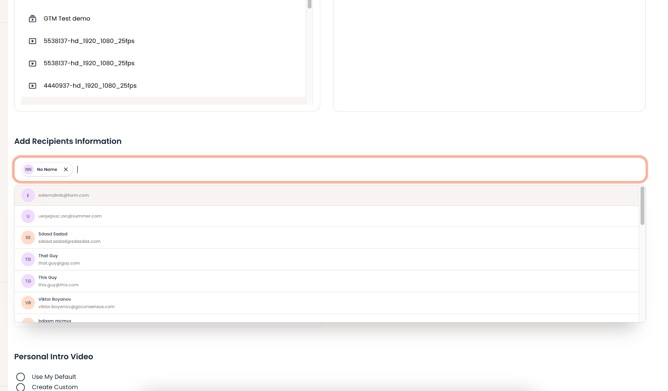
Add Recipients field on the DemoBoard, with the contact search dropdown showing matching Gmail contacts.
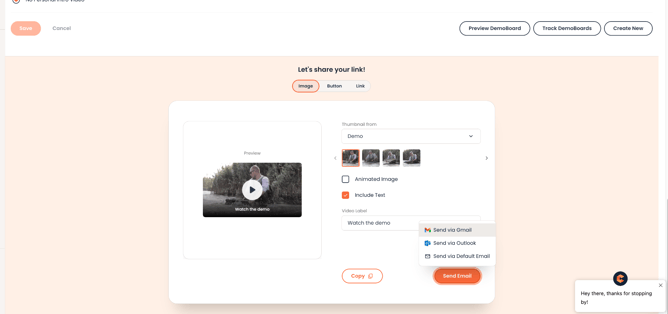
Send Email dropdown on the DemoBoard share screen, with "Send via Gmail" launching the Gmail composer.
NOTE: Sent emails will appear in your Gmail Sent folder like any other message you send.
Disconnecting Your Account
To disconnect, go back to Integrations, find the Gmail tile, and choose the option to disconnect. You can reconnect at any time.
Known Limitations
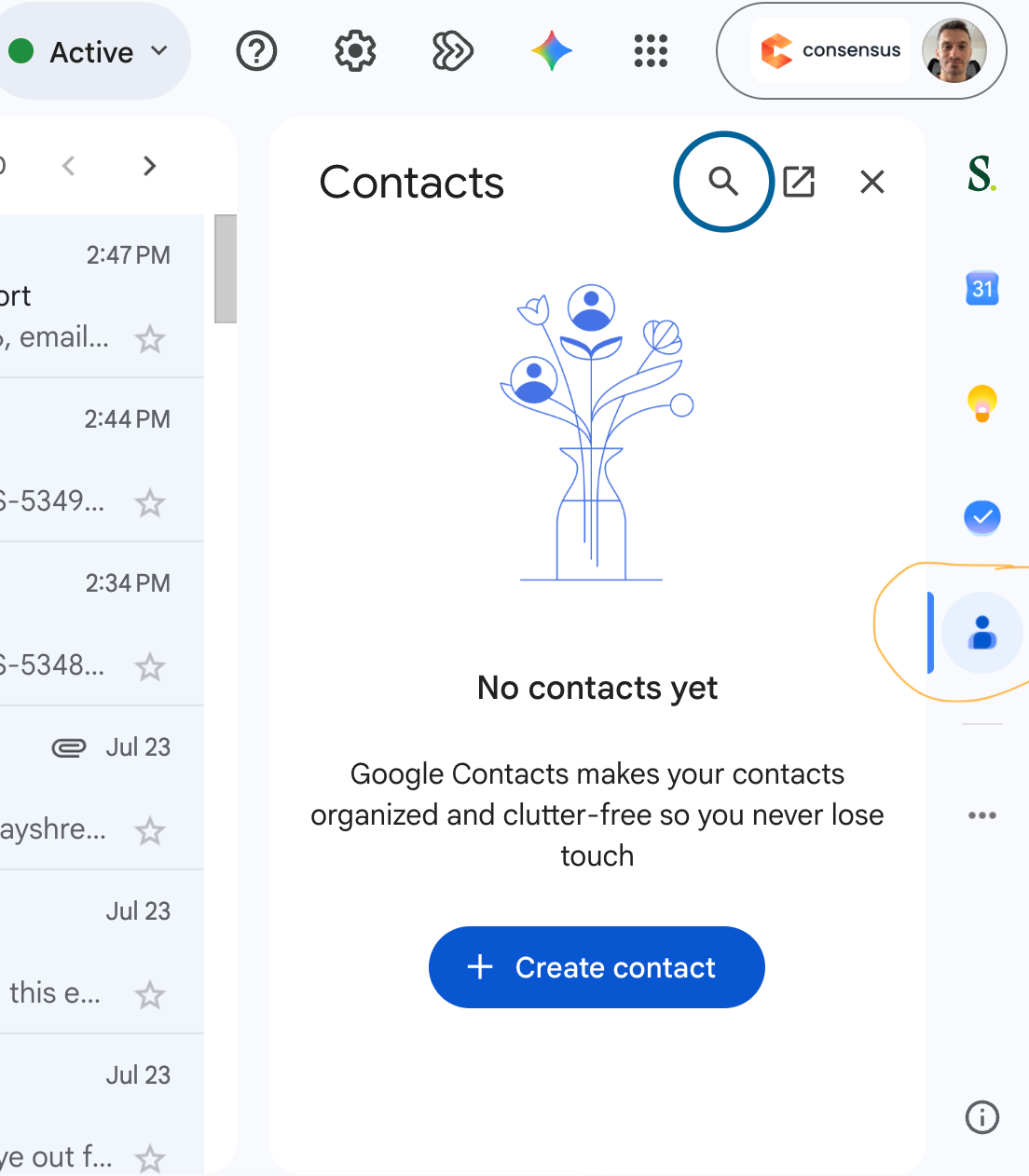
The integration syncs your saved contacts.
FAQ
Do I need admin permission to connect Gmail?
No — any user can connect their own Gmail account from the Integrations page.
Is my Gmail connection visible to my team?
No. It's private to you.
What happens if I don't see any contacts when I search?
Try searching by a different name (first, last, or full name). If you still don't see results, confirm your Gmail account is still connected on the Integrations page.
Will recipients see that the email was sent through Consensus?
No. The email is sent from your Gmail account, so it looks and behaves like any other email you send.
What happens if I disconnect my Gmail account?
You'll no longer be able to search Gmail contacts or send email through Gmail from Consensus until you reconnect.