
What Demo Themes does
Demo Themes lets admins create reusable branding configurations (logos, colors, typography, hotspot color, button styling) that demo creators apply with a single click in Step 2 of the Demo Wizard. Replaces the legacy per-demo manual branding flow.
For accounts with multiple brands, sub-brands, or campaign-specific looks, this turns "configure logos and colors on every new demo" into "pick from a dropdown."
Open Theme Management
By default, Admins have Themes management rights. Custom roles can be granted access via the Themes Management permission.
Click Settings → Global Demo Settings → Theme Management tab.
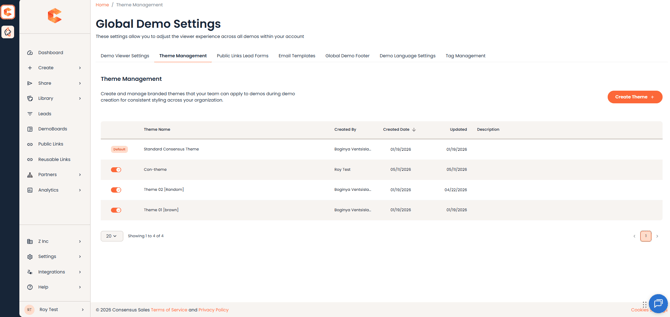 Theme Management tab — Themes table with the default theme flagged and the Create Theme button.
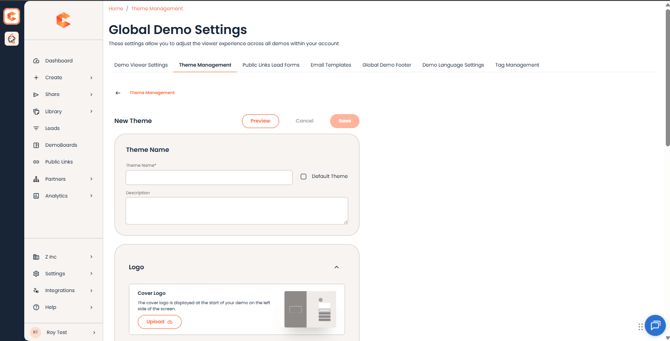 Create Theme, Branding, Discovery & Dynamic Tours Branding Section
Create a theme
- Click Create Theme. The Theme Builder opens.
- Theme Name (required) — what users will see in the theme picker.
- Description (optional) — internal notes about when to use this theme.
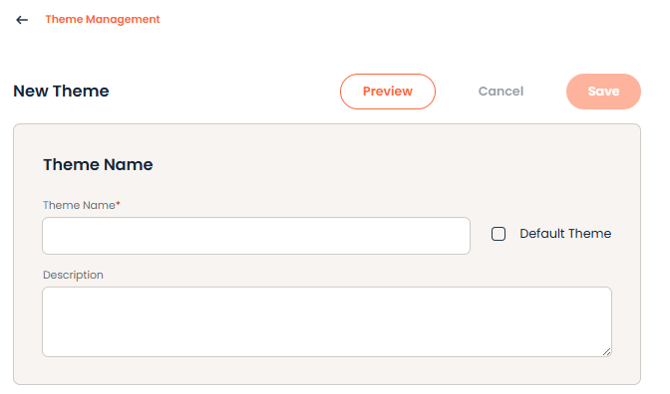 Theme Name & Description section
Branding sections
- Cover Logo — appears on the first page viewers see. PNG with transparent background recommended.
- Cover Page Color — pick a brand color that contrasts with your Cover Logo.
- Buttons / Tour Popups / Targets / Interactive Elements — sets the color for CTAs, popups, and other interactive UI in the demo.
- Secondary Logos — Sidebar Logo (intro video and topic selection), Player Screen Logo (during feature playback), Browser Tab Logo (favicon).
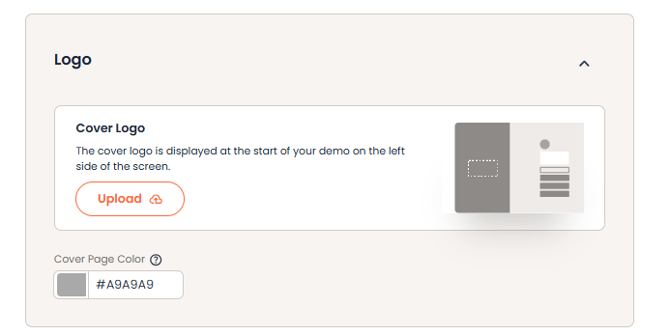 Cover Logo & Cover Page color section
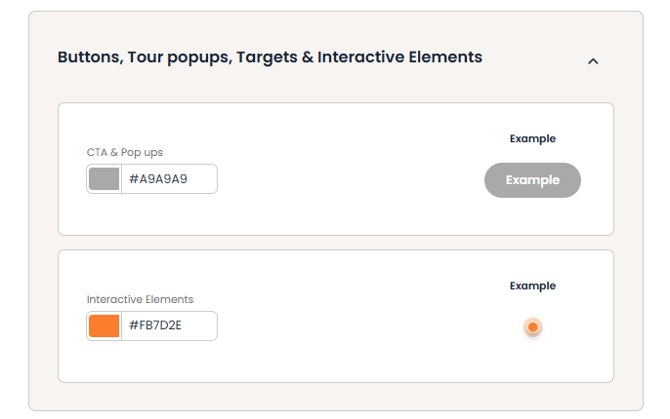 Buttons / Tour Popups / Targets / Interactive Elements section
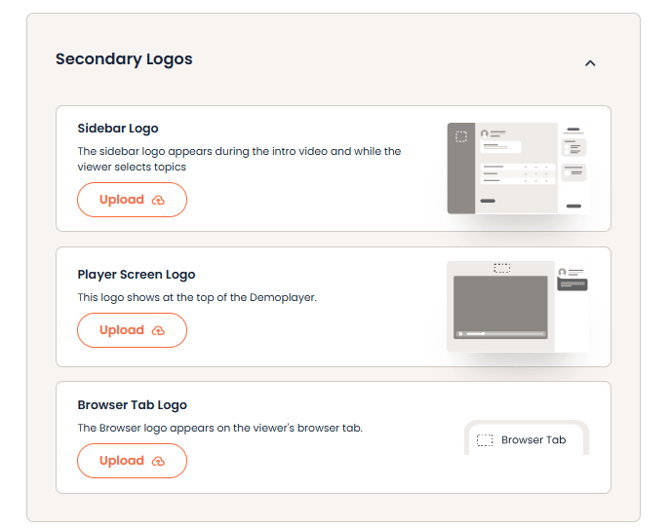 Secondary Logos Section
Discovery and Dynamic Tours branding
- Typography (Dynamic Tours fonts).
- Hotspot color for Dynamic Tours.
- Discovery question branding.
- CTA button styling.
- Modal appearance.
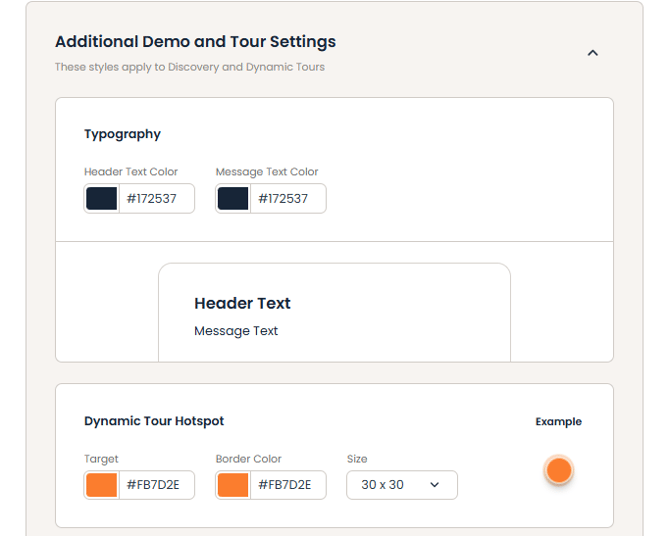 Demo & Tour Branding - Typography, Dynamic Tour Hotspot
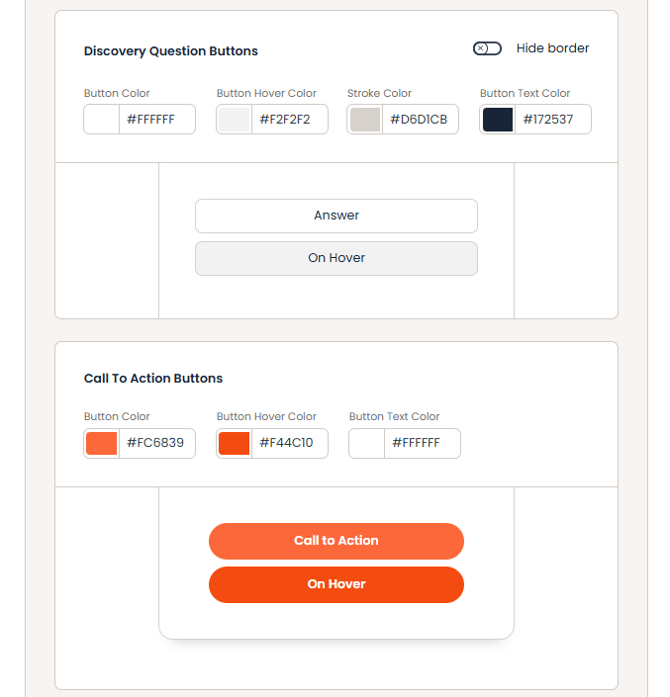
Demo & Tour Branding - Discovery & CTA button
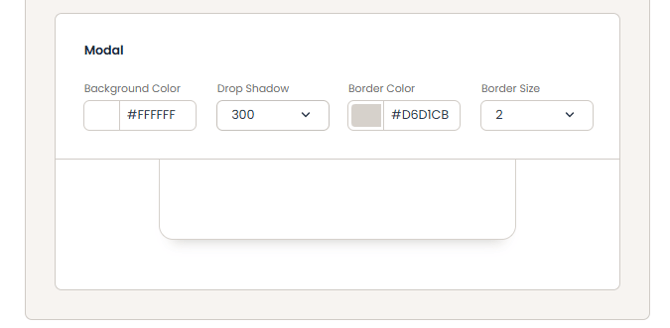 Demo & Tour Branding - Modal section
Preview as you build
The Theme Builder includes a preview panel — click Preview to see how the theme looks at every step of the viewer journey, with carousel navigation between screens.
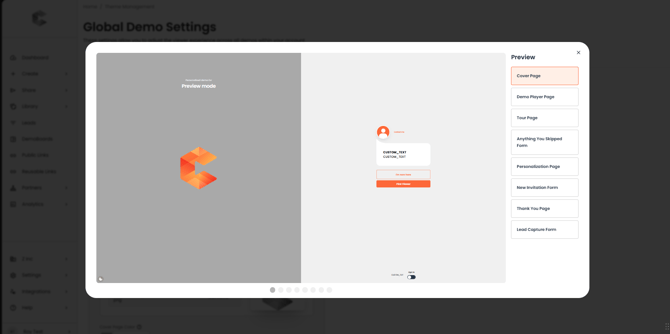 Create Theme - Preview Panel
Active vs. Inactive themes
Themes can be Active or Inactive. Active themes appear in Step 2 of the Demo Wizard for users to pick. Inactive themes are hidden from users — useful while you're still configuring or staging new branding.
Your first theme is automatically the Default theme and is always Active. It cannot be deleted or deactivated. You can change which theme is the Default at any time — when you do, every demo using the previous default switches to the new one.
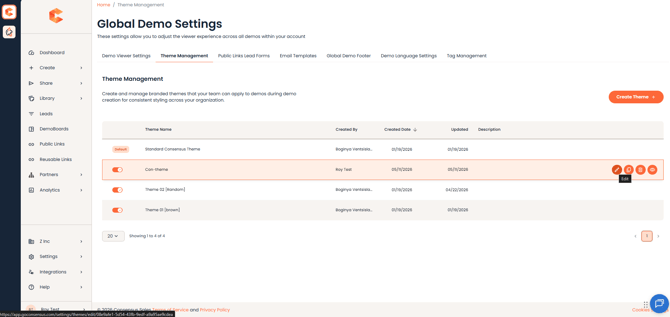
Theme row More Options — edit, copy, preview, and delete actions. The default theme cannot be deleted.
Enable Themes for users
Two-step rollout for the whole account:
- Step 1: create at least one Active theme (your first theme auto-becomes the Default).
- Step 2: enable the Themes feature in Demo Viewer Settings via the Demo Themes toggle.
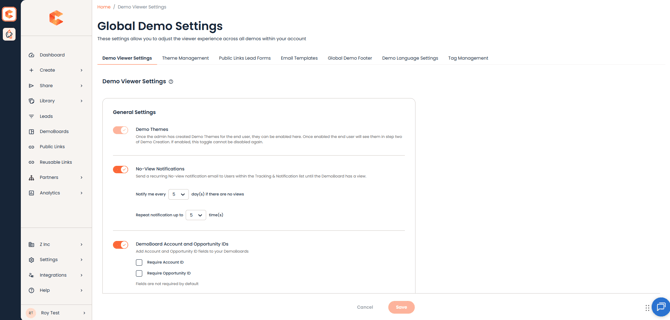 Demo Theme Toggle - Enabled
Cannot be undone. Once you enable Demo Themes for the account, you can't roll back to the legacy per-demo branding flow. New demos use themes by default; existing demos can be migrated.
After Themes are enabled — what users see
New demos
Step 2 of the Demo Wizard shows a Themes picker. Legacy per-demo branding fields are no longer visible.
Existing demos that used legacy branding
Step 2 shows a Themes / Legacy toggle. The user can keep the existing legacy branding (read-only) or switch to a Theme.
One-way switch: once a demo is migrated from legacy to a theme, it cannot revert. The legacy branding fields are no longer accessible for that demo.
Apply themes in bulk from the Demo Library
For migrating many demos at once, use the multi-select bulk action in the Demo Library. Select the demos you want to update, click the Themes action in the bulk action bar, pick the theme to apply, and confirm.
A new Theme column in the Demo Library shows which demos are using a theme (paintbrush icon) vs. legacy branding. Hover the icon to preview the main colors of the assigned theme.
Resellers
Resellers manage their own themes independently of the internal organization. Reseller-side theme management is restricted to Content Manager Reseller and Public Link Manager Reseller roles. Each reseller group sees only their own themes — no cross-pollination between resellers or between resellers and internal users.
When the internal Admin enables Demo Themes account-wide, resellers see the effect immediately. If a reseller hasn't built any themes yet, their demos continue using existing legacy branding until they create one.
Limitations
- Themes apply only to Single Experience, Standard Personalization, and Discovery Demos.
- Themes do NOT apply to Advanced Branching Demos.
- One-time / per-demo branding is no longer supported via legacy fields — you'll need to ask an admin to create a dedicated theme.
- Demo migration is one-way — once a demo moves to themes, you cannot revert to legacy branding.
Demo Themes in SNAP
For SNAP videos, your account's default theme is auto-selected. You can change it from SNAP's Settings panel. Note: themes you pick in SNAP only apply to videos created or uploaded directly in SNAP. Demos imported from your Demo Library keep whatever theme was set when the demo was originally created.