
Set up Lead Capture Forms for Public Links
Public Link Lead Forms are the gates that capture lead data from your public-facing demos. You can build any number of lead forms in your account — a different form per campaign, per landing page, or per audience — and assign them to specific Public Links.
Where to find them
Click Settings → Global Demo Settings → Public Links Lead Forms tab.
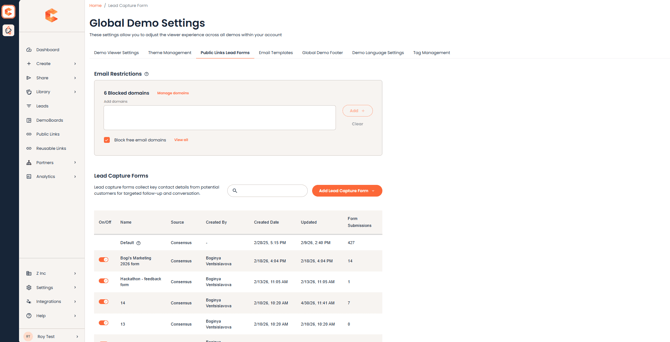 Public Links Lead Forms landing page
The Default Lead Form
Every account has a Default Lead Form. It's a fallback — if you delete a Lead Form that was attached to a Public Link, that Public Link automatically falls back to the Default. You can't leave a Public Link without a form.
Edit the Default by hovering its row in the table and clicking the pencil icon. You can rename it, change which fields are visible, mark fields as required, and reorder them.
Email is the only minimum requirement. Every Lead Form must include the Email field — it's the unique identifier for a captured lead in Demolytics and downstream CRMs.
Country and State fields
Country and State can each be set to display the full name or the abbreviation. Click the down arrow in the field's Action column and choose "Use abbreviation."
The State field is dynamic — the State options update automatically based on the Country the viewer selected.
Custom Fields
You can add up to five Custom Fields to any Lead Form to capture data beyond the preset fields (e.g. company size, industry, role, lead source).
Add a Custom Field
- In the Lead Form builder, click Add Custom Field.
- Set the Field Label.
- Pick the input type:
- Text Input — open text field; viewer types any response.
- Select — predefined dropdown options. Add the choices viewers can pick from.
- Click Save. The new field is added to the bottom of the form.
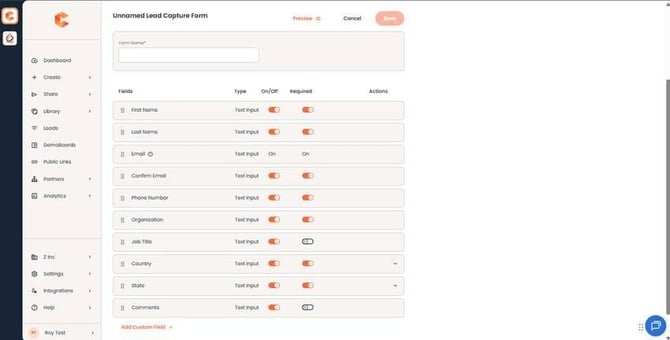
Lead Form builder — Custom Field controls and the field reorder handles.
Custom Fields can be edited or deleted via the pencil and trash icons in their Action column, and reordered by drag-and-drop.
Preview before saving
Click Preview in the Lead Form builder to see exactly what the form will look like to viewers in the demo experience. Useful for sanity-checking field order and required-field marking before going live.
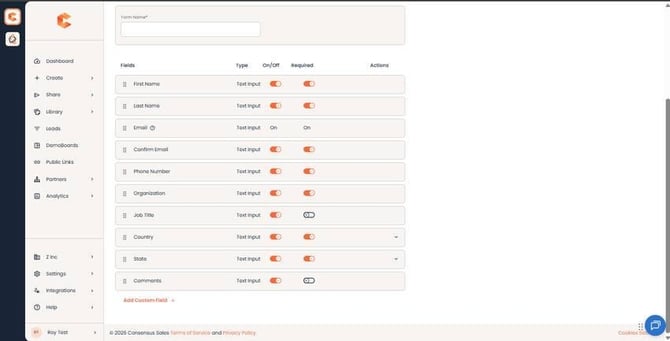
Lead Form table — User who created it, when, last updated, and lead-count generated.
Create additional Lead Forms
Beyond the Default, click the Lead Capture Form button at the top of the Lead Forms tab to create a new form from scratch. Same builder as editing — configure fields, custom fields, and preview.
The Lead Form table
For each Lead Form in your account, the table shows:
- Form name
- User who created it
- Created date
- Last updated date
- Total leads captured by this form
Assigning Lead Forms to Public Links
When you create or edit a Public Link, choose which Lead Form to use from the form dropdown. Once a Public Link goes live, its assigned Lead Form controls what data is captured.
You can change a Public Link's assigned form at any time without breaking the link — historical leads stay attached to whichever form was active when they submitted.
Captured leads from any form land in Leads → Qualified Leads, filterable by demo and date range.