
Create a test lead in Consensus
Consensus is built to ignore views from the same browser session you're logged into — that prevents your own browsing from polluting your demo metrics. When you want to actually test the lead-capture flow end-to-end, use a private/incognito browsing session so the platform treats you as a fresh viewer.
What you'll need
- A web browser with private / incognito mode (Chrome, Firefox, Safari, Edge — all support it).
- A Public Link to the demo you want to test.
Step-by-step
- Logged into Consensus in your normal browser, click Public Links → Create Public Link.
- Pick the demo you want to test. Copy the generated link.
- Open a private / incognito window. Paste the demo URL.
- Walk through the demo as a real prospect would. On the personalization step, select at least one feature in each importance bucket so the demo plays through.
- Fill out the lead capture form — every field, including optional ones, so you can verify each captures correctly.
- Finish watching the demo (or close out — either way the lead is captured).
- Back in your normal Consensus session, open Leads → Qualified Leads.
- Filter to the demo you tested. Your test lead appears in the list.
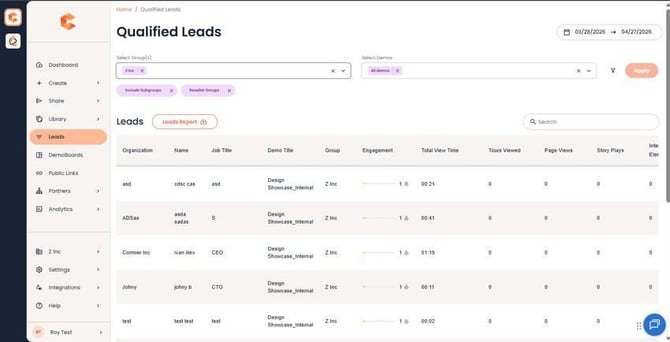 Leads → Qualified Leads — your test lead appears in the list, filterable by demo and date range.
Clean up your test lead when you're done
On the Qualified Leads page, find your test lead, choose Action → Delete to remove it from the platform. This keeps your real lead data clean.