
Setting up Demo Viewer Settings
Global Demo Settings is where you adjust the viewer experience across all demos in your Consensus account. The Demo Viewer Settings tab — covered in this article — is organized into four sections (General Settings, Sharing, Privacy & Security, and Demolytics & Account Settings) so it’s easy to find each control and understand how it affects your Users and Viewers.
How to open the Demo Viewer Settings page
Click Settings in the lower-left sidebar to expand its sub-menu, then choose Global Demo Settings. The Demo Viewer Settings tab is selected by default when the page opens.
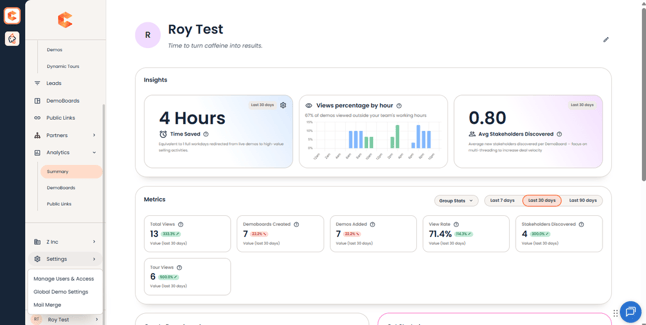
Settings menu in the sidebar — Global Demo Settings is the second sub-item.
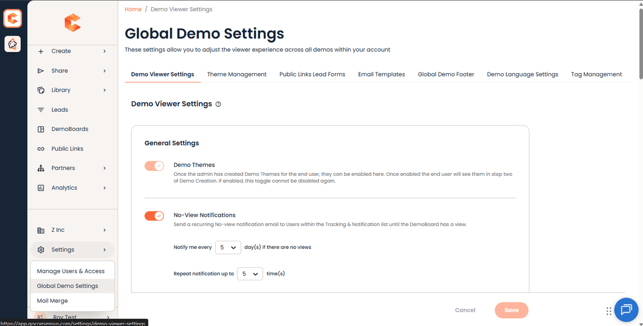
Global Demo Settings page header. The seven tabs across the top are each documented in their own KB articles.
Note: Demo Viewer Settings is one of seven tabs on the Global Demo Settings page. The other tabs (Theme Management, Public Links Lead Forms, Email Templates, Global Demo Footer, Demo Language Settings, and Tag Management) are covered in their own articles.
General Settings
General Settings control the day-to-day behavior available to your Users when they create and send DemoBoards — Demo Themes, notifications, expiration defaults, and what contact information is surfaced on a DemoBoard. When a setting is enabled here, your Users will be able to apply it at the DemoBoard invite level.
- Demo Themes — Once an admin has created Demo Themes, this toggle exposes them to end users in step two of Demo Creation. Once enabled, this toggle cannot be disabled again.
- No-View Notifications — Sends a recurring email to Users on the Tracking & Notification list until the DemoBoard is viewed. Configure Notify me every X day(s) if there are no views and Repeat notification up to X time(s) to control cadence.
- DemoBoard Account and Opportunity IDs — Adds Account ID and Opportunity ID fields to the DemoBoard create flow. Optional sub-checkboxes Require Account ID and Require Opportunity ID force the User to fill them in. Both are off by default.
- Show User (Senders) Contact Info in the DemoBoard — Lets Users add the contact information from their My Profile page (phone, calendar link, social links) to DemoBoard invitations they create.
- Personal Intro Video — Allows Users to attach a Personal Intro Video that plays for recipients before the demo.
- DemoBoard Expiration by Days (Default) — Sets the default number of days after creation before each DemoBoard invitation expires.
- DemoBoard Expiration by Views — Sets the default number of views per recipient before the DemoBoard invitation expires.
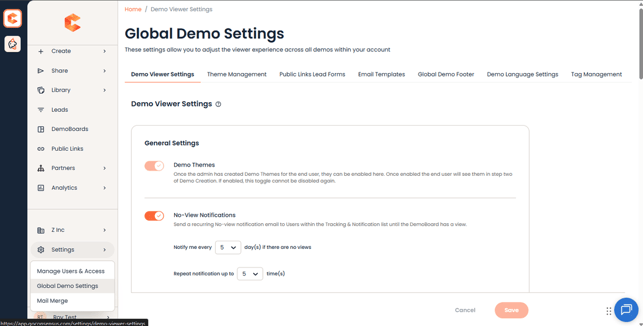
General Settings (top) — Demo Themes and No-View Notifications.
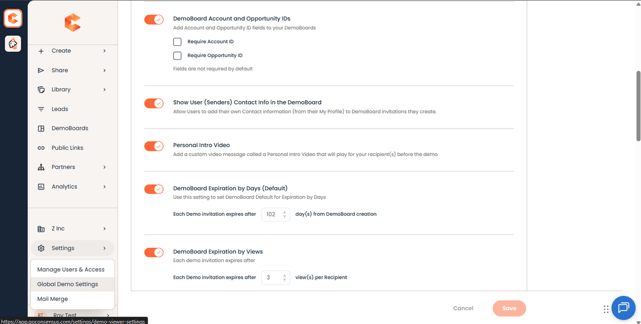
General Settings (continued) — DemoBoard Account/Opportunity IDs, Show User Contact Info, Personal Intro Video, and the two Expiration defaults.
Sharing
Sharing settings control what the Viewer can do once they’re inside a DemoBoard — adding other stakeholders, self-registering, and posting to social.
- Sharing To Engage Other Decision Makers — Lets prospects share the demo with others by clicking the Share button and entering email addresses.
- Enable access to new viewers through the “I’m New Here” option — Lets prospects self-register on a DemoBoard via the I’m New Here button.
- Sharing Through Social Media — Shows the social media share buttons on the DemoBoard so prospects can share to LinkedIn, X, etc.
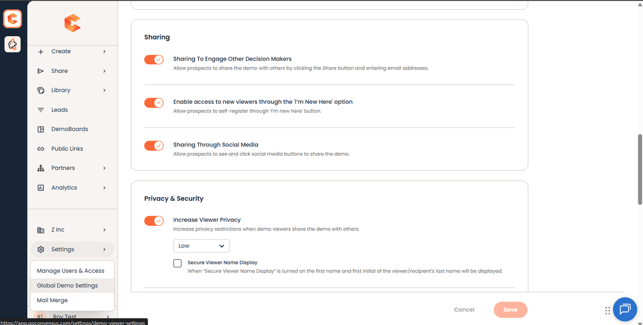
Sharing section, plus the start of Privacy & Security.
Privacy & Security
Privacy & Security settings govern who can access your demos and what information they can see about other DemoBoard recipients. Use these to protect both viewer privacy and demo content.
- Increase Viewer Privacy — Increases privacy restrictions when viewers share a demo with others. A Low / Medium / High dropdown picks the level. Optional sub-checkbox Secure Viewer Name Display shows only the first name and first initial of the recipient’s last name to other viewers.
- DemoBoard Required Fields — Sets which fields are required when a User creates a DemoBoard. Sub-checkboxes: Require DemoBoard Name, Require Organization, Require First and Last Name.
Restrict Sharing by Email Domain — Limits sharing to viewers whose email domain matches the recipient’s domain (and its subdomains). The dropdown — Viewer Can Request Access
- or strict block — controls what happens when a viewer outside the allowed domain tries to access the demo.
- Enable Opt-in for Who Are You page — Adds an opt-in checkbox to the “Who Are You” page so Consensus can attribute viewer analytics to a known person, and links to your Privacy Policy from the Global Demo Footer tab. Configurable: Opt-In / Opt-Out style, For All Viewers or specific groups, Default State on or off, an Anonymize new recipients until they opt in option, and Opt-in text placement.
- Track User Contact Data With a Cookie — Allows contact data to auto-fill in contact forms based on a cookie set on prior viewing.
- Two-factor Authentication for DemoBoard — Off by default. When enabled, viewers must enter a unique code before they can access the demo.
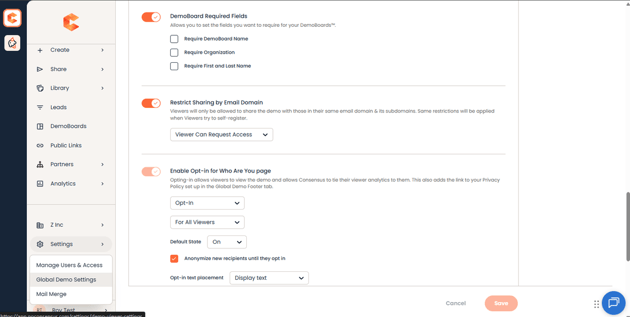
Privacy & Security (continued) — Required Fields, Restrict Sharing by Email Domain, and the Opt-in for Who Are You
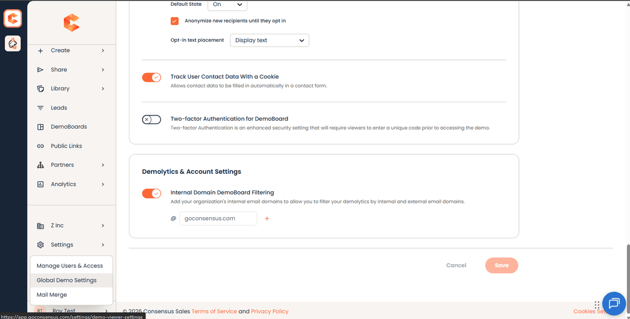
End of Privacy & Security (Track User Contact Data, Two-factor Authentication) and Demolytics & Account Settings.
Demolytics & Account Settings
This section lets you mark which email domains count as internal so you can filter internal engagement out of your Demolytics.
- Internal Domain DemoBoard Filtering — Add one or more email domains (e.g. @goconsensus.com) and engagement from those domains will be classified as internal across your Demolytics. Use the + icon to add additional domains.
Saving your changes
Changes on this page are not saved automatically. After updating any toggle, dropdown, or input, click Save at the bottom of the page to persist them, or Cancel to discard.