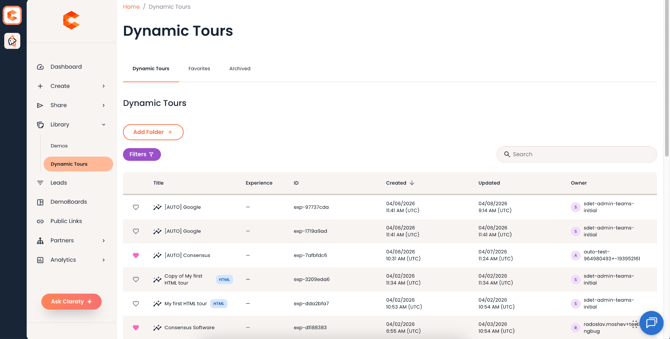
Easily find all of your Dynamic Tours by clicking on the "Dynamic Tours" section in the left-hand menu. You can find, organize, and act on all your Dynamic Tours from the same place you manage your Consensus demos.
The Main Table
When you open Dynamic Tours, you see a table listing all your tours. The table shows:
- Title: Tour name
- Experience: Number of experiences in each folder
- ID: Tour ID
- Created: Creation date, tours are sorted by most recently created by default
- Updated: Last updated date
- Owner: Tour owner’s name
HTML Tours
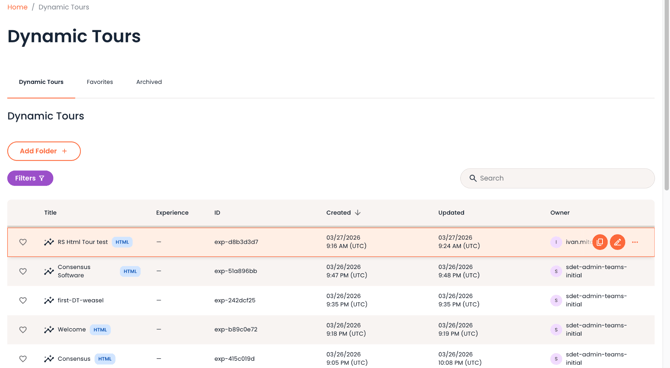
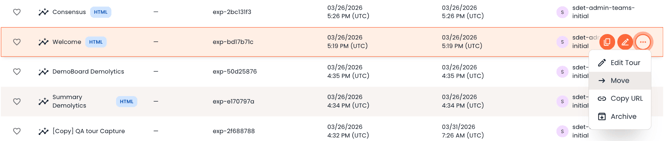
Tours built using HTML are supported and displayed with a distinct icon in the table, so you can identify them at a glance. HTML tours open for viewing and editing on a dedicated link that is different from standard Dynamic Tours.

Three Tabs To Keep Things Tidy:
- Dynamic Tours: Shows all your active tours and folders.
- Favorites: Just the tours you've starred.
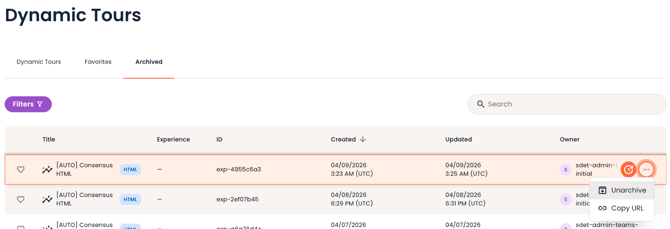
- Archived: Where tours go when you put them away (you can bring them back!).

Searching and Filtering
Use the search bar at the top of the table to find a tour by name. Results update as you type.
- You can sort the table by clicking the Title, Created, Updated or Owner columns.

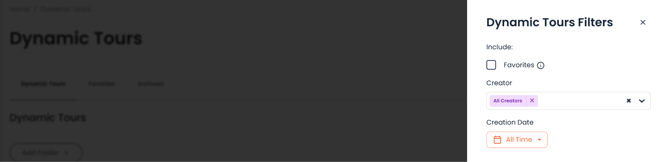
- Use the filter options to narrow the list. Filter by favorites, who created it or the creation date.
- Got tons of tours? Use the navigation at the bottom to flip through pages.

Organizing Tours Into Folders
You can create folders to organize your tours.
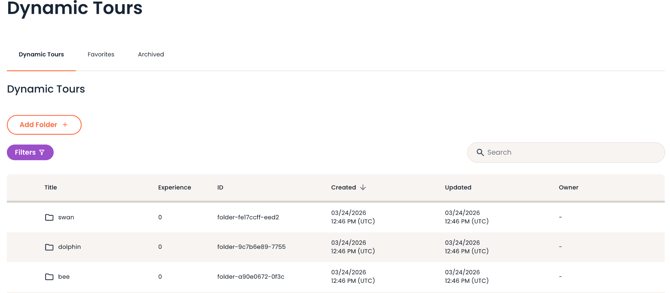
To add a folder, click the Add Folder button at the top of the table. Give the folder a name and confirm.
To rename a folder, open the more menu (three dots) next to the folder and select Rename.
To delete a folder, open the more menu next to the folder and select Delete. Note: a folder must be empty before it can be deleted.

To move a tour into a folder, open the more menu next to the tour and select Move to, then choose the destination folder.
Actions Available On Each Tour
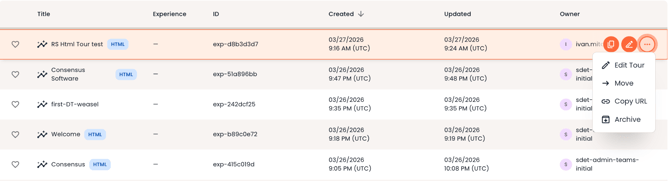
Click the more menu (three dots) on any tour row to access the following actions:
- Favorite / Unfavorite: Marks the tour as a favorite so it appears in your Tour’s Favorites tab. You can also click the heart/star icon directly on the tour row.

- Duplicate: Creates a copy of the tour in your library.

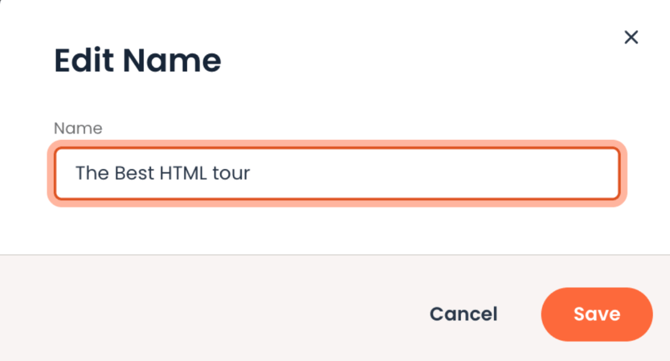
- Rename: Rename the tour directly from the library.

- Edit: Opens the tour in edit mode in ReachSuite. All edits are made there and reflected back in the Consensus library.

- Move to folder: Move the tour into a folder you select.
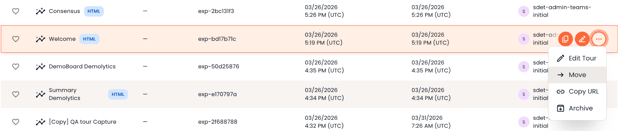

- Copy URL: Copies a shareable link to the tour to your clipboard.

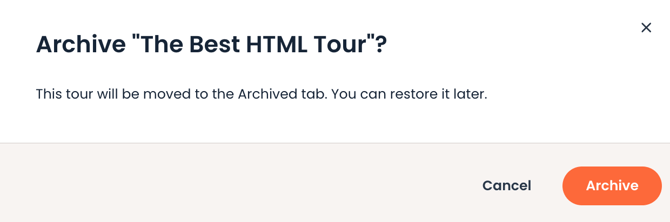
- Archive: Removes the tour from the active library and moves it to the Archived tab. Archived tours are not deleted and can be retrieved from the Archived tab at any time.

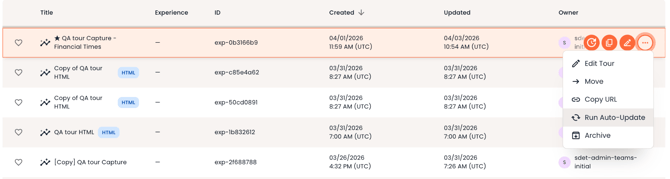
- Run Auto-Update: Triggers an update on the tour's data in ReachSuite. This action is not applicable for HTML tours.
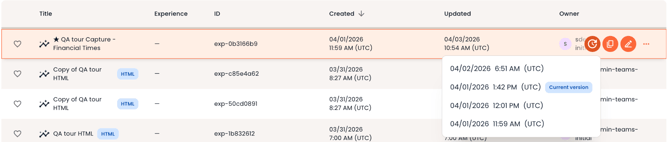
- Switch published version: Allows you to switch between published versions of the tour.
Failed Tour State
If a tour has encountered an error and cannot be played, it will appear with a warning icon in the table. The row will be non-clickable and only the Archive action will be available in the menu. This prevents accidental use of a broken tour. Contact your administrator if you see this state unexpectedly.

Favorites
You can favorite any tour by clicking the heart icon on the tour row. Favorited tours appear in the Favorites tab for quick access.

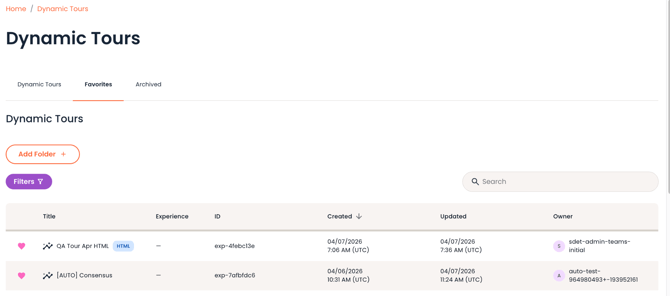
Note: Dynamic Tour favorites are separate from your Consensus Demo favorites. They do not appear in the main Demo Library favorites view.
Archived Tours
Archived tours are moved out of the active library but are not deleted. To view them, click the Archived tab. From there you can review them or restore them to the library if needed.