![Gradient_Horizontal_onDark-2.png]](https://support.goconsensus.com/hs-fs/hubfs/Gradient_Horizontal_onDark-2.png?height=40&name=Gradient_Horizontal_onDark-2.png)
Reviewer note: this FAQ article duplicates "Customizing Your Demo's Style Settings" (/customize_demoplayer_style_settings) and the Settings & Configuration article at /customizing-your-demos-style-settings. Recommend consolidating all three into one canonical article and 301-redirecting the others.
Edit DemoPlayer language, images, and colors
Demo branding lives on Step 2 of the Demo Wizard. Each user can set their default language, logos, and colors once and reuse them across demos.
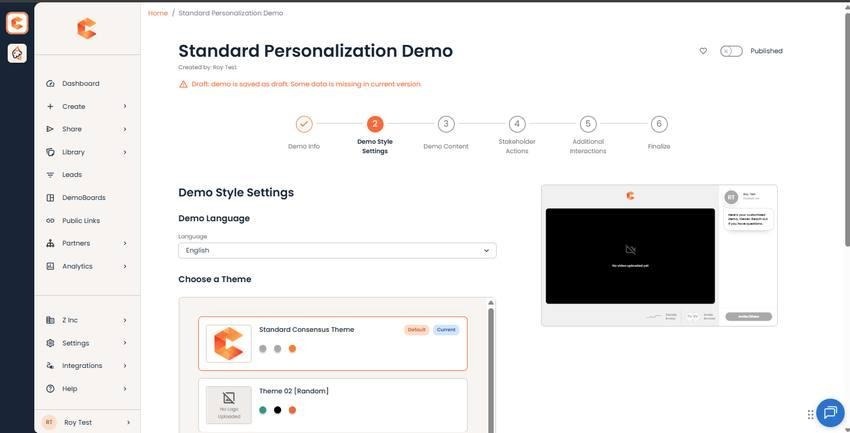
Step 2: Demo Style Settings — language, logos, and colors.
Language
Pick the DemoPlayer's default language from the dropdown. This translates all native UI text in the player. It does NOT translate uploaded content like videos or documents — that text stays in whatever language you uploaded.
Logos
- To replace a logo, click the trash icon to delete the current one, then click Upload to add a new image.
- Updates apply across all DemoBoards built from this demo the next time a viewer opens the player.
- Sidebar Logo is only available on Standard Personalization Demos.
Colors
- Click the hex color code (e.g. #FF5C00) or the swatch next to it to open the color picker.
- Pick from the default swatches or paste a custom hex code in the field at the bottom of the picker (# + 6 alphanumeric chars).
For the full color/logo reference (Cover Logo, Sidebar Logo, Player Logo, Favicon — and the three brand colors), see the main "Customizing Your Demo's Style Settings" article.