
Edit the Share / Invite Others CTA
Every DemoBoard has a sharing CTA so viewers can invite other stakeholders. The default label is "Invite Others," but you can change it on a per-demo basis to match your tone or the buyer journey — "Loop in Your Team," "Forward to a Colleague," "Share with IT," etc. The text lives in Step 4 of the Demo Wizard.
Step-by-step
- In the left-hand sidebar, click Library, then choose Demos.
- Find the demo you want to edit and click the pencil icon to open the Demo Wizard.
- Jump to Step 4 (Stakeholder Actions).
- Update the Share Button label. Anything you type here replaces "Invite Others" wherever the button appears in the DemoPlayer.
- Click Save & Exit. The change applies immediately to every existing DemoBoard built from this demo.
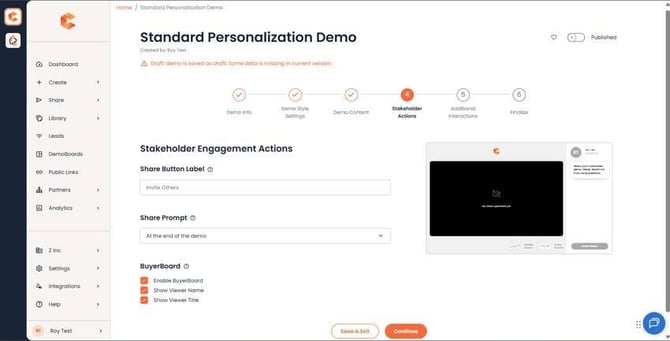 Step 4: Stakeholder Actions — Share Button label is the editable text field.
Where the Share CTA appears
The Share CTA shows up on DemoBoards generated from this demo — it's the button viewers click to invite other stakeholders. It does not appear on Public Link versions of the demo, since those are top-of-funnel and don't have a recipient list to add to. If you don't use DemoBoards (only Public Links), the Share CTA is effectively hidden.
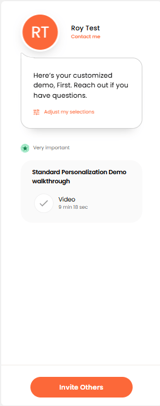 Share CTA appears at the bottom right side of the Demoplayer.