
Lead capture forms are critical for converting demo viewers into qualified leads. Marketers spend significant time building, testing, and optimizing forms that drive conversions. At Consensus we recognize how important it is for marketers to be able to reuse these forms across different touchpoints.
Using your external forms in Consensus lets you bring the highest-performing HubSpot or Marketo forms directly into your demos - combining the forms that generate the most leads with the demos that drive the most engagement, without rebuilding anything.
Simply connect your existing forms to Consensus demos and maintain the workflows, field validation, and integrations that are already delivering results for your team.
Note: This feature requires an active HubSpot or Marketo integration with Consensus.
Leverage existing form logic and validation
Your team has built sophisticated form experiences in Hubspot/Marketo - progressive profiling that asks different questions based on what you already know, conditional fields that appear based on user selections, and smart field defaults. Rather than recreating this complexity in Consensus, use your existing form so demo viewers experience the same intelligent behavior.
Maintain compliance and data governance standards
Your Hubspot/Marketo forms include specific legal language, consent checkboxes, and data handling protocols required by your legal and compliance teams. Using external forms ensures demo lead capture follows the exact same standards and approval processes as the rest of your marketing programs, reducing compliance risk.
Automatic lead routing and workflow enrollment
When viewers submit your Hubspot/Marketo form in a Consensus demo, they automatically flow into your existing lead routing rules, scoring models, and nurture workflows. Demo leads enter the same processes as leads from other channels.
Apply proven conversion optimizations
You've already A/B tested your Hubspot/Marketo forms - testing field order, form length, button copy, and layouts - to identify which configuration drives the highest conversion rates. Using external forms lets you apply these proven, optimized forms to your demos immediately, rather than building new forms in Consensus and restarting the optimization process from scratch.
Excited to bring your most performant lead forms to Consensus yet? Here’s how you can get started.
Setting up external forms for your Consensus demosGet started with HubSpot forms
In your Hubspot instance, go to Forms to locate the one you want to use for your Consensus demos. From the Actions menu choose Share and go to the Embed code tab.
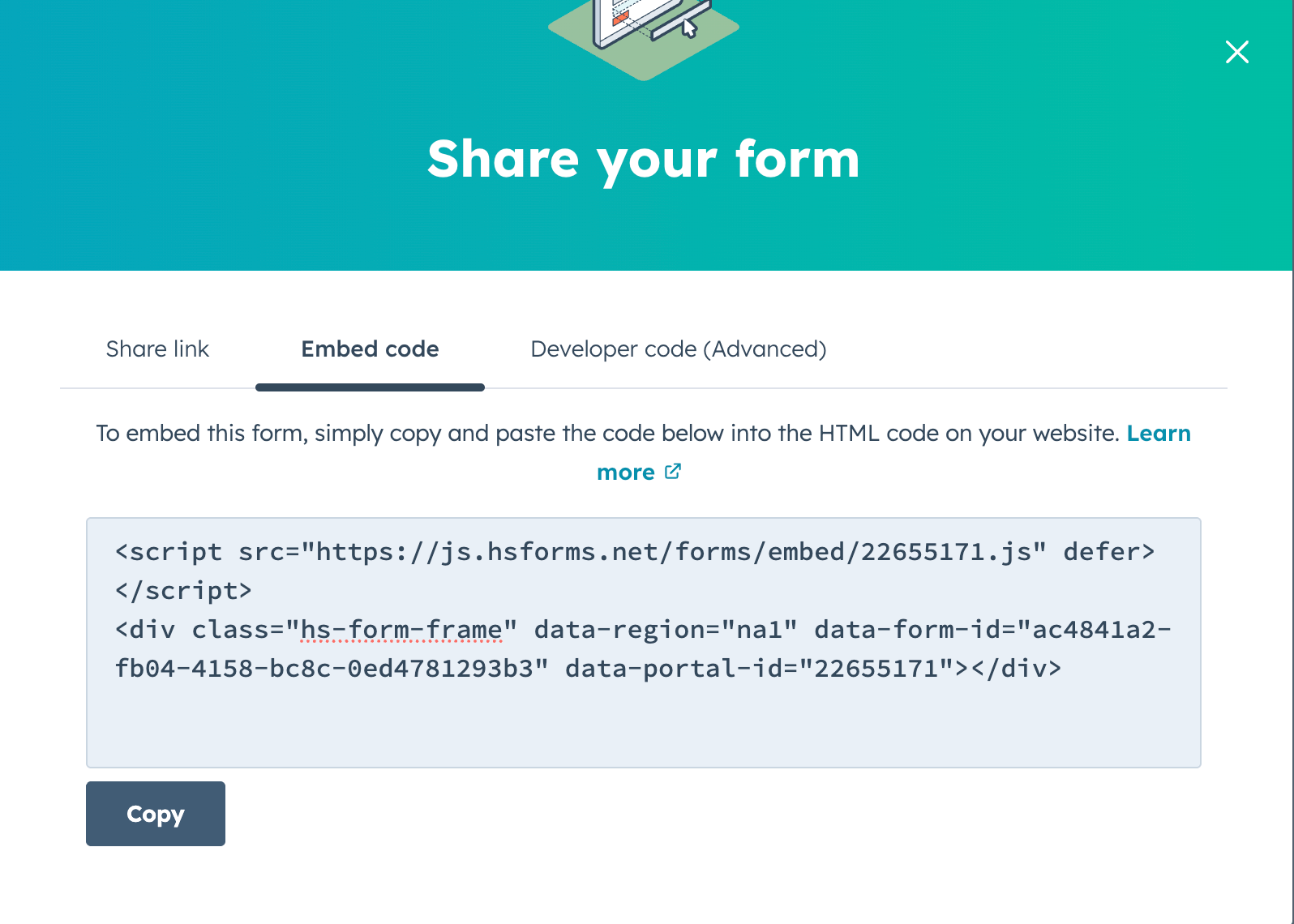
Copy the script and switch gears to Consensus.
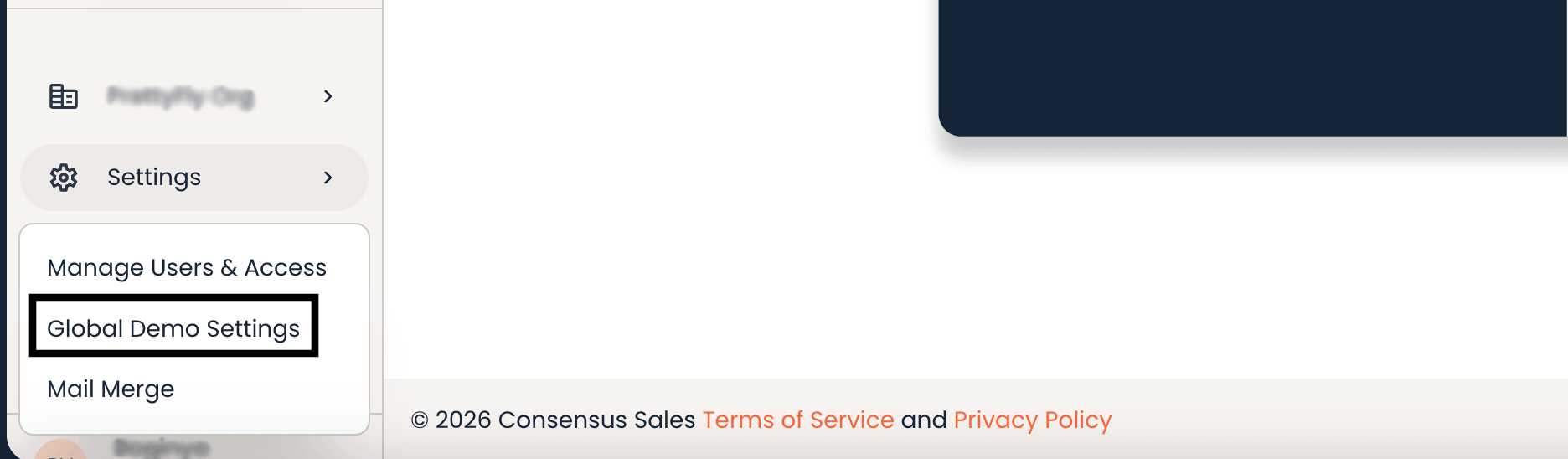
From the Navigation, go to the Settings section and choose Global Demo Settings.
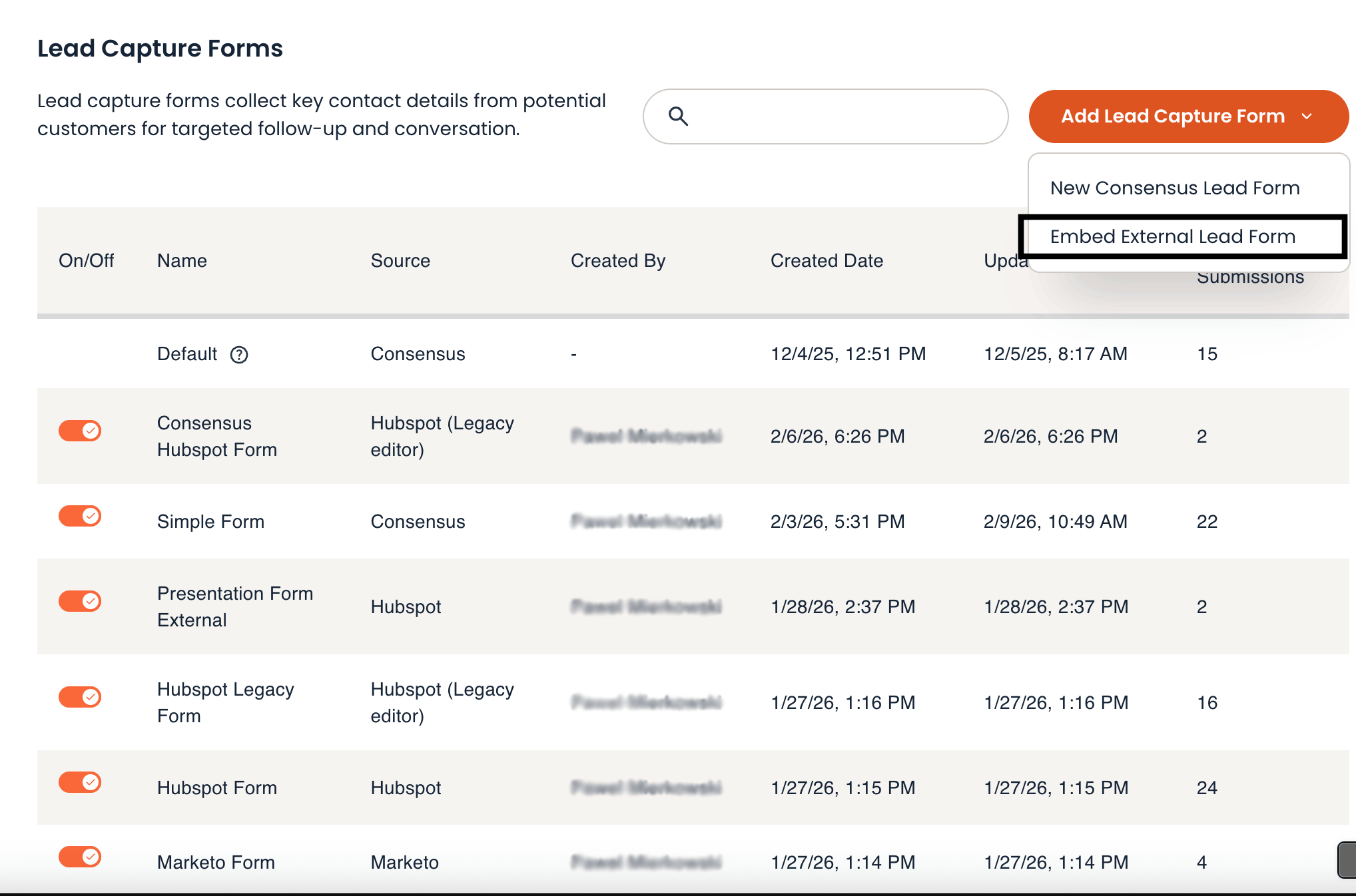
Navigate to the Public Links Lead Forms tab and click the Add Lead Capture Form dropdown to see two options: New Consensus Lead Form and Embed External Lead Form. To embed your Hubspot form, select the second option.
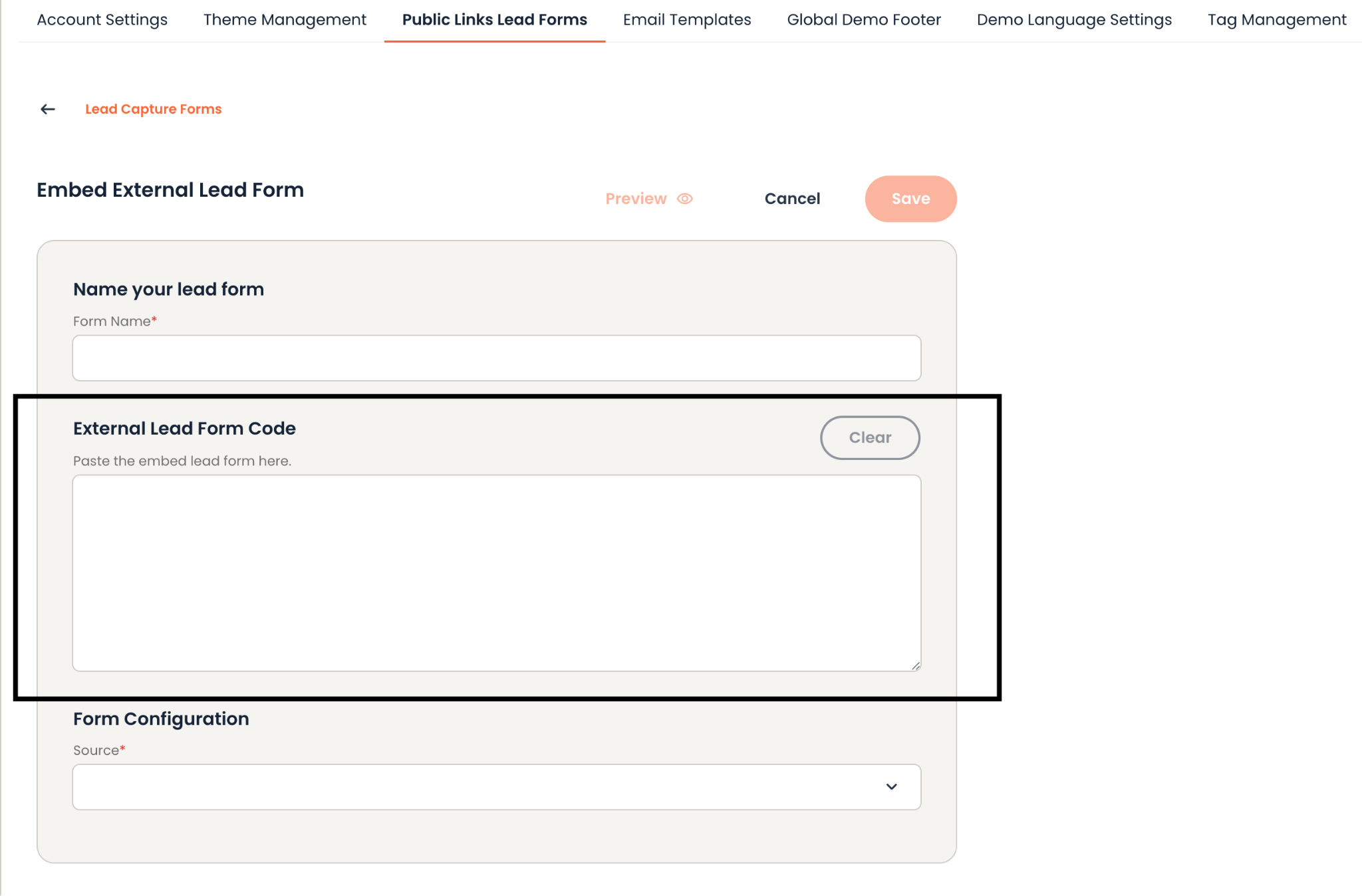
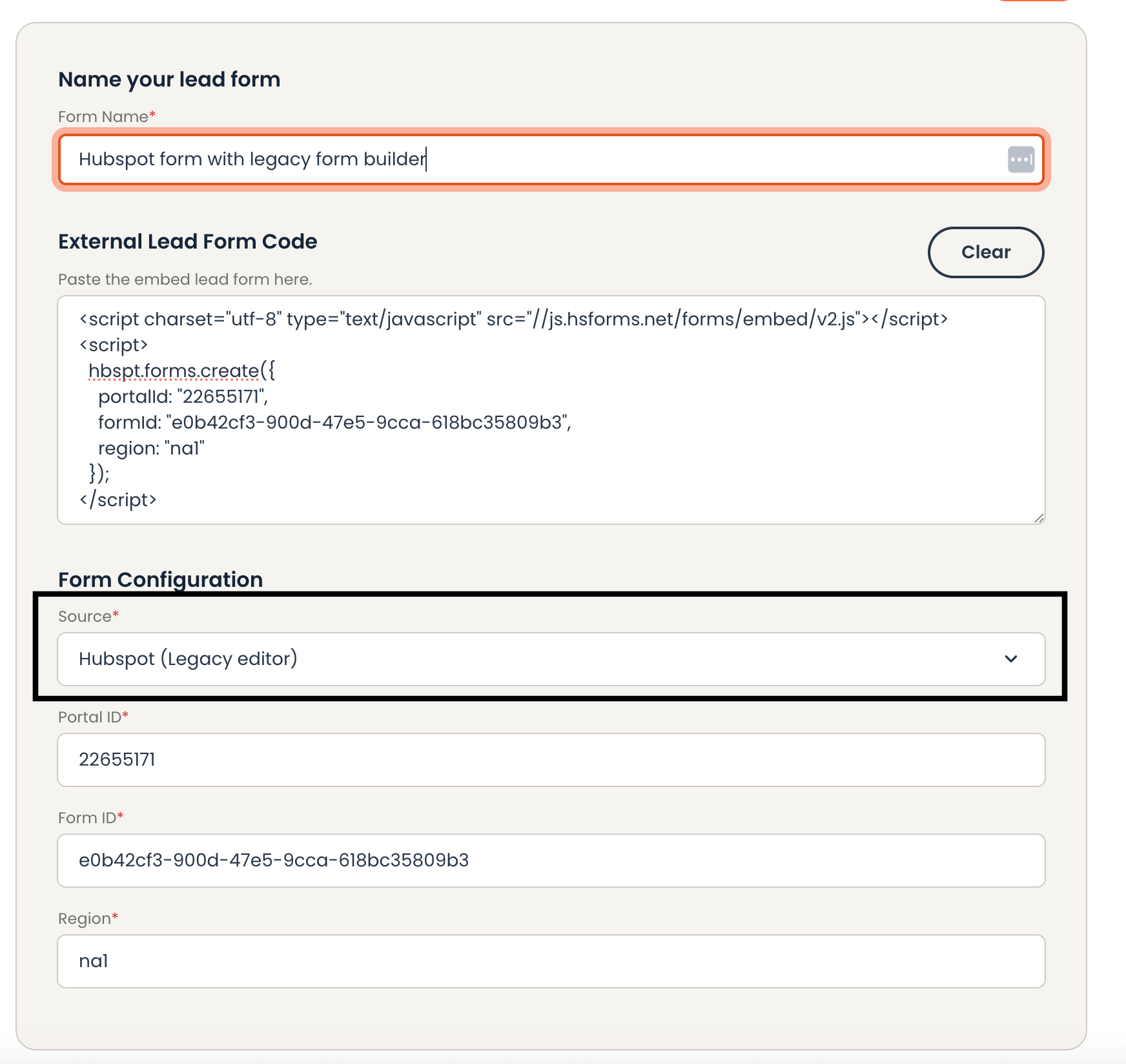
There are two required fields on this page and these are your Form Title and the Form Source. Focus on the form name field, because the Form Source field is autofilled from the script you will paste in the External Lead Form Code section. After naming your form, paste the Hubspot script.
After pasting the script additional form configuration fields will be filled out for you and will appear right below the copied script.
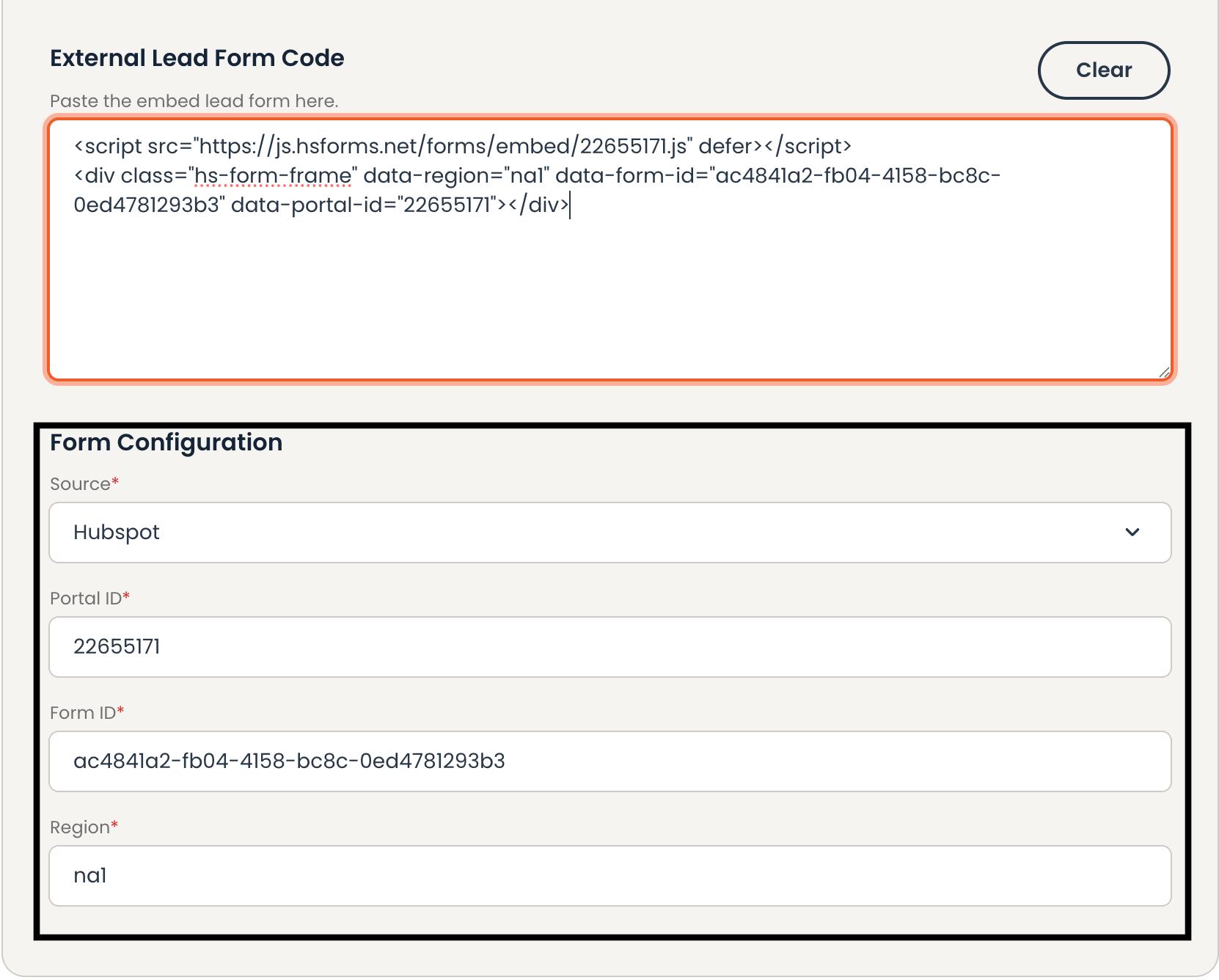
Consensus will automatically select the form source and prefill the additional fields: Portal ID, Form ID and Region. Alternatively, you can fill these fields out from the script source.
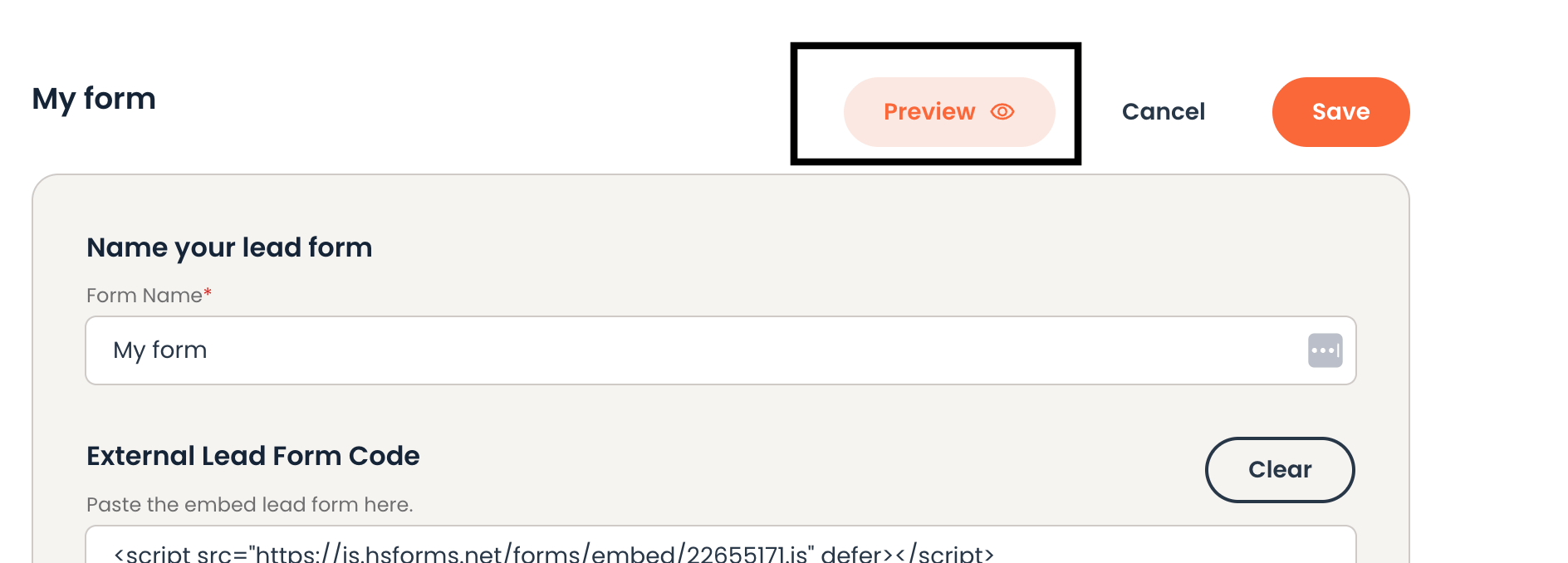
That’s all it takes to add your external form from Hubspot in Consensus! Before saving your external form, you can preview and see how it would render inside the Consensus player. Click on the Preview button at the top of the page.
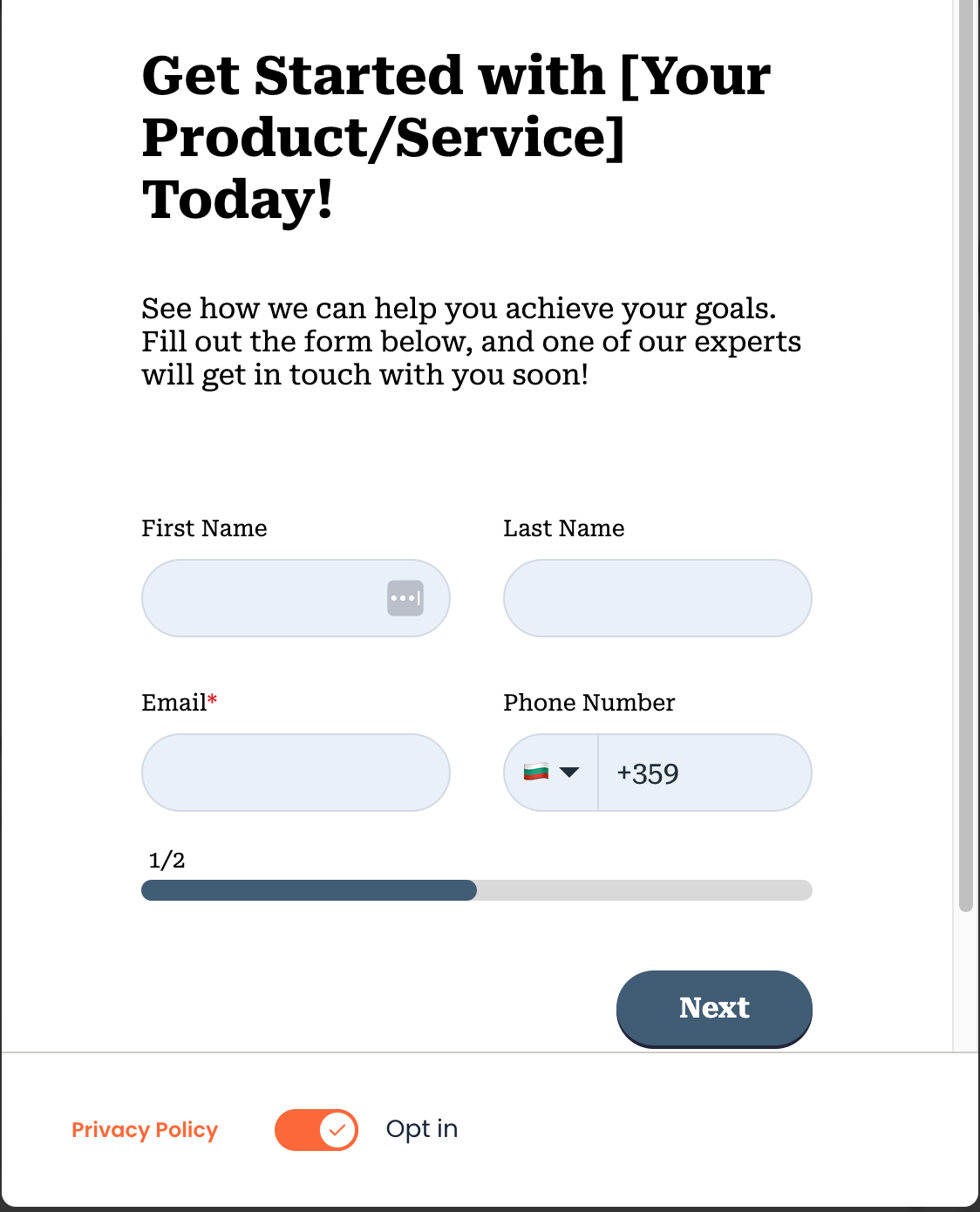
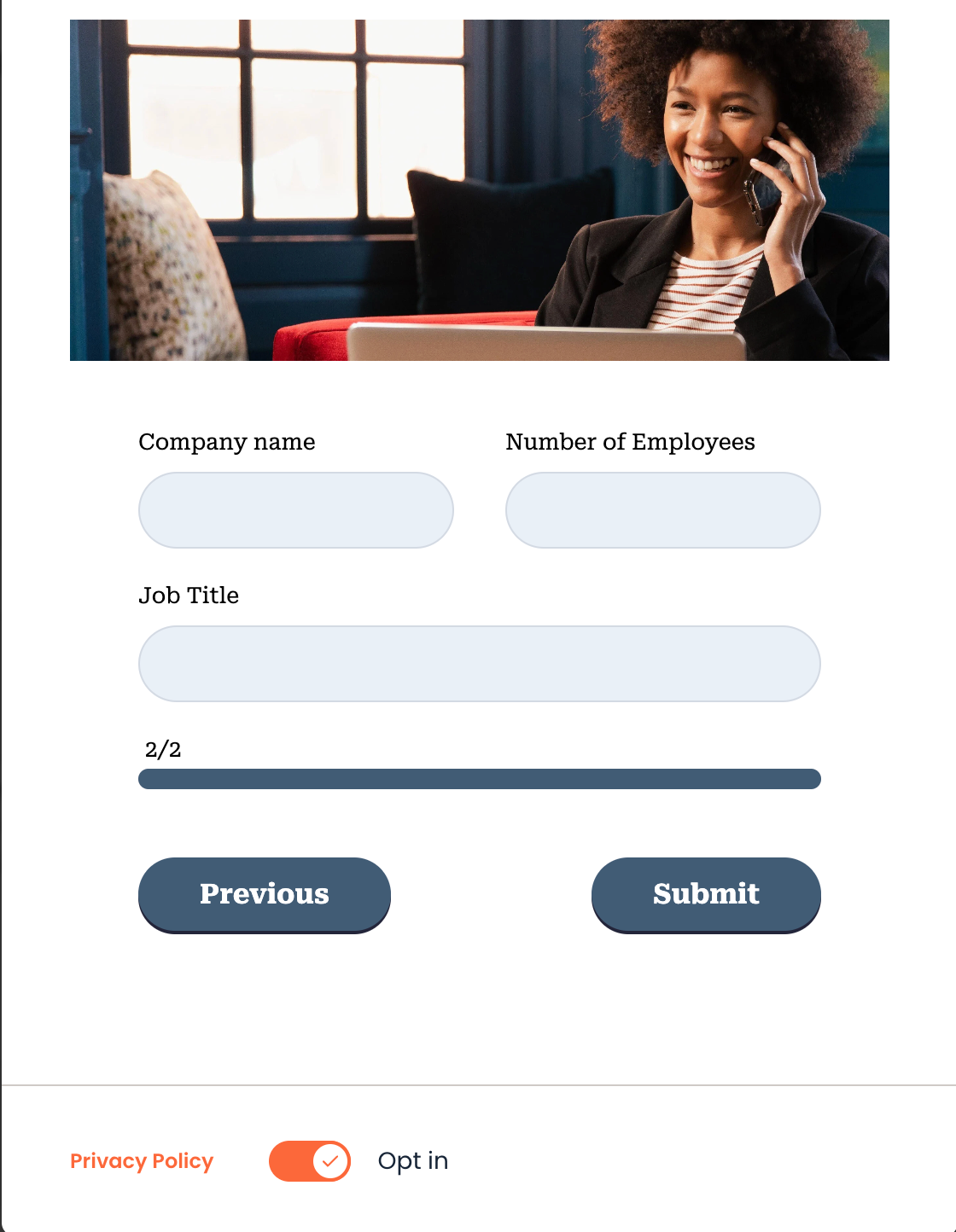
When you save your form it will be listed in the Forms table and Hubspot will be listed as the form source.
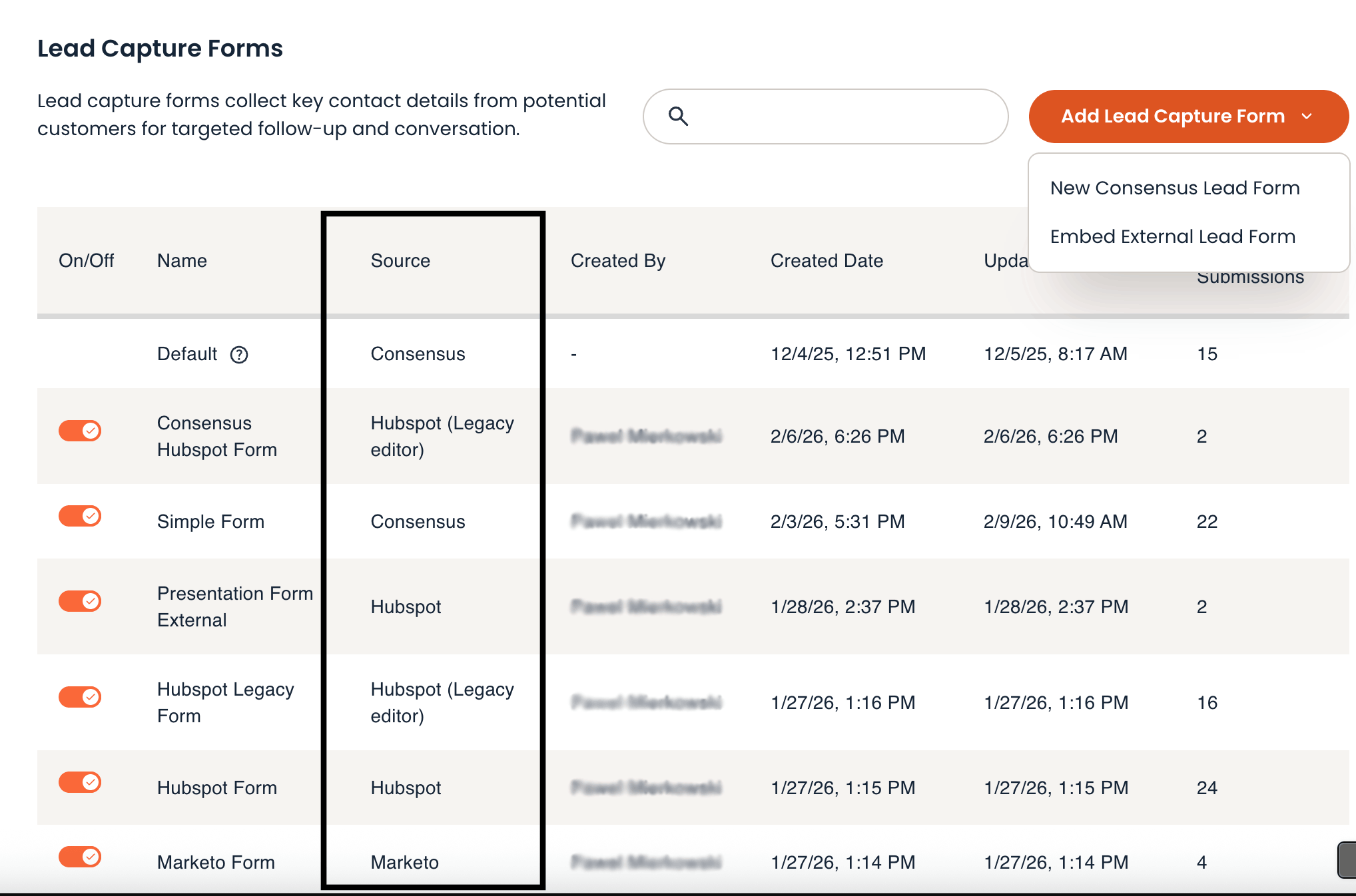
HubSpot legacy form builder
Consensus supports embedding Hubspot forms built using the legacy form builder, as well as these you built most recently using the new form builder. The only difference as you are configuring your Consensus embedded forms comes down to how the form source is displayed.
Pasting the legacy form builder script into Consensus is recognized and the Form Source is automatically selected as Hubspot (Legacy editor)
Replacing forms on the fly
As you are configuring your Hubspot forms, you can update your script on the fly. Simply clear the pasted script from the External Lead Form Code and all form configuration fields will disappear, giving you a chance to paste another script.
Using external forms in Public links
Now that your external Hubspot forms are configured in Consensus, you can use them for your Public links in the same way you select Consensus lead forms.
When you create your Public link you will see your external forms listed under the Lead gate form selector.
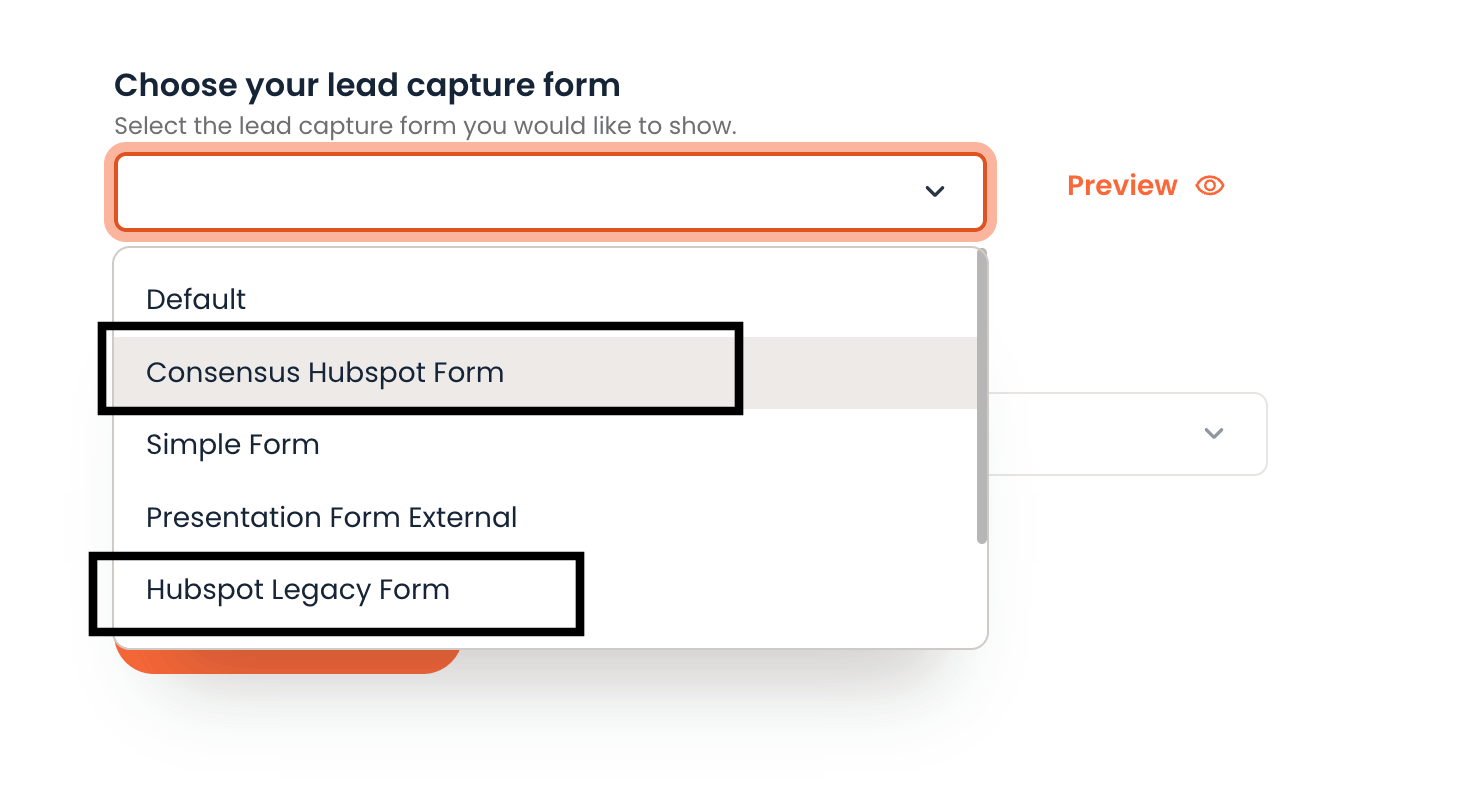
You can also preview your external forms from the Create Public link page.
Updating existing Public links
Once you have your external forms in Consensus you are able to update any existing Public links and replace your lead forms with the external Hubspot form(s) you have configured.
Simply edit your Public link and from the Lead form picker you will be able to select your external form(s).
Getting started with Marketo forms
In your Marketo instance navigate to the forms you want to add to your Consensus account. Edit the form you wish to embed to Consensus from the Design Studio and copy the form script from the Embed code button.
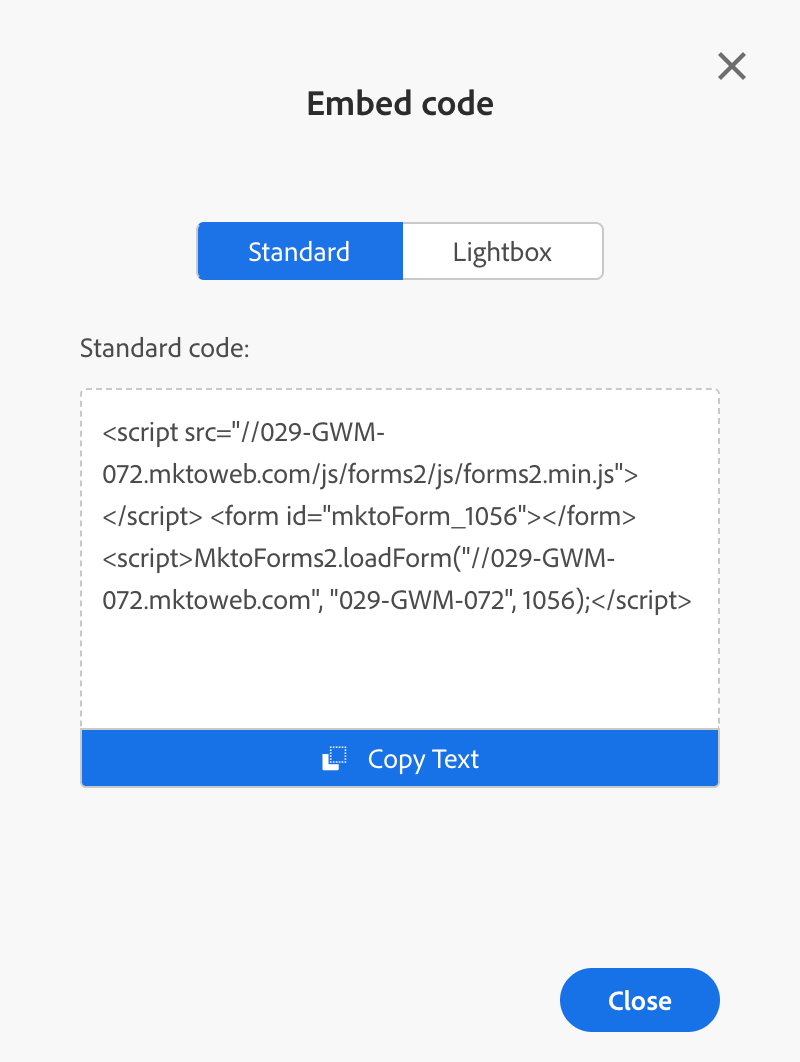
Navigate to the Public Links Lead Forms tab and click the Add Lead Capture Form dropdown to see two options: New Consensus Lead Form and Embed External Lead Form. To embed your Marketo form, select the second option.
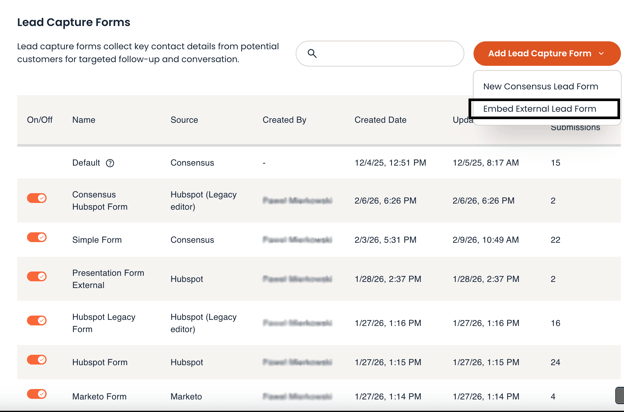
On the form creation page, you will see two required fields. These are the Form Title and the Form Source. Focus on the form name field, because the Form Source field is autofilled from the script you will paste in the External Lead Form Code section. After naming your form, paste the Marketo script.
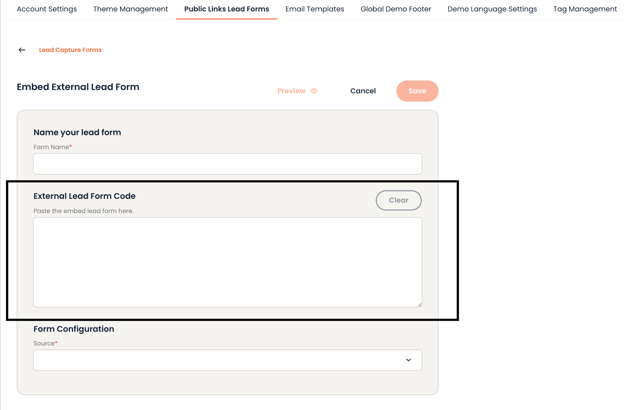
After pasting the Marketo script, additional Form Configuration fields will appear and these will be prefilled for you.
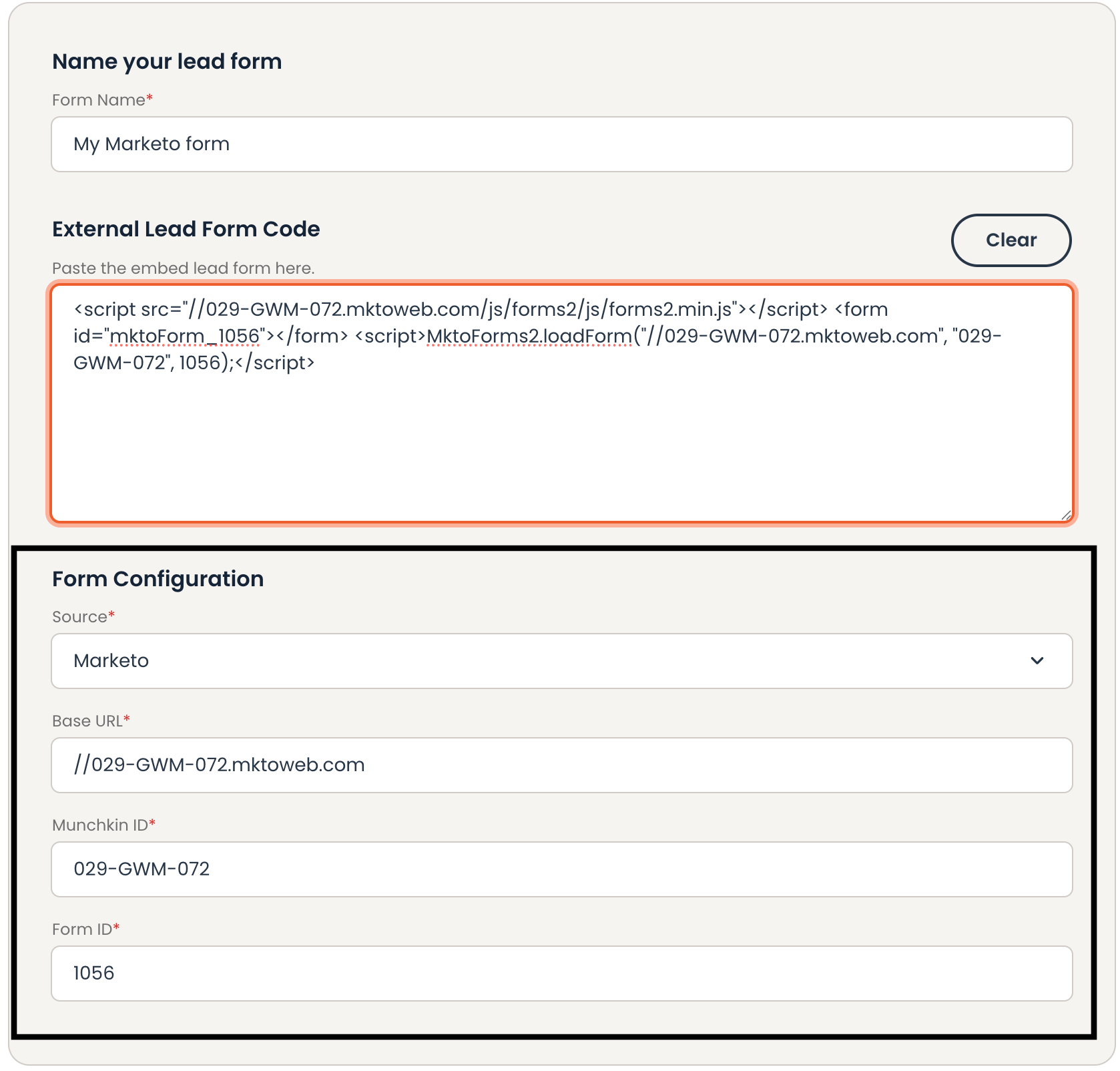
Consensus will automatically select the form source and prefill the additional fields: Base URL, Munchkin ID and Form ID. Alternatively, you can fill these fields out from the script source.
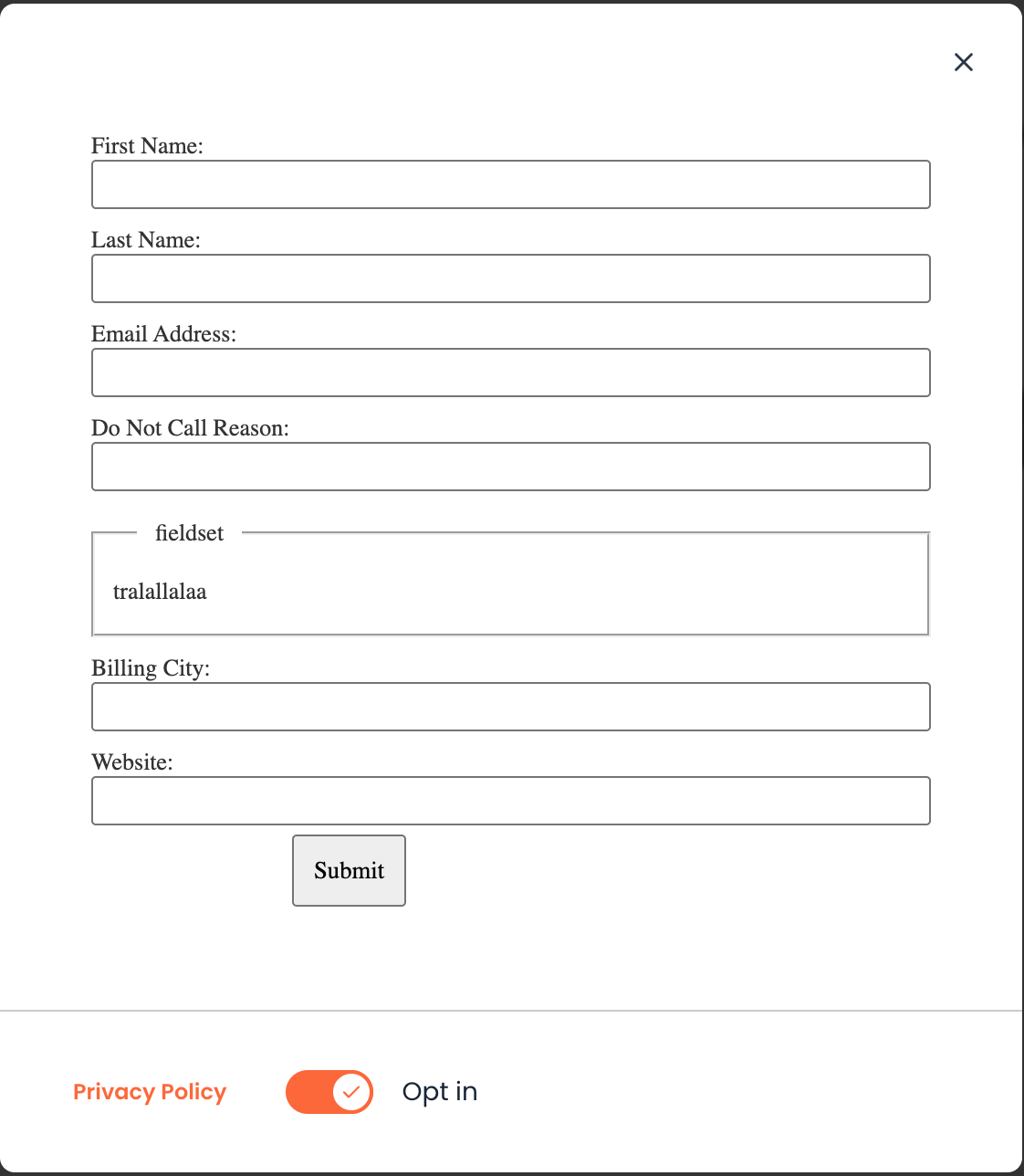
That’s all it takes to add your external form from Marketo! Before saving your external form, you can preview and see how it would render inside the Consensus player. Click on the Preview button at the top of the page.
Replacing your Marketo form on the fly and using your form in Consensus
Before saving your Marketo form, you can change the script at any time by clicking the Clear button - this will delete the script allowing you to paste another one.
Once your form is saved, it will be listed in the Lead Forms table and Marketo will be displayed as the form source.
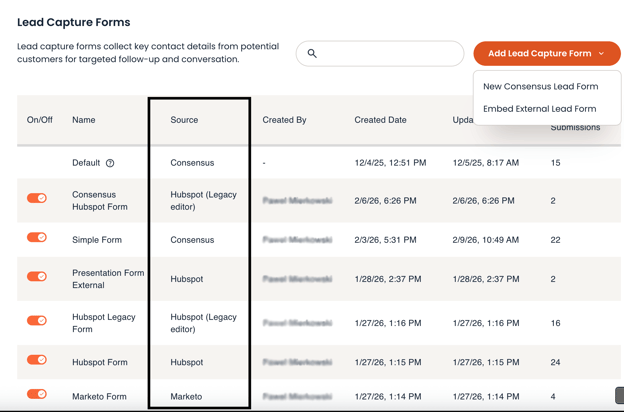
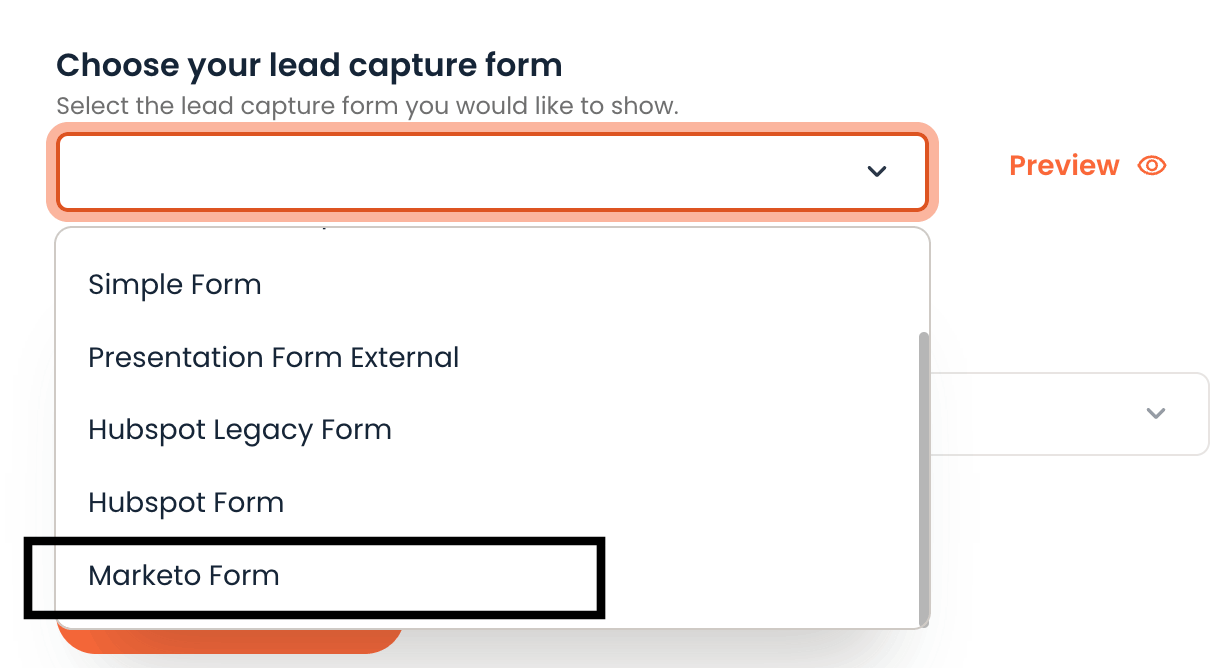
Now you are all set to start using your external form in Public links. The Marketo form will be listed in all Lead Form pickers allowing you to use it for any new Public links, or when you are updating existing ones.
External form elements rendered in Consensus player
When you embed a Hubspot or Marketo form in Consensus, the following elements from your external form will display in the Consensus player:
- Form headers - Titles, images and descriptive text configured in your form;
- Form styling - Colors, fonts and layout from your Hubspot or Marketo form design;
- Form fields - All fields configured in your external form, including field labels, placeholders, and validation rules;
- Form footers - Legal language, privacy policy links, and consent text from your external form.
Consensus footer with opt-in
Even when using external forms, Consensus will always append the Consensus footer with the opt-in toggle below your external form elements. This ensures compliance with Consensus data handling practices while preserving your Hubspot or Marketo form's configured elements above it.
Limitations
Multi-step forms are not fully supported
Consensus currently supports fully single-page forms only. If your Hubspot or Marketo form uses multiple steps or progressive form logic that spans multiple pages, it may not render correctly in the Consensus player. For best results, use simple, single-page forms.
Tracking cookie attribution
During this beta phase, Hubspot and Marketo tracking cookies (hubspotutk and _mkto_trk) are not fully supported. Form submissions will successfully flow to your marketing automation tool, but demo engagement activity may not be fully attributed to the contact record in your MAT. We're actively working to improve attribution capabilities in future releases.