
Copying an existing demo gives you a ready-made starting point for a new one. It's especially useful when you have a base demo that works, and you'd like to spin off variants (a different language, audience, or use case) without reconfiguring everything from scratch.
| Before you start : If you don't see the Copy option, ask your Consensus admin to check your role. Copy feature is not available with Sender/Tracker, Dynamic/HTML Tour Creator, and View Only roles. |
| Copy a demo from your Library |
You'll start in the Library, where every demo you have access to is listed.
- Open Library > Demos. The page opens on the My Demos tab.
- Find the demo you'd like to copy. The search bar helps if your library is large.
- Hover over the demo's row, then click the three-dot More Actions menu.
- Select Copy. A Demo has been copied confirmation appears in the top-right corner, and the new demo is added to your library with " - copy" at the end of the original title (for example, Product Overview - copy).
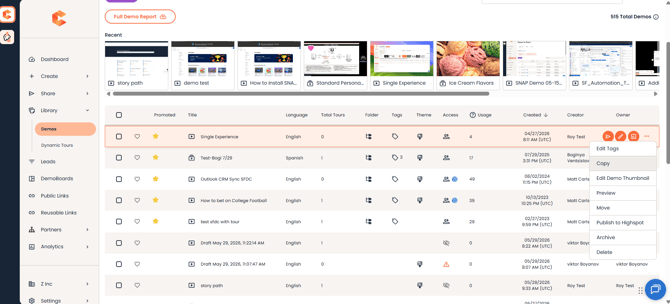
Library > Demos – three-dot More Actions menu with the Copy option
| Find and edit your copy |
The copy doesn't open on its own. Instead, it's saved to your My Demos list, so you can pick it up whenever you're ready to make changes.
- Stay on the My Demos tab in Library > Demos. The list is sorted by creation date by default, so your copy appears near the top, just below any promoted or favorited demos, with " - copy" at the end of its title.
- Hover over the copied demo. The action icons appear at the right end of the row; click the pencil (Edit) icon, and the demo opens in the Demo Wizard.
- Start with the title. Renaming the copy right away makes it much easier to tell apart from the original in your library.
- Work through the rest of the Demo Wizard steps to tailor the content, then save your changes.
| What gets copied (and what doesn't) |
Most of the demo's setup carries over, so you won't need to rebuild it. Sharing and access settings are the exception, since those belong to the original demo.
- Copied — demo content (videos, tours, documents), demo info (title and description), Step 2 style settings, Step 4 stakeholder actions, Step 5 additional interactions, and demo tags.
- Not copied — DemoBoards or Public Links built from the original demo, Demo Access permissions (the copy starts with you as its only Owner), the Published state (the copy starts unpublished), and Promoted status.
| Troubleshooting |
I clicked Copy, but nothing opened. That's expected. Once you see the Demo has been copied confirmation, the copy is in your My Demos list, titled with " - copy" at the end. Open it from there with the pencil (Edit) icon.
I can't find the Copy option in the More Actions menu. Copying depends on your role. Sender/Tracker, Dynamic Tour Creator, and View Only roles don't include it, and a Custom Role may have it turned off. Ask your Consensus admin to confirm your role includes it.
My copy shows as unpublished. Copies always start unpublished so you can review them first. Publish the copy once your changes are ready.
| FAQ |
Who owns the copied demo? You do, regardless of who owned the original. You can then grant access to teammates from the copy's Demo Access settings.
Will the original's DemoBoards and Public Links point to my copy? No. Existing DemoBoards and Public Links stay with the original demo. Once your copy is published, create new ones from it.
What happens if I copy a demo that's already a copy? Consensus adds another " - copy" to the end, so a copy of Product Overview - copy becomes Product Overview - copy - copy. Renaming each copy as soon as you open it keeps your library easy to navigate.
Will my copy be in the same folder as the original? No, the copy isn't added to the original's folder. If you'd like it there, use Move in the copy's More Actions menu.
Can I copy a demo into a different Consensus account? Copying works within your own account. If you need a demo moved to another account, contact your Consensus account team or Support.