
Edit an existing demo
Demos in Consensus aren't locked in once they're published — you can update titles, swap videos, refresh logos, change CTAs, or tweak feature ordering at any time. Any edit you make to a demo also flows automatically to every DemoBoard previously created from that demo, so you don't have to chase down old links to keep them in sync.
Step-by-step
- In the left-hand sidebar, click Library, then choose Demos.
- Find the demo you want to edit in the My Demos tab (demos you have access to use) or the Demo Library tab (every demo in the account).
- In the Actions column for that demo, click the pencil icon. The Demo Wizard opens directly to that demo.
- Make your edits. When you're done, click Save & Exit. The demo and every existing DemoBoard built from it update automatically.
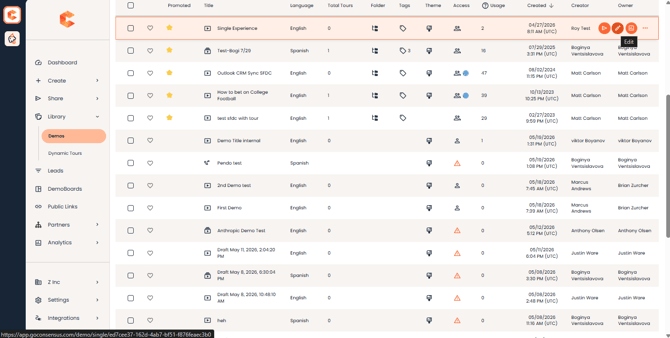 Demo Library — the Actions column on each row contains the pencil edit icon.
Permissions
You need at least Can Edit access on the demo to make changes. Demos you only have Can Use access on won't open in the Demo Wizard. If you can't edit a demo you think you should have access to, ask the demo's owner or check Demo Access in Step 6.
Quick reference: what each step covers
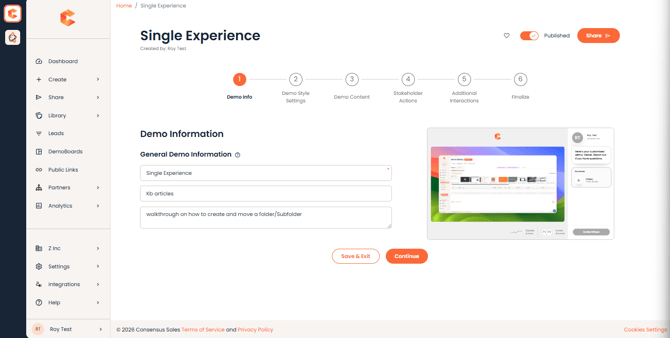
The Demo Wizard opens with six numbered steps plus Publish.
Step 1 — Demo Info
- Internal Title and External Title
- Description (optional, searchable in the Library)
Step 2 — Demo Style Settings
- DemoPlayer language
- Logos (Cover, Sidebar, Player, Favicon)
- Brand colors (CTA & pop-up, Cover, Hotspot)
- Contact Info (company-level phone, email, social)
Step 3 — Demo Content
- Intro Video (optional)
- Intro Tours and Documents (optional)
- Feature videos and per-feature Tours / Documents
Step 4 — Stakeholder Actions
- Share Button label and Share Prompt placement
- BuyerBoard options
Step 5 — Additional Interactions
- Lead Capture Form placement (for Public Links)
- CTA buttons (up to 4)
Step 6 — Finalize
- Demo IDs and tags
- Thumbnail picker
- Demo Access (Visible in Library, Self-Service Can Use, User/Group access)
- Publish state