
Managing your user - Watch
Manage users in your Consensus account
Add new users, edit their details, and enable or disable them as your team composition changes. All user management lives under Settings → Manage Users & Access. Disabling a user frees up their license for someone else but preserves their analytics history — you don't lose any reporting data.
Open the Manage Users page
Click the Settings (gear) icon in the lower-left corner of the sidebar, then choose Manage Users & Access. The page opens with the Users tab selected by default.
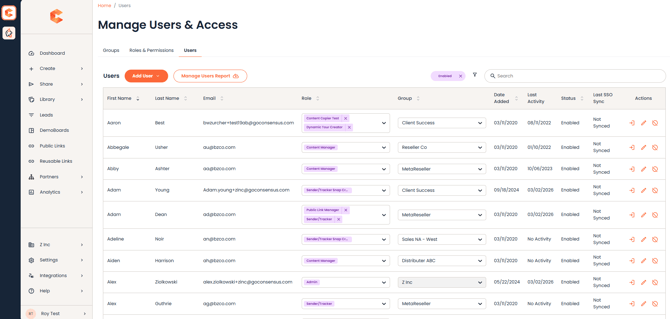 Manage Users & Access — Users tab. The pencil edit icon, the disable (circle) icon, and the re-enable (arrow) icon all live in the Actions column.
Adding a user
- On the Users tab, click the Add User button.
- Fill in the required fields (First Name, Last Name, Email).
- Set their Role and assign them to a Group.
- Optional fields (LinkedIn, Twitter, etc.) can be left blank — the user can fill those in themselves from My Profile.
- Click Save to add the user. They'll receive a welcome email with sign-in instructions.
Editing a user
On the Users tab, search for the user you want to edit, then click the pencil icon in the Actions column. The Edit User panel lets you change their name, email, Role, Group, contact info, and any custom fields.
Disabling a user
In the Actions column, click the circle icon next to the user. Disabling does three things:
- Frees up their license so you can add a new rep without buying a seat.
- Removes their ability to log in or send DemoBoards.
- Preserves their analytics so historical reports stay accurate.
Disabling a Demo Owner / Content Creator
When you disable a user who owns demos, ownership transfers automatically:
- If they own a Group, ownership goes to the Group Owner.
- If their Group has no owner, ownership goes to an Admin.
You don't need to manually reassign demos before disabling — the platform handles it.
Re-enabling a user
By default the Users tab is filtered to "Enabled" only. To re-enable a disabled user, remove the Enabled filter, search for the user, and click the arrow icon in the Actions column. They regain access immediately.