
Personal Intro Videos make DemoBoards feel personal
A Personal Intro Video (PIV) is a short video card that plays on the Who Are You page of your DemoBoard — before the demo itself. It puts your face and a personalized message in front of the prospect, making automated demos feel like 1:1 outreach. Most reps see significantly higher engagement on DemoBoards with a PIV vs. without.
Step 1: enable PIV at the account level
PIV must be turned on for your account before any user can attach one. An admin needs to:
- Click Settings → Global Demo Settings.
- In the General Settings section, toggle Personal Intro Video ON.
- Click Save at the bottom.
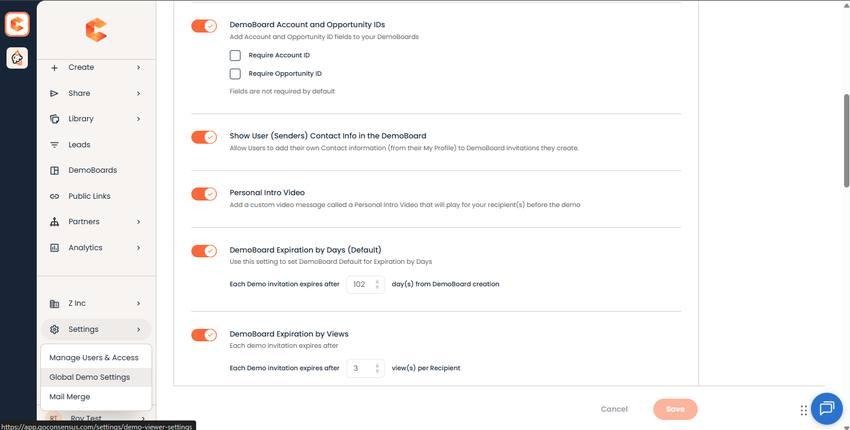
General Settings — Personal Intro Video toggle.
Once enabled, every System Role with Create DemoBoard access can use PIV: Admin, Sender/Tracker SNAP Creator, Sender/Tracker, Content Creator, and Content Manager. PIV is also available as a granular permission for Custom Roles if you need finer control.
Step 2: set up your Default PIV
A Default PIV automatically attaches to every DemoBoard you create — no per-DemoBoard setup. Configure it from My Profile.
From My Profile
- Click your avatar in the bottom-left, choose My Profile.
- Scroll to the Default Personal Intro Video section.
- Click Record New (Chrome only) or Upload to provide your video.
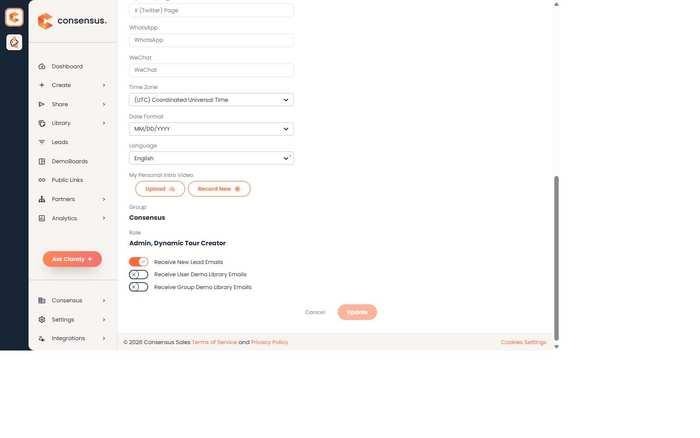
My Profile — Default Personal Intro Video controls (Record / Upload).
Recording in-browser
Record New opens an in-page recording tray. With your webcam and mic ready, click Record. A 3-second countdown plays before recording begins. When you're done, click Finished to open the trim editor — set the start and end points, name the video, and Done Editing to save.
From Create DemoBoard
If you don't have a Default PIV yet, you can create one inline from the Create DemoBoard page. Click "Use My Default" in the Personal Intro Video section — same recorder UI. Whatever you record there saves as your Default PIV automatically.
Step 3: pick a PIV when creating a DemoBoard
On the Create DemoBoard page, the Personal Intro Video section sits below the Recipient Info. Three choices:
- My Default — automatically selected if you have a Default PIV. Reuse the same intro across DemoBoards.
- Create Custom — record a one-off PIV specifically for this DemoBoard. Doesn't replace your Default. Useful for high-value prospects where a generic intro won't do.
- No Personal Intro Video Card — skip the PIV for this DemoBoard.
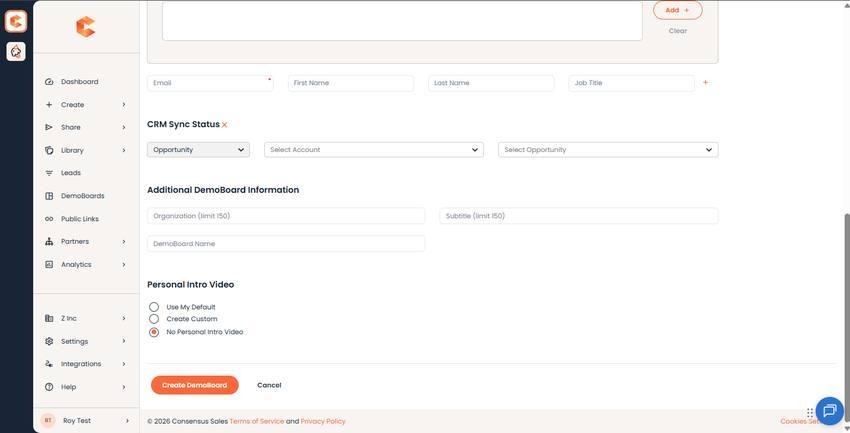
Create DemoBoard — Personal Intro Video controls.
You can also add a PIV to a previously-created DemoBoard via the Edit DemoBoard page (link icon in Track DemoBoards). DemoBoards created before PIV was set up default to "No Personal Intro Video Card.")
What viewers see
On the Who Are You page, the PIV plays alongside your Cover Logo and the recipient's organization name. When the video ends, it disappears to highlight the recipient list. Viewers can also click Skip at any time to jump straight to the demo.
Analytics and filtering
PIV view time is tracked separately. Each viewer's analytics record:
- Total PIV watch time.
- PIV heatmap (in the per-viewer analytics view).
PIV view time rolls up into the DemoBoard View Time you see in Track DemoBoards and Sales Demolytics. If you only want to see actual demo view time (excluding PIV), use the filter on each Demolytics page to exclude PIV View Time.
Using your PIV as the DemoBoard image link
When you copy the DemoBoard's Image Link CTA after creating it, Consensus pulls three frames from your PIV as image options (alongside the demo's own thumbnails). PIV-derived images give your outreach a personal, approachable feel — usually higher CTR than a static demo screenshot.
PIV in Consensus SNAP
PIVs you create or upload in Consensus SNAP follow a similar flow — see "Recording a Personal Introduction Video (PIV) with Consensus SNAP" for the SNAP-specific walkthrough.