
Show rep contact info on DemoBoards
When a prospect watches a DemoBoard, you want them to know exactly who sent it and how to reach back out. Consensus pulls rep contact info directly from the rep's My Profile and surfaces it on every DemoBoard — no per-DemoBoard configuration needed once each rep sets up their profile.
What contact fields appear
- First Name + Last Name
- Profile picture (avatar)
- Phone Number
- Calendar Link (Calendly, Chili Piper, etc.)
- Job Title
- LinkedIn, X (Twitter), WhatsApp, WeChat
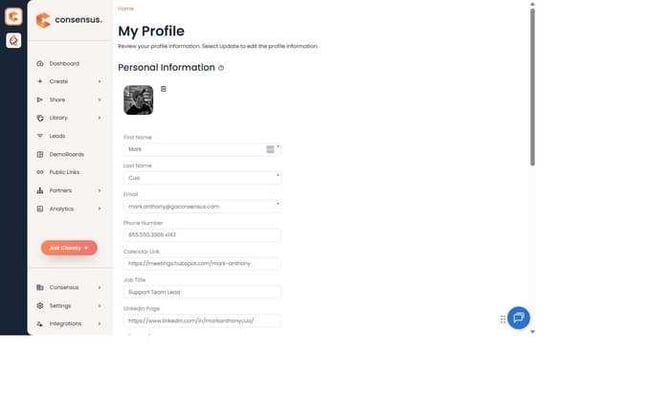
My Profile — top contact fields (Name, Email, Phone, Calendar Link, Job Title, LinkedIn).
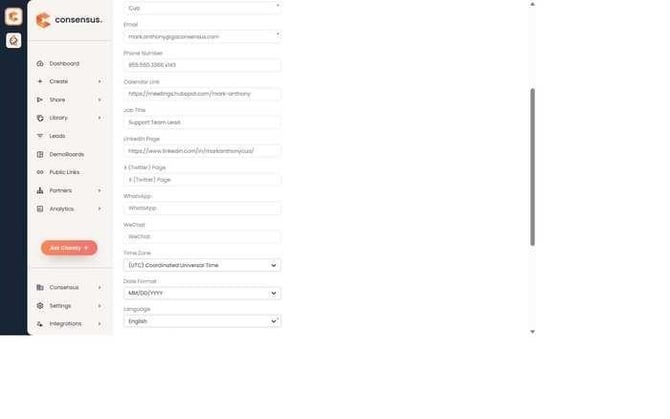
My Profile — additional contact fields (X, WhatsApp, WeChat) plus Display Preferences.
Step-by-step: set up your contact info
- Click your name and avatar in the bottom-left, choose My Profile.
- Click Update at the bottom of the page to switch to edit mode.
- Fill in any contact fields you want surfaced on your DemoBoards. Skip fields that don't apply (you can always come back).
- Click Update again at the bottom to save.
Account-level enable
For rep contact info to appear on DemoBoards at all, an admin must turn on Show User (Senders) Contact Info in the DemoBoard at the account level (Settings → Global Demo Settings → General Settings). Once that's on, every rep's My Profile contact info flows through automatically.
What viewers see
On the DemoBoard cover page, viewers see the rep's avatar, name, job title, and a row of contact links (phone, email, calendar link, social icons). One click and they're messaging, calling, or booking time with the rep.