
Add or edit users in bulk via CSV upload
Bulk upload is how you onboard a team of users without clicking through the Add User flow 50 times. Upload a CSV with one row per user, and Consensus creates or updates them in one operation.
Where to find it
Settings → Manage Users & Access → Users tab → Bulk Upload button.
Step-by-step
- Open Manage Users & Access. On the Users tab, click Bulk Upload.
- Download the CSV template — it has the exact column headers Consensus expects.
- Fill in the template: one row per user. Required columns are email, first name, last name. Optional columns include role, group, job title, phone, time zone.
- Save the file as CSV.
- Back in the Bulk Upload modal, drag-drop or browse to your CSV.
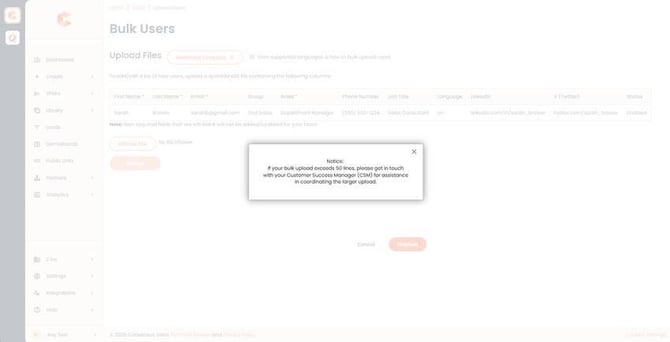
Bulk Upload modal — drop your CSV here.
Review and confirm
After upload, Consensus shows a preview: how many rows it parsed, how many will be created vs. updated, and any rows with errors (bad email, missing required field, invalid role). Fix errors in your CSV and re-upload, or proceed and have those rows skipped.
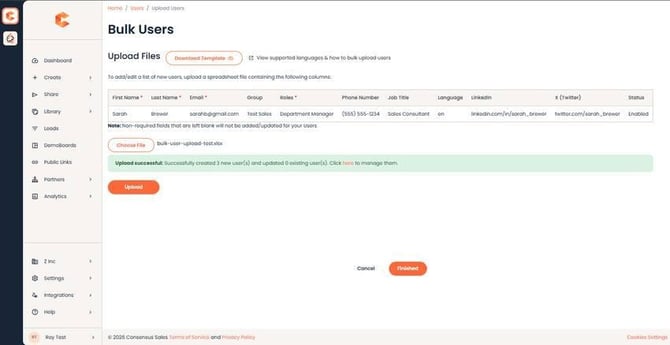
Bulk Upload results — successes and errors.
Create vs. update
- Email matches an existing user — Consensus updates that user's record (name, role, group, etc.).
- Email is new — Consensus creates a new user and sends them a welcome email.
Permissions
You need Admin to use Bulk Upload.