
Choose where the lead gate appears
For Standard and Single Experience Demos used in Public Links, you can decide where in the viewing experience your Lead Capture Form appears. Move it earlier and you maximize lead capture; move it later and you reduce friction at the cost of some leads. The setting is in Step 5 of the Demo Wizard.
Step-by-step
- In the left-hand sidebar, click Library, then choose Demos.
- In My Demos or Demo Library, find the demo whose lead gate position you want to adjust.
- Click the pencil icon to open the Demo Wizard.
- Jump to Step 5 (Additional Interactions). The Lead Gate placement dropdown is at the top of the section.
- Pick a position from the dropdown.
- Click Save & Exit. The change applies immediately — every existing Public Link built from this demo updates automatically.
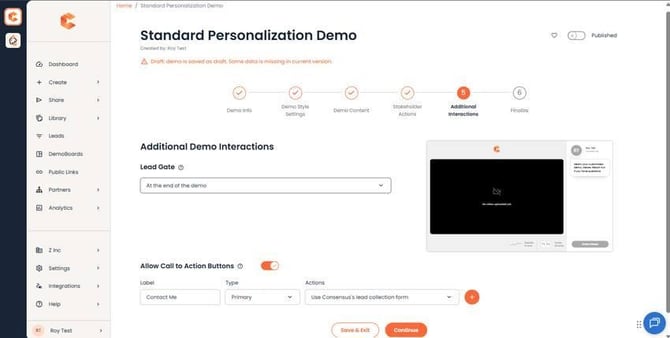 Step 5: Additional Interactions — Lead Gate placement dropdown at the top.
Picking the right position
- Before the demo (gate up front) — maximizes captured leads but raises the bounce rate. Use when a captured lead is worth more than a casual viewer.
- After the personalization questions (Standard Demos only) — viewers commit by rating features first, then are asked to share contact info. Highest-quality leads, since the viewer has already invested in the demo.
- At the end of the demo — lowest friction. Best for top-of-funnel awareness Public Links where you want to maximize watch-throughs and accept some uncaptured viewers.
For most B2B SaaS use cases, "After the personalization questions" is the sweet spot — it filters out casual viewers without scaring off serious ones.
Permissions
You need at least Can Edit access on the demo to change Lead Gate placement.