
Standard Personalized Demo Guide
Create a Standard Personalization Demo
A Standard Personalization Demo (also called a Standard Demo) lets each viewer personalize their experience by rating which features matter most to them. The DemoPlayer then plays a tailored set of feature videos based on their ratings — long videos for "Very Important" features, optional shorter videos for the others. Standard Demos are the workhorse format for sales: highly personalized, fully analytics-instrumented, and reusable across DemoBoards and Public Links.
Open the Demo Wizard
Click Create in the left-hand sidebar to expand the create menu, then choose Standard Personalization Demo.
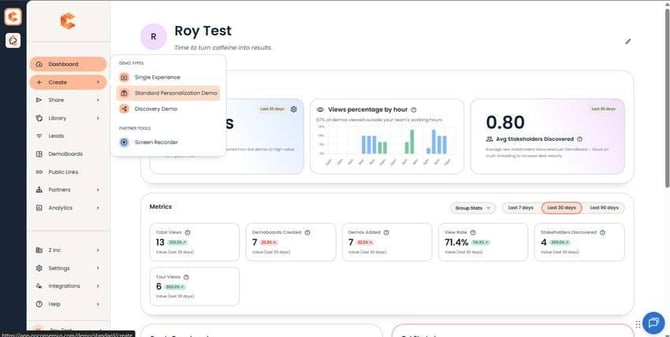 Create menu expanded — Standard Personalization Demo is one of the demo type options.
The Demo Wizard opens with six numbered steps plus a Publish step.
Step 1: Demo Info
Set the demo's identity. The Internal Title is for your team — it shows up in the Demo Library, dropdowns, and analytics. The External Title is what viewers see on the cover page. Description is optional and is searchable from the Demo Library, so use it for keywords your team or customers might search for.
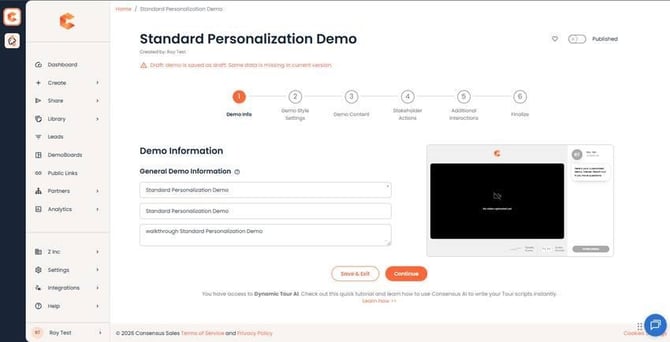 Step 1: Demo Info — Internal Title, External Title, and optional Description.
Step 2: Demo Style Settings
Pick the DemoPlayer language and brand the demo with logo, favicon, and color scheme. Consensus currently supports 19 languages including English, Chinese (Simplified and Traditional), Czech, Danish, Dutch, Finnish, French, German, Indonesian, Italian, Japanese, Korean, Norwegian, Polish, Portuguese, Russian, Spanish, and Swedish.
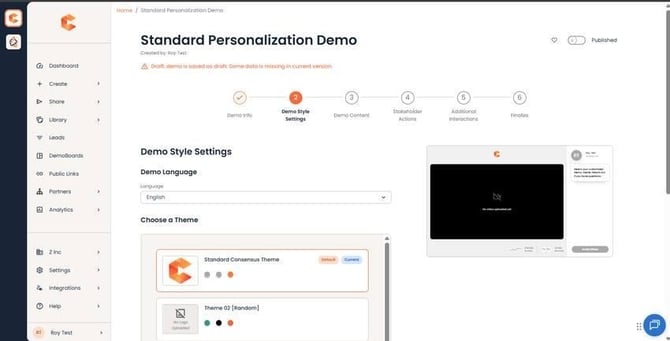 Step 2 (top) — language, logo, and color settings.
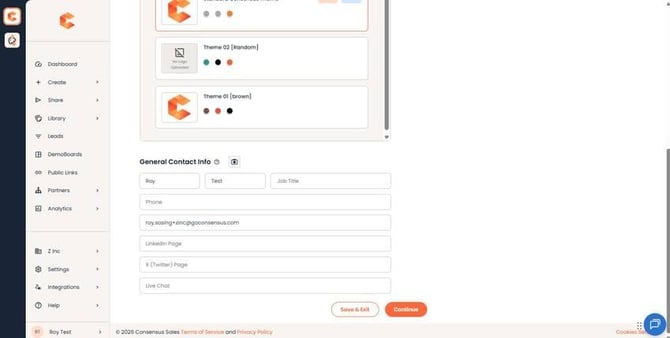 Step 2 (bottom) — Contact Info section: company phone, email, social media.
The Contact Info section sets what shows in the DemoPlayer footer: a general company phone, email, and links to your social media. This is separate from the per-rep contact info attached to a DemoBoard.
Step 3: Demo Content
Upload the demo's videos, tours, and supporting documents.
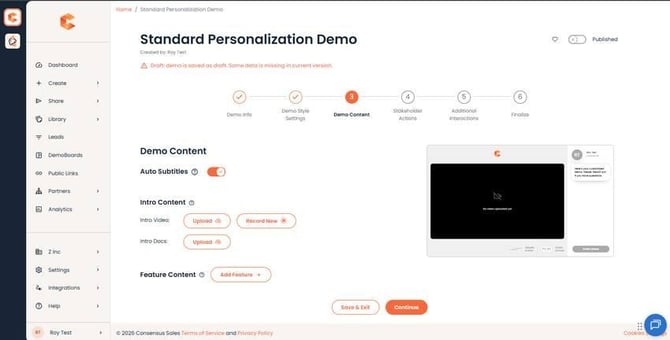 Step 3: Demo Content — Intro, Intro Docs, and the per-feature content list.
Intro Video and Intro Docs (optional)
The Intro Video plays before the viewer rates features. We recommend MP4. Intro Docs sit in the DemoPlayer Doc bar throughout the entire demo, regardless of how the viewer rates features.
Feature Content (the rated features)
Each feature is something the viewer rates as Very Important / Somewhat Important / Not Important. Per feature you can configure:
- Feature Title — what viewers see when rating.
- Description (optional) — appears on hover as a helpful hint.
- Tour (optional) — interactive Tour viewers can click through.
- Long Video — required if no Tour. Plays for "Very Important" ratings.
- Short Video (optional) — plays for "Somewhat" or "Not Important" ratings. If only the Long Video is uploaded, it plays for all ratings.
- Related Feature Docs — surface only when the viewer rates this feature Somewhat or Very Important.
Recommendations
- Each feature needs at least one of: a video or a tour. Both is fine.
- 5–7 features is the sweet spot. More than that and viewer fatigue kicks in before they finish rating.
- If you provide Short Videos, target ~⅓ the length of the Long Video. Educates without losing them.
- Use Intro Docs for anything every viewer needs to see (datasheets, pricing, security overview).
Step 4: Stakeholder Actions
Choose where the Share Prompt appears in DemoBoards generated from this demo. The Share Prompt encourages viewers to invite other stakeholders. You can also enable BuyerBoard for this specific demo on this step.
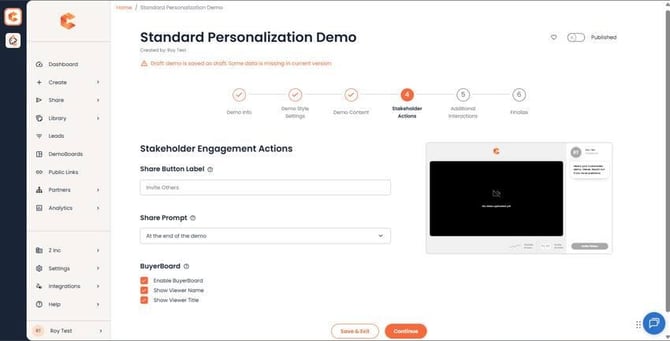 Step 4: Stakeholder Actions — Share Prompt placement and BuyerBoard toggle.
Step 5: Additional Interactions
Configure two things: where the Lead Capture Form appears in Public Links, and optional CTAs in the DemoPlayer.
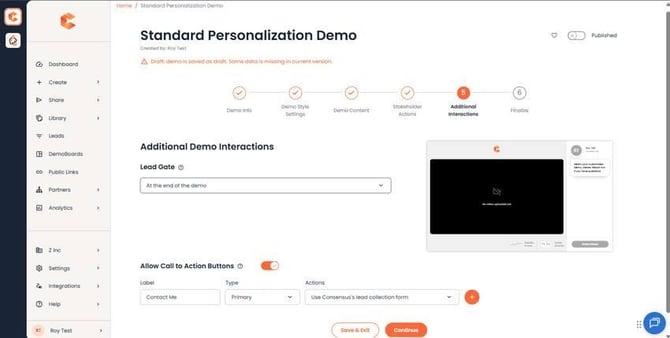 Step 5: Additional Interactions — Lead Form placement and CTA buttons.
For Public Link Lead Form placement, we recommend "After the personalization questions" — viewers have already invested in rating features, so they're more likely to convert.
You can add up to four CTAs in the DemoPlayer. The "Invite Others" CTA is added automatically on DemoBoards. Note that CTAs linked to the Consensus Lead Capture Form do not appear on DemoBoards (they're only meaningful on Public Links).
Tip: The "Allow Call to Action Buttons" toggle controls whether CTAs appear in the DemoPlayer — toggling off hides all buttons regardless of style, while your configured buttons are preserved for later.
Step 6: Finalize
The Finalize step pulls together IDs, thumbnails, tags, and access.
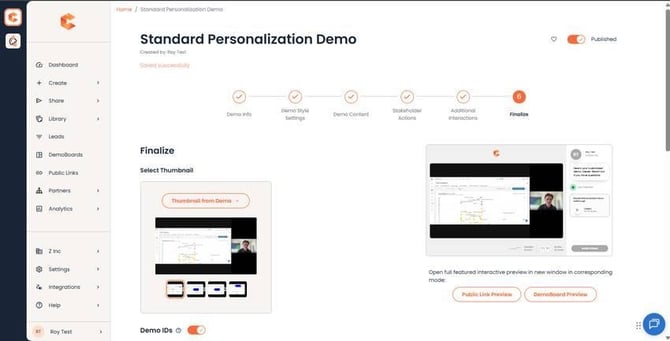 Step 6 (top) — Demo IDs and thumbnail picker.
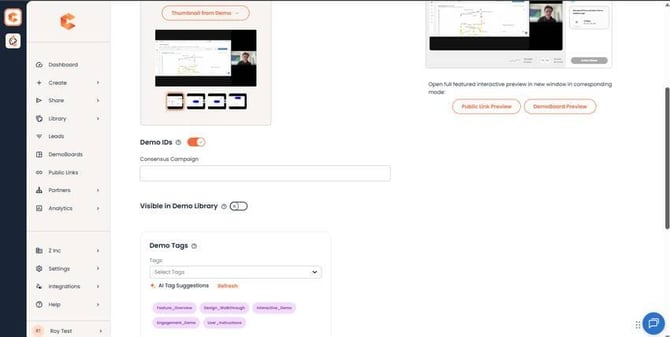 Step 6 (mid) — Tags and Folder.
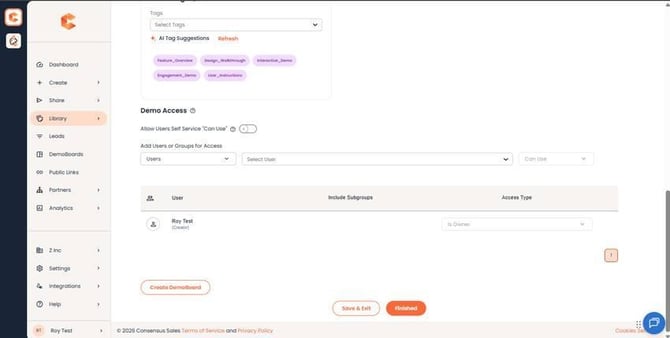 Step 6 (bottom) — Demo Access controls.
Demo Access
- Visible in Demo Library — when on, all Users can preview the demo and request access from the Library.
- Self-Service Can Use — automatically grant Can Use access when a User requests it from the Library. Limits them to creating DemoBoards or Public Links from the demo.
- User / Group Access — explicit grant by User or Group with a chosen access level.
Publish your Demo
Once the wizard is complete, click Publish. Until a demo is Published, no one can create DemoBoards or Public Links from it. Publishing also doubles as a "kill switch" — unpublishing the demo redirects existing viewers to a "Demo is expired" page.