
Delete a DemoBoard permanently
Deleting a DemoBoard permanently removes the DemoBoard, its analytics, and every recipient's contact information you entered when creating it. There is no undo, so use deletion only when you're sure.
When to delete
- Test DemoBoards you no longer want cluttering the Track DemoBoards page. (Alternative: mark them as Test instead, which preserves the data but excludes it from reporting — see "Using and Filtering Out Test DemoBoards.")
- GDPR / data subject requests — when a prospect asks you to delete their personal data, deleting the DemoBoard removes their viewing analytics and the contact info you entered.
Step-by-step
- Open Track DemoBoards (DemoBoards menu in the sidebar).
- Search for the DemoBoard you want to delete.
- Hover the row, click the three-dots More Actions icon.
- Choose Delete.
- Confirm. The DemoBoard, its analytics, and the recipient contact info are permanently removed.
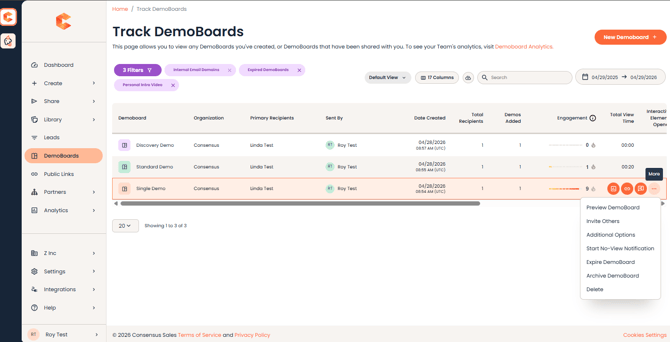 Track DemoBoards — three-dots More Actions menu with the Delete option.
Permanent. Deletion cannot be undone. If you might want the data back later, mark the DemoBoard as Test instead — it stays in the system but is filtered out of Demolytics by default.