
Export Demolytics data as CSV
For deep analysis in Excel, Google Sheets, or a BI tool, you can export the currently-filtered Demolytics view as a CSV file. The export honors whatever date range, demo selection, and filter set you've applied — so you get the exact slice of data you're looking at.
Step-by-step
- Open Analytics → DemoBoards Demolytics (or Summary, or Public Link, depending on what you want to export).
- Apply any filters you want (date range, demo, group, internal/external domains, test DemoBoards).
- Click the download / export icon in the top-right of the table.
- Consensus generates and downloads the CSV.
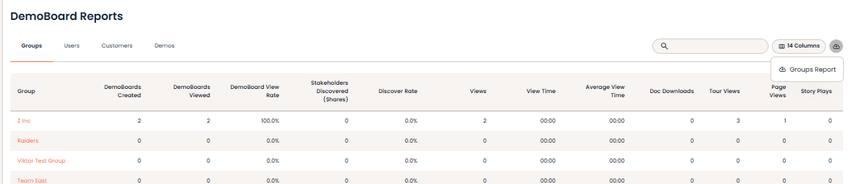
Demolytics — the CSV download button.
What's in the CSV
The export contains one row per record in the current view (per DemoBoard, per viewer, per public-link engagement, etc.) with columns matching what's visible in the table plus a few extras useful for downstream analysis (timestamps, organization domain, demo name, watch duration).
Quotas / limits
There's no hard cap on export size in practice — large date ranges and large accounts can produce CSVs with tens of thousands of rows. For very large exports, expect a brief processing delay before the download starts.