
Filter the Manage Users page to find who you need
When your Consensus account has hundreds of users, the Manage Users page can feel overwhelming. Use the filters along the top of the table to narrow your view to just the people you need to manage.
Where to find the filters
Click Settings (gear) in the lower-left, choose Manage Users & Access, and land on the Users tab. The filter dropdowns sit above the user table.
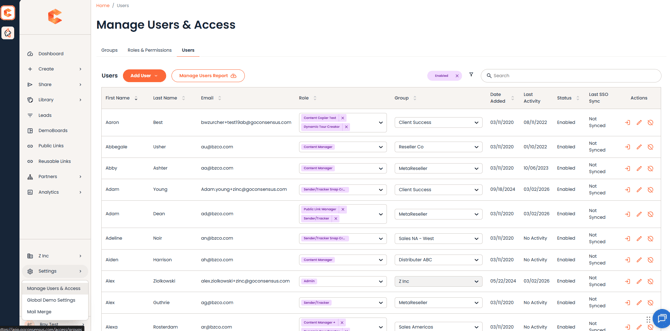 Manage Users & Access — filter dropdowns for Role, Group, and Status sit above the user table.
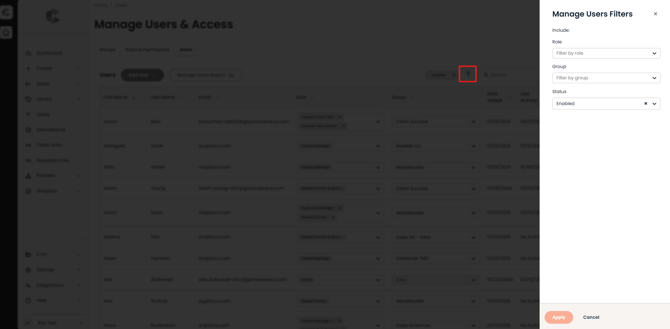 Manage User Filter Role, Group, Status
The three filters
Role
Show only users who have a specific Role. Users with multiple Roles will show if any one of their Roles matches the filter.
Pro tip: the Role column itself is editable inline. You can change a user's Role directly in the table without clicking into their detail page — just pick a new role from the dropdown in the row.
Group
Show only users in a specific Group. Useful when you're managing one team at a time.
Pro tip: like Role, the Group column is editable inline — change a user's Group directly from the dropdown.
Status
Show Enabled users, Disabled users, or both. By default the page is filtered to Enabled only — clear this filter to see disabled users (e.g. when re-enabling someone).
Combining filters
All three filters can be combined. A common combo: Role = Sender/Tracker + Group = North America Sales + Status = Disabled — to see who on the NA Sales team has been deactivated and may need re-enabling.
Sorting
Click any column header (except Actions) to sort the table by that column. Click again to reverse the sort direction.