
Reorder features in a Standard Personalization Demo
In a Standard Personalization Demo, the order of features in the Demo Wizard determines the order viewers see them when they personalize the demo. Most important features at the top means viewers rate those first — and viewers who don't finish the rating still get the most-important content. Reordering is a drag-and-drop edit inside the demo.
Step-by-step
- In the left-hand sidebar, click Library, then choose Demos.
- In My Demos or Demo Library, find the demo you want to reorder.
- Hover over the row and click the pencil icon to open the Demo Wizard.
- Jump to Step 3 (Demo Content) — that's where the feature list lives.
- Grab the ≡ (drag handle) on the left side of any feature's row and drag it up or down to its new position.
- Click Save & Exit when you're done. The demo and any existing DemoBoards built from it update automatically.
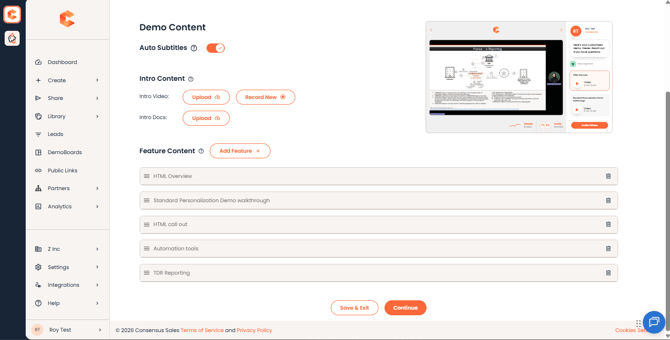 Step 3: Demo Content — feature list. The drag handle (≡) on the left of each row lets you reorder.
Why feature order matters
Viewers rate each feature as Very Important, Somewhat Important, or Not Important. The Demo Wizard's order affects two things:
- The order viewers see features when they're rating — top of the list rates first. Put your strongest features there.
- The order viewers see videos play back — features marked "Very Important" play first, in the order they appear in the wizard. Features marked "Somewhat Important" play after, also in wizard order. Features marked "Not Important" don't play at all.
Permissions
You need at least Can Edit access on the demo to reorder features.