
Prerequisites
- Admin access to Okta.
- Admin access to Consensus
Step 1: Create the Consensus app in Okta
- Log in to Okta as an admin and go to the Applications page

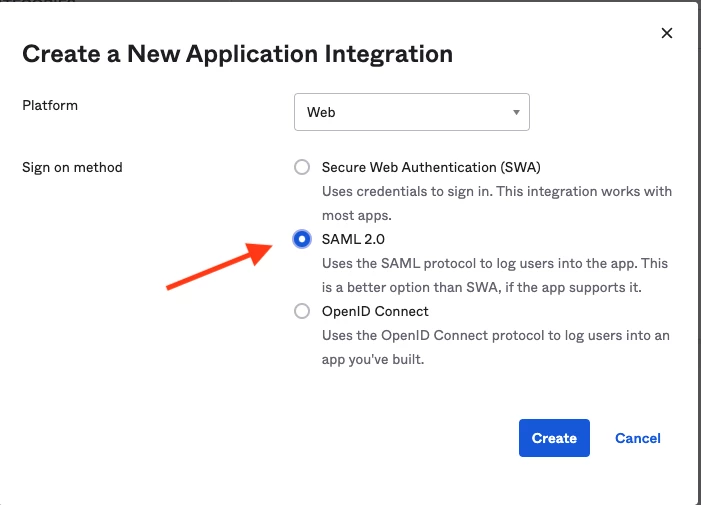
- Click Add Application, then click Create New App
- Select SAML 2.0 from the sign-on method list and click Create
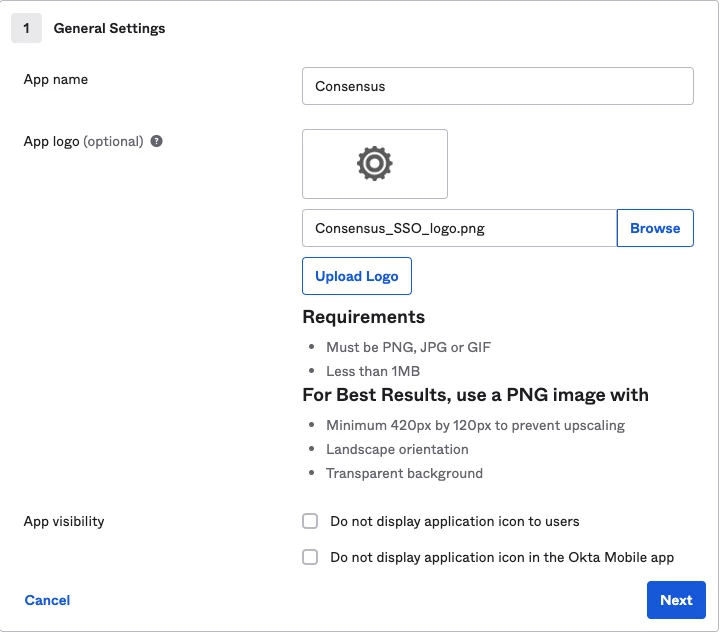
- Name the app Consensus. Optionally, download the Consensus logo to add to the app tile
Step 2: Get your Entity ID from Consensus
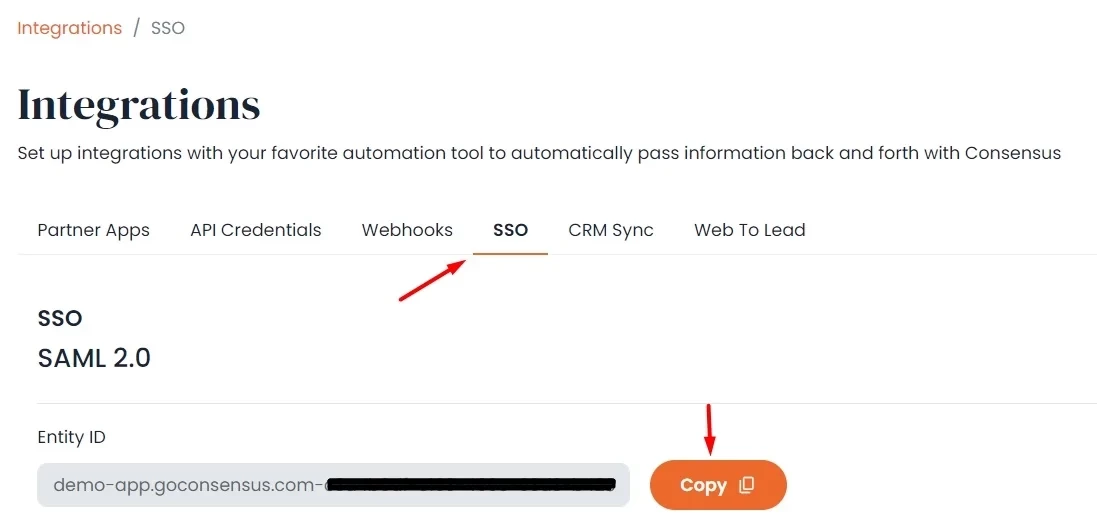
- Log in to Consensus as an admin and go to Integrations > SSO.
- In the SSO Settings, copy the Entity ID.
Step 3: Configure SAML settings in Okta
Back in Okta, on the SAML settings page:
- Audience URI — paste the Entity ID copied from Consensus.
- Single Sign-On URL — paste the Single Sign-On URL from Consensus.
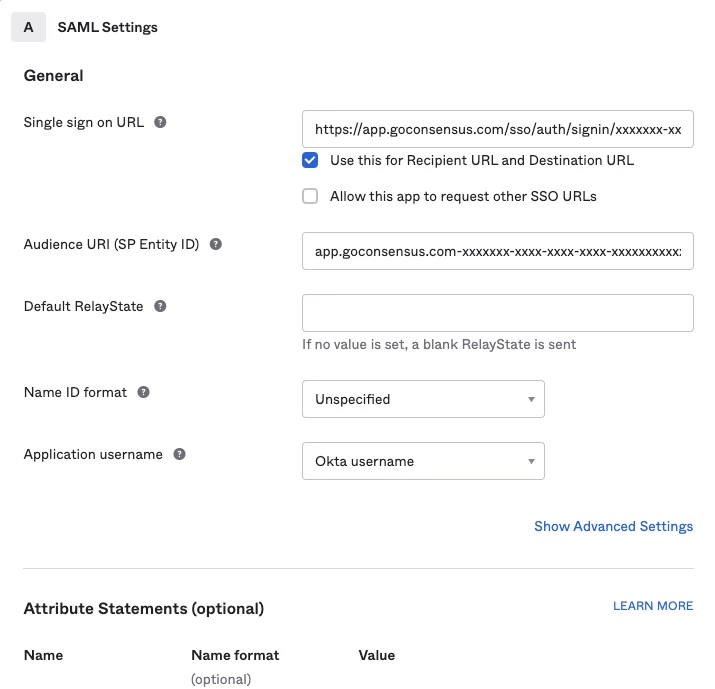
- Confirm your Okta username format:
- If Okta usernames are already the user's email address, no change is needed.
- If usernames are domain-stripped (e.g.,
jsmith), update the username format to email before proceeding.
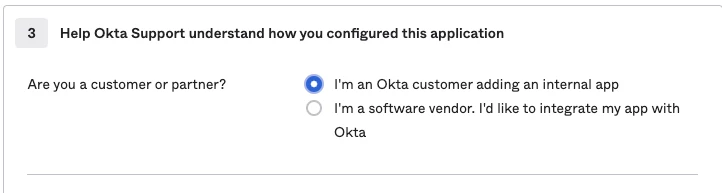
- On the next page (attribute statements / feedback), select the first option and continue.
Step 4: Get the Metadata URL from Okta
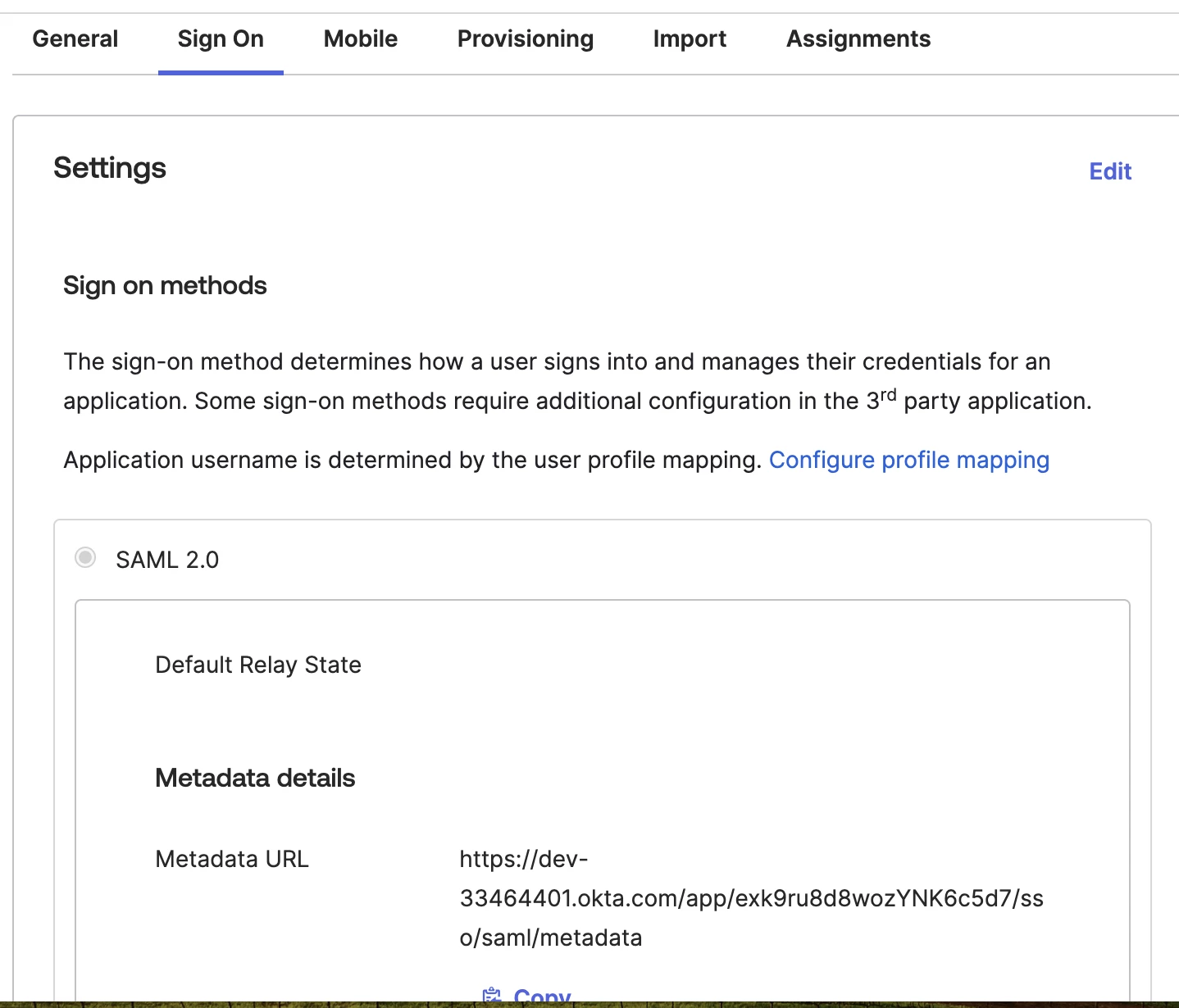
- Open the newly created app and go to the Sign On tab, then scroll to Settings
- You can download the certificate or
- Copy the Metadata URL using either method:
- Directly from the Settings section, or
- From the Active SAML Certificate: click to view the metadata (opens in a new tab), then copy the URL from that tab.
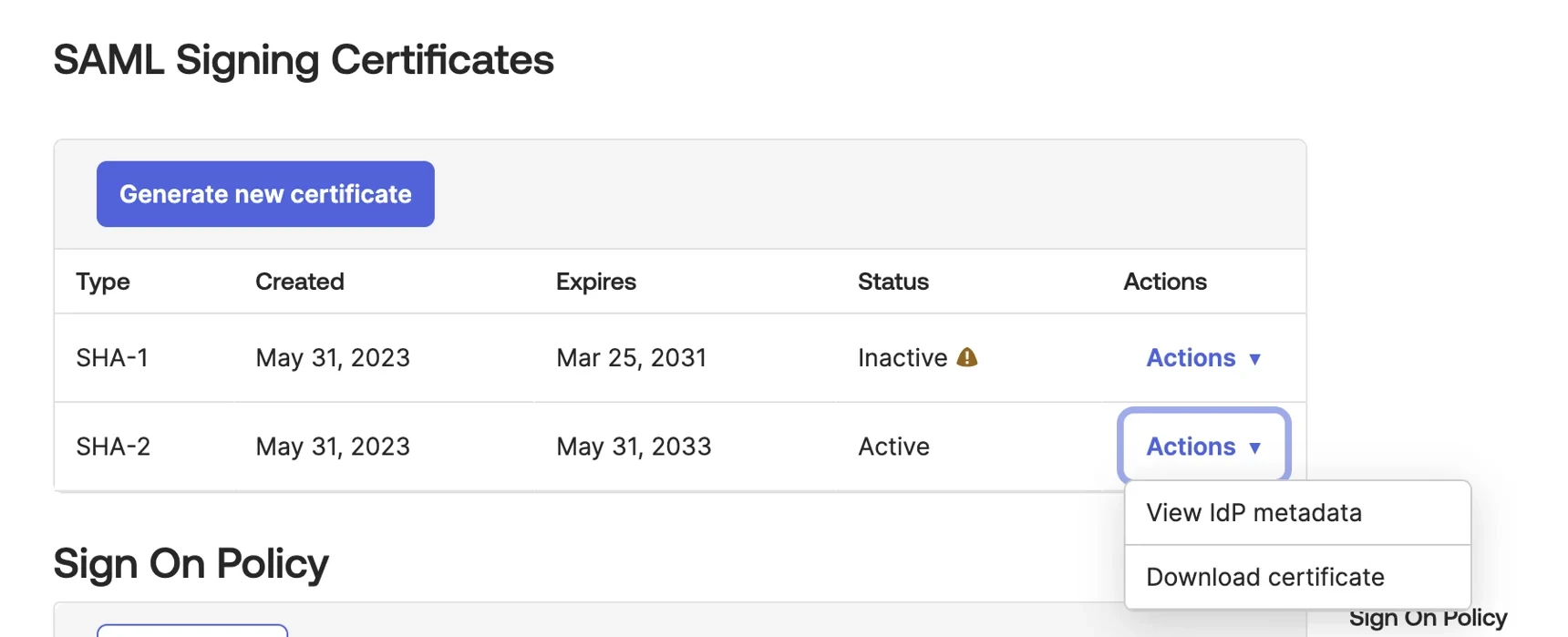
Use only one method. Copy the metadata URL, you'll need it in Step 5.
Step 5: Complete setup in Consensus
- Back in Consensus, you can upload the Metadata file or paste the Metadata URL into the IDP Metadata URL field.
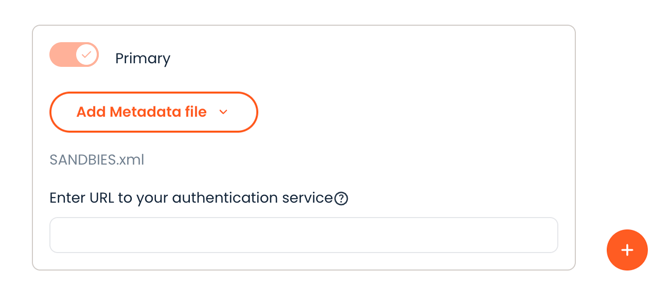
Note: Use only one metadata method, either XML file upload or IDP Metadata URL. Configuring both will create an authentication loop.
Step 6: Assign users in Okta
Users must be assigned to the Consensus app in Okta and have an existing user account in Consensus. Once both are true, SSO is ready to use.
Optional next steps
- SCIM provisioning (auto-create/deactivate Consensus users from Okta): see How to Set up SSO Provisioning for Okta.
- Automatic Group/Role sync via Okta attributes: see How to Enable Automatic Group and Role Sync for Okta SSO Provisioning.