
Set up Okta SSO Provisioning
SSO Provisioning lets Okta automatically create, update, and deactivate user records in Consensus based on group membership in Okta. Pair it with SAML SSO authentication (separate article) for a complete identity flow: Okta controls who has access AND who exists in Consensus.
Prerequisites
- Okta SAML authentication is already set up for Consensus (see "How to set up Okta SSO Authentication in Consensus").
- You have admin access to both Okta and Consensus.
- You have decided on the Okta groups that will represent your Consensus Groups and Roles.
Open SSO Provisioning in Consensus
Settings → Integrations → SSO → SSO Provisioning sub-tab.
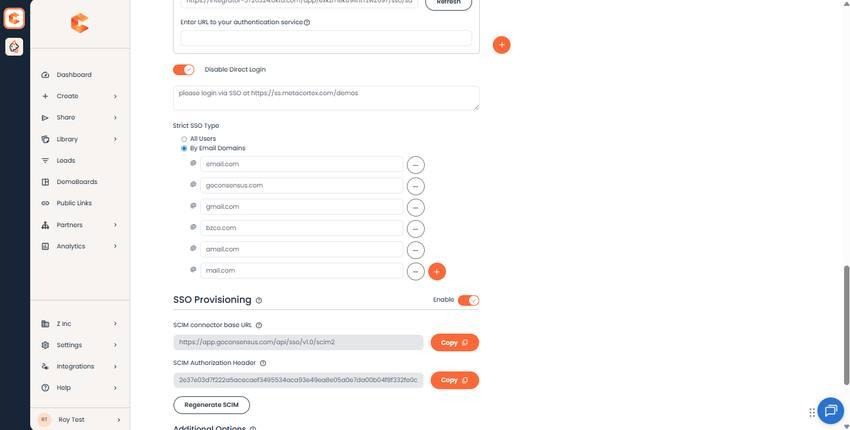
SSO Provisioning settings — top of the configuration page.
Configure provisioning
- Enable SSO Provisioning toggle.
- Generate API credentials (token / endpoint). Copy these for the Okta side.
- Decide on email-domain restriction (limit provisioning to specific email domains if needed).
- Configure group and role sync rules — see "How to Enable Automatic Group and Role Sync for Okta SSO Provisioning."
Group and role sync
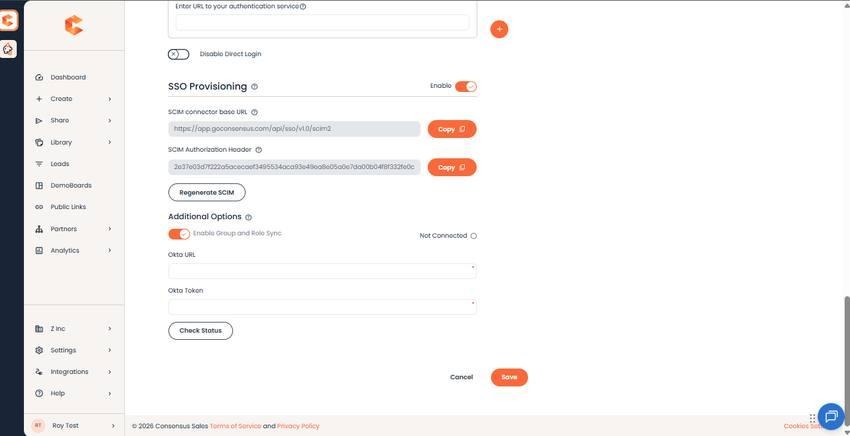
Group and role sync settings — map Okta groups to Consensus groups and roles.
For full group / role mapping rules, see the dedicated companion article.
In Okta
- Open the Consensus app you created during SAML SSO setup.
- Go to the Provisioning tab → Configure API Integration.
- Paste the API endpoint and token you copied from Consensus.
- Enable provisioning features: Create Users, Update User Attributes, Deactivate Users, Sync Password (optional).
Manual vs. automatic
If you don't want full automatic provisioning, see the manual companion articles: "Manual Groups management for SSO Provisioning" and "Manual Roles Management for Okta SSO Provisioning." These let you take advantage of SSO authentication while keeping user record management manual.