
Personalize email templates with merge codes
Email templates power the automated emails Consensus sends — like the confirmation email a new lead receives after submitting a Lead Capture Form. Merge codes inject contact data and your logo so each email feels individually addressed instead of generic.
Find email templates
- Click Settings (gear) in the lower-left.
- Choose Global Demo Settings.
- Switch to the Email Templates tab.
- Click the pencil icon on the template you want to edit.
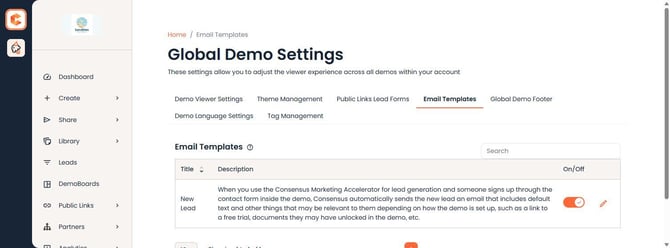
Email Templates tab — the New Lead template with its On/Off toggle and edit (pencil) action.
Use merge codes in the template
The template has three editable fields: Subject, Main Message, and Footer. Inside any of those fields, type the merge code where you want the dynamic content to appear. The supported merge codes:
- {{firstname}} — the viewer's first name, as they entered it on the Lead Capture Form.
- {{logo}} — the Primary Logo of the demo they watched (if the demo has no logo uploaded, no logo appears in the email).
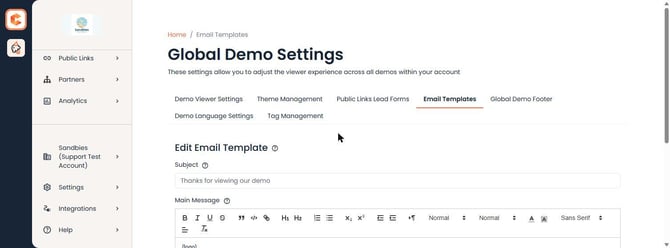 Email Template editor — Subject, Main Message, and Footer fields where merge codes can be inserted.
When the email is sent, every merge code is replaced with the actual value for that recipient. A template that says "Hi {{firstname}}, thanks for taking a look!" becomes "Hi Jen, thanks for taking a look!" when sent to Jen.
Tip — test before you rely on it
After saving, test it end to end: submit your own Lead Capture Form on a test demo and check the email that arrives — your merge codes will be filled in with the real values, so you can confirm the spacing, casing, and overall look.
Troubleshooting — the email isn't arriving
If the New Lead email stops arriving after a template edit, check your merge codes character by character — a malformed code (for example, single braces or a missing closing brace) can prevent the email from sending at all. Re-type the code in its exact form and test again. If it still doesn't arrive with the correct syntax, remove the logo code, test once more, and contact support with what you found.