
Setting up & Updating your Profile
New and existing Consensus users can easily edit their profiles. Besides common changes such as Name or Email, there are also many ways for users to customize their user profiles to include contact information for prospects and configure notification preferences.
To access the user profile, navigate to the bottom-left corner, click your name and avatar, and select My Profile from the menu that appears.
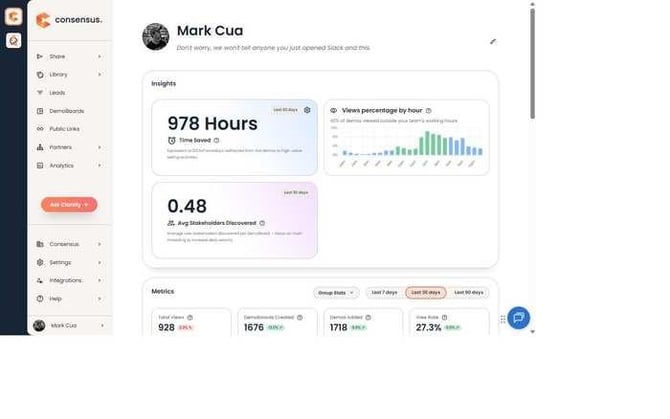 Bottom-left sidebar — click your name and avatar
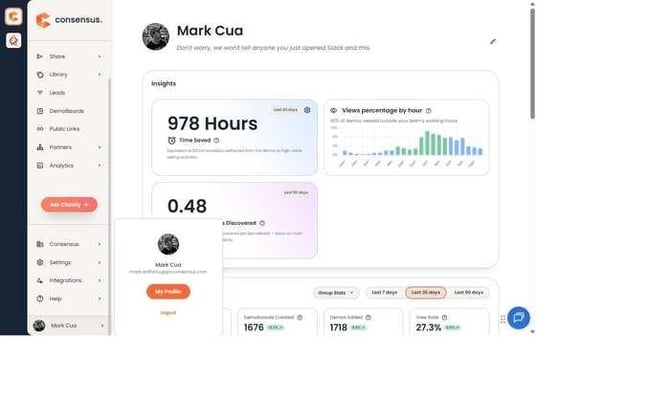 Expanded menu showing avatar, name, email, "My Profile" button, and "Logout"
Selecting My Profile opens the Personal Information page. A short subtitle reminds you that the page is read-only until you click Update: "Review your profile information. Select Update to edit the profile information."
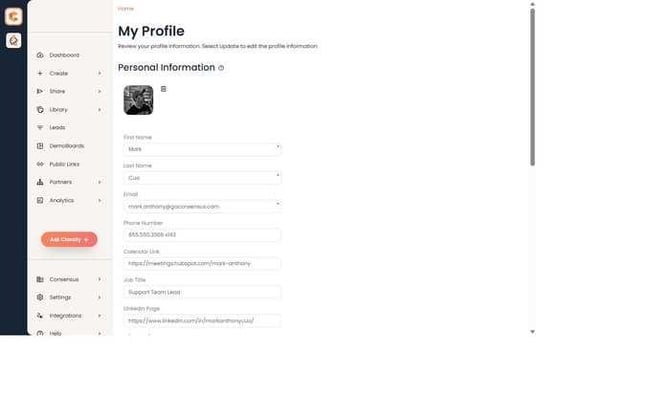 The Personal Information page as it first appears
Personal Information fields
All profile fields now live in a single Personal Information section. The first group of fields will reflect on DemoBoards sent to prospects — include all pertinent contact information so viewers can easily reach you.
- Profile Picture — Appears in the top-right corner of Consensus and on DemoBoards sent to prospects. Use the delete icon to remove the current image.
- First Name (required) — Added to your User Contact info.
- Last Name (required) — Added to your User Contact info.
- Email (required) — Added to your User Contact info.
- Phone Number — Added as a contact link so viewers can easily reach out.
- Calendar Link — Link to a calendar service so viewers can schedule a meeting with you.
- Job Title — Shown alongside your name on DemoBoards.
- LinkedIn Page — Link to your LinkedIn profile.
- X (Twitter) Page — Link to your X profile.
- WhatsApp — Messaging link for viewers who prefer WhatsApp.
- WeChat — Messaging link for viewers who prefer WeChat.
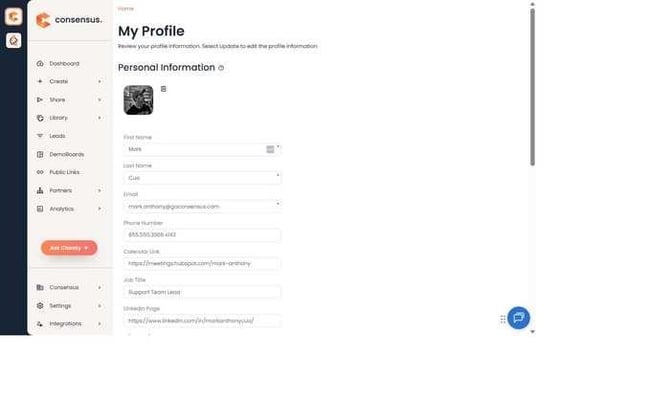 Name, Email, Phone, Calendar Link, Job Title, LinkedIn
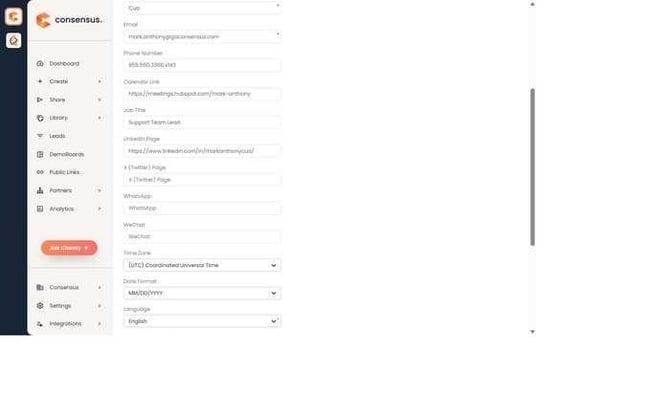 X (Twitter), WhatsApp, WeChat, Time Zone, Date Format, Language
Display preferences
- Time Zone — Dates such as DemoBoard Create Date and View dates display in the selected time zone.
- Date Format — The format dates are shown in throughout Consensus (e.g., MM/DD/YYYY).
- Language — Sets the language for the Consensus interface.
Personal Intro Video
- My Personal Intro Video — Record or upload a short video that plays before your DemoBoards. Use Record New to record directly in-browser, or Upload to select an existing file. Learn more about Personal Intro Videos.
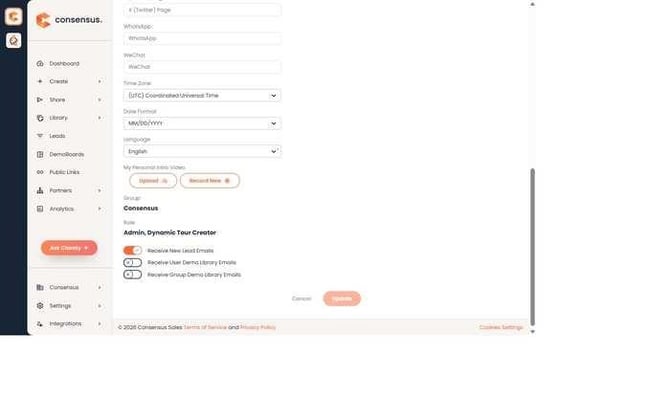 My Personal Intro Video controls, plus Group, Role, and email notification settings
Account details (read-only)
- Group — Displays the group/team you belong to in your Consensus account.
- Role — Displays the roles assigned to you (e.g., Admin, Dynamic Tour Creator). Roles are managed by an account admin.
Email notifications
- Receive New Lead Emails — Get an email when a new lead is discovered via a Public Link demo. Availability depends on your role.
- Receive User Demo Library Emails — Get notified of updates to your personal demo library.
- Receive Group Demo Library Emails — Get notified of updates to demo libraries shared with your group.
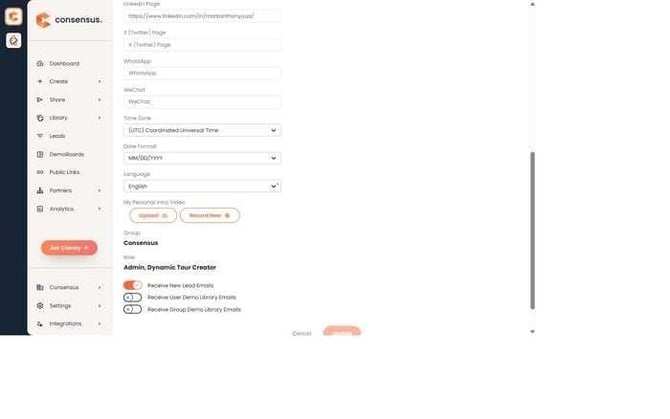 Group, Role, email toggles, and Cancel/Update buttons at the bottom of the page
Saving changes
Changes are not saved automatically. After editing any field, click Update at the bottom of the page to save, or Cancel to discard and return to the read-only view.
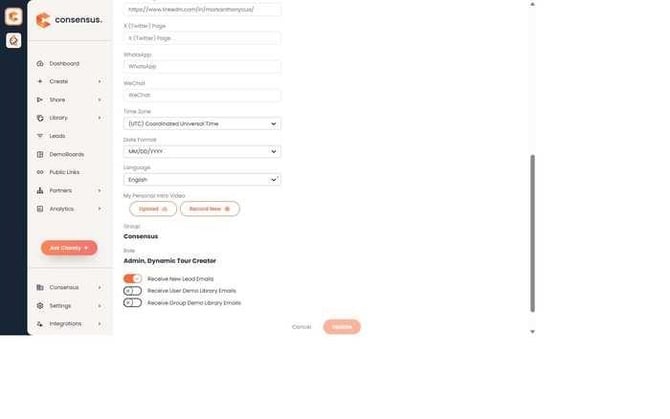 Fields added since the previous article version: Language, Group, Role, and two Demo Library email toggles