
Manual Groups management for SSO Provisioning
To create the custom field, the following steps have to be performed
- Go to Directory>Profile Editor and select the connected with Consensus Application
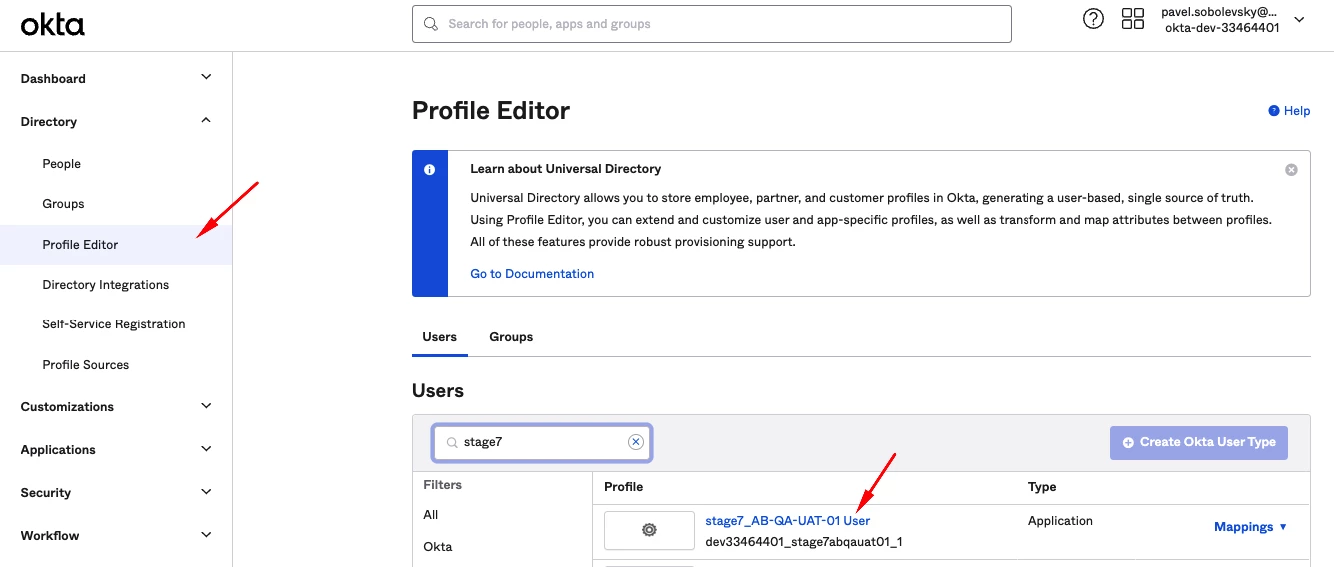 Directory>Profile Editor and select the connected with Consensus Application
 - Once the Profile Editor is opened, click 'Add Attribute' button
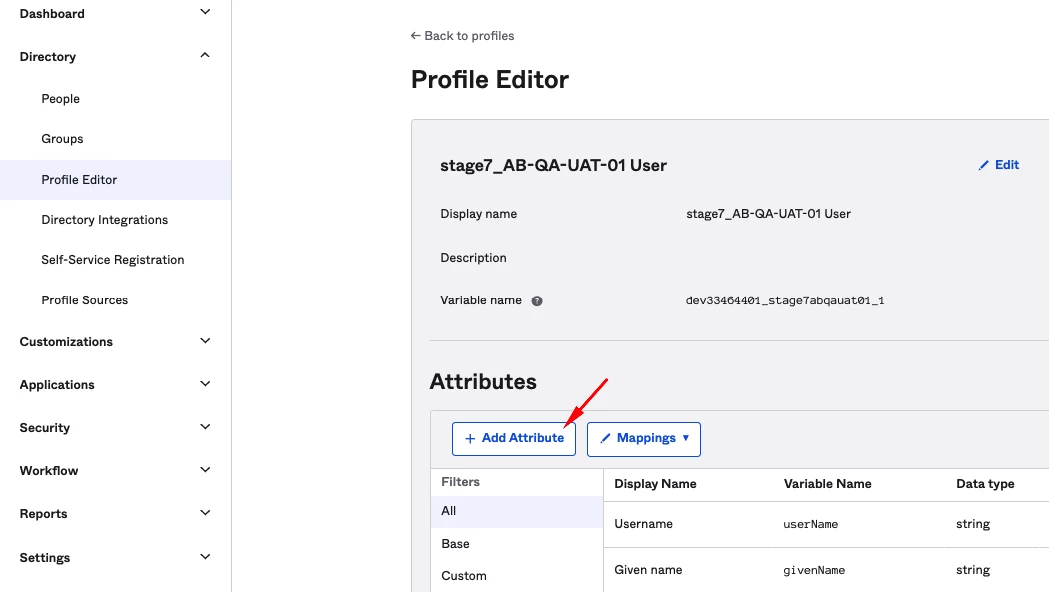 Add Attribute
- On the opened form we need to provide the following information
-
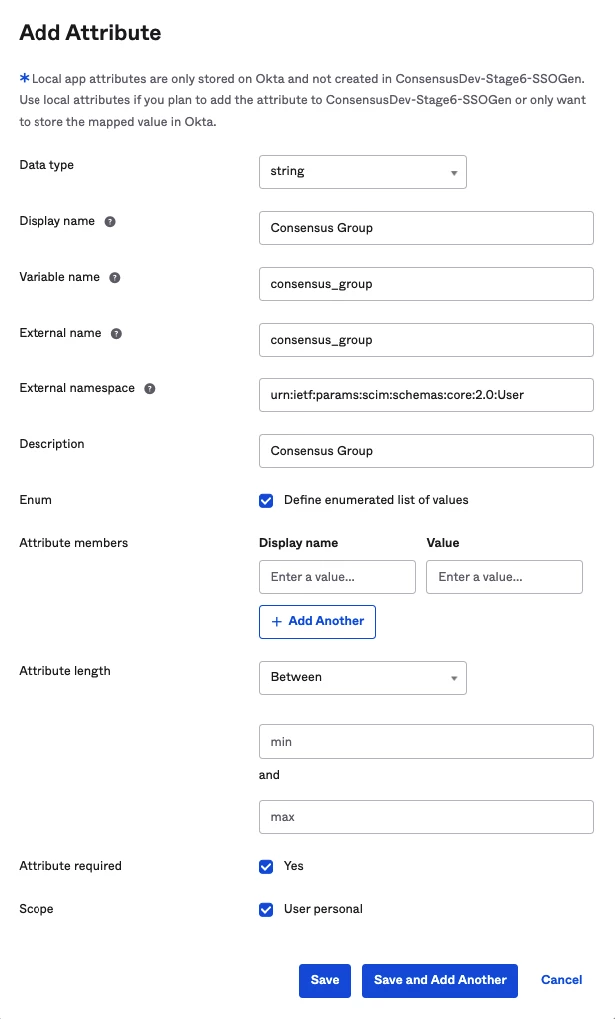 Required Information
|
Field |
Value |
Notes |
|
Data type |
‘string’ |
|
|
Display name |
Any convenient for you name |
|
|
Variable name |
‘consensus_group’ |
|
|
External name |
‘consensus_group’ |
|
|
External namespace |
'urn:ietf:params:scim:schemas:core:2.0:User' |
|
|
Description |
Any convenient for you description (optional) |
|
|
Enum |
has to be checked |
|
|
Attribute members |
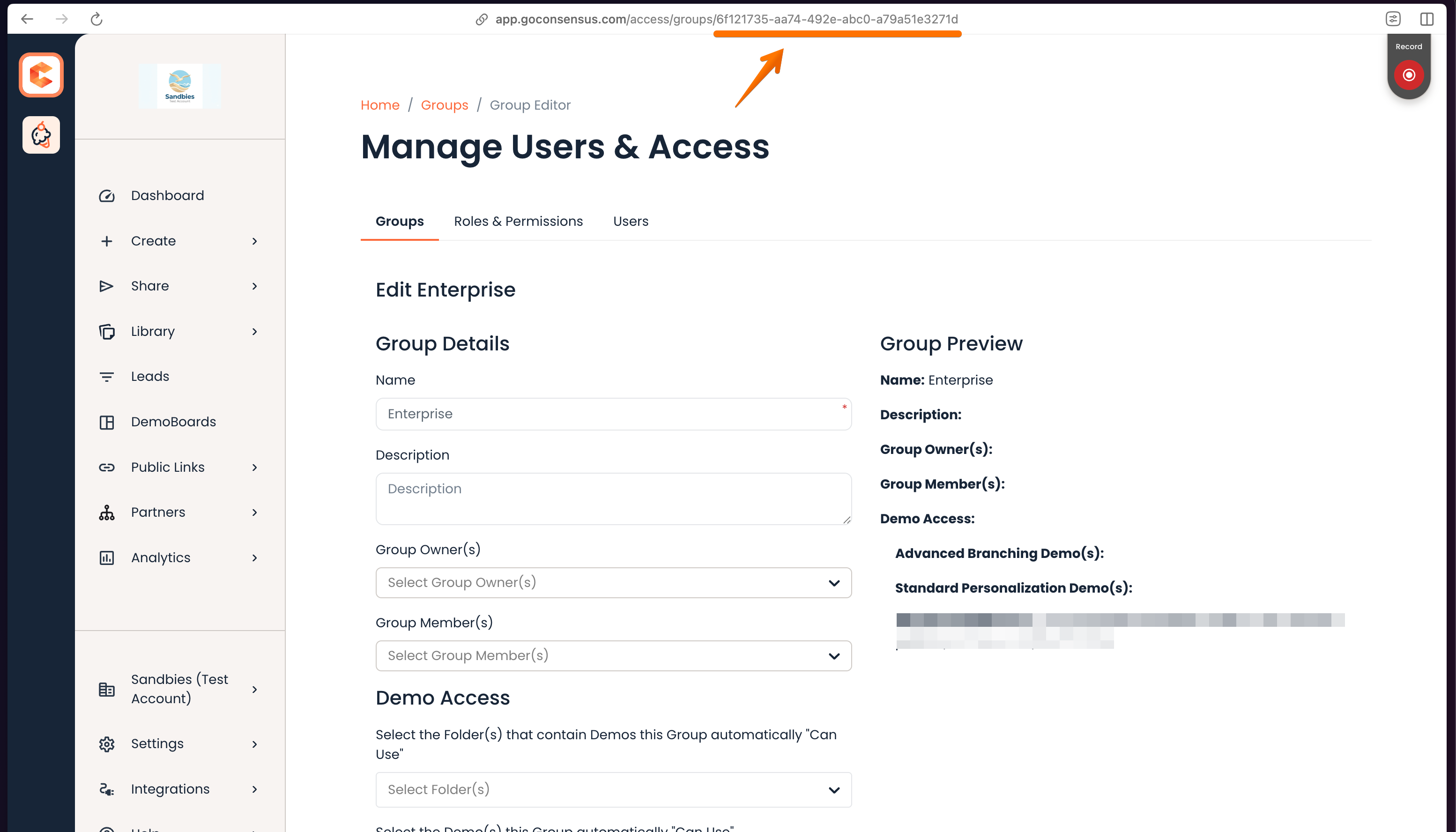
The list of Groups within your Account should be provided with their ids |
The Account level group: 1. Ask you Administrator to get the value for ‘Value' field in Okta. 2. For 'Display name’ the name of your Account in Consensus should be used
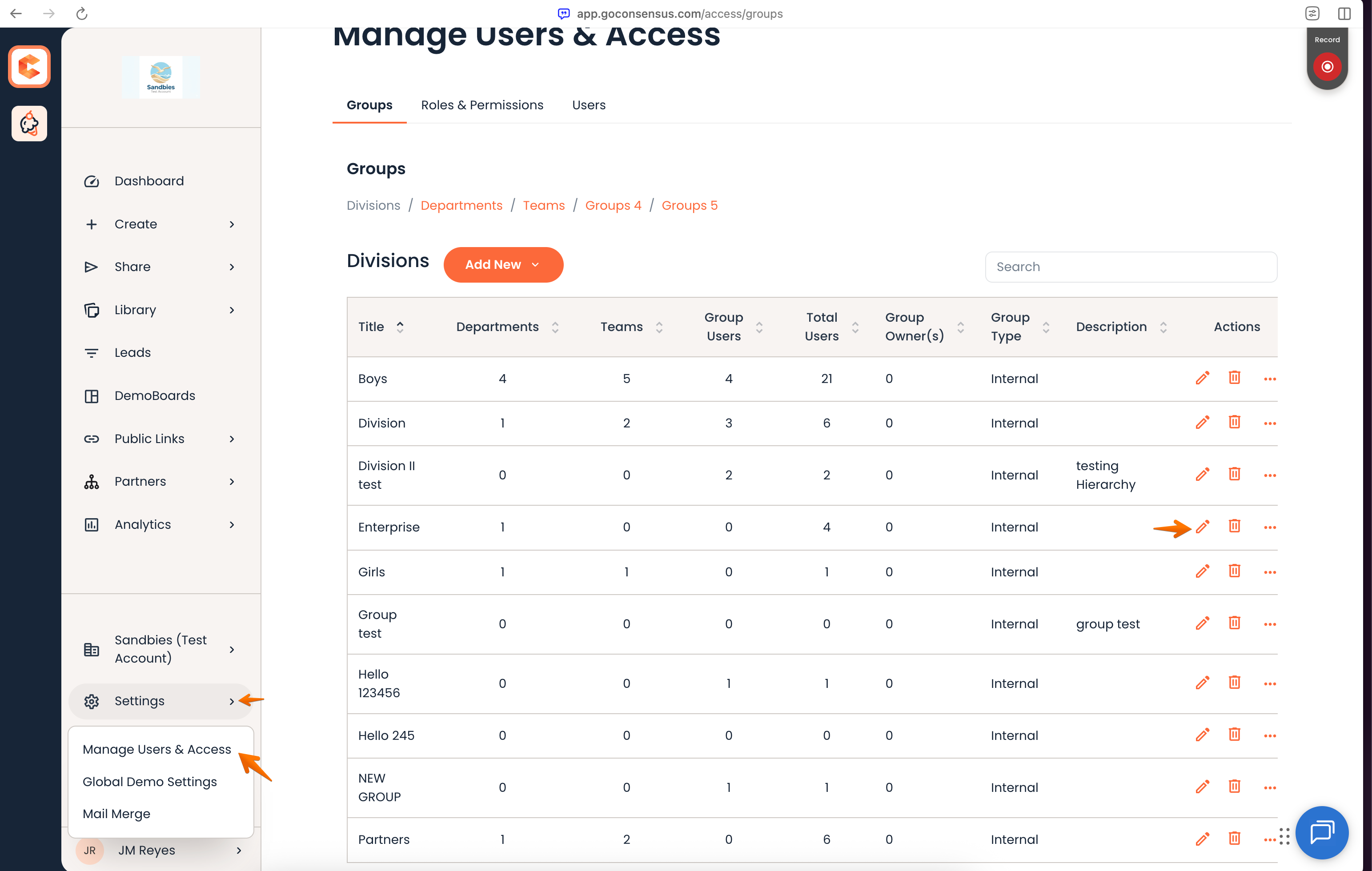
The list of subgroups: 1. Go to app.goconsensus.com >Manage Users&Access>Groups tab and click 'Edit' for the needed Group
|
|
Attribute length |
no updates needed |
|
|
Attribute required |
has to be checked |
|
|
Scope |
has to be checked |
- Save the form
Further Custom field managing for Consensus Groups
If there is any update within the Groups on Consensus side - these updates should be transferred to Okta as well. To do it, go to the same place in Okta, find the needed custom field and click 'Edit'. The new Group might be added or existing might be edited/deleted.
 Further Custom field managing for Consensus Groups