
When a prospect loses the email with their DemoBoard link, you don't need to create a new DemoBoard. That would split their analytics into a duplicate record. Instead, grab the same link and send it again from the web app or from Consensus Snap.
| Resend from the web app |
- Click DemoBoards in the side menu. The Track DemoBoards page opens.
- Search for the prospect, organization, or DemoBoard name.
- Hover over the row and click the link icon.
- Copy the link in the format you want: Image Link, Button Link, or Text Link.
- Paste it into a new email or message and send it.
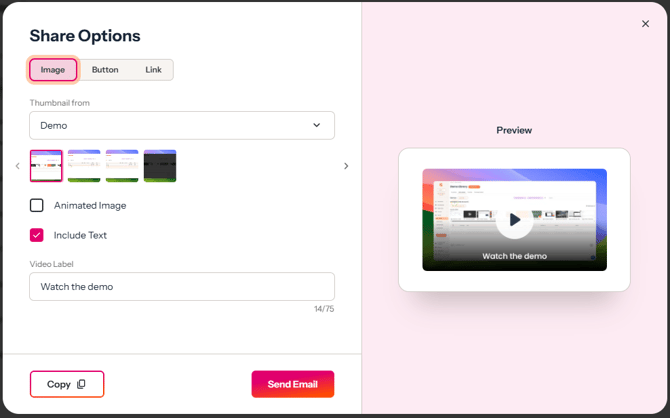
Track DemoBoards: the link icon opens the DemoBoard's share options
| Resend from Consensus Snap |
- Open Snap and click the DemoBoards tab.
- Search for the DemoBoard or the prospect's company name.
- Click the DemoBoard, then click … at the top right and choose Share As. Share your DemoBoard! opens.
- Choose Thumbnail or Button. For a thumbnail, you can pick an image under Choose a Thumbnail or click Upload Thumbnail, and change the Video label.
- Click Copy Thumbnail to copy the clickable image, or Copy Link for a plain link, then paste it into your email or message.
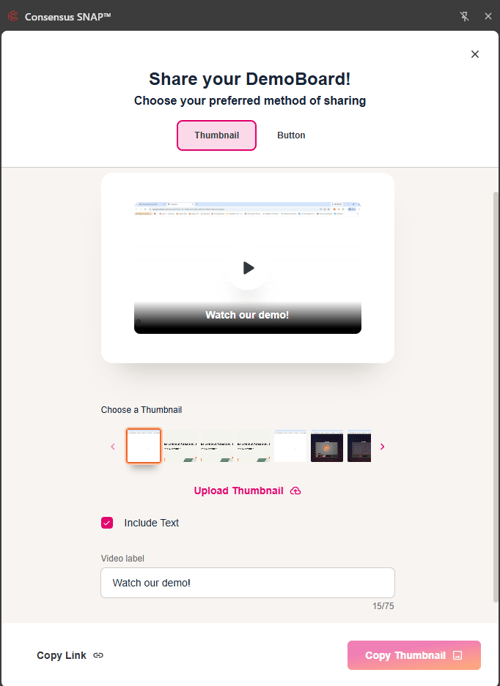
The DemoBoards tab in Snap
You'll know it worked when the prospect's new views show up on the same DemoBoard. All of their analytics, current and future, stay on one record. No duplicates, no merging needed.
| Troubleshooting |
- I can't find the DemoBoard on Track DemoBoards. Check the Filters button at the top. If External Email Domains is selected, DemoBoards sent to your own company's addresses are hidden, and expired DemoBoards are hidden unless Expired DemoBoards is checked. Also check the date range.
- The link has expired. Expired DemoBoards can't be viewed. Check the DemoBoard's expiration in Edit DemoBoard before resending.
| Keep Exploring |
Sending Demos with Consensus Snap · How do I send a demo to additional people inside of an organization I have already sent a demo