
Roles, permissions, and how access works
Consensus ships with eight Standard Roles that cover most user types out of the box. When the standard set doesn't fit, you can build Custom Roles with a precise mix of permissions. This article walks through both — plus Group Owner permissions and Demo-level access.
Where to access Roles & Permissions
Click Settings (gear) in the lower-left, then choose Manage Users & Access. Switch to the Roles & Permissions tab.
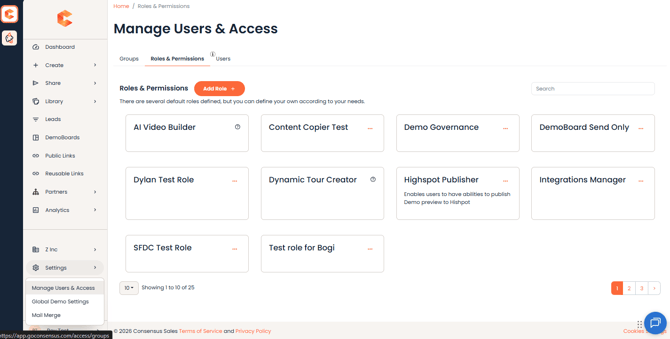
Roles & Permissions tab — Standard and Custom roles listed side by side, plus the Add Role button.
Standard Roles
- Admin — full access to every feature, including creating Custom Roles. Only Admins with Admin Demo Access can grant a role with that permission.
- Content Author — can only delete demos they've created themselves.
- Content Manager — manages content shared with them, sends DemoBoards, creates folders, archives and unarchives demos.
- Public Link Manager — creates Public Links, copies existing demos, builds their own demos.
- Sender/Tracker — creates DemoBoards, tracks sent DemoBoards, creates Mail Merge Links, uses Consensus SNAP. Cannot create or edit demos.
- Sender/Tracker SNAP Creator — same as Sender/Tracker plus the ability to create Single Video Demos in SNAP and edit their own SNAP demos.
- Dynamic Tour Creator — creates personalized, interactive Tours through your product. Apply via a custom role.
- View Only — sees data on every page but can't edit or manage anything.
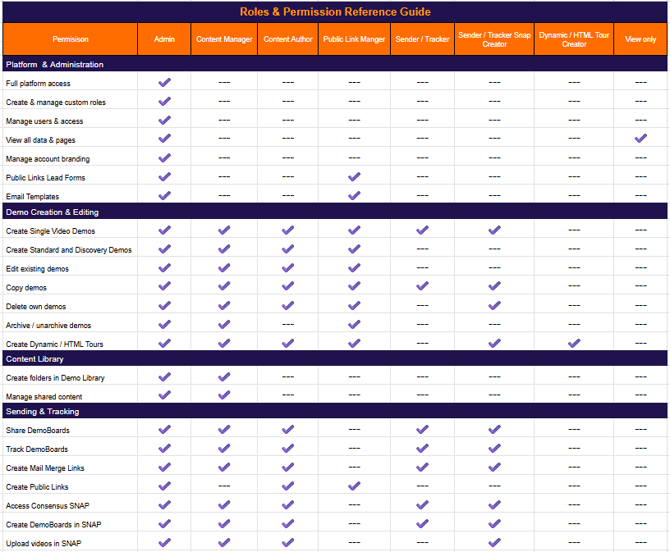
Roles & Permissions Chart
Custom Roles
When the eight Standard Roles don't map to a real-world title (e.g. an SE who can edit demos but only delete their own, or a sales manager who needs reseller permissions but not internal demo access), build a Custom Role.
Create a Custom Role
- On the Roles & Permissions tab, click Add Role.
- Set the role name and pick a Standard Role as a template via the Access dropdown — that pre-fills the permission set.
- Tweak individual permissions: add anything missing, remove anything you don't want.
- Click Save. The new role appears in the table and can be assigned to users from the Users tab.
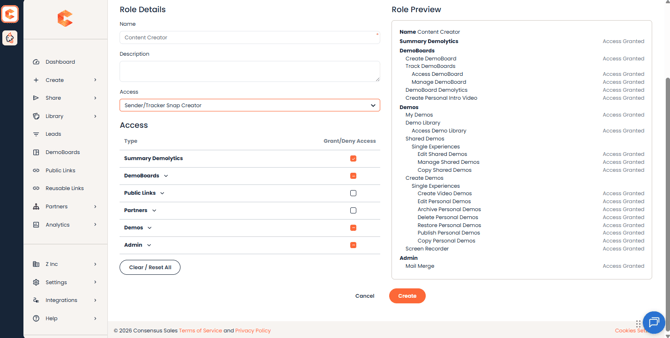
Add Role page — Custom Role builder with the Access dropdown for starting from a Standard Role template.
Note: every role (Standard or Custom) automatically has access to My Profile so users can update their own information.
Group Owner permissions
Any user can be designated as Group Owner. This adds three special abilities on top of their existing role:
- Personal Demo Access — see and manage personal demos created by users in their Group and Subgroups.
- Group Management — manage their own Group and Subgroups, assign Demos they have access to, and assign other users as Group Owners.
- User Management — edit users within their Groups and Subgroups (profile updates, "Forgot Password" resends, etc.).
Admin Demo Access
Admin Demo Access is a high-privilege permission that gives a user full access to every demo in the account — equivalent to what an Admin role sees. Two safeguards apply:
- Only users who already have Admin Demo Access can grant it to others.
- Users without Admin Demo Access see the toggle as disabled in the role builder, and can't see roles that include it.
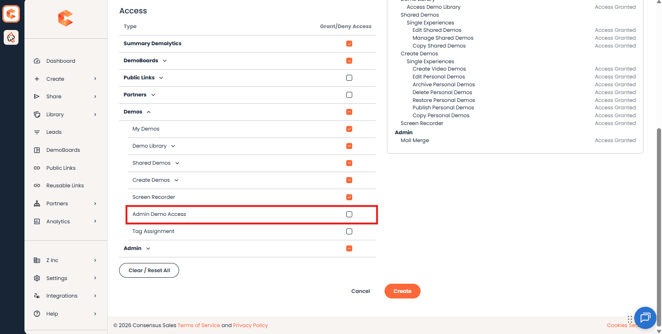
Admin Demo Access check box
Demo Permissions — per-demo access levels
Inside the role / permission system, every demo also has its own access level that determines what individual users can do with it:
- Can Use — create DemoBoards or Public Links from the demo. The only access level available when granting to a Group or "All Users."
- Can Edit — modify DemoPlayer elements (videos, logos, documents, features).
- Can Manage — manage backend aspects (Demo Access settings, tracking, archiving, unarchiving, deletion).
- Is Owner — full administrative access. Demo Owners (and System Admins) are the only ones who can permanently delete or restore a deleted demo.
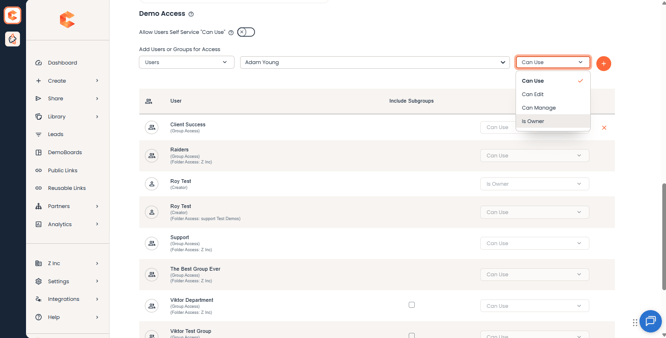
Demo permission drop-down
These access levels can be updated at any time after the user has been granted access — no need to remove and re-add to change levels.