
Test DemoBoards — keep test traffic out of your reports
When you're testing demos, training new reps, or QA-ing UI changes, you don't want that activity polluting your real Demolytics. Marking a DemoBoard as a Test flags it for exclusion from reporting — both Demolytics dashboards and the Track DemoBoards list filter Test DemoBoards out by default.
Mark a DemoBoard as Test — at creation
- Click DemoBoards → Create DemoBoard.
- Fill in recipient info and pick the demo as usual.
- Expand Additional Options.
- Toggle Mark as Test ON.
- Click Create DemoBoard. The DemoBoard is flagged as a test from the start.
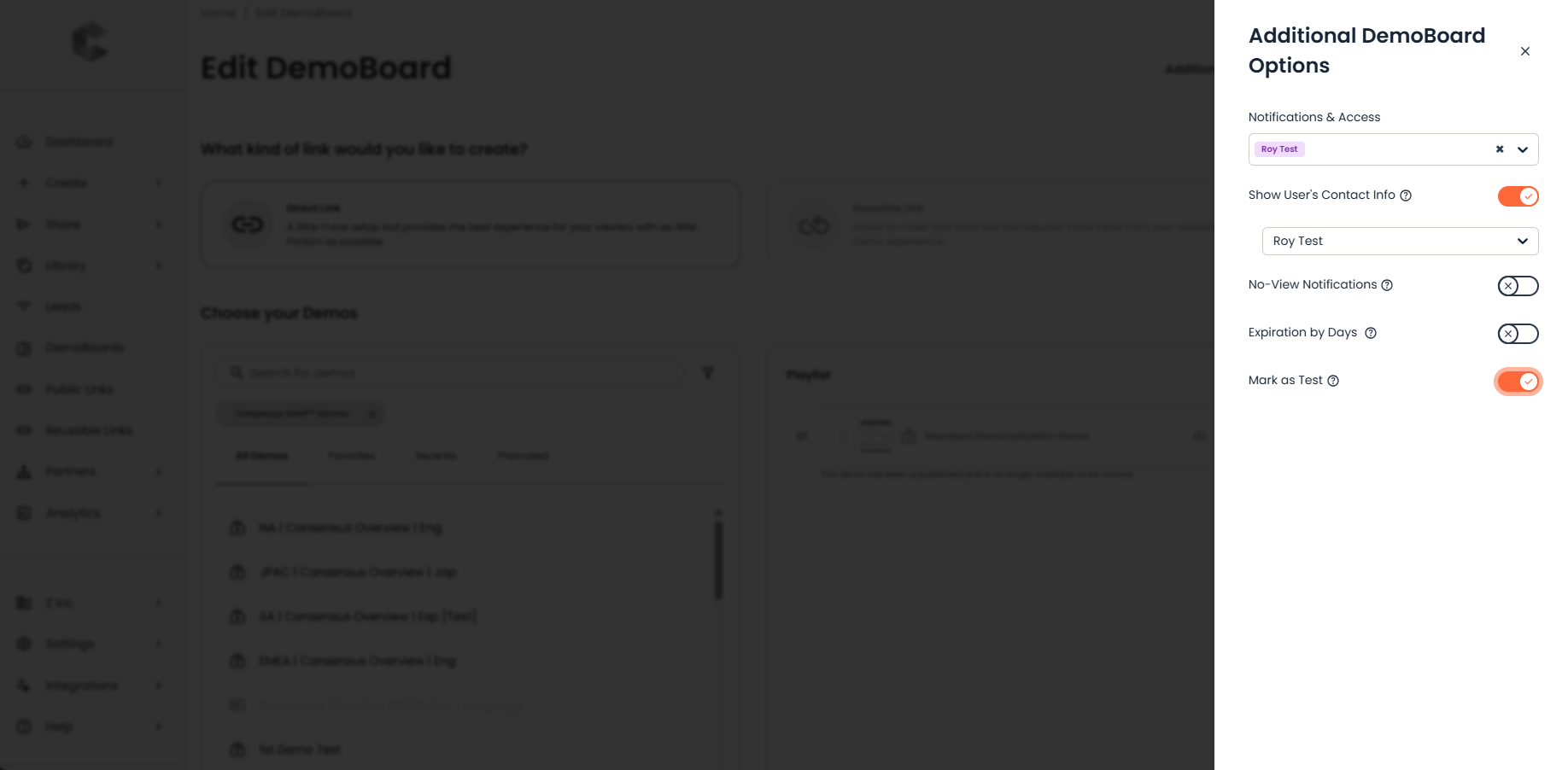
Create DemoBoard → Additional Options — the Mark as Test toggle.
Mark an existing DemoBoard as Test
- Open Track DemoBoards.
- Hover the DemoBoard row, click the link icon to open Edit DemoBoard.
- Expand Additional Options.
- Toggle Mark as Test ON.
- Scroll down and click Save.
Track DemoBoards — link icon in the Actions column opens the Edit page where you can flip an existing DemoBoard to Test.
Filter Test DemoBoards out of Demolytics
- Open the Demolytics view (Summary, DemoBoards, or Public Link).
- Click the filter icon next to the Apply button.
- Uncheck Test DemoBoards.
- Click Submit, then Apply.
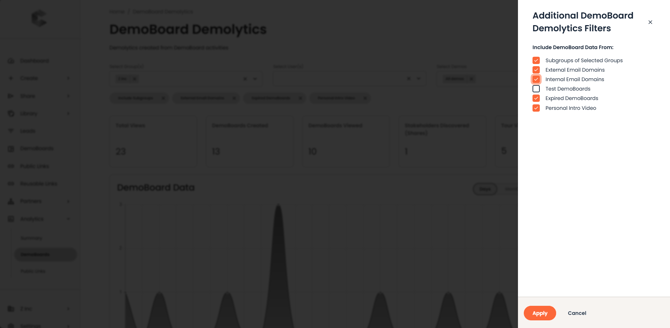
Additional Filters — Test DemoBoards checkbox controls inclusion in Demolytics views.
Filter Test DemoBoards out of Track DemoBoards
- On the Track DemoBoards page, click the filter icon next to the search box.
- Uncheck Test DemoBoards.
- Click Apply.
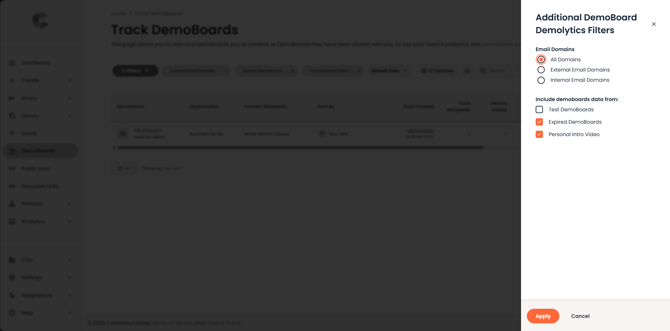
Track DemoBoards filtered view — Test DemoBoards excluded.
Note: Test DemoBoards are EXCLUDED by default from both Demolytics and Track DemoBoards. The filters above are for cases where you want to opt them back IN to see your testing-only data.