
How time zones work in Consensus
Consensus uses two different time zones depending on which timestamp you're looking at. Activity timestamps (when a viewer watched a demo) are shown in the viewer's local time zone — derived from their IP address at the moment they pressed play. Creation timestamps (when a DemoBoard was made) are shown in your local time zone, set in your user profile.
The split is intentional — it lets you see both "what time was it for them when they engaged" (good for outreach timing) and "when did this happen on my calendar" (good for activity reporting).
Viewer activity time zones
Anywhere you see a viewer's engagement timestamp — email notifications, Demolytics organization view, heatmaps, customers reports — the time is in the viewer's local time at the moment they engaged.
Where you'll see viewer time zones
- Email notifications (View) — the "Watched" timestamp is the viewer's local time when they first opened the demo.
- Email notifications (Share) — hover over the View Time to see the viewer's location.
- Organization / Company view in Demolytics — every per-viewer timestamp respects that viewer's time zone.
- Heatmaps — playback timestamps are in viewer time.
- Customers Report (Detailed Organization Report) — includes a View Location column alongside the timestamps.
In Demolytics email summaries, you'll also see two related timestamps:
- Created — when the DemoBoard was made (your time zone, see below).
- Invited — when this specific viewer was added to the DemoBoard. Helpful for seeing whether the viewer was on the original recipient list or added later.
DemoBoard creation time zones — set this in your profile
DemoBoard Creation Date timestamps follow the time zone you've set in your My Profile page. By default Consensus picks something based on your location, but you can override it.
How to change your time zone
- Click your name in the bottom-left corner of the sidebar, then choose My Profile.
- Click Update at the bottom of the Personal Information page so the fields become editable.
- Scroll to the Time Zone field and pick from the dropdown.
- Click Update again to save.
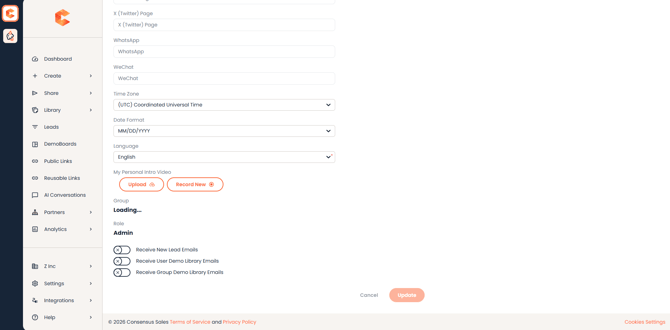
My Profile — Time Zone field in the Display Preferences section.
After saving, every DemoBoard Creation Date timestamp you see (in Track DemoBoards, in your reports, in email digests) shifts to your selected zone.
Why two different time zones?
When you're trying to figure out the best time to reach out to a prospect, knowing they engaged at "10:47 AM their local time" tells you they were probably at their desk. Showing that same engagement in your time zone would be misleading — 10:47 AM in San Francisco vs. Berlin tells you very different things about whether they were working, free, or asleep.
For your own activity reporting, though, your time zone is what matters — "how many DemoBoards did I create on Friday" only makes sense in your local time. The split between viewer time (engagement) and your time (creation) is how Consensus splits the difference.