
Two things to check when teammates can't see your demo
When a teammate says they can't find your demo in the Demo Library or create flow, it's almost always one of two things: Demo Access wasn't extended to them, or the demo isn't Published yet.
Check 1: Demo Access
By default, only the demo creator has access to a new demo. If you want others to use it, you have to explicitly grant access. This is set on Step 6 (Finalize) of the Demo Wizard.
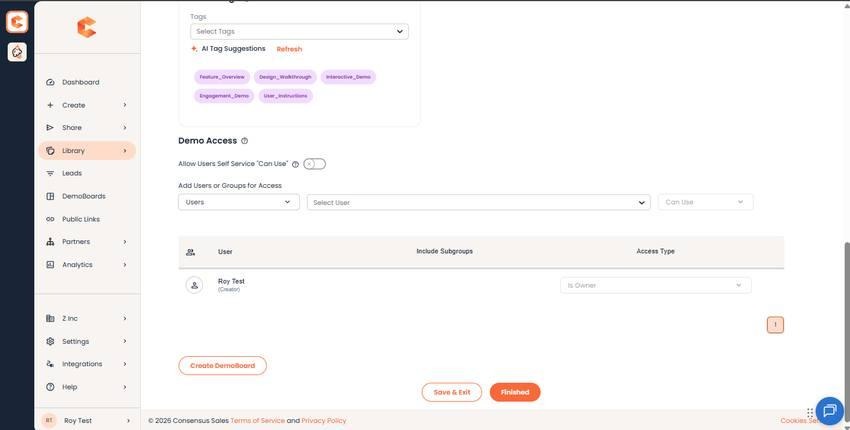
Step 6: Finalize — Demo Access controls.
Grant access to users, groups, or everyone
- On Step 6, scroll to Demo Access.
- In the first dropdown, choose Users, Groups, or All.
- In the second dropdown, pick the user(s) or group(s) — or leave it as "All" if you picked "All" in step 1.
- If you picked Users, choose an access level:
- Can Use — create DemoBoards using this demo. Most common.
- Can Edit — edit the demo content (videos, logos, CTAs).
- Can Manage — manage Demo Access and assign other users.
- Is Owner — full control. Only one Demo Owner per demo.
- Click + to add the entry to the access list.
- Click Save & Exit.
Note: when granting access to a Group or All Users, the only available level is Can Use. Edit / Manage / Owner can only be granted to specific individual users.
Quick view of who has access
From the Demo Library, hover the people icon on a demo row to see a popup with everyone who currently has access.
Remove access
In the Demo Access list on Step 6, click the X next to a user or group to revoke their access.
Check 2: is the demo Published?
Even with Demo Access set correctly, an unpublished demo won't appear for other users. Open the demo and confirm the Published toggle (top right of the editor) is ON. Unpublished demos are hidden from everyone except the creator and admins.