![Gradient_Horizontal_onDark-2.png]](https://support.goconsensus.com/hs-fs/hubfs/Gradient_Horizontal_onDark-2.png?height=40&name=Gradient_Horizontal_onDark-2.png)
Reviewer note: There are currently two near-duplicate KB articles for this topic — create-a-demoboard-within-consensus and creating-a-demoboard-within-consensus-1. The live "create-a-demoboard…" article has its body content listed twice with two different navigation paths (a publishing error). This draft consolidates them into a single source of truth and proposes deprecating the duplicate URL with a 301 redirect to this one.
Create a DemoBoard
A DemoBoard is a unique, prospect-specific landing page for one or more of your demos. Every DemoBoard gets its own URL and its own Demolytics, so you can see exactly which prospect — and which stakeholder inside that prospect — engaged with which demo.
Open the Create DemoBoard page
Click Share in the left-hand sidebar to expand its sub-menu, then choose DemoBoard.
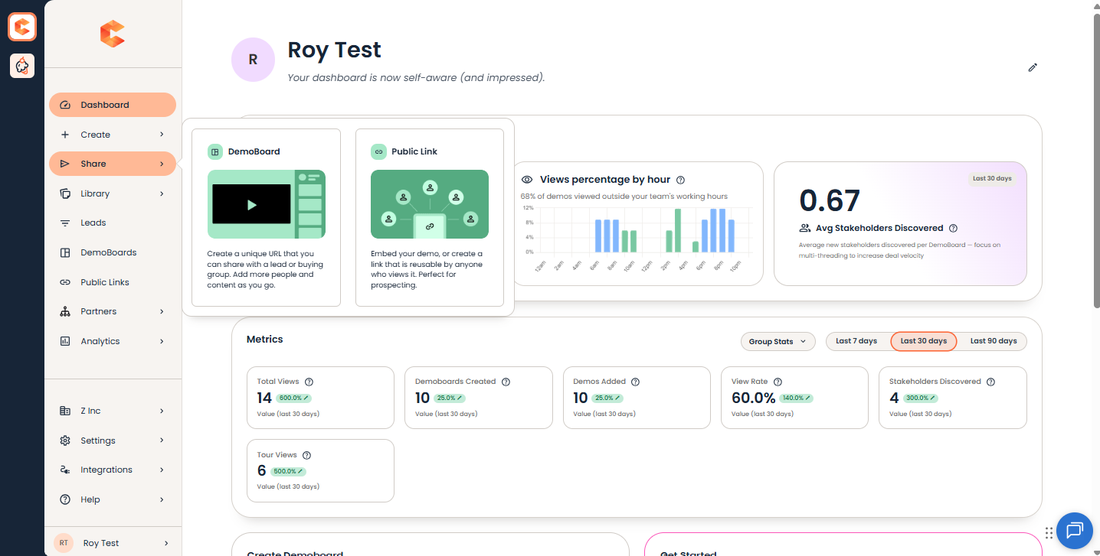
Share menu in the sidebar — DemoBoard and Public Link are the two options.
Pick a demo (or build a playlist)
The Create DemoBoard page opens with your demo list. Click any demo to add it to the playlist on the right. Use the filter chips to narrow the list:
- All Demos — every demo you have access to.
- Favorites — demos you've hearted.
- Recents — the last 20 demos you used in a DemoBoard or Public Link.
- Promoted — demos admins have flagged as the recommended go-to for current campaigns. Promoted demos display a star icon throughout the platform.
- Search — type-ahead search across your demo titles, descriptions, and tags.
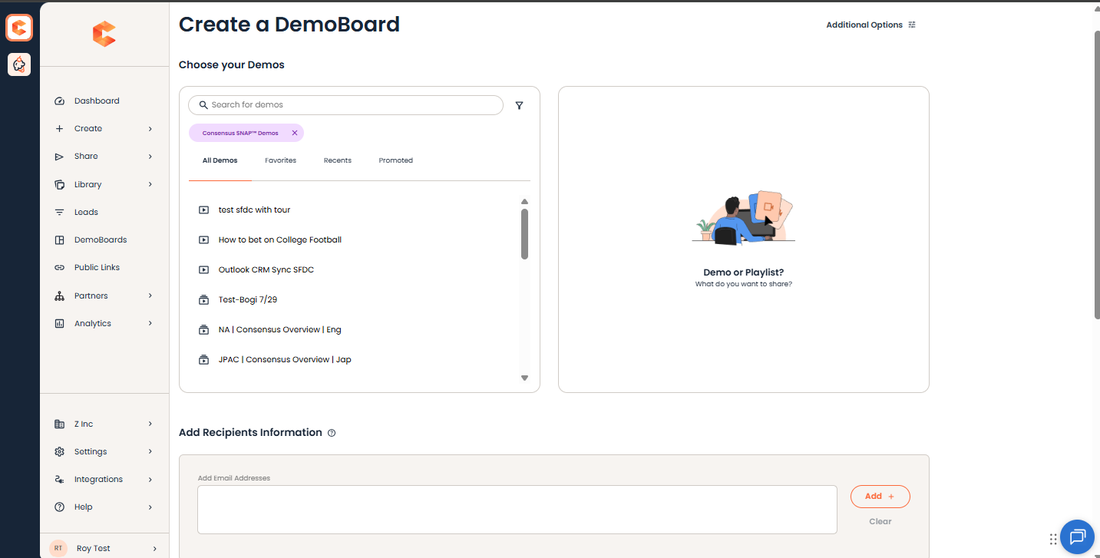
Create DemoBoard page — pick demos from the list to build your playlist.
Drag and drop within the playlist to set the order viewers will see the demos. A playlist can contain up to one Advanced Branching Demo plus up to 15 Single Experience or Standard Personalization demos.
Add recipients
Drop one or more recipient emails into the email block. Consensus will try to auto-fill Organization and First/Last names from each email. Tweak any of those fields manually if the auto-fill missed.
Personalize the DemoBoard
A few personalization fields appear below the recipient list:
- Organization — appears on the DemoBoard cover page. Auto-filled from the first recipient's email domain (e.g. jon.doe@metatech.com → Metatech).
- Subtitle — also appears on the cover page.
- DemoBoard Name — internal-only label used in the Track DemoBoards list. If left blank, Consensus generates one as Organization – First Demo Name.
- CRM IDs (Account ID, Opportunity ID) — optional, used by API integrations for CRM attachment.
- Personal Intro Video — optionally play a short video before the demo. Choose your default Personal Intro Video from My Profile, record/upload a custom one for this DemoBoard, or skip it.
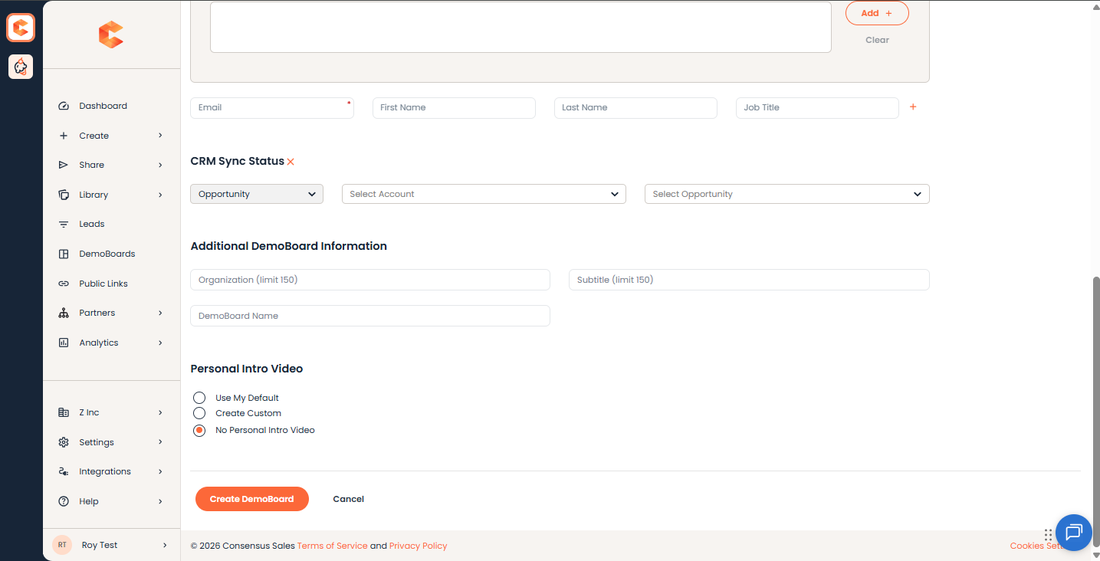
Recipient list, Organization/Name, and Personal Intro Video controls.
Additional Options
Click the Additional Options panel at the top of the page to expand more controls:
- Notifications & Access (Notifiers) — pick reps or groups who should receive the same view/share/interaction notifications you receive. Notifiers can also opt to display their contact info on the DemoBoard.
- Two-factor Authentication — when enabled, viewers must enter a one-time PIN sent to their email before they can watch the demo.
- No-View Notification — set a cadence and a max count for reminders if no one views the DemoBoard. Useful for surfacing stalled deals.
- Expiration by Days — the DemoBoard becomes inaccessible after this date. You can extend or disable expiration later.
- Mark as Test — flag the DemoBoard so it's excluded from reporting. Use for any internal testing.
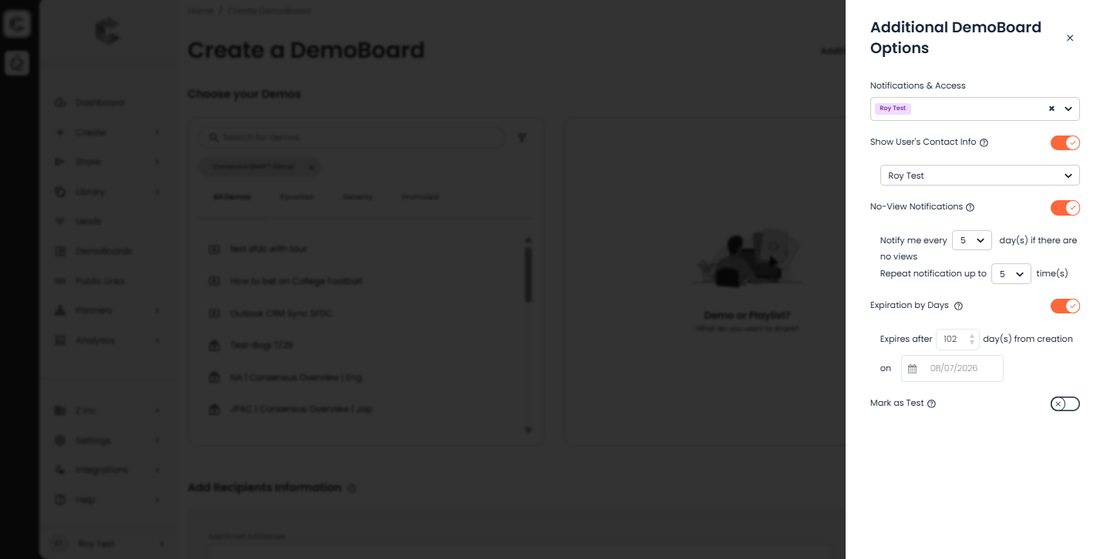
Additional Options panel — Notifiers, 2FA, No-View Notification, Expiration, and Mark as Test.
Create the DemoBoard
Click Create DemoBoard. Consensus generates a unique URL and presents three Calls to Action you can copy and paste into your outreach:
- Image Link (recommended) — embeds an image (or animated GIF) that links to the DemoBoard. GIF links can lift CTR by up to 26%. The image is auto-pulled from your Personal Intro Video or the first video in the playlist.
- Button Link — a custom button (text, fill color, text color, corner radius) linking to the DemoBoard.
- Text Link — the raw URL. Use the Shorten option to create a bit.ly link for tools like LinkedIn that don't support inline images.
Roy: Capture the post-create CTA selection screen (Image Link / Button Link / Text Link picker) on the next webapp pass — Roy didn't grab this in the current screenshot batch. The text below covers it but a screenshot would help readers.