
This is not the SFDC installation guide, please refer to this one
Overview
The Consensus and Salesforce integration uses an OAuth 2.0 connected app owned by Consensus. When a user clicks Connect in the Consensus web app, they log in to Salesforce and approve the Consensus connected app. Consensus then reads Salesforce data on that user’s behalf
Since September 2025, Salesforce blocks users from authorizing connected apps that aren’t installed in their org. This means the Consensus connected app now has to be installed in each org that uses the integration
Some orgs also have API Access Control enabled. Salesforce Support turns this setting on at a customer’s request. With it on, Salesforce sets every installed connected app to “Admin approved users are pre authorized”, and that value can’t be changed per app. Users can then authorize an app only if an admin has approved them for it through a profile or permission set
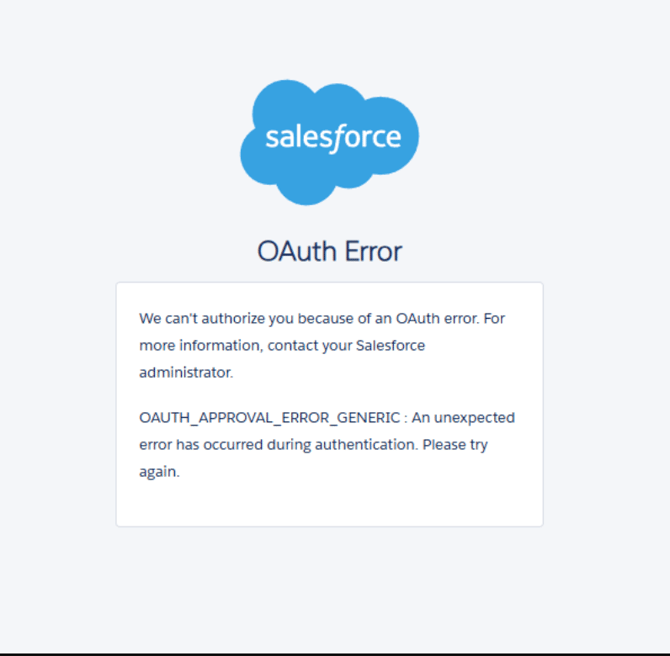
Without that approval, Connect fails with the error below, and Consensus shows a generic “Something went wrong” message:
OAUTH_APP_ACCESS_DENIED: user is not admin approved to access this app
Check if your org has API Access Control
If the API Access Control page exists in Setup and its checkbox is ticked, the steps in this guide are required
- In Salesforce, go to Setup
- In Quick Find, type API Access Control
- If no page appears, Salesforce hasn’t enabled the feature for your org
- If the page opens, check whether For admin approved users, limit API access to only allowlisted connected apps is ticked
Note: UI API Access Control is a different, unrelated setting
Installation and approval steps
Four steps in Salesforce Setup install the Consensus connected app and approve your integration user for it
- Install the connected app. Go to Setup, type OAuth in Quick Find, and open Connected Apps OAuth Usage. Find Consensus and click Install. If it shows as Blocked, click Unblock
- Approve the Consensus Admin (standard) permission set for the app. Go to Setup → Manage Connected Apps → Consensus. Under Permission Sets, click Manage Permission Sets and add the Consensus Admin (standard) permission set
- Adding the integration user’s profile under Manage Profiles works too, but it approves everyone on that profile
- Make sure the user has the Consensus Admin Group. The Salesforce user who clicks Connect in Consensus, usually the integration user, must be assigned the Consensus Admin Group. Wait until the group’s status changes from Updating back to Updated
- Reconnect in Consensus. Wait a few minutes, then open a fresh browser window and click Connect in Consensus
Important: Do these steps in every org you connect, sandbox and production. A sandbox copies API Access Control from production when it’s refreshed
What the Consensus connected app can access
Consensus never has more access than the user who connected
- Consensus acts as the user who connected. Salesforce applies that user’s profile, permission sets and sharing to every API call, so Consensus can reach only what the user can already reach
- What the connected app requests: the OAuth scopes are api (call Salesforce APIs as the user), refresh_token and offline_access (keep the connection without the user logging in again)
- How Consensus uses the access: Consensus reads Accounts, Opportunities and Contacts so it can link them to Consensus records
Revoking access
Either option below stops Consensus from using the connection
- Remove the permission set from the Consensus Admin Group, or remove the user from the group
- Block the app under Setup → Connected Apps OAuth Usage → Consensus → Block