
Consensus Snap works in Microsoft Edge as well as Chrome. Because Edge is built on Chromium, the same Snap extension you'd install in Chrome runs in Edge, so you can record, share and track demos without switching browsers.
|
Before you start: You'll need a Consensus login with Snap access. If you aren't sure whether your role includes Snap, ask your Consensus admin. |
| Find Consensus Snap in the Chrome Web Store |
Snap is installed from the Chrome Web Store, which Edge supports.
- In Edge, open the Consensus SNAP™ listing in the Chrome Web Store. You can also type Consensus in the store's search bar and select Consensus SNAP™.
- If Edge hasn't used the Chrome Web Store before, a banner at the top of the page asks you to allow extensions from other stores. Click Allow extensions from other stores, then confirm with Allow. You only need to do this once.
You'll know Edge is ready when the banner at the top says Consensus SNAP™ works on Microsoft Edge, as shown below:
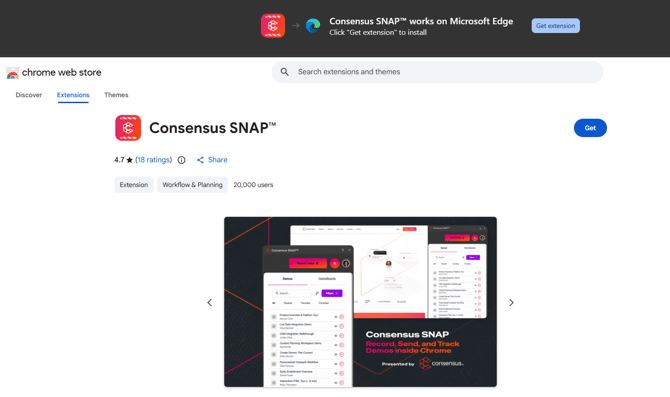
Consensus SNAP™ listing in the Chrome Web Store, opened in Edge
| Install Consensus Snap |
- Click Get on the listing (or Get extension in the banner at the top).
- Edge asks whether to add Consensus SNAP™ and lists what the extension can do. Click Add extension.
Here's the confirmation window:
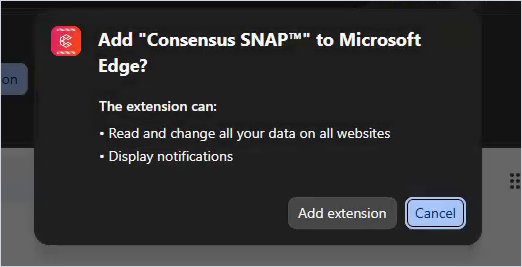
Add extension confirmation in Edge
You'll know it worked when Edge shows Consensus SNAP™ is now installed and the button on the listing changes to Remove.
| Pin Snap to the Edge toolbar |
Pinning keeps the Snap icon one click away:
- Click the Extensions icon (the puzzle piece) in the Edge toolbar.
- Click the pin icon next to Consensus SNAP™. The Snap icon appears in your toolbar.
Once Snap is pinned, its icon sits next to the Extensions icon:
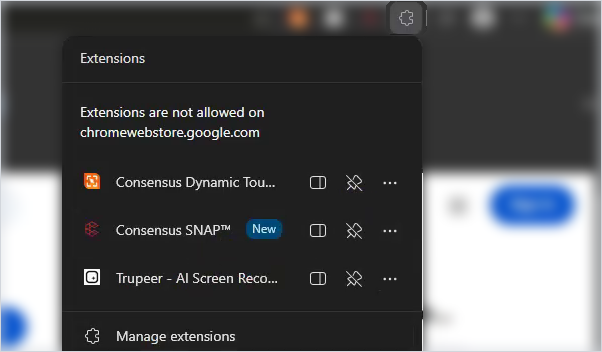
Consensus SNAP™ pinned to the Edge toolbar
| Open Snap and sign in |
- Click the Consensus SNAP™ icon in your toolbar. Snap opens as a sidebar on the right side of the window, so it stays next to whatever page you're working on.
- Sign in with your Consensus email and password and click Sign in, or click Sign in with SSO if your company uses single sign-on.
Here's the Snap sidebar, ready for you to sign in:
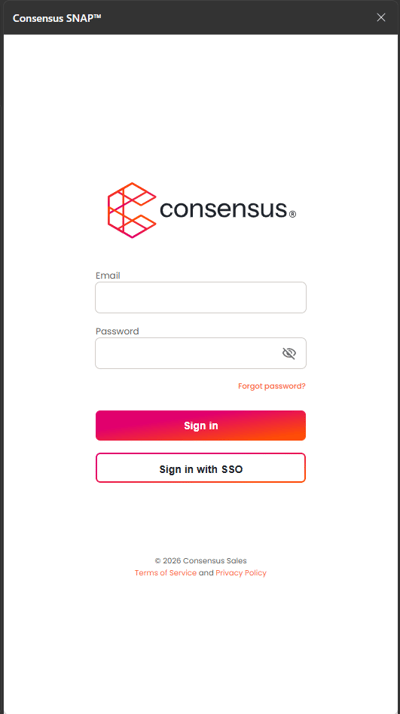
Snap sidebar in Edge
You'll know it worked when Snap shows the Demos and DemoBoards tabs.
|
Note: The first time you record with Snap, Edge asks for permission to use your camera and microphone. Choose Allow so Snap can capture your audio and video. |
| Troubleshooting |
- The Get button is grayed out. Edge hasn't been allowed to use extensions from other stores yet. Turn on Allow extensions from other stores in Edge's Extensions settings, then reload the store page.
- I can't find the Snap icon. It isn't pinned yet. Click the Extensions icon (the puzzle piece) and pin Consensus SNAP™. You can also open it from there with ... next to Consensus SNAP™ > Open in sidebar.
- Snap isn't behaving as expected after an update. Remove the extension, clear your browser's cookies and cache, then install Snap again. This resolves most loading and sign-in issues.
| Frequently Asked Questions |
Is Snap different in Edge than in Chrome? No. It's the same extension, so every Snap feature, from recording to Easy Sharing, works the same way in both browsers.
Do I need a separate Consensus login for Edge? No. Sign in with the same Consensus credentials you use in the web app.
| Keep Exploring |
How to Download Consensus Snap · Recording a Personalized Video with Consensus Snap · Sending Demos with Consensus Snap