
When your demo library is large, filters and sorting help you find the right demo in Snap in a few seconds instead of scrolling. This article covers where the filters live, what each one does, and how long your selections stay in place.
|
Before you start: Make sure your Snap extension is up to date. A recent update fixed an issue where filters returned no results. |
| Where you'll find filters and sorting |
You can filter and sort demos in Snap from these places:
- Demos tab: the full list of demos you can share, grouped into All, Recents, Favorites and Promoted.
- Share screen: the screen that opens when you click a demo's share icon. It has the same search bar, sort icon and Filters button, so you can keep narrowing the list while you add more demos to the same DemoBoard.
- DemoBoards tab: has its own sort control for the DemoBoards you've sent. See Sort your DemoBoards below.
Here's the Demos tab, with sorting and filters beside the search bar:
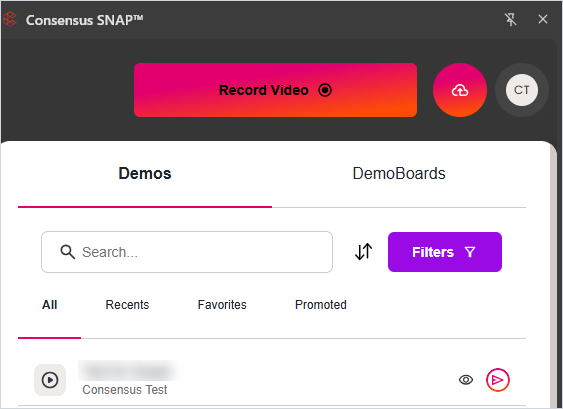
Demos tab in Snap
| Filter your demos |
Click Filters to the right of the search bar to open the Demo Filters panel. Each dropdown starts on its "All" option (for example, All types), so nothing is filtered out until you change it. You can combine as many filters as you need:
- Consensus SNAP™ Demos (checkbox, selected by default) — includes demos recorded or uploaded in Snap in your results, alongside your library demos.
- Demo Creation Date — pick your own start and end dates on the calendar, or choose a preset range
- Demo Type — choose one or more of:
- Discovery Demo
- Single Experience
- Standard Personalization Demo
- Advanced Branching Demo
Advanced Branching Demo applies only to older branching demos that are still in some libraries
- Demo Language — the language set on the demo, such as English, Spanish or German.
- Demo Creator and Demo Owner — any user in your organization.
- Demo Tags — the tags your admins have set up. See Search and Filter by Tags for how tags are managed.
|
About the Consensus SNAP™ Demos checkbox: With it selected, you'll see library demos plus demos created in Snap, including your teammates' Snap demos. Clear it and the Snap demos drop out, leaving only library demos. Your other filters still apply, so with Demo Owner set to a teammate, you'll see their Snap demos alongside their library demos. |
Once you've made your selections, here's how to apply them:
- Choose the filters you'd like to use. You can select several values in each dropdown. To remove a value, click the x on its tag.
- Click Apply at the bottom of the panel. It stays grayed out until you change something. Your demo list refreshes to show only the matching demos.
- To undo a filter later, open Filters, clear that field (use Clear in the date picker, or the x in a dropdown), and click Apply. Cancel closes the panel without changing anything.
Here's the Demo Filters panel with the Demo Type list open, next to the date picker with its preset ranges:
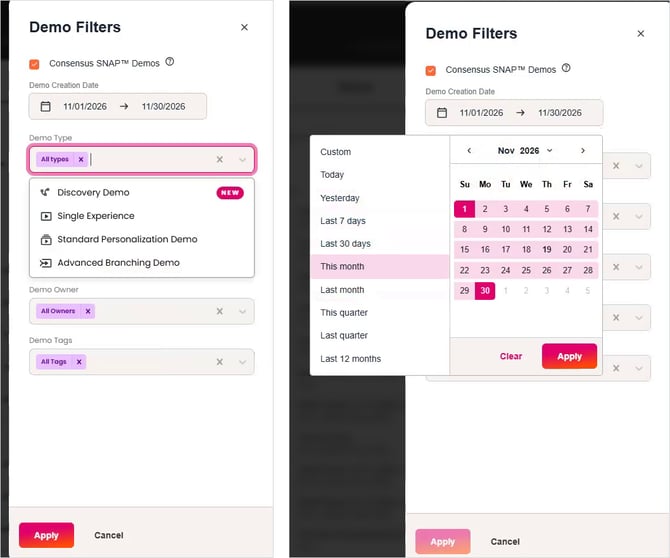
Demo Filters panel: Demo Type options (left) and Demo Creation Date presets (right)
|
Note: Filters only take effect after you click Apply. If you close the panel without applying, your changes aren't kept. The Filters button looks the same whether or not filters are applied, so if your list seems shorter than expected, open Filters to check what's selected. |
| Sort your demos |
Sorting changes the order of the list without hiding anything. Click the sort icon (the up-and-down arrows) next to Filters and choose (a check mark shows the current option):
- Usage — the demos used most often appear first. This is the default.
- Title — alphabetical, A to Z.
Here's the list sorted by Title:
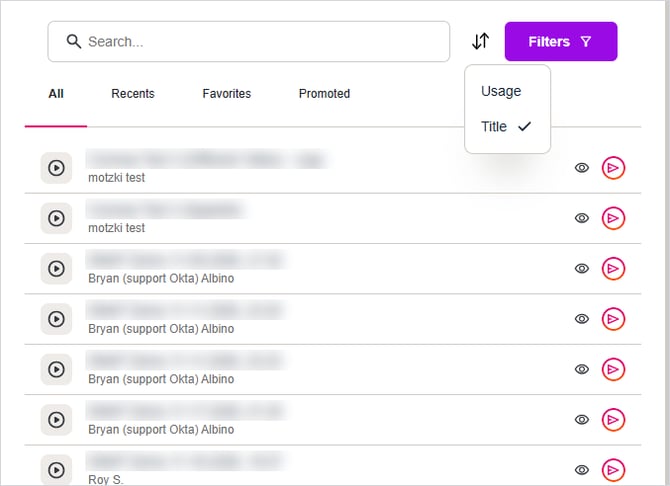
Demos sorted by Title in Snap
| Sort your DemoBoards |
On the DemoBoards tab, the funnel icon next to the search bar changes the order of the DemoBoards you've sent:
- Click the funnel icon.
- Under Filter by, choose what to order by:
- Created Date (the default)
- Total View Time
- Total Views
- Story Plays
- Page Views
- Interactive Elements Opened
- Stakeholders Discovered
- Under Sort by, choose Ascending Order or Descending Order (the default).
The list reloads in the new order. To find a specific DemoBoard, type its name in the search bar.
Both menus are shown below:
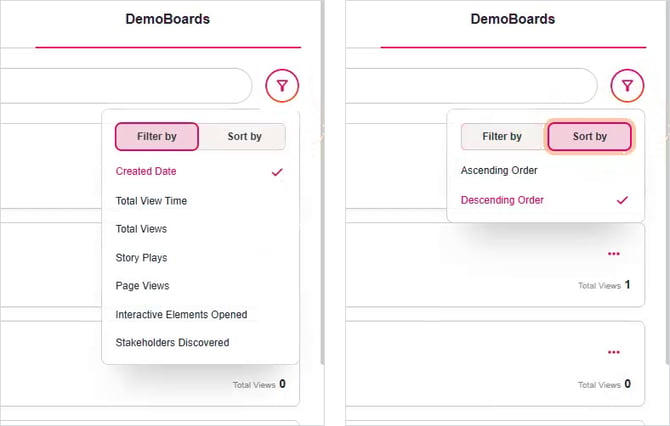
Filter by and Sort by options on the DemoBoards tab
| Filter while you choose demos to share |
When you're putting together a DemoBoard with several demos, you can keep searching and filtering as you add them:
- On the Demos tab, click the share icon at the end of the demo's row. The Share screen opens with that demo under Demos to be shared.
- Use the search bar, sort icon or Filters to find the next demo, then click the + at the end of its row. A green check shows it's been added.
- Repeat for as many demos as you need. The button at the bottom keeps count, for example Share (3).
- To review your selection, click Edit or Reorder (it reads Edit while only one demo is added). The list expands into numbered cards: drag a card by its handle to change the order, or click its x to remove it. Each card also has preview and favorite icons. Click Show Less to collapse the list again.
- When your list is ready, click Share to continue.
Need a new video for this DemoBoard? Click Record below Demos to be shared. The recorder opens, and when you're done, your new recording is added to the demos you're sharing, so you don't have to start over. Upload, right next to it, works the same way for a video file you already have.
Here's the Share screen with one demo added, and the same list after clicking Edit:
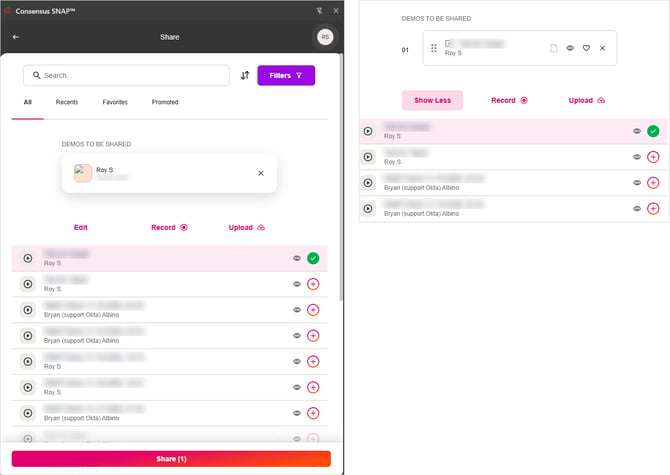
Share screen (left) and the expanded list after clicking Edit (right)
For the rest of the sharing flow, see Sending Demos with Consensus Snap.
| How long your filters stay in place |
Snap remembers the filters and sorting you've applied. They stay in place as you switch between the Demos and DemoBoards tabs, back out of the Share screen, or open a DemoBoard and come back, and when you close Snap or your browser. Your selections are cleared when you:
- Clear them in the Demo Filters panel and click Apply.
- Log out of Snap (click your initials at the top right, then Logout).
| Troubleshooting |
- Filters return no demos even though they should match. Update Snap to the latest version. If the extension is current, remove it, clear your browser's cookies and cache, and install it again.
- A search returns nothing when it includes a special character such as |. This was fixed in a recent Snap update, so update the extension and search again.
- I can't find a demo I recorded in Snap. Check that Consensus SNAP™ Demos is selected. When it's cleared, Snap recordings and uploads drop out of the list.
- I can't find a library demo I know exists. Review your active filters, especially Demo Creation Date and Demo Owner, or set every field back to its "All" option and click Apply to start fresh.
| Frequently Asked Questions |
Can I filter by more than one tag at once? Yes. Select several tags in the Demo Tags dropdown and the list shows demos matching your selection.
Is there a Reset button? No. Clear the fields you've changed (or select the "All" option again) and click Apply.
Do my Snap filters affect the web app? No. Snap filters only apply inside the Snap extension.
| Keep Exploring |
Sending Demos with Consensus Snap · Search and Filter by Tags · How to Download Consensus Snap