![Gradient_Horizontal_onDark-2.png]](https://support.goconsensus.com/hs-fs/hubfs/Gradient_Horizontal_onDark-2.png?height=40&name=Gradient_Horizontal_onDark-2.png)
How to Create Public Links for Your Marketing Campaign in Various Locations, Including Embedding on Your Website.
The marketer’s experience in Consensus revolves around the creation and management of Public links. Your Public links are your embedded product demos, the personalized demos you use in nurturing campaigns or even those interactive product experiences you add to your email campaigns.
Public Links help you move the needle on your pipeline generation and lead velocity — and it takes a few clicks across the Consensus platform to get started!
Try this out yourself, using an Interactive Product Tour
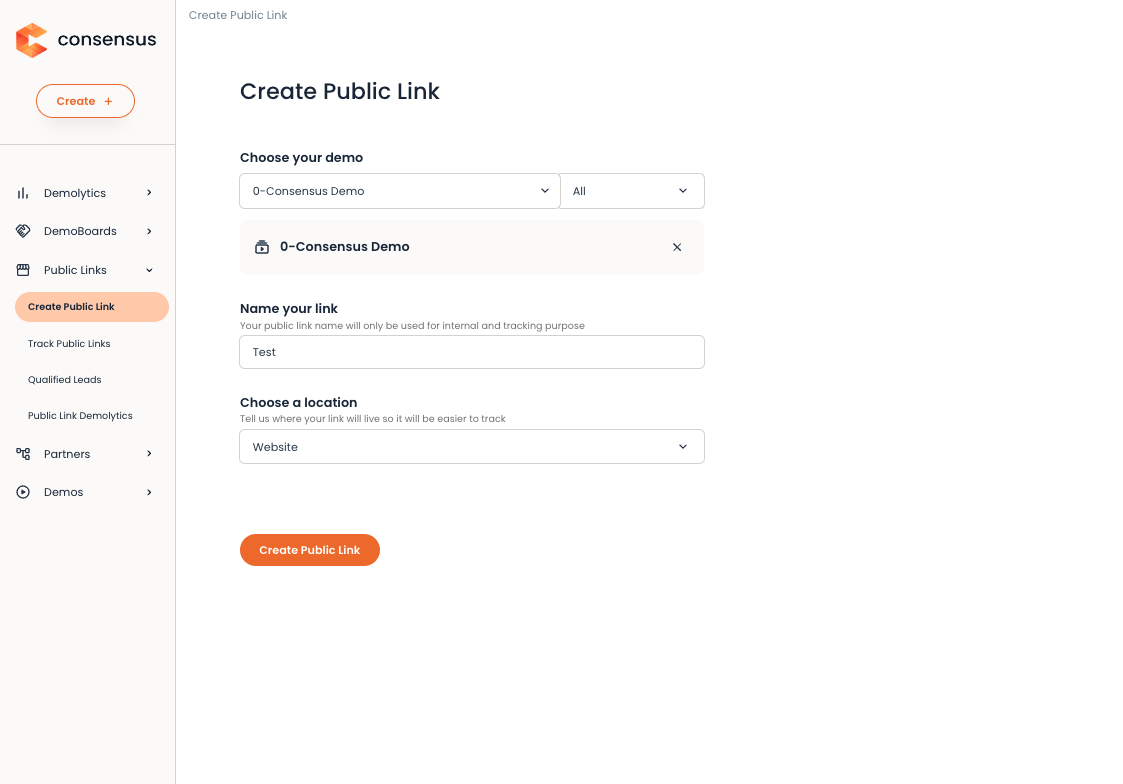
Creating a Public link
To get started, navigate to the Share section from the left-hand navigation and choose the “Public Link” sharing option:
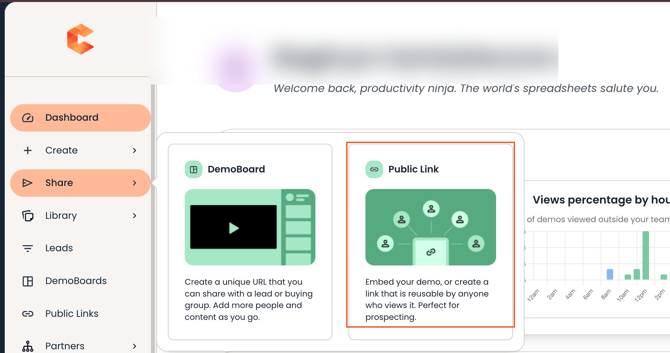
When you make your selection you will be redirected to the Create Public Link page:
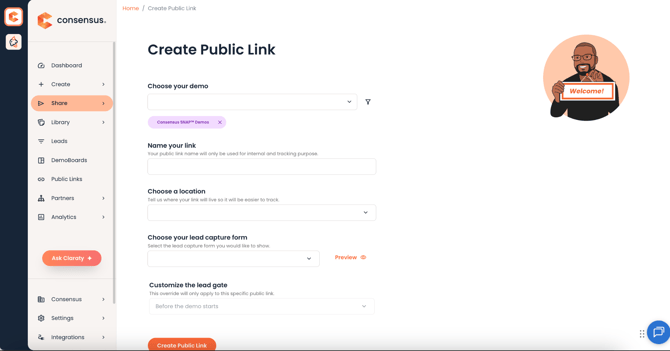
Within this page, you will configure your experience by:
- Selecting a demo
- Naming your link
- Selecting the Public Link location between the following options:
- Website embed
- Social Media
- Other
- Selecting your lead gate for this link
- You can customize where the lead gate should be triggered and this will override the Lead gate set on the demo level.
Once you create the public link, you can share it in a few ways — share your link as a thumbnail or a button.
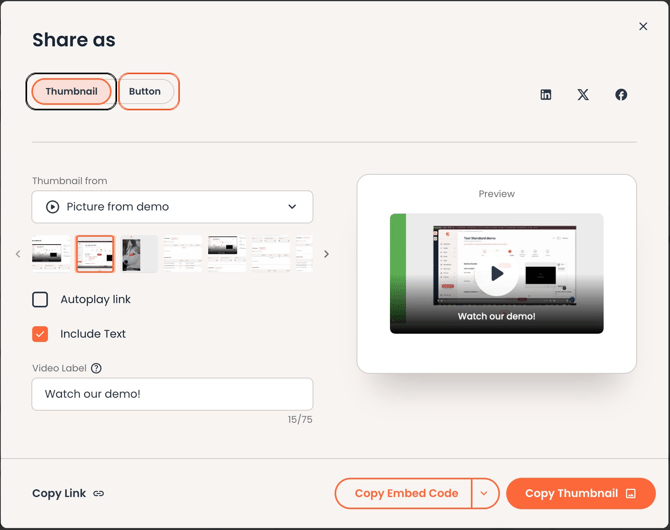
- Thumbnail Share As options:
- Copy Link
- Copy Embed Code <iframe src="[Public Link Url]" frameborder="0" allow="autoplay; fullscreen" allowfullscreen></iframe>
- Copy Embedded code w snippet - link to https://hub.goconsensus.com/sending-and-sharing-36/ingesting-lead-data-into-your-consensus-public-link-lead-form-533
- Copy Thumbnail
- Button Share As option:
- Copy Button
You can embed the public link directly onto your website builder, email campaign, or share and post the public link on social media platforms such as Twitter, LinkedIn, or Facebook.
Once you create your public link, the link will be listed under your “Public link” tab under the “Track Public links” page.
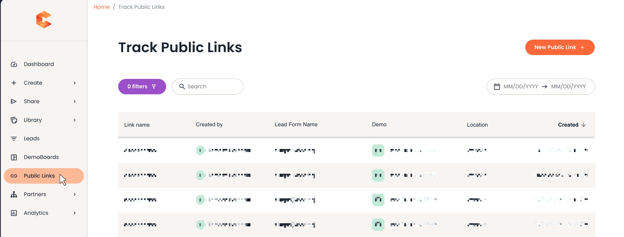
This page lets you drill down into each link so you can track the data points and identify which views are qualified for the demo. You can also edit, preview, and share the demo with prospective customers.
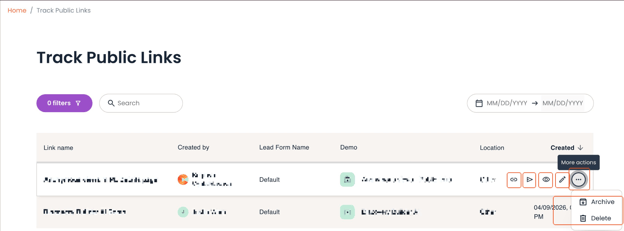
Links, Sharing, Previewing, Archiving & Deleting
The table actions in Track Public Links page give you flexibility to manage your links more easily.
Copy Link action
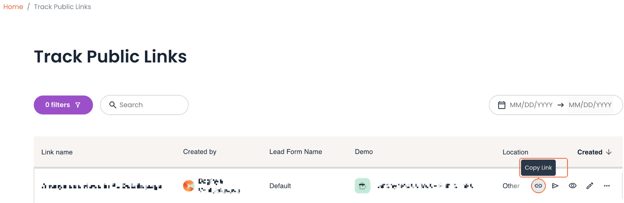
For direct sharing, click the Copy Link icon — this copies the URL to your clipboard (https://play.goconsensus.com/public-link-identifier). You can open your link in a new browser tab to test the experience or share internally.
Share action
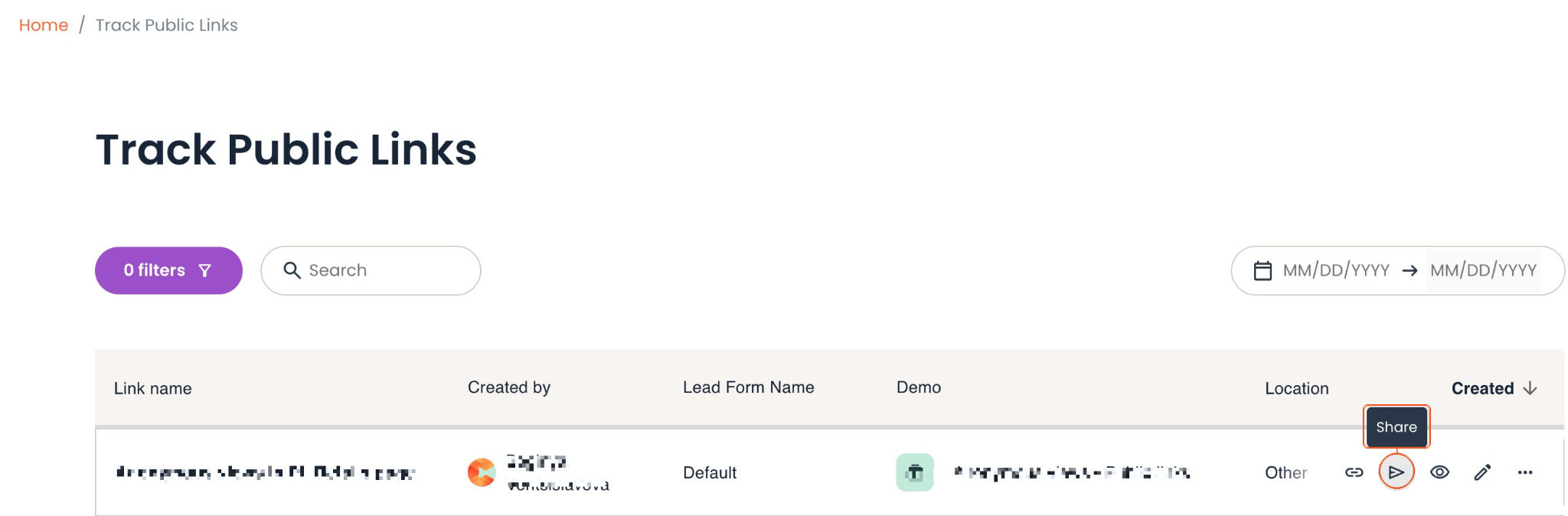
To embed your Public link, send it as a thumbnail or a button or share it on social media , click on the Share icon and the Share As modal will open up to allow you to adjust the sharing options.
Preview action
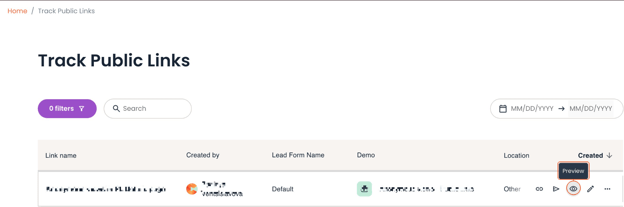
To test your demo experience, click on the Preview button and the link will open in a new tab in your browser.
Edit action
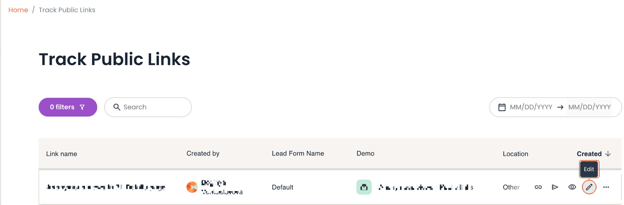
To make any updates to your link name, choose a different lead gate or switch the position of your form, click on the edit button to update your link.
Archiving and deleting your Public links
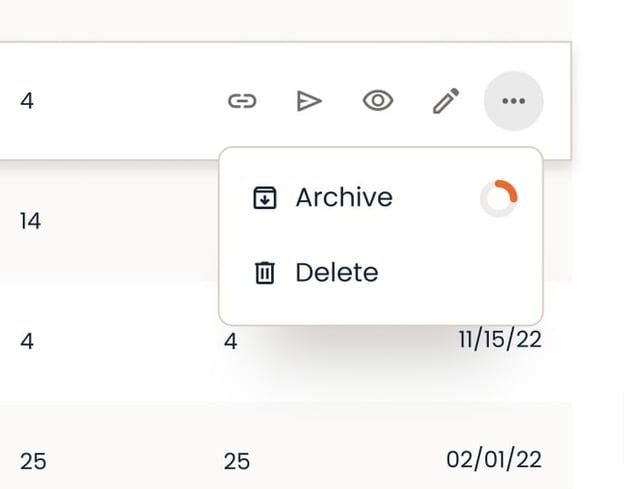
When users archive a public link, it won’t be visible in the table. However, archiving the link doesn’t mean it has been deleted. When archived, the link moves over to the list of archived links which you can display in your Track Public Links page by adjusting your table filters to have “Include Archived Public Links”. By enabling this filter your archived public links will be displayed in the table, but they will be grayed out. You can restore an archived public link by clicking the "Unarchive" icon.
When you delete a public link it will be removed from the Track Public Links page.
Buyer experience with archived/deleted Public links
When a Public Link has been deleted and a viewer opens up the link, they will see a prompt explaining the link has expired. Buyers will still be able to reach out by clicking on the Contact me CTA on that screen.
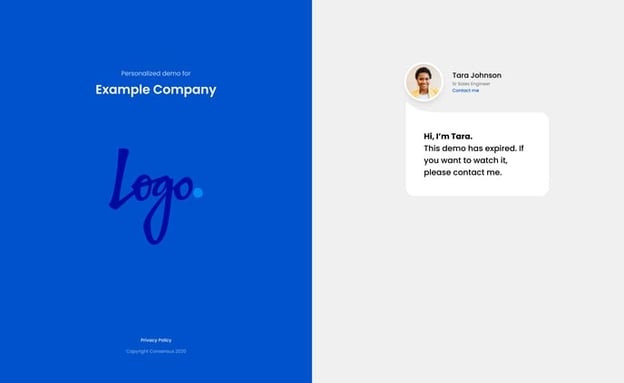
On the other hand, your archived Public links won’t affect the buyer experience, because they will continue to play despite the archive status.
Broken links
Your Public links may get broken even if you’re not the one who made changes that impact the experience. Let’s review a couple of scenarios for broken links:
- You have a Public Link using a particular Lead gate form, but at some point the form is deleted and your link is still actively used on your website.
In Track Public Links your link that uses the respective form will have a warning icon, indicating that the link is broken and should be updated: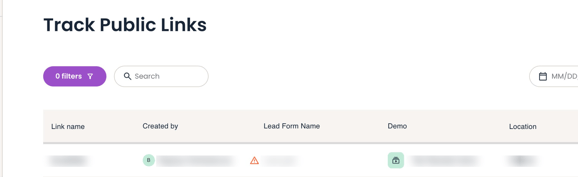
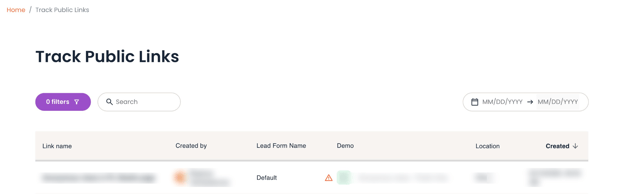
- You have a Public Link using a demo, but someone unpublishes or deletes the demo from the Demo Library — in this case your buyers will see the expired link message shown above.
In Track Public Links page your link that uses the respective demo will have a warning sign, indicating the link needs to be updated:
Understanding your Public Link performance
Once your Public link is live, you can monitor how it performs from the Track Public Link page. You can drill down into each of your links to understand which views are qualified for the demo and how engaged were the viewers that didn’t submit the lead form.
Simply click on the Link name from the table and you will be redirected to the Details page.
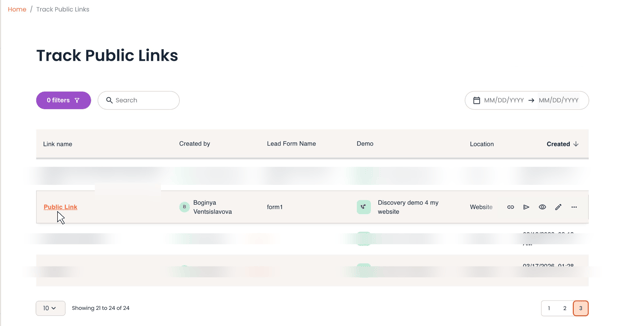
By clicking the Public Link you are redirected to the Details page for that respective link:
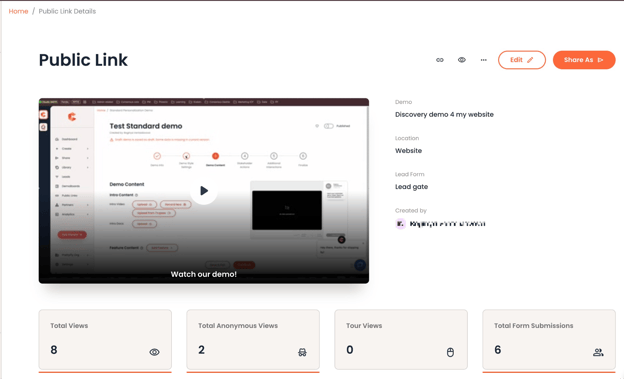
On the Details page you get the breakdown of the view sessions for your link.
Total Views indicates the aggregate between views from known viewers and anonymous ones.
You can see the full picture of how viewers interact with your content as you scroll down and see the sessions listed under Qualified Leads table and Anonymous Views table.
Qualified Leads
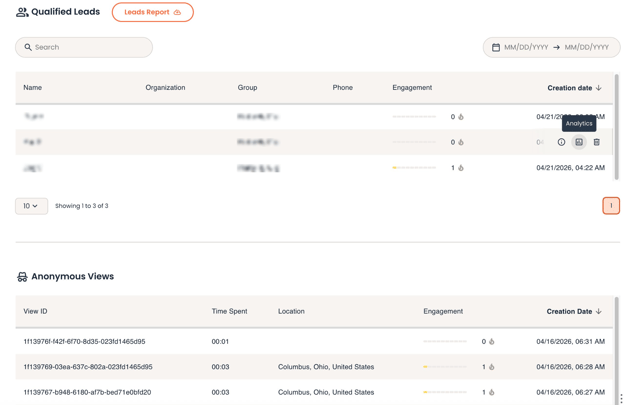
The Qualified Leads table lists every view session where the viewer filled out the lead form. This means if the same person watches your demo and submits the form on separate occasions, each session appears as its own entry in the table. The Form Submissions tile at the top of the page gives you a quick count of how many times the lead form was completed, so you can easily see total form activity alongside your qualified lead sessions.
Anonymous Views
The Anonymous Views section shows all view sessions where someone engaged with your demo content but did not fill out the lead form. For each anonymous session, you can see engagement metrics — giving you the same level of detail you get for qualified leads.
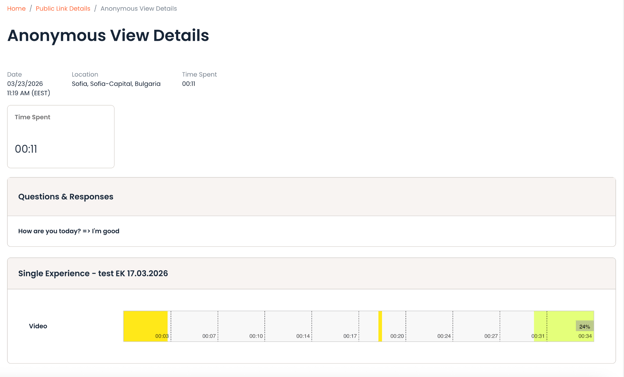
You can also view a Heatmap for anonymous sessions to see exactly where anonymous viewers engaged and where they dropped off within your demo.
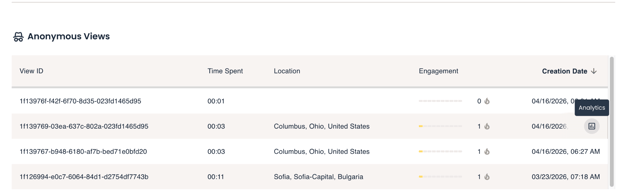
To go to a heatmap for any anonymous view, click the Analytics table action and you’ll be redirected to the Heatmaps page:
Keep in mind
You can monitor your Public performance from a few places in the platform:
- Drilling down your links to go to Public Link Details page;
- The view sessions from known viewers are also shown under the Leads tab—all sessions which ended up with a form submission are listed as leads;
- For additional data context, a consolidated view of aggregated data, go to Analytics >>> Public links - https://support.goconsensus.com/what-demolytics-do-i-get-from-public-demo-links