
Consensus Snap works in Google Chrome and Microsoft Edge. Follow the steps for your browser below.
| Google Chrome |
Install Snap from the Consensus SNAP™ download page in the Chrome Web Store.
- Open the download page and click Add to Chrome.
- Click Add to Chrome to confirm.
- Click the Extensions icon (the puzzle piece) in your toolbar, then the pin icon next to Consensus SNAP™.
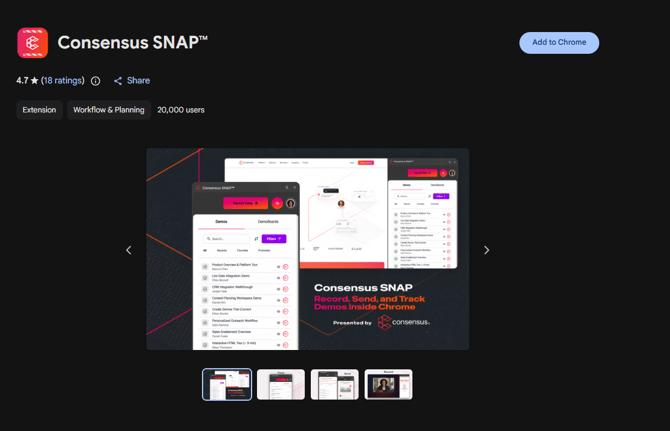
Consensus SNAP™ listing in Chrome with Add to Chrome
Consensus SNAP™ in Google Chrome
| Microsoft Edge |
Edge installs Snap from the same Consensus SNAP™ download page in the Chrome Web Store.
- Open the download page in Edge. If Edge asks you to allow extensions from other stores, click Allow extensions from other stores, then Allow.
- Click Get, then Add extension to confirm.
- Click the Extensions icon (the puzzle piece) in your toolbar, then the pin icon next to Consensus SNAP™.
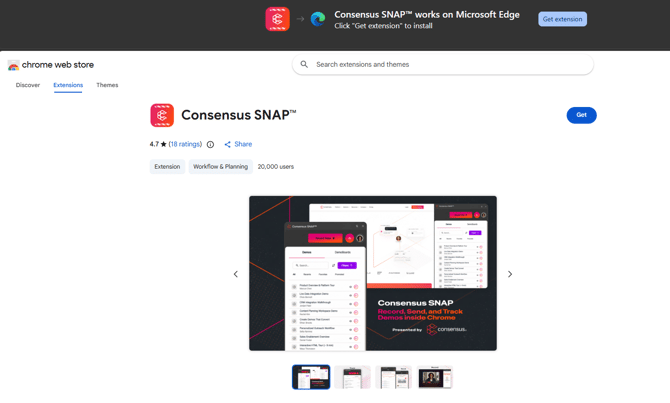
Consensus SNAP™ listing in Chrome Store with Get Button
Consensus SNAP™ in Microsoft Edge
| Open Snap and sign in |
- Click the Consensus SNAP™ icon in your toolbar. Snap opens as a sidebar on the right.
- Sign in with your Consensus email and password, or click Sign in with SSO. Forgot your password? Click Forgot password?.
You'll know it worked when Snap shows the Demos and DemoBoards tabs.
|
Note: Snap can't open on some pages, such as the Chrome Web Store itself, even though its icon is in your toolbar. Switch to another tab and click the icon again. |
| Keep Exploring |
Sending Demos with Consensus Snap · Recording a Personalized Video with Consensus Snap · Updating Consensus Snap Settings