
Snap Settings let you set how the demos you record in Snap look and behave for your viewers: the theme, the player language, your contact details, and the sharing prompts. Set them once and every new Snap recording picks them up.
|
Note: These settings apply only to demos you record in Snap. When you share an existing demo from your library, it keeps the theme and settings already assigned to that demo. |
| Open Snap Settings |
- Open Snap from your browser toolbar.
- Click your profile icon (the circle with your initials) in the top-right corner of the Snap panel.
- Select Settings from the menu. You'll see your current settings.
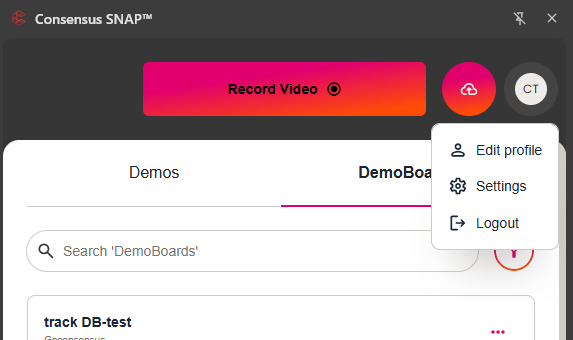
Opening Settings in Snap
| Update your settings |
Settings is a single page, grouped into five sections. Here's what each one controls, in the order you'll see them:
- Buyer Board — use the Enable Buyer Board toggle to turn the BuyerBoard on or off for your Snap demos.
- Demo Language — the language of the demo player's buttons and labels. This doesn't translate the video itself.
- Contact Information — a Phone Number and Live Chat Link viewers can use to reach you. Leave either field blank if you don't want to offer it.
- Encourage the Viewer to Share — when viewers see the prompt inviting them to share your demo. Choose At the end of the demo, Before the demo starts, or Don't ever show contact form automatically if you'd rather not prompt viewers at all.
- Demo Theme Settings — pick a theme from Choose a Theme. The preview card below shows the theme's logo and colors, and the Default badge marks your account's default theme. The themes in this list are the ones your admins have set up.
When you're finished, click Save. It stays grayed out until you change something. Your next Snap recording uses the new settings. To leave without changing anything, click Cancel.
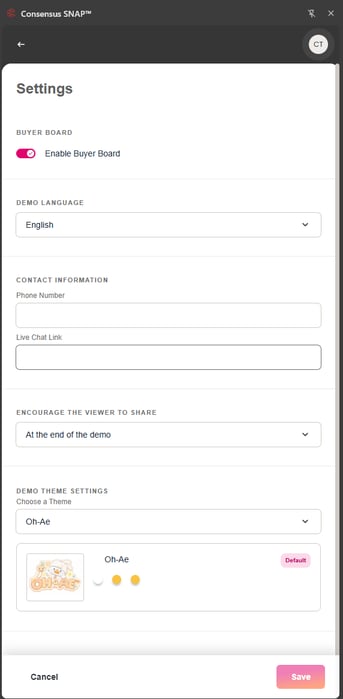
Snap Settings
| Troubleshooting |
- I don't see the theme I want in Choose a Theme. The list only includes themes set up for your account. Ask your Consensus admin to add it.
- My theme shows in Settings, but demos still use our old branding. Themes need to be enabled for your account before they apply. Contact Consensus Support, and they'll turn themes on; your next recording picks up the theme immediately.
- My changes don't save. Update Snap to the latest version. If it still doesn't save, remove Snap, clear your browser's cookies and cache, reinstall, and try again.
- An existing demo didn't change. Settings only apply to new Snap recordings. Update an existing demo's style in the web app.
| Frequently Asked Questions |
Do Snap Settings change my demos in the web app? No. They apply only to demos recorded in Snap.
Can I stop the share prompt from appearing? Yes. Under Encourage the Viewer to Share, choose Don't ever show contact form automatically, then click Save.
Does changing the language translate my narration? No. It changes the player's interface language. Your recorded audio stays as it is.
| Keep Exploring |
Consensus Demo Themes · Customizing Your Demo's Style Settings · What is the BuyerBoard?