
Need to record a quick walkthrough, an answer for a customer, or a personal intro, without opening another tool? The Consensus Screen Recorder is built right into the web app. Record your screen, your camera, or both, then send it on a DemoBoard in a couple of clicks. It's the same recorder you know from Snap, with pause and resume, background blur, and automatic quality.
| Before You Start |
- Permissions: you need permission to create demos. If you don't see the Record button or Screen Recorder in the Create menu, ask your admin.
- Browser: we recommend an up-to-date Google Chrome. The recorder also works in Firefox and Safari.
- On a Mac? Give your browser permission to record your screen in System Settings > Privacy & Security > Screen Recording (and Microphone), then quit and reopen the browser.
- Recording the Consensus web app itself? Open what you want to show in a separate tab or window first. The recorder can't capture the same tab it's running in.
| Quick Path |
- Click Record in the top-right corner of the web app, or go to Create > Screen Recorder.
- Check your camera, mic, background, and quality, then click Record.
- Choose the tab, window, or screen to share, and record after the 3-2-1 countdown.
- Pause and resume whenever you like, then click Finish.
- Trim and title the video in the editor, then click Done Editing.
- Add recipients on the Create DemoBoard page, or come back to the video later in My Demos.
| Open the Recorder |
There are three ways in, and all of them open the same recorder:
- The Record button, which floats in the top-right corner of the web app so it's always one click away. Hover it and you'll see Record & Share video.
- Create > Screen Recorder, listed under Content Creation Tool.
- Record New in Step 3 of the Demo Wizard (Demo Content). Under Record Using, pick Screen Recorder (or ScreenPal) to record straight from the step you're building.
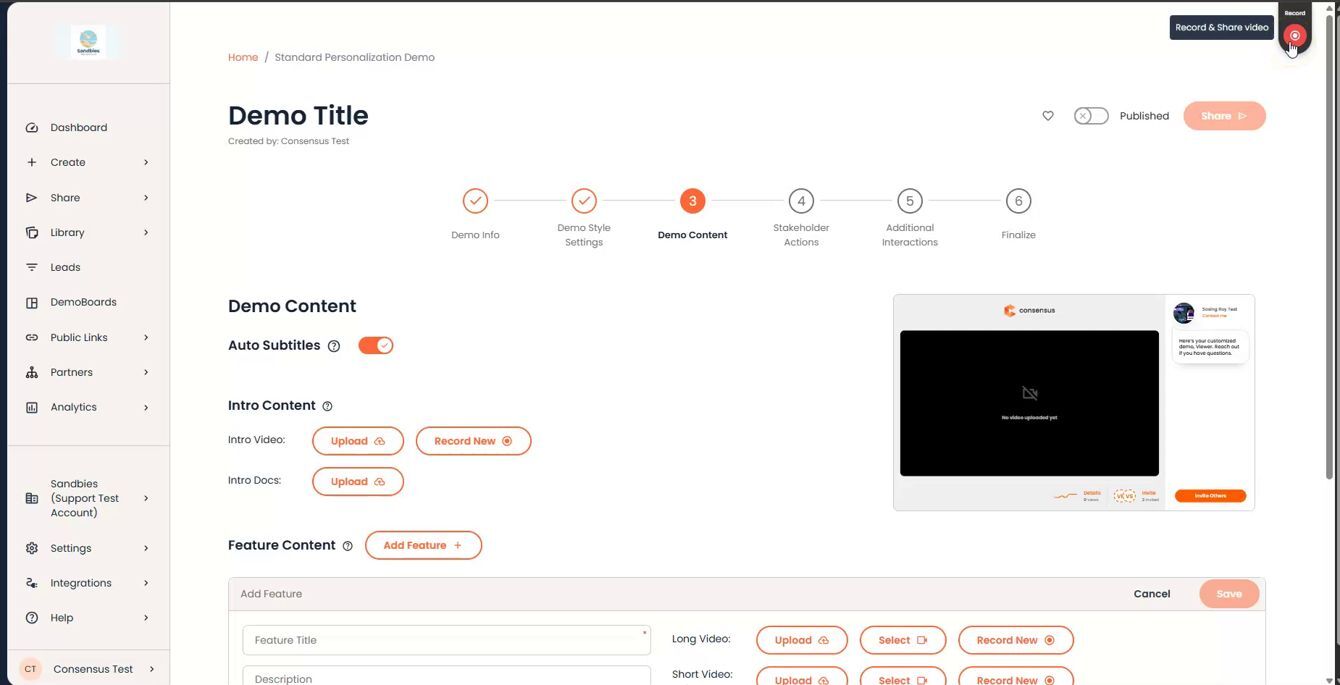
The floating Record button, top right: hover it to see Record & Share video
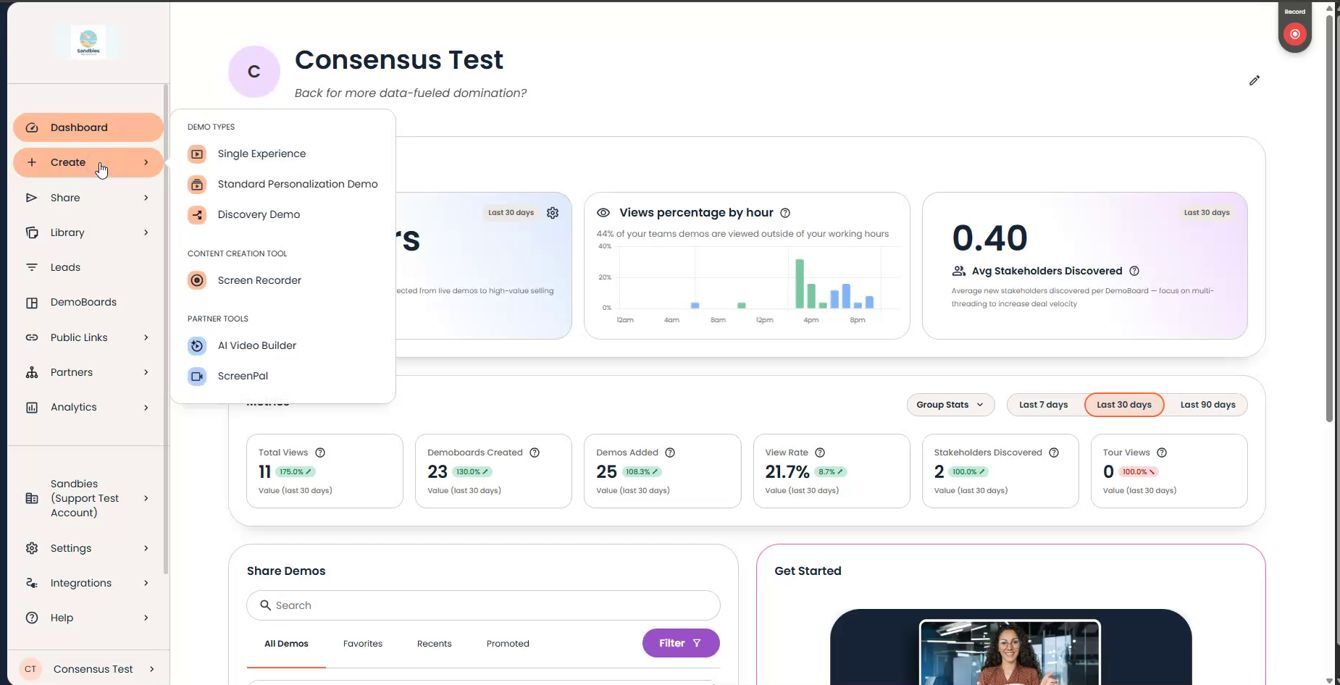
Create menu with Screen Recorder under Content Creation Tool
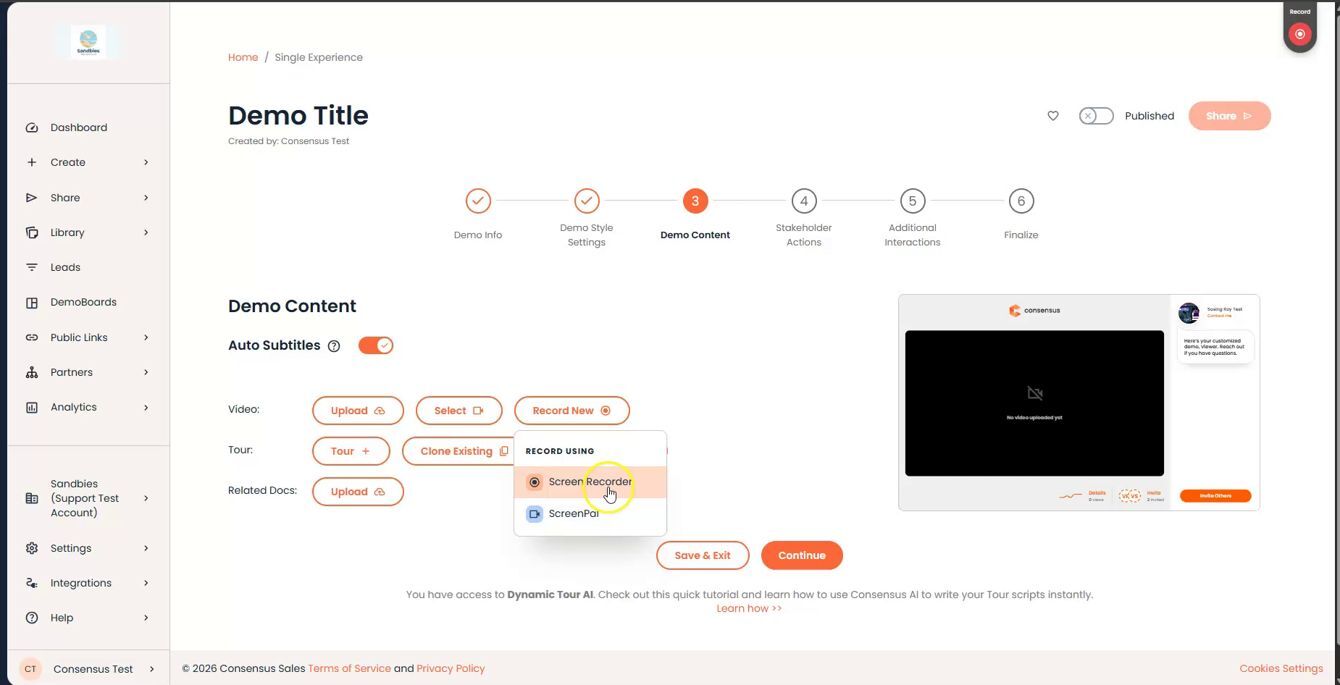
Record New in Step 3 of the Demo Wizard: choose Screen Recorder or ScreenPal under Record Using
You'll see a quick Screen recorder launched! message, and the recorder opens a moment later.
| Looking for ScreenPal? It lives right below, under Create > Partner Tools > ScreenPal. Use ScreenPal for heavier editing such as overlays, captions, and title pages. Use the Screen Recorder when you want to record and send fast. |
| Set Up Your Recording |
The recorder opens with a live preview of your camera, and it remembers your choices from last time, so most days you can go straight to Record. Here's what you can adjust:
- Camera or Screen: use the toggle at the bottom left. Camera records just you (you'll see Camera recording only above the preview). Screen records a tab, window, or screen you choose, with your camera in a corner bubble (you'll see Your recording will happen in the tab or window you choose).
- Quality: choose 1080p, 720p, or 480p on the preview. The best setting for your computer and connection is picked for you.
- Background: use the two buttons on the bottom right of the preview to add a background blur or a virtual background.
- Camera and microphone: picked automatically from your last session. Use the microphone and camera menus at the bottom right to switch devices.
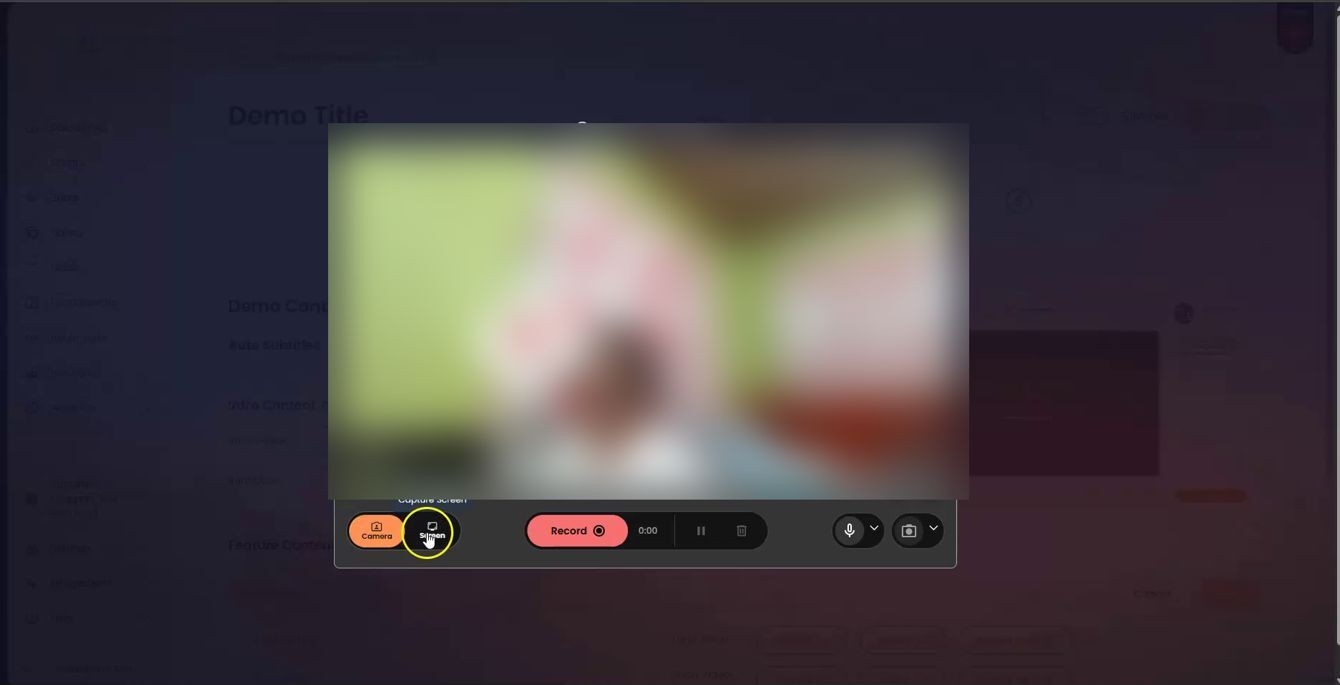
The recorder before you start: Camera / Screen toggle, quality, background, Record, and the microphone and camera menus
| Record |
- Click Record (in Camera mode) or Select Screen (in Screen mode).
- In Screen mode, your browser asks what to share. Pick a tab, a window, or your entire screen, then click Share.
- Wait for the 3-2-1 countdown, then start talking.
- Use Pause (next to the timer) any time you need a breather. Nothing is lost, and Resume picks up where you left off. The final video stitches it all together. Want a clean start instead? The trash icon discards the take.
- Click Finish when you're done. In Screen mode, you can also click Stop sharing in the browser bar.
| Tip: The Finish, Pause, and discard controls float in their own small window. Share a single tab or window and they stay out of your video. Share your entire screen and they'll appear in it. |
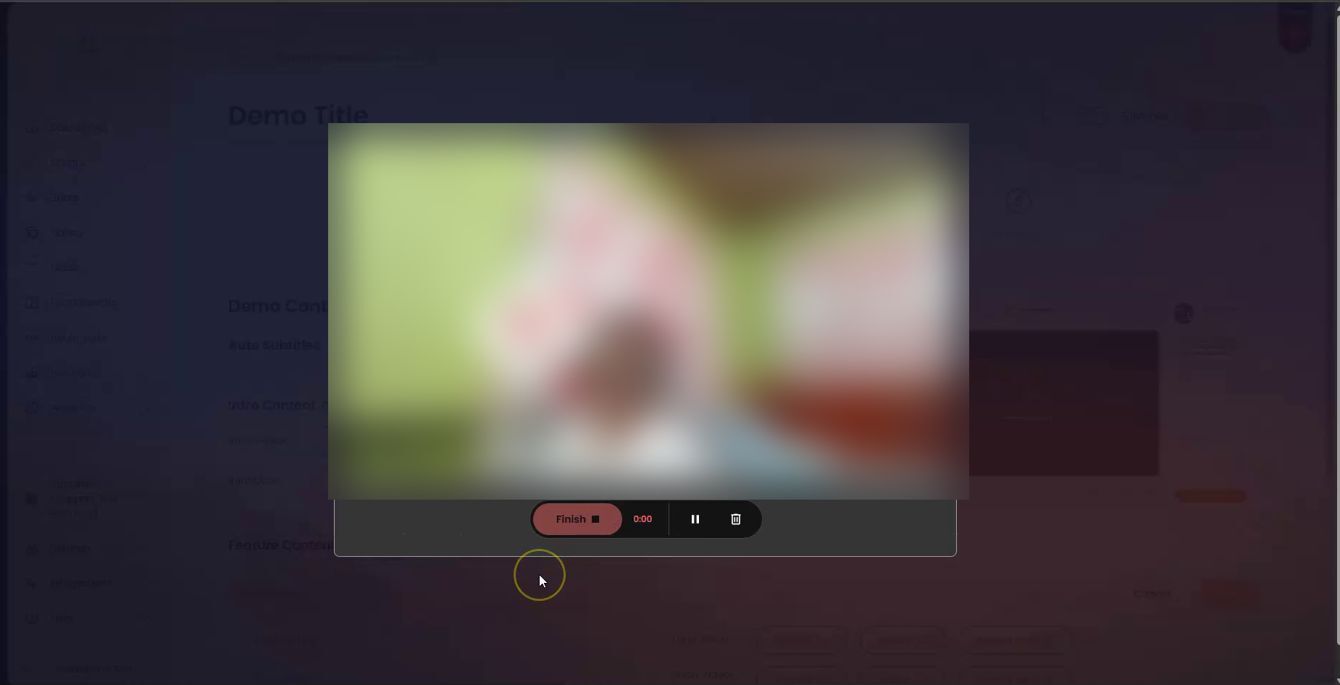
While recording: Finish, the timer, Pause, and the trash icon to discard the take
| Polish It in the Editor |
When you stop, the editor opens so you can tidy things up before saving:
- Title: click the pencil next to the name at the top left (it starts as SNAP Demo plus the date and time) and give it a name you'll recognize later.
- Trim: drag the handles on either end of the timeline to cut the start or end.
- Crop: use the crop icon next to the play button to focus on what matters.
- Webcam position (screen recordings): move your camera bubble to any corner.
- Delete: throw the recording away and start again.
Click Done Editing to save and upload. You'll see Processing file… while it finishes.
| Good to know: After a trim, longer videos are reprocessed before they upload, and that can take a few minutes without a progress bar. Keep the window open and give it about 5 minutes before assuming it's stuck. For long or important recordings, keep them short and split them into parts. Shorter videos upload faster and are easier to redo. |
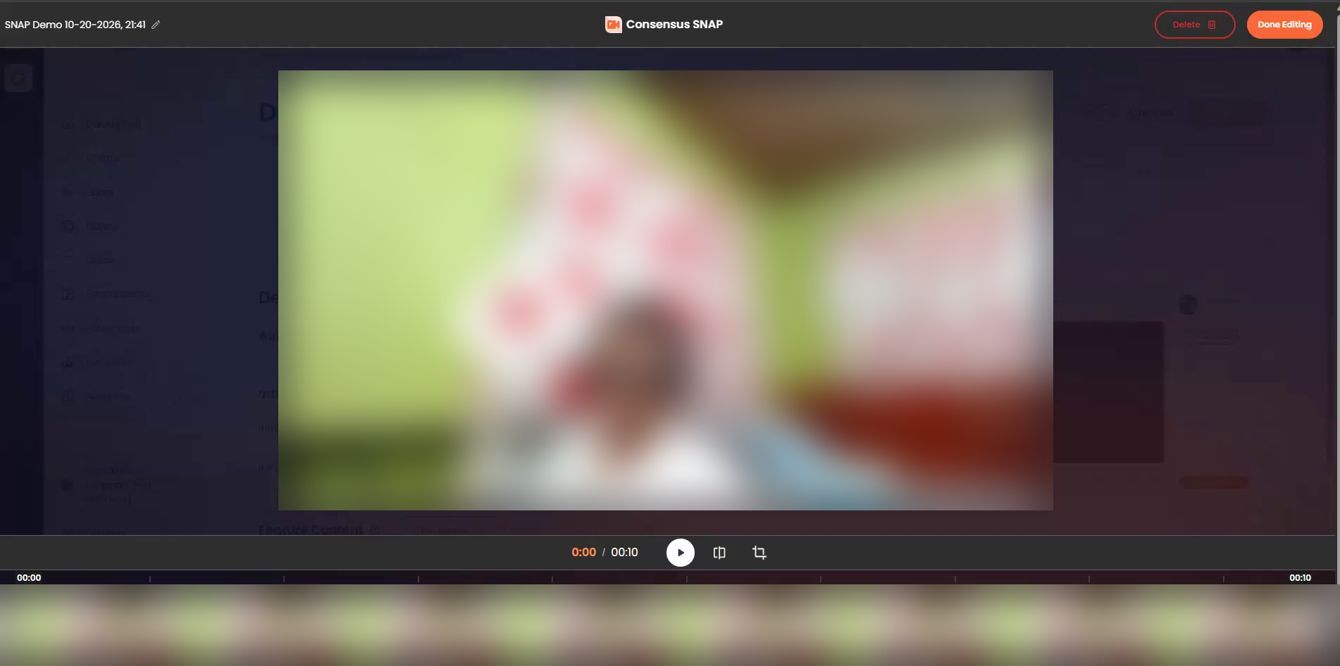
The editor: rename at the top left, Delete and Done Editing at the top right, play, trim, and crop below the video
| Send It or Save It for Later |
Once the upload finishes, the Create a DemoBoard page opens with your recording already in the Playlist. Add your recipients and options to send it right away, the same as any DemoBoard. You can add more demos to the playlist too. The demo list starts filtered to Consensus SNAP™ Demos, so clear that filter to see everything.
Not ready to send? No problem. Every recording is saved as a demo in Library > Demos > My Demos, and it also shows in your Recent row. A few things to know:
- It's private to you until you share it. Teammates can't see it until you give them access or send it.
- It's named SNAP Demo plus the date and time it was recorded (unless you renamed it in the editor), so rename it in the Demo Wizard to keep your library tidy, and move it into a folder if you like.
- It picks up your account's default theme and gets a thumbnail automatically.
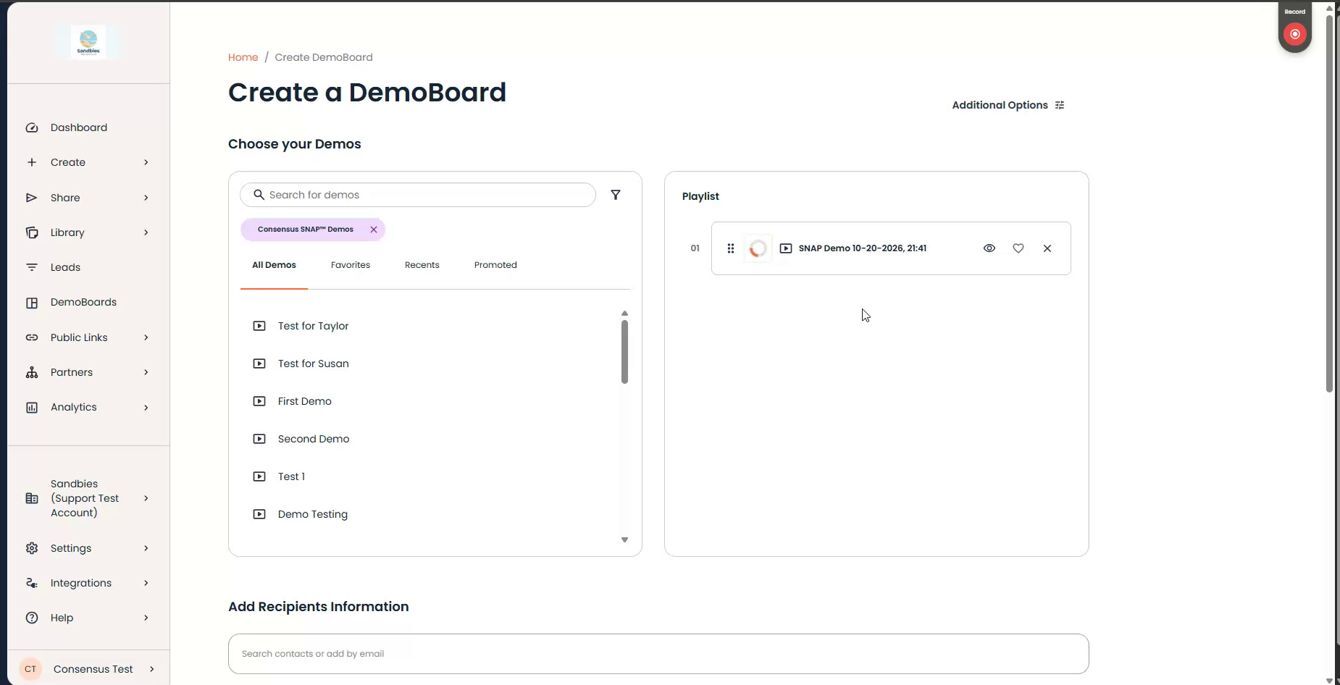
Create a DemoBoard with the new recording already in the Playlist
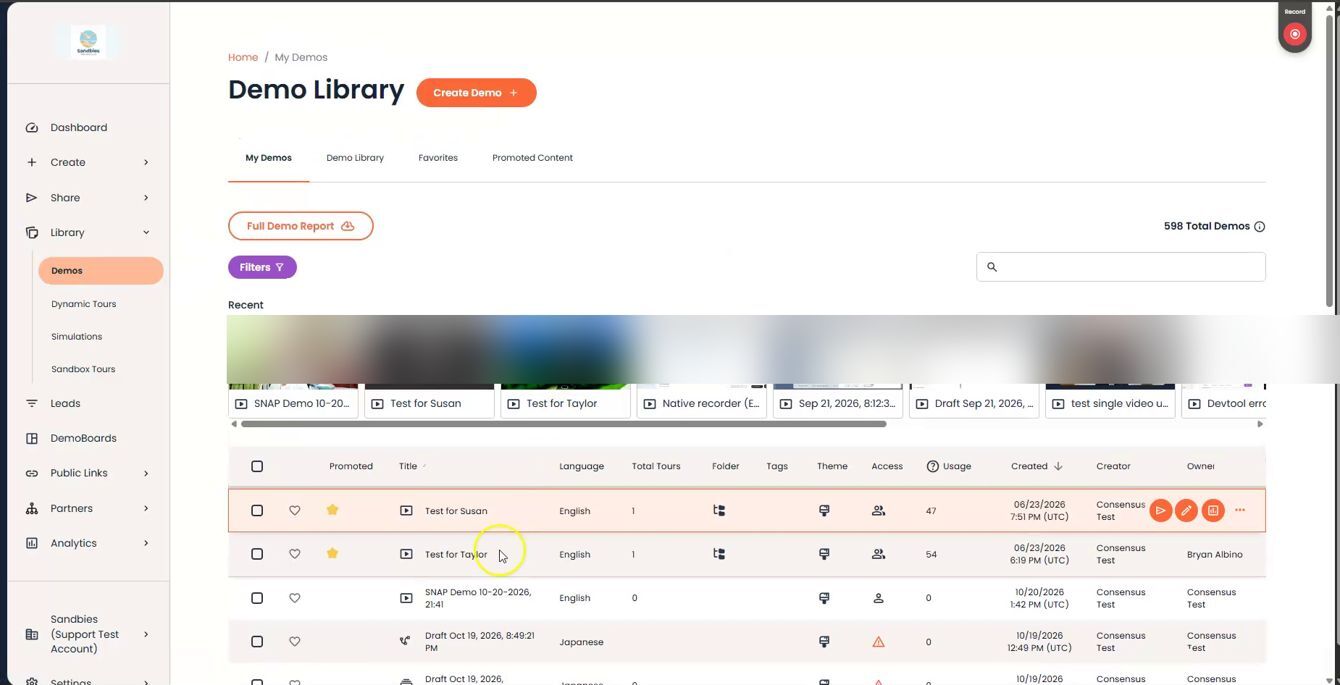
The new recording in Library > Demos > My Demos, in both the Recent row and the table
You'll know it worked when the recording shows in My Demos and plays in the DemoBoard preview.
| Troubleshooting |
- Recording or upload won't go through: clear your browser cache and cookies, then try a short 1-minute test recording.
- "Upload failed" banner after editing: don't click Delete or close the recorder yet. Wait a minute, then click Done Editing once more. If the banner comes back, re-record the video: clear your browser cache and cookies, do a quick 1-minute test recording to confirm uploads are working, then record again.
- Screen recording is blank or only shows your desktop (Mac): turn on your browser in System Settings > Privacy & Security > Screen Recording, then quit and reopen the browser.
- Can't record the Consensus app: open the page you want in a second tab or window and share that instead.
- No Record button: your role may not have permission to create demos. Ask your admin.
| FAQ |
Where does my recording go? It becomes a demo in Library > Demos > My Demos, visible only to you until you share it.
Can I pause without starting over? Yes. Pause and Resume as often as you like, and the final video includes everything.
Will the recording controls show up in my video? Only if you share your entire screen. Share a tab or window to keep them out.
Is this the same recorder as Snap? Yes. Snap, Personal Intro Videos in the web app, and the Screen Recorder all use the same recorder, so your settings carry over.
Should I use ScreenPal or the Screen Recorder? Use the Screen Recorder for quick, record-and-send videos. Use ScreenPal when you need advanced editing such as overlays, captions, or title cards.
| Keep Exploring |
How to Create a DemoBoard within Consensus · Recording a Personalized Video with Consensus SNAP · Recording demos that look and sound professional · Setting up the Demo Library