
Your Library is where every demo in your account lives. It gives you four views (My Demos, the shared Demo Library, Favorites, and Promoted Content), plus filters, reports, and folders to keep things organized as your library grows.
To open it, click Library in the left-hand sidebar. It expands to show Demos, Dynamic Tours, Simulations, and Sandbox Tours. This article covers Demos.
| Quick Path |
- Click Library > Demos.
- Pick a tab: My Demos, Demo Library, Favorites, or Promoted Content.
- Click Filters to narrow the list, or search by title.
- Admins and Content Managers: use Add Folder on the Demo Library tab to organize and share demos.
| My Demos |
My Demos shows every demo you can use, meaning you have at least Can Use access to create DemoBoards or Public Links from it. At the top, a Recent row shows the demos you've worked with most recently, and below it is a searchable table of everything you have access to:
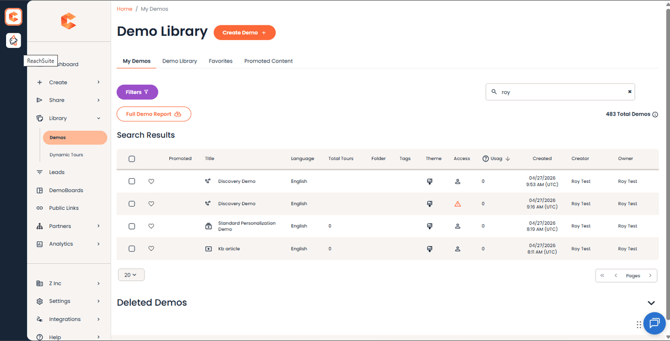
My Demos, with the Recent row at the top and the full table below
The table shows each demo's Language, Total Tours, Folder, Tags, Theme, Access, Usage, Created date, Creator, and Owner. A few handy extras:
- Sort by usage to see which demos your team leans on most. Hover the info icon on the Usage column to see what it counts.
- Select several demos at once with the checkboxes to apply a bulk action, such as assigning a theme. Your selections stay checked as you move between pages.
- Full Demo Report downloads a report of the demos in your view.
- Deleted Demos, at the bottom of the page, is where removed demos go.
| Filters |
Click Filters to narrow what you see. The same filters work on every tab, and anything you apply shows as a purple badge above the table:
- Include: All Demos, Published Demos Only, or Unpublished Demos Only.
- Archived Demos, Consensus SNAP™ Demos, and Favorites: tick to include just those.
- Demo Type: Discovery Demo, Single Experience, Standard Personalization Demo, or Advanced Branching Demo (for older demos built before Discovery Demos replaced them).
- Demo Language, Creator, Demo Owner, and Tags.
- Creation Date: All Time or a date range.
Click Apply to filter the table.
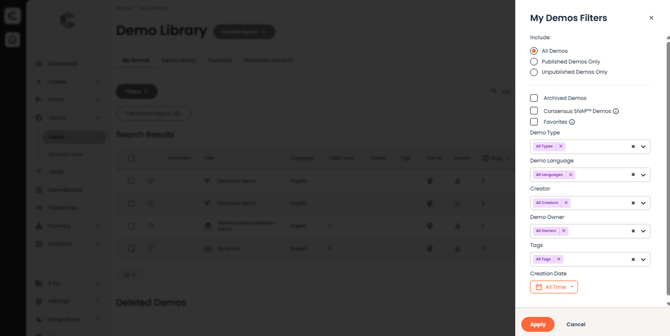
Filters panel. Applied filters appear as purple badges above the table
| The Demo Library |
The Demo Library tab shows every demo that's been added to the account-wide library, whether or not you have Can Use access to it yet. It works like a real library: anyone can browse and ask for access to demos that interest them. A Recently Added row at the top shows what's new, and Demo Library Report downloads a report of the library.
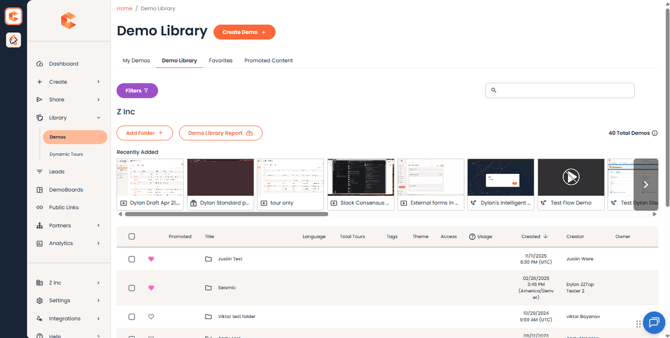
Demo Library tab, with the Recently Added row and the account-wide demos table
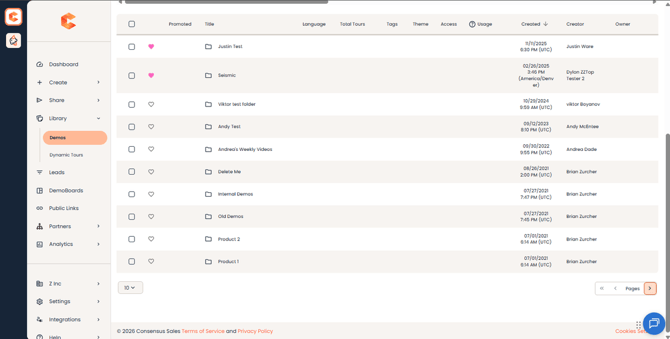
Demo Library table, showing folders alongside demos
For demos you don't have access to yet, open the row's actions menu:
- Follow to get an email whenever the demo is edited.
- Request Access to email the Demo Owner, who can grant you access. Demos set up with Self-Service Access grant Can Use rights automatically.
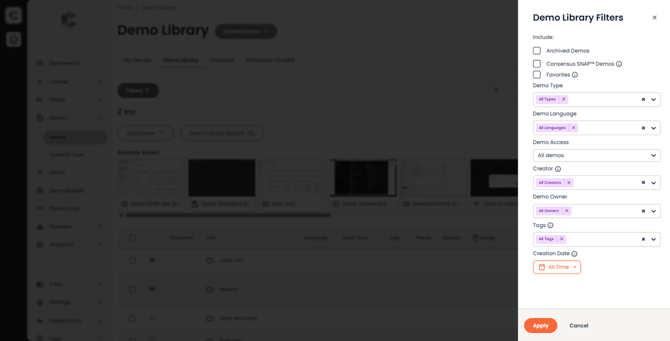
Demo Library filters, the same set as My Demos
| Favorites |
Favorites shows every demo and folder you've hearted. Click the heart icon on any demo or folder to add it, and click again to remove it. Favorites are personal, so every user has their own list.
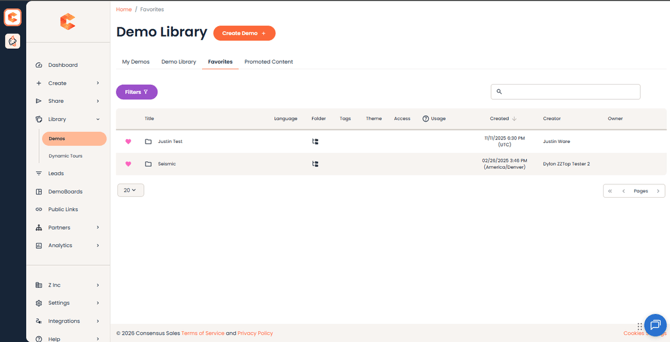
Favorites, your personal shortlist of demos and folders
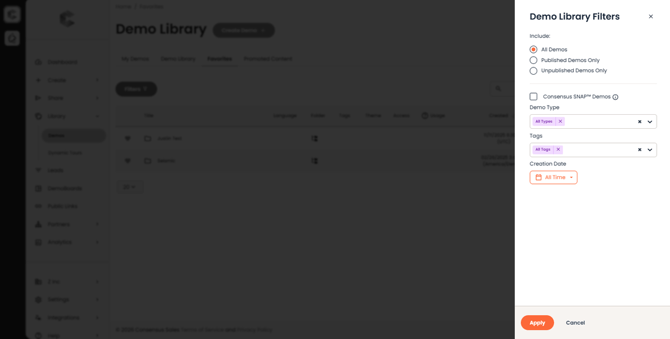
Favorites filters
| Promoted Content |
Promoted Content is the admin-curated shortlist. Admins flag specific demos as Promoted so reps know which ones are most current, on-brand, or campaign-ready. Promoted demos also show a star icon wherever they appear in the Library.
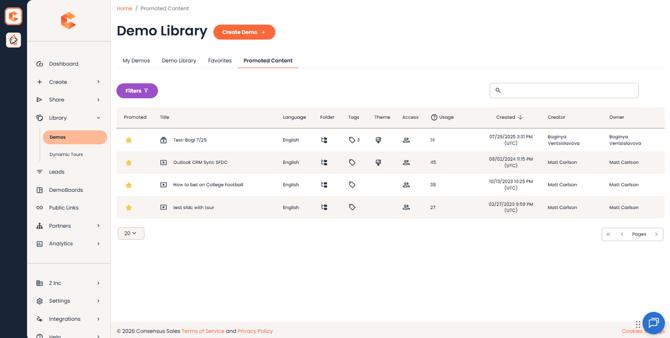
Promoted Content: admin-curated demos, marked with a star across the Library
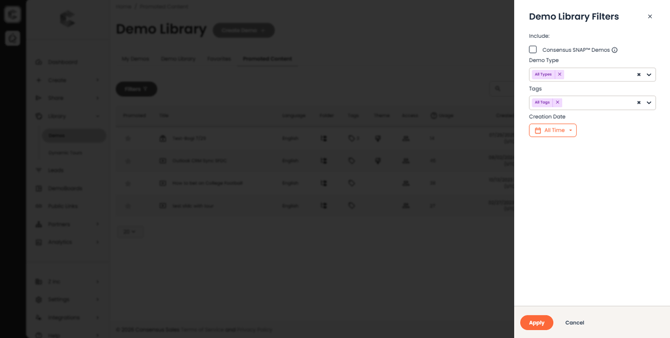
Promoted Content filters
| Organize with Folders |
Folders are how Admins and Content Managers organize the shared Demo Library, and they double as access controls: giving someone access to a folder gives them Can Use access to every demo inside it.
To create a folder:
- Open the Demo Library tab.
- Click Add Folder. The New Folder tray opens, and the folder is created inside whichever folder you're viewing.
- Name the folder and set its access, then save.
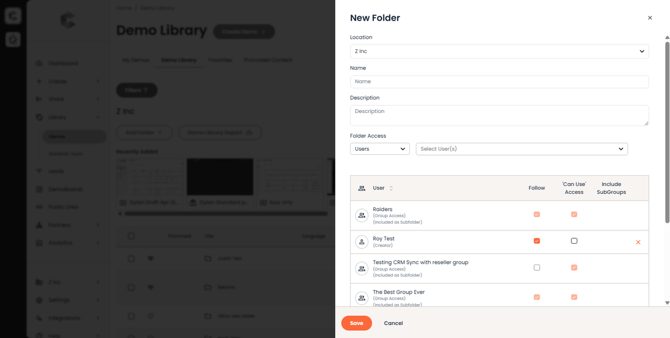
Folder tray: name, parent folder, and folder access
In the New Folder tray you can set:
- Folder Access: give Users or Groups Can Use access.
- Include Subgroups: any group created under the parent group inherits Can Use access to the folder and its subfolders.
- Follow: Users or Groups get an email whenever a demo in the folder (or a subfolder) is added or edited.
There are two ways to put a demo into a folder:
- From the Demo Library: open the demo's actions menu and click Move.
- From the Demo Wizard: on the Finalize step, pick a folder from the Folder dropdown.
| Demo Permissions |
A demo has to be Published before it can appear in the shared Demo Library. Unpublished demos can still be shared with collaborators, but other users won't see them in the Library. Drafts can't be published until you've finished the wizard.
Once a demo is published, you can give access to specific Users, Groups, or Everyone, at these levels:
- Can Use: create DemoBoards or Public Links from the demo.
- Can Edit: edit DemoPlayer elements such as videos, documents, logos, and colors.
- Can Manage: edit Finalize-step settings, including Demo IDs, Demo Access, Visible in Demo Library, and Publish state.
- Is Owner: everything above, plus Delete, Permanently Delete, and Restore.
Self-Service Access grants Can Use rights automatically when someone clicks Request Access, which is handy when you want minimal friction inside your team.
| FAQ |
Why can't my teammates see my demo in the Demo Library? It's probably unpublished, or Visible in Demo Library is turned off on the Finalize step. Publish it and check that setting.
Why is Advanced Branching Demo still a filter option? It lets you find older Advanced Branching Demos in your account. New multi-path demos are built as Discovery Demos.
Can I change the theme on lots of demos at once? Yes. Tick the demos you want, then use the theme bulk action. See Consensus Demo Themes.
Where do deleted demos go? Click Deleted Demos at the bottom of the Demos page. Demo Owners can restore them from there.
How do I get a list of my demos? Use Full Demo Report on the My Demos tab, or Demo Library Report on the Demo Library tab.
| Keep Exploring |
Consensus Demo Themes · How to Make a Copy of a Demo · Archiving Demos · Managing Your Tours Library