
Cut a prospect's access to a DemoBoard
When you need to remove a prospect's access to a DemoBoard you've already sent — a deal closes, a contract changes, a prospect requests removal — you have two options. Pick based on whether you might need to restore access later.
Option 1: Expire the DemoBoard (reversible)
Expiring a DemoBoard locks viewers out but preserves the DemoBoard, its recipients, and all Demolytics. Reactivate at any time if you change your mind. This is the recommended option for most cases.
- Open DemoBoards → Track DemoBoards.
- Hover the DemoBoard row, click the three-dots More Actions menu.
- Choose Expire. The row gets the hourglass icon. Viewers see a "Demo has expired" page if they revisit.
- To restore: same menu, choose Activate.
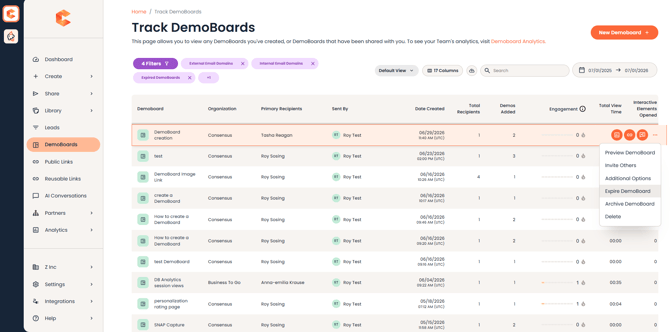 Track DemoBoards — More Actions menu with Expire / Activate options.
For details on the manual expiration flow, see the dedicated DemoBoard Expiration article.
Option 2: Delete the DemoBoard (permanent)
Deleting permanently removes the DemoBoard, its recipients, and all analytics — typical use case is GDPR / privacy data subject requests where you need to cleanly remove a prospect's data.
- Open DemoBoards → Track DemoBoards.
- Hover the row, click the three-dots More Actions menu.
- Choose Delete. Confirm. Permanent — no undo, no analytics recovery.
After deletion, the prospect's old link returns an error if they try to use it. If you need to send the prospect a demo again later, you'll have to create a brand-new DemoBoard — the original analytics are gone.
Which to use
- Most situations — expire. Reversible, preserves data, lower risk.
- GDPR / data deletion requests — delete. Required to actually remove the prospect's data.
- Test DemoBoards cluttering your view — neither. Mark them as Test (in Additional Options) so they're excluded from reporting but still searchable.