
A Personal Intro Video (PIV) is a short video of you that plays before your demo, right on the DemoBoard's welcome page. It puts a face and a personal message in front of your prospect, so an automated demo feels like one-to-one outreach. This guide covers turning PIVs on, setting up a default intro, choosing a PIV for each DemoBoard, and seeing how viewers engage with it. Sharing from the Consensus Snap extension instead? See Recording a Personal Introduction Video (PIV) with Consensus Snap.
|
Before you start |
| Quick Path |
- An admin turns on Personal Intro Video in Settings > Global Demo Settings > Demo Viewer Settings.
- Record or upload your default intro under My Profile > Personal Intro Video.
- When creating a DemoBoard, choose Use My Default, Create Custom, or No Personal Intro Video.
- Create the DemoBoard and send it.
| Step 1: Turn On Personal Intro Videos |
PIVs are switched on once for the whole account. Until then, the PIV options won't appear for anyone.
- Open Settings > Global Demo Settings. The Demo Viewer Settings tab opens first.
- In General Settings, turn on Personal Intro Video.
- Click Save at the bottom of the page.
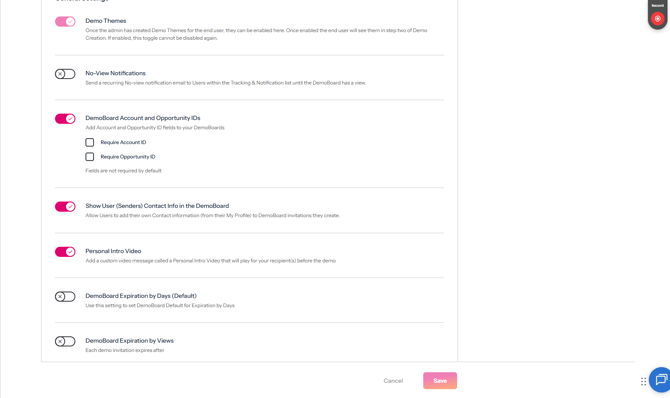
Once it's on, every role that can create DemoBoards can use PIVs, such as Admin, Content Manager, Content Author, Sender/Tracker and Sender/Tracker SNAP Creator. There's no separate PIV permission to assign.
| Step 2: Set Up Your Default Intro |
Your default PIV is the intro you'll reuse most often. Once it's saved, it's selected automatically whenever you create a DemoBoard, so you only record it once.
- Click your name at the bottom of the left-hand menu and choose My Profile.
- Open the Personal Intro Video tab.
- Under My Personal Intro Video, click Record New to record in your browser, or Upload to use a video you already have.
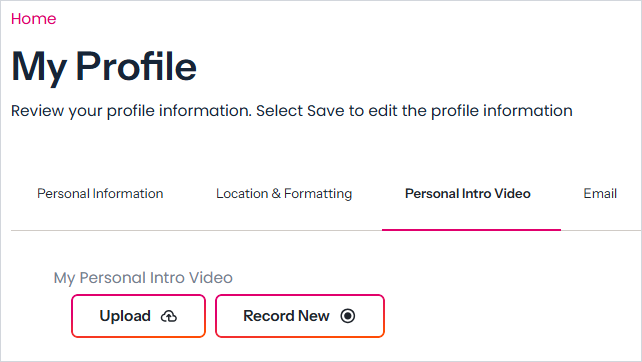
My Profile > Personal Intro Video
When you choose Record New, the Consensus recorder opens over the page. It's the same recorder you use in Snap:
- Choose Camera to record your webcam only, or Screen to record a tab, window or your whole screen with your webcam in a bubble. Check your camera and microphone, and add Background blur or a Virtual background if you'd like.
- Click Record (or Select Screen in Screen mode). Use Pause if you need a moment, then click Finish.
- In the editor, click the pencil next to the title to name your video, trim the start or end, then click Done Editing.
After a short Processing step, you're back on My Profile. For every editor tool, such as crop and Splice and Trim, see Recording a Personalized Video with Consensus Snap.
You'll know it worked when your video appears under My Personal Intro Video. From there, the icons next to it let you edit, preview, download or delete it. Upload and Record New only show while no default is saved, so to replace your default, delete the current one first.
|
Note: A PIV you record in Consensus Snap can also become your default, and it shows up here. |
| Step 3: Choose a PIV for Each DemoBoard |
Each time you create a DemoBoard, you decide which intro your prospect sees.
- Open Share > DemoBoard and fill in your demos and recipient details as usual.
- In the Personal Intro Video section, choose one of the three options below.
- Finish the rest of the form and click Create DemoBoard.
- Use My Default — selected automatically if you have a default PIV. If you don't have one yet, you can record it here, and it's saved as your default.
- Create Custom — record a one-off intro for this DemoBoard. It doesn't replace your default, which makes it ideal for high-value prospects.
- No Personal Intro Video — skip the intro for this DemoBoard.
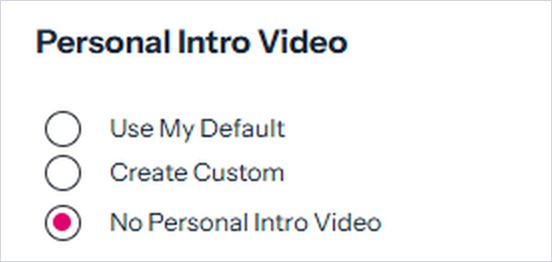
Create a DemoBoard > Personal Intro Video
Need to add or change a PIV after the fact? Go to DemoBoards, hover over the DemoBoard and click the pencil icon (Edit DemoBoard). In the Personal Intro Video section, choose an option, then click Save. DemoBoards created before PIVs were turned on start with no intro.
| What Viewers See |
When a viewer opens the DemoBoard, your PIV plays on the welcome page alongside your logo and their organization name. When the video ends, it gives way to the recipient list, and viewers can click Skip at any time to go straight to the demo.
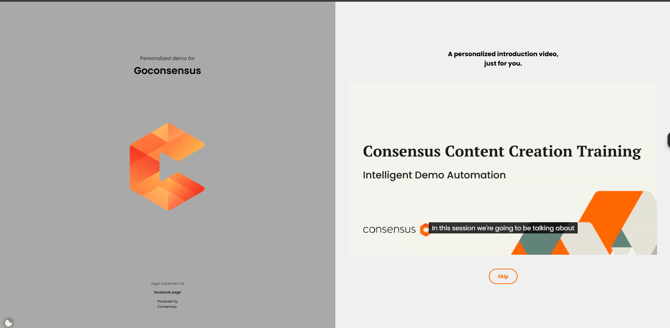
The PIV on the DemoBoard welcome page
| Use Your PIV as the Email Thumbnail |
When you copy a DemoBoard's image link to paste into an email, Consensus offers three frames from your PIV as thumbnail options, alongside the demo's own thumbnails. A frame of you tends to feel more personal than a product screenshot, and it often earns more clicks.
| See How Viewers Engage With Your PIV |
PIV viewing is tracked separately, so you can tell whether prospects are watching your intro or skipping it.
- Each viewer's analytics show their total PIV watch time and a PIV heatmap.
- PIV watch time is included in the DemoBoard view time shown in DemoBoards and Sales Demolytics.
- To see demo viewing only, click the Filters button at the top of DemoBoards or a Demolytics page (it shows how many filters are on, for example 3 Filters). Under Include demoboards data from, clear Personal Intro Video, then click Apply. It's included by default.
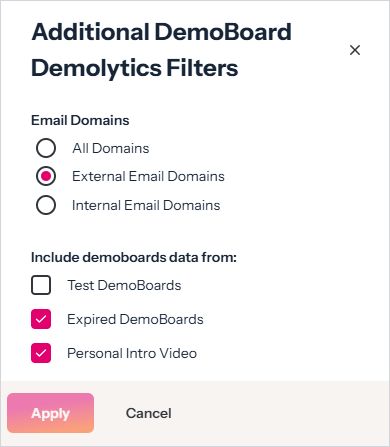
Personal Intro Video in the DemoBoard Demolytics filters
| Recording a PIV in Consensus Snap |
You can also add a PIV while sharing a DemoBoard from the Snap extension. It works a little differently: instead of the three options above, the DemoBoard preview in Snap has a Personal Intro Video toggle. Your default PIV from My Profile is added automatically when you turn it on, and you can upload or record a different one for that DemoBoard. See Recording a Personal Introduction Video (PIV) with Consensus Snap for the steps.
| Troubleshooting |
I don't see the Personal Intro Video section. Ask your admin to check that Personal Intro Video is turned on in Demo Viewer Settings, and that your role can create DemoBoards.
I don't see Record New. You already have a default PIV. Upload and Record New appear once you delete it with the trash icon.
Record New doesn't start. Use Google Chrome or Microsoft Edge, and check that your browser has permission to use your camera and microphone. You can also upload a video instead.
My virtual background didn't carry over. Background blur and virtual backgrounds apply to the current recording only. Choose yours again each time you open the recorder.
| FAQ |
Does Create Custom replace my default intro? No. A custom PIV is used only on that DemoBoard; your default stays the same.
Can I pause while recording? Yes. Pause and resume as often as you need; the final video includes everything from before and after each pause.
Can viewers skip my intro? Yes. Viewers can click Skip at any time to go straight to the demo.
Does PIV watch time count toward DemoBoard view time? Yes, by default. To exclude it, clear Personal Intro Video under Include demoboards data from in the Filters panel.
| Keep Exploring |
Sending Demos with Consensus Snap · Recording a Personal Introduction Video (PIV) with Consensus Snap · Recording Videos with the Consensus Screen Recorder