
A Personal Intro Video (PIV) is a short, personal message that plays before your demo, so your viewer sees you first. In Snap, you add a PIV while you're preparing a DemoBoard to share, and you can reuse your default PIV or record a new one just for this viewer.
|
Before you start: Snap must be installed. Any role that can share DemoBoards from Snap can record a PIV, including Sender/Tracker. Allow your browser to use your camera and microphone the first time you record. |
| Quick path |
- On the Snap Demos tab, click a demo's share icon, add more demos with + if you need them, then click Share.
- Choose your recipients and click Continue.
- Turn on Personal Intro Video and click the record icon.
- Record, click Finish, then click Done Editing.
- Click Create DemoBoard, then Copy Link, Copy Thumbnail or Send.
| Start a DemoBoard and add recipients |
Because a PIV belongs to a DemoBoard, you'll begin by choosing what you're sharing:
- Open Snap from your browser toolbar and find your demo on the Demos tab (the search bar and Filters help if your library is large).
- Click the share icon at the end of its row. The Share screen opens with that demo under Demos to be shared.
- To include more demos, click the + at the end of their rows. To change the order or remove a demo, click Edit or Reorder (it reads Edit while only one demo is added). Then click Share.
- On Choose who to share with, search your contacts or type an email address to add someone new. If your account uses CRM Sync, you can also pick an Account and Opportunity.
- Click Continue. You'll see a preview of your DemoBoard.
| Add your Personal Intro Video |
In the preview, turn on the Personal Intro Video toggle.
- If you've set a default PIV in your web app profile, it's added automatically and labeled Default. You can share it as is, or replace it for this DemoBoard.
- If you haven't, you'll see Upload or record a video.
Use the icons on the right to add or replace your PIV: upload a video file you already have, or record a new one. Once a PIV is attached, a third icon lets you download it.
Here's the Personal Intro Video section with the toggle on:
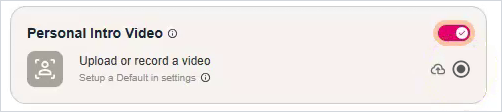
Personal Intro Video in the Snap DemoBoard preview
| Record your PIV |
Click the record icon. The Consensus recorder opens in camera mode, and Snap shows Recording in Progress until you're done.
- Check your camera with Camera options and your mic with the microphone button (it appears only when a mic is connected).
- Turn on Background blur or choose a Virtual background if you'd like one. Your choice applies to this recording only.
- Click Record. A 3, 2, 1 countdown gives you time to get ready.
- Use Pause if you need a moment; it turns into a play button to resume. Click Finish when you're done, or the trash icon to start again.
- In the editor, rename the video with the pencil if you'd like, trim the start or end, then click Done Editing.
Snap uploads and processes your PIV, then returns to the DemoBoard preview with it attached under Personal Intro Video.
|
Tip: Keep it short. A 20 to 40 second intro that names the viewer's challenge and tells them what to watch for tends to get the best engagement. |
| Finish and share your DemoBoard |
Review the preview. Settings such as viewer access are under Notifications & Access and All Options.
- Click Create DemoBoard. A DemoBoard Created message confirms it.
- Choose how to share it: Copy Link, Copy Thumbnail to paste into your email, or Send to open a pre-filled Gmail message.
Here's the preview with your PIV attached and the sharing options:
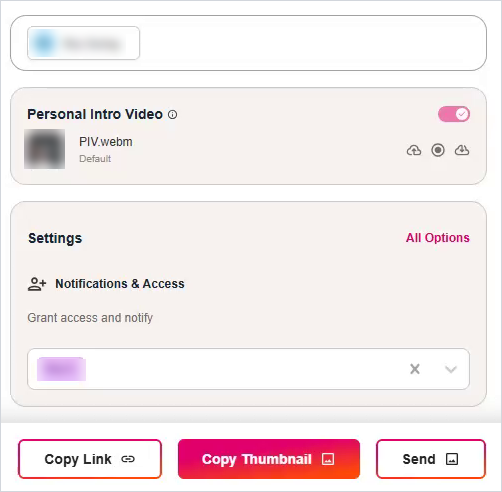
PIV attached, ready to share
You'll know it worked when your recipients open the DemoBoard and see A personalized introduction video, just for you play before the demo, with a Skip button if they'd like to go straight to it. For every sharing option, see Sending Demos with Consensus Snap.
| Troubleshooting |
- My background went back to normal. Snap doesn't save your background between recordings. Turn on Background blur or choose a Virtual background again before you record.
- There's no microphone button in the recorder. Snap didn't detect a microphone. Connect one, or allow microphone access in Chrome, then reopen the recorder.
- Snap only shows Recording in Progress. Snap is waiting for your PIV. Finish your recording and click Done Editing, or click Abort Recording in Snap to cancel it.
| Frequently Asked Questions |
Can I set the PIV I just recorded as my default? Your default PIV is managed in your profile in the web app. See How to Add a Personal Intro Video (PIV) to Your DemoBoards.
Is the PIV recorder the same one I use for demos? Yes. It's the same Consensus recorder, so the camera, background, quality, and pause controls work the same way.
| Keep Exploring |
How to Add a Personal Intro Video (PIV) to Your DemoBoards · How to enable your webcam while recording videos with Consensus Snap · Sending Demos with Consensus Snap