
Demoplayer Cookie Management presents a cookie consent banner to viewers (and to users signing in to Consensus) and lets each person choose which categories of cookies (Strictly Necessary, Performance, Functional, and Targeting) they allow. Important for GDPR, CCPA, and similar privacy regimes — the banner is how viewers exercise consent.
This article explains how cookie preferences are set on a first visit, how to update them afterward, and how the banner behaves on demos embedded in a website that already manages its own consent.
| Before you start: cookie preferences are set by each individual and stored in their own browser. Global Demo Settings doesn't include an account-level control for cookie choices, so every viewer decides for themselves when they first open one of your demos. |
Where the banner appears depends on how someone accesses Consensus:
- Users — members of your team who sign in to Consensus. You'll encounter the banner on the Sign In page, in DemoBoard Preview, and in the DemoPlayer the first time you sign in or watch a demo in a given browser.
- Viewers — the prospects and customers you share demos with. Viewers never need to sign in; your link opens directly in the DemoPlayer, which is where they'll be asked for consent. This applies to Public Links as well as demos embedded on websites or in third-party platforms.
| Set Your Cookie Preferences on a First Visit |
When no preference has been saved in the browser yet, whether you're signing in or a viewer is opening a shared link, the consent banner appears in the bottom-left corner of the page. On the Sign In page, it looks like this:
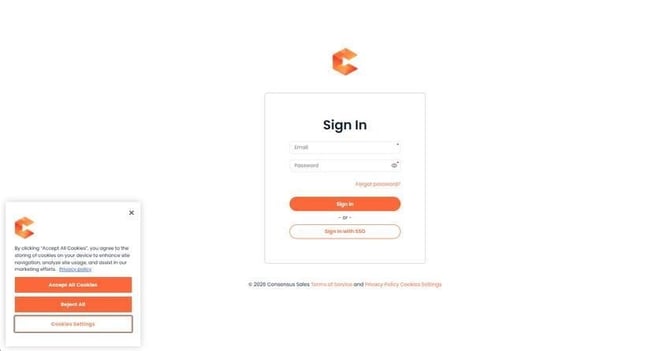
Cookie consent banner on the Sign In page
The banner offers three options:
- Select Accept All Cookies to permit every cookie category. The banner closes and your choice is recorded.
- Select Reject All to decline every category except Strictly Necessary cookies, which Consensus requires in order to function.
- Select Cookies Settings to review and choose categories individually in the Privacy Preference Center, described in the next section.
Once a choice is saved, the banner is replaced by a small cookie icon in the bottom-left corner, which remains available whenever you want to revisit your settings.
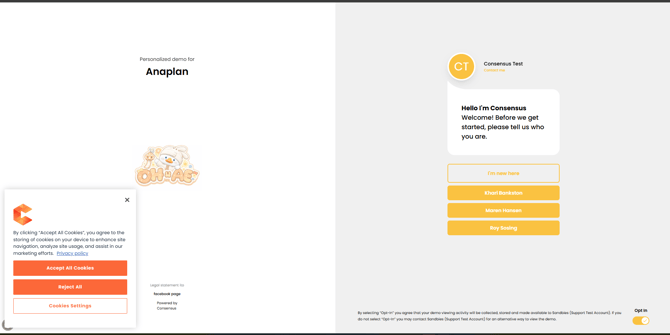
Cookie consent banner in the DemoPlayer
| Update Your Cookie Preferences |
A saved preference stays in effect, and the banner won't reappear on its own. To revise your choice at any point, start from the cookie icon in the bottom-left corner:

The cookie icon in the bottom-left corner on sign-in
- Select the cookie icon; hovering over it displays a Cookies Settings tooltip. In the web app, the Cookies Settings link in the footer, beside Privacy Policy, opens the same panel.
- The Privacy Preference Center opens on the left side of the screen. Expand any category with the + icon to read a description of what it covers.
- Use the toggles to enable or disable each category. Strictly Necessary Cookies are marked Always Active because the platform depends on them.
- Select Confirm My Choices to save. Reject All is also available if you prefer to apply one setting to every category.
The Privacy Preference Center is shown below:
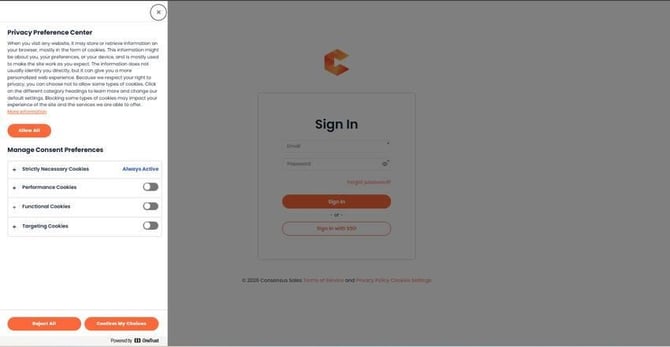
The Privacy Preference Center
When the panel closes, your updated preferences take effect immediately.
| Cookie Categories at a Glance |
Each category in the Privacy Preference Center serves a distinct purpose:
- Strictly Necessary Cookies — essential to the operation of Consensus and the DemoPlayer, such as maintaining your signed-in session. These are always active.
- Performance Cookies — measure how the platform performs and how it's used, informing ongoing improvements.
- Functional Cookies — retain information between visits. If your account has Track User Contact Data With a Cookie enabled, this category is what allows a returning viewer's lead form to populate automatically.
- Targeting Cookies — support marketing and advertising activity.
| Embedded Demos and the Banner |
For demos embedded on your website via iframe, you can suppress the cookie banner if your own site already handles consent. Append ?hideCookieBanner=true to the demo URL in the iframe. See How to Embed a Demo on your Website using an iFrame for details.
| Troubleshooting |
- The banner appears every time I open Consensus. Your browser isn't retaining the saved preference. This typically happens when cookies are cleared on exit, when you're in a private or incognito window, or when a privacy extension blocks cookies. Allow cookies for goconsensus.com, then set your preference again.
- I can't find cookie settings in Global Demo Settings. Cookie preferences aren't managed there. Each person sets their own in the Privacy Preference Center, as described above.
| FAQ |
Can an admin disable the cookie banner across our account? Not at the account level; consent is each viewer's decision. For demos embedded on your own website, see Embedded Demos and the Banner above.
Why has the banner reappeared? Preferences are stored in the browser, so they reset when cookies are cleared, when you switch browsers or devices, or when you use a private window.
Will viewers see the banner when I share a demo? Yes. A shared link opens directly in the DemoPlayer, where viewers are asked for consent the first time they watch in that browser. No sign-in is required.
| Keep Exploring |
How to Embed a Demo on your Website using an iFrame · How to Embed Consensus in a dynamic iFrame with UTM Parameters · Sync Website Data with Public Links · Demo Viewer Settings