
Everything you build lives in a library made for finding it fast. The Consensus Library gives each experience type its own section in the left-hand navigation: Library > Dynamic Tours, Library > Simulations, and Library > Sandbox Tours. Here’s your map, plus the workflow that keeps Dynamic Tours current when your product changes.
|
Coming from the ReachSuite dashboard? Tour management — folders, favorites, renaming, duplicating, archiving, sharing links — moved into your Consensus Library, all under one roof. Creating and editing still happen through the extension and editor; organizing happens right here. |
| Walkthrough: Navigating Library > Dynamic Tours |
Head to Library > Dynamic Tours in the Consensus app.
The three tabs:
- All Dynamic Tours — every tour in your account (HTML tours carry an HTML badge).
- Favorites — your starred tours (tour favorites are separate from your Demo Library favorites).
- Archived — tours you’ve retired; archiving isn’t deleting — restore anything anytime.
Finding and organizing: Search by title; filter and sort by creator and created date — every column is sortable. Folders keep team content tidy — group by product line, team, or campaign, and move tours between folders as things evolve.
The three-dot menu on any tour:
- Rename
- Move — file the tour into a folder.
- Copy URL — grabs the tour link. For most sharing, add the tour to a demo or DemoBoard instead — that’s where engagement tracking lives.
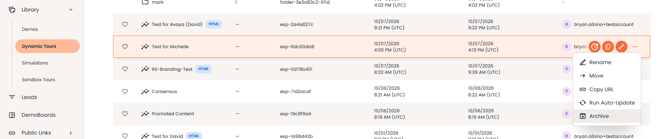
- Run Auto-Update — replays your capture against the current UI; see the Auto-Update section below.
- Archive — retire without deleting; restore from the Archived tab whenever.
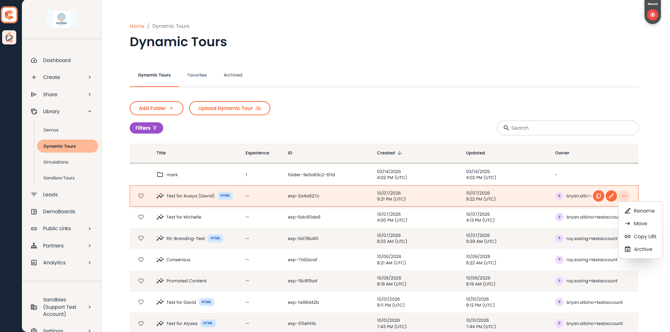
Library > Dynamic Tours with the three-dot menu open
| Walkthrough: The Sandbox Tours & Simulations Sections |
Head to Library > Sandbox Tours for your free-form environments. The section works just like the Dynamic Tours one:
- Three tabs — Sandbox Tours, Favorites, Archived.
- Add Folder for organizing, plus Filters and search.
- Each sandbox is listed by title, ID, created/updated dates, and owner.
- Full Simulations live in their own section at Library > Simulations.
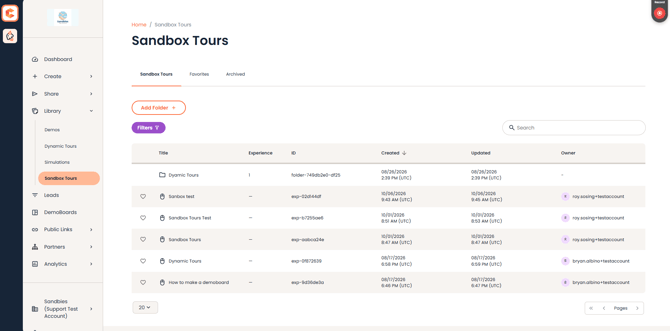 Library > Sandbox Tours list view
| Keeping Dynamic Tours Current: Auto-Update |
Your product ships changes; your tours shouldn’t go stale because of it. Auto-Update is available for Dynamic Tours only — Sandbox Tours and Simulations are refreshed with a new capture instead. For a Dynamic Tour, hover over its row in Library > Dynamic Tours and click the Auto-Update (refresh) icon that appears beside the duplicate and edit icons. the builder replays your original click path against the current version of your app, re-capturing each step. Review the refreshed tour before it goes back out — especially after larger UI changes.
Tours that have been through Auto-Update keep their previous versions archived — open the tour’s version history to look back at, or restore, earlier captures.
When Auto-Update isn’t enough: if your product had a major redesign — elements moved, flows changed — the replay may not find its path. A fresh capture is often faster than repairing an old one, and it picks up your current brand settings (including click-target colors, which lock in at capture time).
| FAQ |
Where did the ReachSuite dashboard go? Tour management moved into your Consensus Library — folders, favorites, renaming, duplicating, archiving, and links all live under Library > Dynamic Tours now.
How do I delete a tour? Archive it. Archiving removes it from your working library without destroying it, and you can restore from the Archived tab anytime — safer than deletion when a demo somewhere might still reference it.
Are tour favorites the same as my demo favorites? No — they’re separate lists. Starring a tour doesn’t star anything in your Demo Library, and vice versa.
Auto-Update ran but my tour still shows the old UI. What now? Open the tour and run Auto-Update manually, then review the result. (Auto-Update covers Dynamic Tours only.) If your product had a major redesign, a fresh capture is usually faster than repairing the old click path.
Where do Sandbox Tours and Simulations live? Each has its own section in the left-hand navigation: Library > Sandbox Tours and Library > Simulations.
| Related Articles |
Getting Started with Consensus Tours · Editing Tours: Callouts, AI & Brand Settings · Adding Tours to Demos & Sharing